1. Introduzione
This manual provides essential instructions for the safe and efficient use of your RICOH fi-8170 Workgroup Scanner. The fi-8170 is a high-speed, duplex document scanner designed for workgroup environments, featuring USB 3.2 and Gigabit Ethernet connectivity. It is equipped with an Automatic Document Feeder (ADF) and supports a manual feed mode for various document types.
Caratteristiche principali:
- Automatic Document Feeder (ADF) / Manual Feed Mode: Facilitates scanning of various document types, including thicker materials.
- Scansione fronte-retro: Scans both sides of a document simultaneously, enhancing efficiency.
- Gestione versatile dei documenti: Supports sizes such as A4, A5, A6, B5, B6, business cards, postcards, letter, legal, and personalized sizes.
- Passport Scanning: Capable of scanning passports compliant with ISO/IEC 7810 ID-3, up to 7 mm thick when unfolded.
- Ad alta velocità: Achieves scanning speeds of 70 pages per minute (ppm) / 140 images per minute (ipm).
- Connettività: Features USB 3.2 and Gigabit Ethernet for flexible integration into your network.
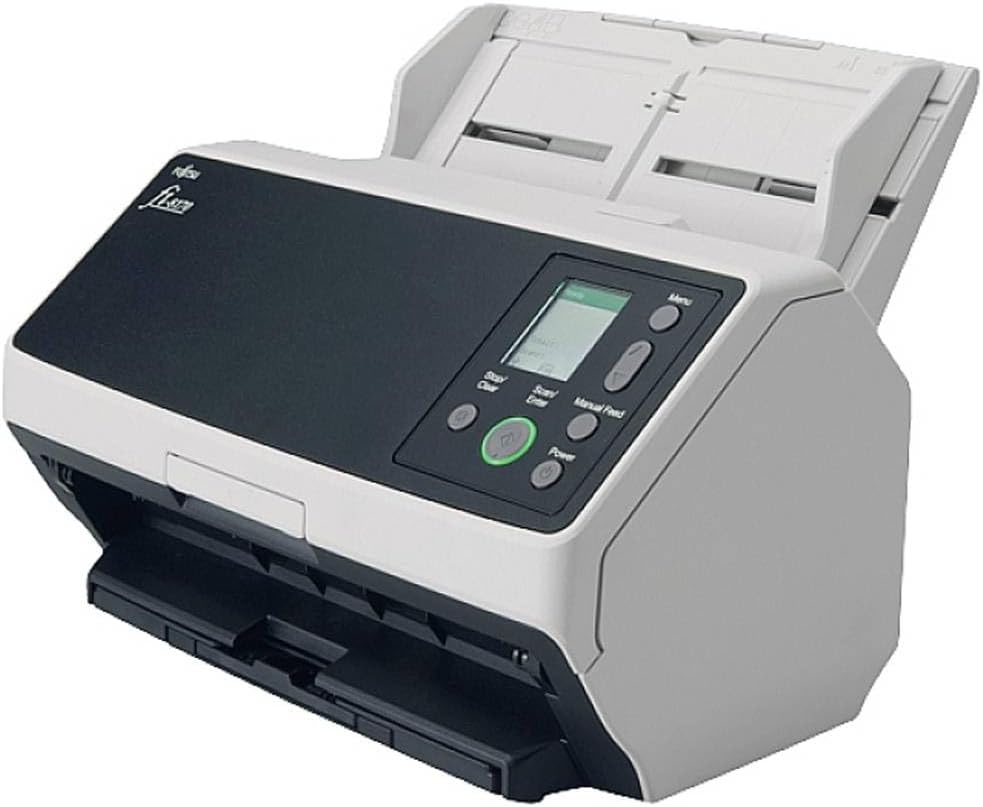
Figura 1: Fronte view of the RICOH fi-8170 Workgroup Scanner with the document feeder open.
2. Impostazione
2.1 Disimballaggio e posizionamento
- Estrarre con cautela lo scanner e tutti gli accessori dalla confezione.
- Posizionare lo scanner su una superficie piana e stabile, con spazio adeguato per l'alimentazione e l'uscita dei documenti.
- Rimuovere tutti i nastri protettivi e i materiali di imballaggio dallo scanner.
2.2 Collegamento dello scanner
- Collegare l'adattatore di alimentazione allo scanner e poi a una presa di corrente.
- Connect the scanner to your computer using the provided USB 3.2 cable, or connect it to your network via an Ethernet cable for network scanning.
2.3 Installazione del software
- Insert the installation CD/DVD (if provided) into your computer's optical drive, or download the latest drivers and software from the official RICOH support websito.
- Follow the on-screen instructions to install the scanner drivers and any bundled scanning software.
- Riavviare il computer se richiesto.
3. Istruzioni per l'uso
3.1 General Document Scanning (ADF)
- Assicurarsi che lo scanner sia acceso e collegato al computer o alla rete.
- Adjust the document guides in the Automatic Document Feeder (ADF) to match the width of your documents.
- Load your documents face-down into the ADF. The scanner can hold up to 100 sheets.
- Open your scanning software on your computer.
- Seleziona il professionista di scansione desideratofile (e.g., color, grayscale, resolution, destination).
- Press the "Scan/Enter" button on the scanner or initiate the scan from the software.
- Lo scanner alimenterà e scannerizzerà automaticamente i documenti.

Figura 2: lato view of the RICOH fi-8170 scanner with documents loaded in the Automatic Document Feeder.
3.2 Scanning Thick Documents (Manual Feed Mode)
The fi-8170 features a manual feed mode specifically designed for scanning thicker items such as plastic cards, card savers, top loaders, or passports. This mode adjusts the internal motor to accommodate the increased thickness.
- Assicurarsi che lo scanner sia acceso.
- Premere il tasto "Manual Feed" button on the scanner's control panel. This action opens the internal motor to allow for thicker documents.
- Carefully insert your thick document (e.g., a card in a top loader) into the manual feed slot. The scanner will detect the document.
- Premere il tasto "Scan/Enter" button to initiate the scan.
- For multiple thick documents, you can continuously feed them one after another. The scanner will process each item sequentially.

Figura 3: Fronte view of the RICOH fi-8170 scanner with the manual feed tray extended for thicker documents.
Nota: Always ensure documents are properly aligned and free from obstructions before feeding to prevent jams or damage.
4. Manutenzione
4.1 Pulizia dello scanner
Regular cleaning ensures optimal scanning performance and extends the life of your scanner.
- Esterno: Pulisci l'esterno con un panno morbido eamppanno privo di lanugine. Non utilizzare detergenti abrasivi o solventi.
- Rulli di alimentazione: Clean the feed rollers periodically using a cleaning kit recommended by RICOH or a soft cloth dampened with isopropyl alcohol. This helps prevent paper jams and misfeeds.
- Superfici in vetro: Gently clean the glass scanning surfaces with a soft, lint-free cloth and a non-abrasive glass cleaner.
4.2 Materiali di consumo
Periodically inspect and replace consumables such as feed rollers and brake rollers as recommended by the manufacturer to maintain optimal performance. Refer to the scanner's software or the official RICOH website for information on replacement parts and procedures.
5. Risoluzione Dei Problemi
This section addresses common issues you might encounter with your RICOH fi-8170 scanner.
5.1 Problemi comuni e soluzioni
- Scanner non rilevato:
- Ensure all cables (power, USB/Ethernet) are securely connected.
- Verificare che lo scanner sia acceso.
- Check if the correct drivers are installed. Reinstall if necessary.
- Try connecting to a different USB port or network cable.
- Inceppamenti della carta:
- Turn off the scanner and carefully open all access covers.
- Gently remove any jammed paper, pulling in the direction of the paper path.
- Ensure documents are free of staples, paper clips, or tears before feeding.
- Pulire i rulli di alimentazione se appaiono sporchi o usurati.
- Scarsa qualità di scansione:
- Clean the glass scanning surfaces and rollers.
- Adjust scanning software settings (e.g., resolution, brightness, contrast).
- Ensure documents are loaded correctly and flat.
- Scanner Not Feeding Documents:
- Check if documents are loaded correctly and the paper guides are adjusted.
- Ensure the ADF is not overloaded.
- Clean or replace worn feed rollers.
For more detailed troubleshooting, refer to the comprehensive guide available on the official RICOH support websito o contattare l'assistenza clienti.
6. Specifiche
| Caratteristica | Dettaglio |
|---|---|
| Nome del modello | FI8170 |
| Numero modello articolo | 12804624000 |
| Produttore | FUJITSU (RICOH is the brand) |
| Tipo di scanner | Documento |
| Tecnologia di connettività | USB 3.2, Gigabit-Ethernet |
| Risoluzione | 600 dpi |
| Profondità del colore | 24 bit |
| Capacità fogli standard | 100 fogli (ADF) |
| Tecnologia dei sensori ottici | CCD |
| Dimensioni del prodotto | 25"P x 22"L x 20"A |
| Peso dell'articolo | 12.1 libbre (5.5 chilogrammi) |
| Requisiti minimi di sistema | Windows 7 (and newer operating systems) |
7. Garanzia e supporto
For detailed information regarding the product warranty, including terms, conditions, and duration, please refer to the documentation included with your scanner or visit the official RICOH support websito.
Nota importante: Product warranty and service availability may vary by region. It is crucial to verify that your specific scanner model (identified by its part number) is intended for sale and service in your geographical region to ensure warranty coverage and access to technical support.
For technical assistance, driver downloads, and further support, please visit: Supporto RICOH Websito.


