Introduzione
This manual provides detailed instructions for the setup, operation, and maintenance of your PUSAT One Shot Pro Wireless Gaming Mouse. Please read this manual thoroughly before using the product to ensure optimal performance and longevity.
Contenuto della confezione
Si prega di verificare che tutti gli articoli elencati di seguito siano presenti nel pacco:
- Mouse da gioco wireless PUSAT One Shot Pro
- Ricevitore wireless USB
- Cavo di ricarica da USB-C a USB-A
- Additional Side Buttons (interchangeable)
- Manuale dell'utente (questo documento)

Figura 1: PUSAT One Shot Pro mouse, charging cable, and interchangeable side buttons, displayed with its retail packaging.
Prodotto finitoview
Familiarize yourself with the various components and controls of your PUSAT One Shot Pro Wireless Gaming Mouse.
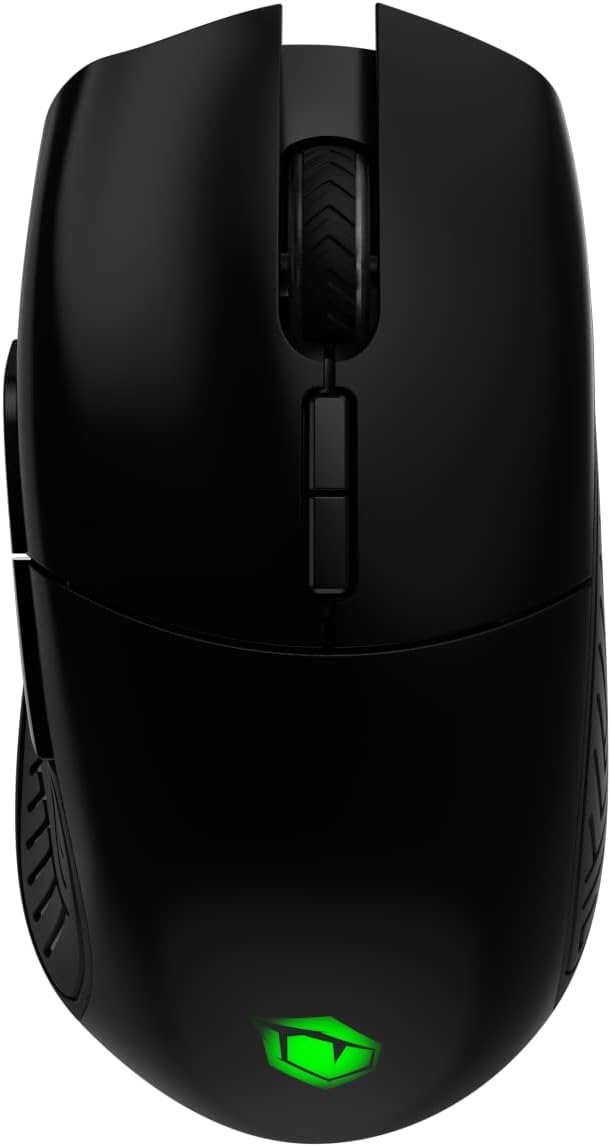
Figura 2: Superiore view of the PUSAT One Shot Pro mouse, showing the left and right click buttons, scroll wheel, and DPI switch buttons.

Figura 3: Lato sinistro view of the PUSAT One Shot Pro mouse, highlighting the two programmable side buttons and textured grip.

Figura 4: Metter il fondo a view of the PUSAT One Shot Pro mouse, showing the optical sensor, ON/OFF switch, user profile switch, and the compartment for the USB receiver.
Funzioni dei pulsanti:
- Pulsante sinistro del mouse: Funzione standard di clic primario.
- Pulsante destro del mouse: Funzione di clic secondario standard.
- Rotella di scorrimento: Scrolls content up/down, also functions as a middle click button.
- DPI Switch Buttons: Adjusts the mouse's sensitivity (DPI) on the fly.
- Programmable Side Buttons (8 total): Customizable buttons for various functions, often used for macros or in-game actions.
- Utente Profile Switch (Bottom): Allows switching between different user-defined profiles.
- ON/OFF Switch (Bottom): Accende o spegne il mouse.
Impostare
Collegamento del mouse:
- Locate the USB wireless receiver. It is typically stored in a compartment on the underside of the mouse (refer to Figure 4).
- Remove the USB wireless receiver from its storage slot.
- Plug the USB wireless receiver into an available USB port on your computer (PC or Notebook).
- Portare l'interruttore ON/OFF nella parte inferiore del mouse in posizione "ON".
- Your computer should automatically detect and install the necessary drivers. The mouse will be ready for use once the installation is complete.
For optimal wireless performance, ensure the USB receiver is placed in a location with minimal interference and a clear line of sight to the mouse.
Istruzioni per l'uso
Utilizzo di base:
- Sposta il mouse su una superficie piana per controllare il cursore sullo schermo.
- Use the left and right click buttons for primary and secondary actions.
- Rotate the scroll wheel to navigate through documents or web pagine.
Regolazione DPI:
The PUSAT One Shot Pro mouse features adjustable DPI (Dots Per Inch) settings, allowing you to change cursor sensitivity. Use the dedicated DPI switch buttons, usually located near the scroll wheel, to cycle through preset DPI levels (1,000 to 16,000 DPI). Each change typically corresponds to a visual indicator, such as an RGB lighting color change, though specific indicators may vary.
Pulsanti programmabili:
The mouse is equipped with 8 programmable buttons. To customize these buttons, you will typically need to download and install the official PUSAT software from the manufacturer's website. This software allows you to assign macros, keyboard functions, or other commands to each programmable button.
Ricarica
The PUSAT One Shot Pro mouse is equipped with a rechargeable Lithium Ion battery (700 mAh) and supports both wired and wireless charging.
Ricarica cablata:
- Connect the USB-C end of the charging cable to the port on the front of the mouse.
- Collegare l'estremità USB-A del cavo di ricarica a una porta USB disponibile sul computer o a un adattatore USB da parete.
- The mouse's RGB lighting or an indicator light will typically show the charging status.

Figura 5: The PUSAT One Shot Pro mouse connected via its USB-C charging cable.
Ricarica wireless:
The PUSAT One Shot Pro supports wireless charging. To charge wirelessly, place the mouse on a compatible wireless charging pad. Ensure the mouse is correctly positioned on the charging pad for the charging process to initiate. The mouse's indicator lights will typically confirm that wireless charging is active.
Note: A wireless charging pad is sold separately and is not included with the mouse.
Manutenzione
Pulizia:
- Prima di procedere alla pulizia, assicurarsi che il mouse sia spento.
- Utilizzare un panno morbido e privo di lanugine leggermente dampPulire la superficie del mouse con acqua o una soluzione detergente delicata.
- Evitare l'uso di prodotti chimici aggressivi, detergenti abrasivi o solventi.
- Use compressed air to remove dust and debris from crevices and around buttons.
- Per garantire un tracciamento preciso, pulire periodicamente il sensore ottico nella parte inferiore del mouse con un batuffolo di cotone.
Cura della batteria:
- Evitare di scaricare completamente la batteria frequentemente.
- Quando non si utilizza il mouse per lunghi periodi, conservarlo in un luogo fresco e asciutto.
- Se si prevede di non utilizzarla per un lungo periodo, caricare la batteria a circa il 50% per prolungarne la durata.
Risoluzione dei problemi
| Problema | Possibile causa | Soluzione |
|---|---|---|
| Il mouse non risponde |
|
|
| Movimento del cursore lento o irregolare |
|
|
| Pulsanti non funzionanti o funzioni programmabili non attive |
|
|
| Ricarica wireless non funzionante |
|
|
Specifiche
| Caratteristica | Dettaglio |
|---|---|
| Marca | CENTRO |
| Modello | One Shot Pro |
| Connettività | Wireless a 2.4 GHz (ricevitore USB) |
| Gamma DPI | 1,000 - 16,000 DPI |
| Numero di pulsanti | 8 (Programmabile) |
| Tipo di sensore | Ottico |
| Tipo di batteria | 1 batteria agli ioni di litio (inclusa) |
| Capacità della batteria | 700 mAh |
| Ricarica | USB-C Wired, Wireless Charging Compatible |
| Dimensioni (L x P x A) | Dimensioni: 12.5 x 6.6 x 4.2 cm |
| Peso | 110 grammi |
| Colore | Nero |
| Piattaforma hardware | PC, Notebook |
Informazioni sulla sicurezza
- Non esporre il mouse a temperature estreme, umidità o luce solare diretta.
- Evitare di far cadere il mouse o di sottoporlo a forti urti.
- Do not attempt to disassemble or modify the mouse. This may void the warranty and cause damage.
- Keep the mouse away from liquids. If liquid enters the device, discontinue use immediately and contact support.
- Dispose of the battery according to local regulations. Do not dispose of batteries in general household waste.
Garanzia e supporto
For warranty information and technical support, please refer to the warranty card included with your product or visit the official PUSAT website. If you encounter any issues not covered in this manual, please contact PUSAT customer service for assistance.


