1. Introduzione
This manual provides essential information for the safe and efficient use of your HUAWEI PixLab B5 Multifunction Laser Printer. Please read it thoroughly before operating the device and keep it for future reference.
The HUAWEI PixLab B5 is a versatile 3-in-1 device, offering high-speed printing, copying, and scanning functionalities. It features automatic duplex printing, a user-friendly one-step toner replacement system, and multiple connectivity options including USB, Wi-Fi, and LAN.
2. Informazioni sulla sicurezza
Quando si utilizza questo prodotto, seguire sempre le precauzioni di sicurezza di base per ridurre il rischio di incendi, scosse elettriche e lesioni alle persone.
- Non posizionare la stampante su un carrello, un supporto o un tavolo instabile.
- Non bloccare o coprire le fessure e le aperture della stampante.
- Utilizzare esclusivamente il cavo di alimentazione e la fonte di alimentazione indicati nel presente manuale.
- Non tentare di riparare la stampante da soli. Per qualsiasi intervento di assistenza, rivolgersi a personale qualificato.
- Tenere la stampante lontana da acqua e umidità.
- Garantire una ventilazione adeguata attorno alla stampante.
3. Contenuto della confezione
Verificare che tutti gli articoli siano inclusi nel pacchetto:
- HUAWEI PixLab B5 Multifunction Laser Printer
- Cavo di alimentazione
- Cavo USB
- HUAWEI F-1500BZ Toner Cartridge
- HUAWEI X-15000BZ Drum Unit
- Manuale dell'utente (questo documento)
4. Prodotto finitoview
Familiarize yourself with the main components of your HUAWEI PixLab B5 printer.

Figura 4.1: Davanti view of the HUAWEI PixLab B5 printer, showing the HUAWEI logo on the front panel.

Figura 4.2: Top-down view of the HUAWEI PixLab B5 printer, illustrating a document exiting the output tray after printing.
5. Impostazione
5.1 Disimballaggio
- Estrarre con attenzione la stampante dall'imballaggio.
- Rimuovere tutti i nastri protettivi e i materiali di imballaggio dall'esterno e dall'interno della stampante.
5.2 Installazione dell'unità toner e tamburo
The HUAWEI PixLab B5 features an innovative drawer-type toner cartridge for easy replacement.
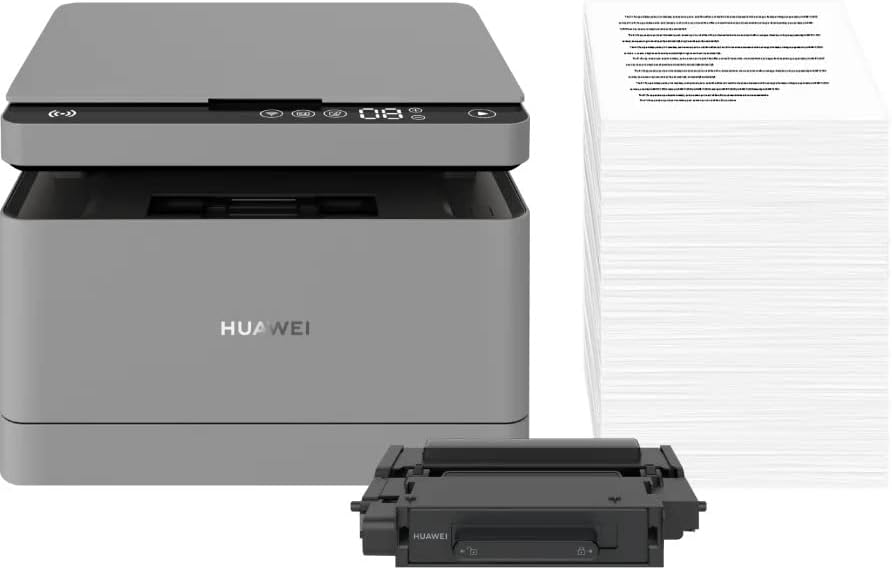
Figura 5.1: The HUAWEI PixLab B5 printer shown alongside a replacement toner cartridge and a stack of paper, highlighting the separate components.

Figura 5.2: A diagram illustrating the toner cartridge detached from the drum unit, demonstrating the modular design for replacement.
- Aprire il coperchio anteriore della stampante.
- Gently pull out the toner cartridge drawer.
- Insert the HUAWEI F-1500BZ toner cartridge into the HUAWEI X-15000BZ drum unit until it clicks into place.
- Slide the assembled toner and drum unit back into the printer until it is securely seated.
- Chiudere il coperchio anteriore.
5.3 Caricamento carta
- Aprire il vassoio della carta.
- Adjust the paper guides to the correct paper size (e.g., A4).
- Load paper into the tray, ensuring it is not overfilled (maximum capacity: 150 sheets).
- Chiudere il vassoio della carta.
5.4 Collegamento di alimentazione
- Connect the power cable to the printer's power port.
- Collegare l'altra estremità del cavo di alimentazione a una presa elettrica dotata di messa a terra.
- Premere il pulsante di alimentazione per accendere la stampante.
5.5 Installazione del software e connettività
The HUAWEI PixLab B5 supports multiple connection methods for seamless integration with various devices.
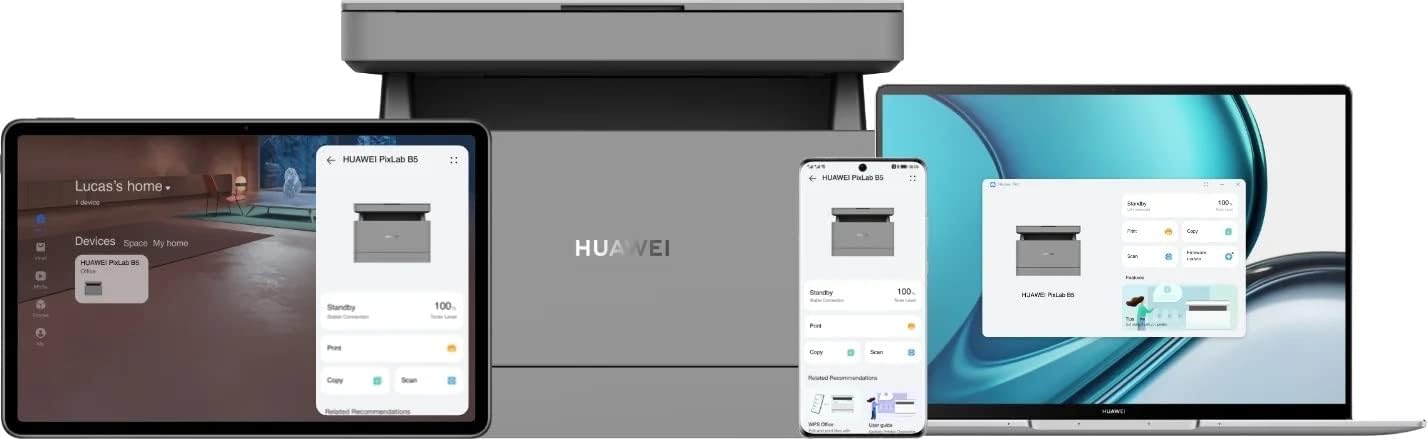
Figura 5.3: The HUAWEI PixLab B5 printer demonstrating its versatile connectivity by being linked to a tablet, a smartphone, and a laptop, all displaying the printer's interface.

Figura 5.4: An illustrative image depicting various devices such as a tablet, smartphone, and laptop connected to the printer, emphasizing multi-device compatibility.


Figura 5.5: Icons representing various connectivity options: USB, LAN, Wi-Fi, and Printer Hotspot.
- Connessione USB: Connect the printer to your computer using the provided USB cable. The necessary drivers should install automatically.
- Connessione LAN: Connect an Ethernet cable from your router or network switch to the LAN port on the printer.
- Connessione Wi-Fi:
- Download and install the HUAWEI AI Life app on your smartphone or tablet.
- Follow the in-app instructions to connect your printer to your Wi-Fi network.
- For PC/laptop, ensure your device is on the same Wi-Fi network as the printer and add the printer through your operating system's printer settings.
- Connessione NFC: For compatible devices, tap your device to the NFC tag on the printer to establish a quick connection.
6. Istruzioni per l'uso
6.1 Stampa
The HUAWEI PixLab B5 offers high-speed monochrome printing at up to 30 pages per minute.

Figura 6.1: An image highlighting the printer's capability of printing 30 pages per minute for single-sided documents.
- Open the document you wish to print on your connected device.
- Selezionare l'opzione di stampa (solitamente File > Stampa).
- Choose the HUAWEI PixLab B5 from the list of available printers.
- Adjust print settings as needed:
- Stampa duplex: The printer supports automatic double-sided printing. Select this option in your print settings to save paper.
- Qualità: The printer uses Q14 grayscale for clear and layered black and white prints.
- Fare clic su "Stampa".
6.2 Copia
The printer can make up to 100 copies in a single series.

Figura 6.2: A person placing a smart card on the scanner bed of the HUAWEI PixLab B5, demonstrating the Smart Card Copy function.

Figura 6.3: An image showing a user placing a card on the scanner glass, indicating the process for copying or scanning small items like ID cards.
- Place the document face down on the scanner glass or face up in the automatic document feeder (if available).
- Sul pannello di controllo della stampante, selezionare la funzione "Copia".
- Adjust settings such as number of copies, darkness, or paper size.
- Smart Card Copy: This feature automatically corrects the position and orientation of cards for perfect copies, even if not perfectly aligned.
- Premere il pulsante "Avvia" per iniziare la copia.
6.3 Scansione
The HUAWEI PixLab B5 functions as a photo and sheet-fed scanner.
- Posizionare il documento sul vetro dello scanner o nell'alimentatore documenti.
- On your connected computer or mobile device, open the scanning software (e.g., HUAWEI AI Life app or your operating system's scanning utility).
- Select the HUAWEI PixLab B5 as your scanner.
- Choose scan settings such as resolution, color mode (monochrome), and destination folder.
- Avviare la scansione.
6.4 Remote Printing
The HUAWEI AI Life app allows for flexible remote printing.

Figura 6.4: The HUAWEI PixLab B5 printer positioned on a desk next to a computer monitor, which displays the printer's software interface, indicating remote management capabilities.
- Ensure your HUAWEI PixLab B5 is connected to the internet via Wi-Fi or LAN.
- Open the HUAWEI AI Life app on your smartphone or tablet.
- Select your PixLab B5 printer from the device list.
- You can now send print jobs to your printer remotely, even when you are away from your office.
7. Manutenzione
7.1 Sostituzione della cartuccia del toner
The HUAWEI PixLab B5 uses separate toner and drum units, allowing for independent replacement and cost savings.

Figura 7.1: An image displaying the maximum page yield for the drum cartridge (15,000 pages) and the toner cartridge (1,500 pages).
- When the toner low indicator appears, prepare a new HUAWEI F-1500BZ toner cartridge.
- Aprire il coperchio anteriore della stampante.
- Estrarre il cassetto della cartuccia del toner.
- Remove the empty toner cartridge from the drum unit.
- Unpack the new toner cartridge and insert it into the drum unit until it clicks.
- Slide the assembled unit back into the printer and close the front cover.
7.2 Sostituzione dell'unità tamburo
The HUAWEI X-15000BZ drum unit has a yield of up to 15,000 pages.
- When the drum unit needs replacement, open the front cover of the printer.
- Pull out the toner cartridge drawer, which contains the drum unit.
- Rimuovere la cartuccia del toner dal vecchio tamburo.
- Insert the toner cartridge into the new HUAWEI X-15000BZ drum unit.
- Slide the new assembled unit back into the printer and close the front cover.
7.3 Pulizia
- Spegnere la stampante e scollegare il cavo di alimentazione.
- Utilizzare un panno morbido e privo di lanugine dampimbevuto d'acqua per pulire la parte esterna della stampante.
- For the scanner glass, use a glass cleaner applied to a cloth (not directly to the glass) to clean any smudges or dust.
- Non utilizzare detergenti abrasivi o solventi.
8. Risoluzione Dei Problemi
This section addresses common issues you might encounter with your HUAWEI PixLab B5 printer.
8.1 La stampante non risponde
- Check if the printer is powered on and the power cable is securely connected.
- Verify the USB, LAN, or Wi-Fi connection. For Wi-Fi, ensure the printer is connected to the correct network.
- Restart both the printer and your connected device.
- Assicurarsi che i driver della stampante siano installati e aggiornati correttamente.
8.2 Problemi di qualità di stampa
- Check the toner level and replace the toner cartridge if it is low.
- Ensure the drum unit is not worn out (check its page yield).
- Pulire i componenti interni della stampante come indicato nella sezione manutenzione.
- Use recommended paper types and ensure paper is loaded correctly.
8.3 Inceppamenti della carta
- Spegnere la stampante e scollegarla.
- Aprire con cautela tutti i coperchi e rimuovere la carta inceppata, tirandola nella direzione del percorso della carta.
- Assicurarsi che all'interno non rimangano piccoli pezzi di carta.
- Close all covers, plug in, and power on the printer.
9. Specifiche
| Caratteristica | Specificazione |
|---|---|
| Marca | Marchio |
| Nome del modello | HUPIXLABB5 |
| Tipo di prodotto | Copy, Scan, Print |
| Tecnologia di stampa | Laser |
| Uscita della stampante | Monocromo |
| Velocità massima di stampa monocromatica | 30 pagine al minuto |
| Risoluzione di stampa massima | 600 x 600 DPI |
| Stampa fronte-retro | Sì (automatico) |
| Tipo di scanner | Photo, Sheet-fed |
| Numero massimo di copie per serie | 100 |
| Tecnologia di connettività | Ethernet, NFC, USB, Wi-Fi |
| Porte USB totali | 1 |
| Dispositivi compatibili | Computer desktop, portatile, smartphone, tablet |
| Supporto del sistema operativo | OS X 10.9 Mavericks, Windows 10 |
| Dimensione massima del supporto | A4 |
| Dimensioni del foglio | 210×297 millimetri |
| Capacità massima di alimentazione fogli | 150 |
| Capacità di memoria | 512 MB |
| Consumo energetico | 410 Watt |
| Power (Operating) | 240 Watt |
| Peso dell'articolo | 12.3 chilogrammi |
| Dimensioni del prodotto | 10D x 20W x 10H centimetri |
| Colore | Nero |
| Caratteristiche speciali | Versatile connectivity (USB, LAN, Wi-Fi), Stable Wi-Fi, High print quality (Q14 grayscale), Remote printing (AI Life app), Print history erase for privacy. |
10. Garanzia e supporto
Per informazioni sulla garanzia e supporto tecnico, fare riferimento al sito ufficiale HUAWEI website or contact your local HUAWEI customer service center. Keep your purchase receipt as proof of purchase.
Al momento non sono disponibili informazioni sulla disponibilità dei pezzi di ricambio e sugli aggiornamenti software garantiti.


