1. Introduzione
This manual provides essential information for the setup, operation, and maintenance of your Blackmagic Design Pocket Cinema Camera 6K G2. Please read this manual thoroughly before using the camera to ensure proper handling and optimal performance. This camera is designed for professional digital film production, offering advanced features for high-quality video capture.
2. Informazioni sulla sicurezza
- Alimentazione elettrica: Use only the specified power supply and battery. Incorrect power sources can damage the camera or cause fire.
- Acqua e umidità: Do not expose the camera to water or high humidity. This camera is not waterproof.
- Temperatura: Utilizzare la fotocamera entro l'intervallo di temperatura consigliato (in genere da 0 °C a 40 °C / da 32 °F a 104 °F). Evitare temperature estreme, sia calde che fredde.
- Gestione: Maneggiare la fotocamera con cura. Evitare di farla cadere o di sottoporla a forti urti.
- Attacco obiettivo: Always ensure the camera is powered off when attaching or detaching lenses to prevent damage to the sensor or lens mount.
- Pulizia: Use a soft, dry cloth for cleaning. For the sensor, use specialized cleaning kits and follow manufacturer guidelines.
3. Contenuto della confezione
Verifica che tutti gli articoli siano presenti nel tuo pacco:
- Blackmagic Design Pocket Cinema Camera 6K G2 Body
- DaVinci Resolve Studio Activation Key
- Lens Turret Dust Cap
- Cinghia tracolla per fotocamera
- 30W Power Supply with Locking Connector and International Adapters
- Batteria NP-F570
- NP-F Series Battery USB Charger
4. Fotocamera finitaview
The Blackmagic Design Pocket Cinema Camera 6K G2 features a compact design with a Super 35 sensor and an active EF/EF-S lens mount. It includes a large, bright adjustable tilt 5-inch LCD display for monitoring and menu navigation.

Figura 4.1: Fronte angolato view of the Blackmagic Design Pocket Cinema Camera 6K G2, showing the lens mount and grip.

Figura 4.2: Fronte view of the camera, highlighting the EF/EF-S lens mount and Super 35 sensor.
4.1. Connessioni e porte
The camera offers various connectivity options for audio, video output, and data transfer.

Figura 4.3: dettagliata view of the camera's side panel, showing various input/output ports.
- Ingresso microfono: Connect consumer microphones or a timecode master clock.
- Uscita cuffie da 3.5 mm: Supports consumer headphones for audio monitoring.
- Full Size HDMI Connector: Outputs 1080p up to 60fps as clean feed or with camera data.
- USB Expansion Port (USB-C): For recording to external SSD storage or connecting focus demands.
- Alimentazione 12V CC: Main power supply input or for external batteries.
- XLR Audio Connection: Two professional balanced Mini XLR audio inputs with phantom power support.

Figura 4.4: lato view of the camera, illustrating the arrangement of the various ports.
4.2. Rear Panel and Controls
The rear panel features the tilting LCD touchscreen and essential control buttons.

Figura 4.5: Posteriore view of the camera displaying the menu interface on the 5-inch LCD screen.

Figura 4.6: Parte posteriore angolata view showing the camera's LCD screen tilted for flexible viewangoli di inclinazione.
5. Impostazione
5.1. Installazione e ricarica della batteria
- Aprire il coperchio del vano batteria situato nella parte inferiore della fotocamera.
- Insert the NP-F570 battery, ensuring correct orientation. Close the cover securely.
- To charge, connect the included NP-F series battery USB charger to a power source and attach the battery. Alternatively, connect the camera to the 30W power supply with the battery installed.
5.2. Attacco dell'obiettivo
- Assicurarsi che la fotocamera sia spenta.
- Remove the lens turret dust cap from the camera body and the rear cap from your EF/EF-S compatible lens.
- Allineare il segno di riferimento rosso o bianco sull'obiettivo con il segno corrispondente sull'attacco dell'obiettivo della fotocamera.
- Inserire delicatamente l'obiettivo nel supporto e ruotarlo in senso orario finché non scatta in posizione.
5.3. Media Card Insertion
The camera supports SD/UHS-II and CFast 2.0 cards, as well as external SSDs via USB-C.
- Locate the SD card slot and CFast 2.0 card slot on the camera body.
- Insert the appropriate card into its slot until it clicks. Ensure the card is correctly oriented.
- For external SSD recording, connect a compatible SSD to the USB-C port.
5.4. Accensione/Spegnimento
Press and hold the power button located on the top of the camera until the screen illuminates or turns off.
6. Utilizzo della fotocamera
6.1. Registrazione di base
To begin recording, press the red record button on the top of the camera. Press it again to stop recording.

Figure 6.1: Camera menu displaying recording settings such as project frame rate and preferred media.
- Frame Rates and Resolution: Navigate the menu on the LCD to select desired frame rates (e.g., 24 fps, 60 fps) and resolutions (up to 6K).
- File Formati: The camera supports industry-standard formats like Apple ProRes (up to 4K) and 12-bit Blackmagic RAW. Select your preferred format in the recording settings.
6.2. Focusing and Exposure
- Messa a fuoco: Use the lens's manual focus ring or electronic focus controls if available. The LCD offers focus assist tools.
- ISO: Adjust the dual gain ISO up to 25,600 to manage sensitivity in various lighting conditions.
- Aperture and Shutter Speed: Control these settings via the camera's physical dials or the touchscreen interface to achieve desired exposure and depth of field.
6.3. Registrazione audio
The camera includes a built-in stereo microphone. For professional audio, utilize the mini XLR or 3.5mm inputs for external microphones.
6.4. Monitoraggio
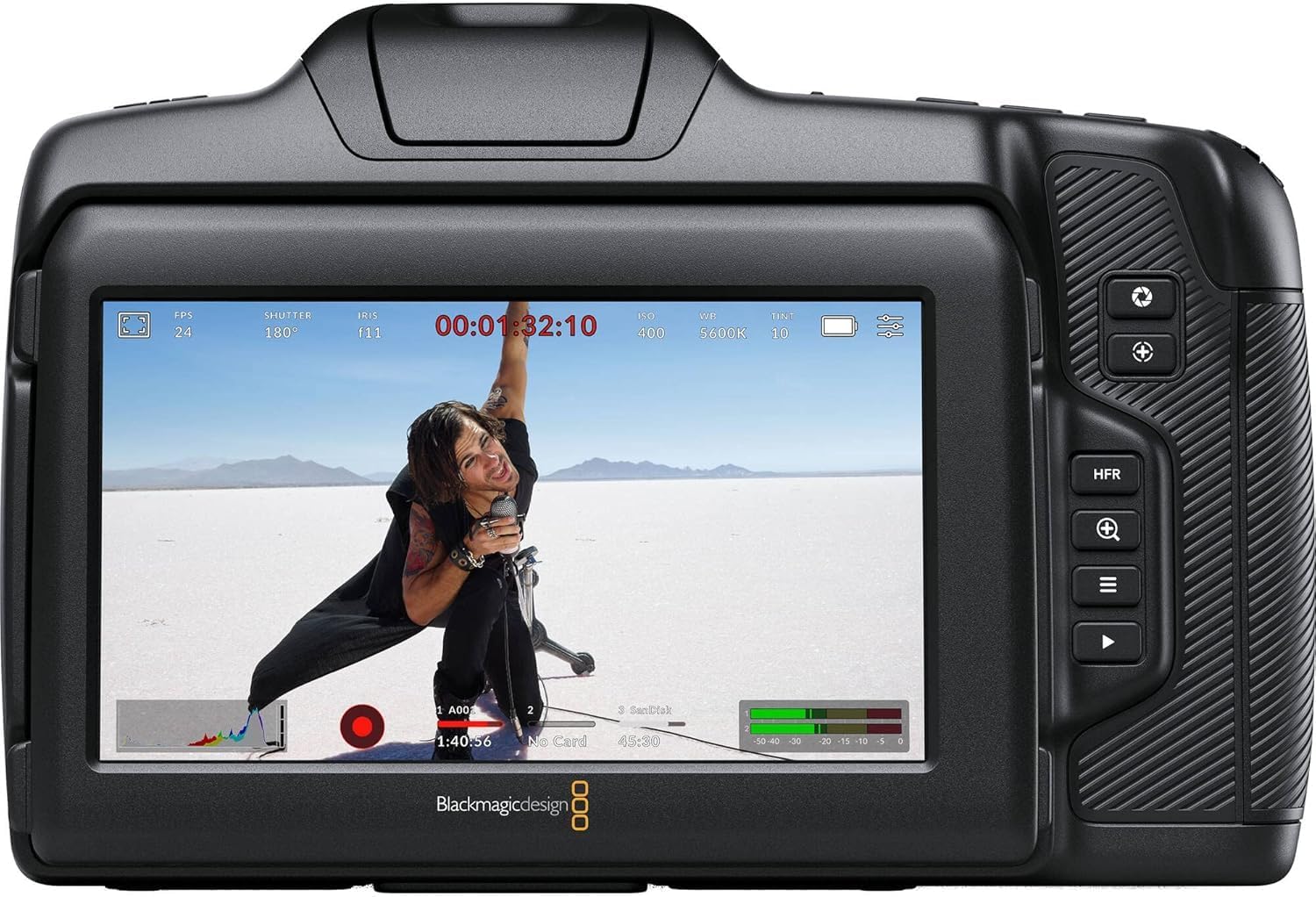
Figura 6.2: Posteriore view of the camera displaying live footage with overlays on the LCD screen.
The 5-inch LCD display provides a clear view del tuo cibotage and camera settings. It can be tilted for better viewing angles. An external monitor can be connected via the HDMI port.

Figure 6.3: The camera's tilting LCD screen in an operational setup, demonstrating its flexibility.
6.5. DaVinci Resolve Studio
Your camera includes an activation key for DaVinci Resolve Studio. This software is a comprehensive solution for editing, color correction, visual effects, and audio post-production. Install and activate it on your computer to process your Blackmagic RAW and ProRes footage.
7. Manutenzione
7.1. Pulizia
- Corpo macchina fotografica: Wipe with a soft, dry, lint-free cloth. Do not use harsh chemicals or solvents.
- Lente: Use a lens brush or air blower to remove dust, then gently clean with a lens cleaning solution and microfiber cloth.
- Sensore: Sensor cleaning should be performed with extreme care using a specialized sensor cleaning kit. If unsure, consult a professional.
7.2. Aggiornamenti del firmware
Periodically check the Blackmagic Design website for firmware updates. Updates can improve performance, add features, and fix bugs. Follow the instructions provided by Blackmagic Design carefully during the update process.
7.3. Conservazione
When not in use, store the camera in a cool, dry place, away from direct sunlight and extreme temperatures. Use a protective case to prevent dust and physical damage.
8. Risoluzione Dei Problemi
| Problema | Possibile causa | Soluzione |
|---|---|---|
| La fotocamera non si accende | Battery depleted or incorrectly installed; power cable loose. | Charge battery, ensure correct installation. Check power cable connection. |
| La registrazione si interrompe inaspettatamente | Media card full or too slow; battery low. | Use a faster card (UHS-II, CFast 2.0), free up space, or replace/charge battery. |
| Scarsa qualità dell'immagine | Incorrect exposure settings; dirty lens/sensor. | Adjust ISO, aperture, shutter speed. Clean lens or sensor. |
| Nessuna registrazione audio | Microphone not connected or configured correctly; audio levels too low. | Check microphone connections and camera audio settings. Adjust input levels. |
9. Specifiche
Key technical specifications for the Blackmagic Design Pocket Cinema Camera 6K G2:
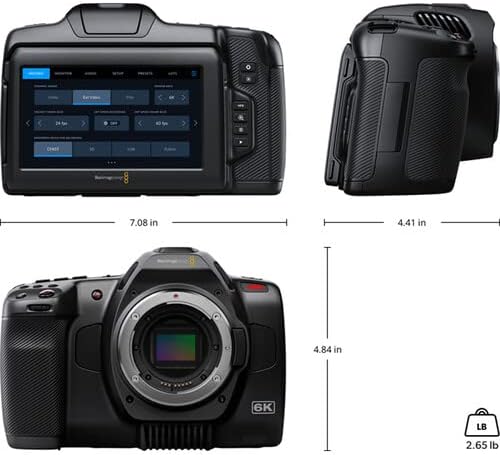
Figure 9.1: Dimensions of the Blackmagic Design Pocket Cinema Camera 6K G2.
| Caratteristica | Dettaglio |
|---|---|
| Numero di modello | CINECAMPOCHDEF6K2 |
| Dimensioni del sensore | Super 35 |
| Risoluzione nativa | 6144x3456 |
| Gamma dinamica | 13 Fermate |
| Dual Gain ISO | Fino a 25,600 |
| Attacco dell'obiettivo | Active EF/EF-S |
| Dimensioni dello schermo | 5 Inches (Adjustable Tilt LCD) |
| Supporti di memorizzazione | SD/UHS-II, CFast 2.0, External SSD via USB-C |
| Risoluzione di acquisizione video | 6K |
| Formato di acquisizione video | Apple ProRes, Blackmagic RAW |
| Formato audio | WAV, BWF |
| Connettività | HDMI, USB-C, 3.5mm Audio, Mini XLR Audio, 12V DC |
| Peso dell'articolo | 3.8 libbre |
| Dimensioni del prodotto | 9.1 x 9.1 x 9.1 pollici |
| Batteria | 1 Lithium Ion (NP-F570 included) |
10. Garanzia e supporto
For detailed warranty information and technical support, please refer to the official Blackmagic Design websito o contattare il servizio clienti. Conservare la prova d'acquisto per eventuali reclami in garanzia.
Risorse online: Visita www.blackmagicdesign.com/support per driver, manuali e FAQ.


