1. Introduzione
This manual provides essential instructions for the installation, operation, and maintenance of your Hikvision DS-7108HQHI-K1(C)(S) Professional Recording Equipment. Please read this manual thoroughly before using the device to ensure proper and safe operation. Keep this manual for future reference.
2. Istruzioni di sicurezza
- Garantire l'alimentazione voltage rientra nell'intervallo specificato.
- Non esporre il dispositivo alla pioggia o all'umidità per evitare incendi o scosse elettriche.
- Evitare di posizionare il dispositivo alla luce diretta del sole o vicino a fonti di calore.
- Non ostruire le aperture di ventilazione. Garantire un adeguato flusso d'aria attorno al dispositivo.
- Utilizzare solo accessori specificati dal produttore.
- Affidare tutti gli interventi di assistenza a personale qualificato.
3. Contenuto della confezione
Verify that all items are present and in good condition upon unpacking. If any item is missing or damaged, contact your dealer immediately.
- Hikvision DS-7108HQHI-K1(C)(S) Recording Equipment
- Adattatore di alimentazione
- Mouse USB
- Viti per l'installazione dell'HDD (se applicabile)
- Guida rapida
4. Prodotto finitoview
The Hikvision DS-7108HQHI-K1(C)(S) is a professional recording device designed for surveillance systems. It features multiple video input channels and various output ports for display and network connectivity.
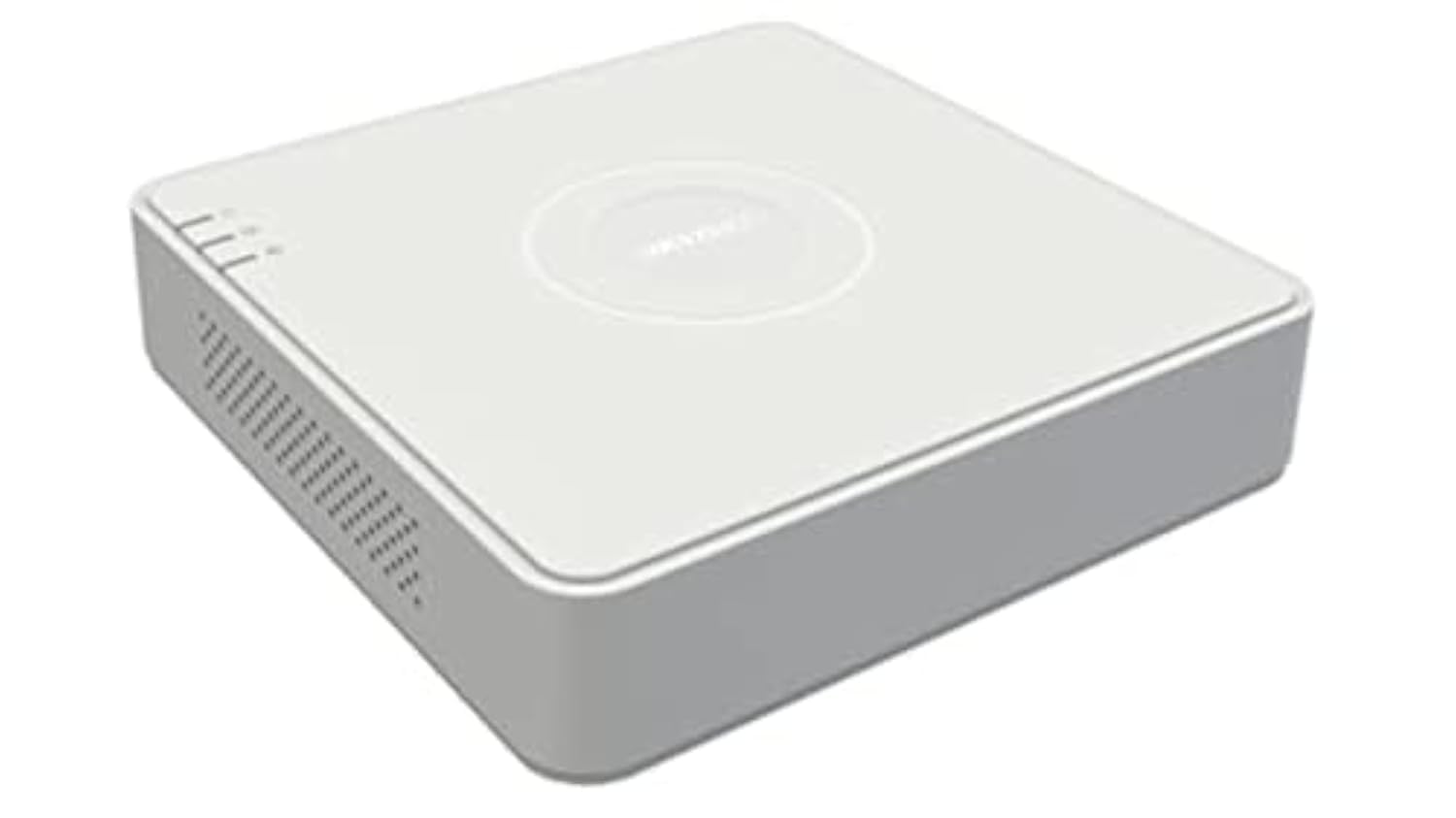
Figura 1: Rear panel of the DS-7108HQHI-K1(C)(S) recording equipment. This image displays the array of BNC video input connectors, a VGA output port, an HDMI output port, audio input and output jacks, a LAN port for network connection, two USB ports for peripherals, and the DC 12V power input.
4.1 Interfacce del pannello posteriore
- Ingresso video (BNC): Connect surveillance cameras. This model supports 8 channels.
- Uscita VGA: Connect to a VGA monitor for video display.
- Uscita HDMI: Connect to an HDMI monitor or TV for high-definition video display.
- Ingresso/uscita audio (RCA): Collegare dispositivi audio esterni.
- Porta LAN (RJ45): Connettiti alla tua rete per l'accesso remoto e la connettività Internet.
- Porte USB: Connect a USB mouse for control or a USB flash drive for data backup. This model has 1 USB port.
- Ingresso alimentazione CC 12 V: Collegare l'adattatore di alimentazione fornito.
5. Impostazione
5.1 Installazione hardware
- Collega le telecamere: Attach your surveillance cameras to the BNC video input ports.
- Connetti il monitor: Connect a monitor to either the VGA or HDMI output port.
- Connetti il mouse: Collegare il mouse USB a una delle porte USB.
- Connetti rete (facoltativo): Connect an Ethernet cable from the LAN port to your router or network switch.
- Connetti alimentazione: Plug the power adapter into the DC 12V power input and then into a power outlet. The device will power on automatically.
5.2 Configurazione iniziale
Upon first power-on, the device will guide you through an initial setup wizard. Follow the on-screen prompts to set up language, date/time, network settings, and administrator password.
6. Istruzioni per l'uso
6.1 Vivere View
After logging in, the device will display the live view of all connected cameras. You can switch between single-channel view and multi-channel view utilizzando i controlli sullo schermo o il mouse.
6.2 Configurazione della registrazione
Access the "Record" menu to configure recording schedules, motion detection settings, and other recording parameters for each camera. Ensure a hard drive is installed and initialized for recording.
6.3 Riproduzione
Passare al menu "Riproduzione" per riprodurreview registrato footage. You can search by date, time, and event type. Use the playback controls to fast forward, rewind, and pause.
6.4 Accesso remoto
Per telecomando viewing, ensure the device is connected to the internet. Configure network settings (e.g., port forwarding, P2P cloud service) as per the detailed user manual or Hikvision's online resources. Download the Hik-Connect app or use client software on your computer.
7. Manutenzione
- Pulizia: Regularly clean the exterior of the device with a soft, dry cloth. Do not use liquid or aerosol cleaners.
- Aggiornamenti del firmware: Controlla il sito ufficiale Hikvision website periodically for firmware updates. Updating firmware can improve performance and add new features. Follow the instructions provided with the firmware update carefully.
- Gestione del disco rigido: If a hard drive is installed, monitor its health and capacity through the device's menu. Consider setting up automatic overwriting of old footage if continuous recording is desired.
- Condizioni ambientali: Ensure the device operates within its specified temperature and humidity ranges to prolong its lifespan.
8. Risoluzione Dei Problemi
- Nessuna uscita video:
- Check all video cable connections (VGA/HDMI) to the monitor and the recording equipment.
- Assicurarsi che il monitor sia acceso e impostato sulla sorgente di input corretta.
- Verify cameras are powered and connected correctly.
- Nessuna connessione di rete:
- Check the Ethernet cable connection to the LAN port and your router.
- Verify network settings (IP address, gateway, DNS) in the device's configuration menu.
- Assicurati che il router funzioni correttamente.
- Impossibile registrare:
- Ensure a hard drive is installed and properly initialized.
- Controllare le programmazioni di registrazione e le impostazioni di rilevamento del movimento.
- Verify the hard drive has sufficient free space.
- Ha dimenticato la password:
Refer to Hikvision's official support resources for password reset procedures, which often involve a security code or a reset tool.
9. Specifiche
| Caratteristica | Dettaglio |
|---|---|
| Marca | Hikvision |
| Numero di modello | DS-7108HQHI-K1(C)(S) |
| Numero di canali | 8 |
| Tecnologia di connettività | VGA |
| Porte USB totali | 1 |
| Produttore | Hikvision |
10. Informazioni sulla garanzia
This product is covered by a limited warranty provided by Hikvision. For detailed warranty terms and conditions, please refer to the warranty card included with your product or visit the official Hikvision websito. Conservare la ricevuta d'acquisto come prova d'acquisto per eventuali reclami in garanzia.
11. Assistenza clienti
For technical assistance, troubleshooting, or further inquiries, please contact Hikvision customer support. You can find contact information, FAQs, and additional resources on the official Hikvision websito:
Websito: www.hikvision.com
Please have your product model number (DS-7108HQHI-K1(C)(S)) and serial number ready when contacting support.


