1. Introduzione
Thank you for choosing the Cherry KW 9100 Slim Wireless Rechargeable Keyboard. This extra-slim, low-profile keyboard is designed for Mac computers, offering versatile connectivity options and a comfortable typing experience. This manual provides essential information for setting up, operating, maintaining, and troubleshooting your new keyboard.
The keyboard features dual wireless connectivity (Bluetooth and 2.4 GHz wireless USB receiver), allowing you to easily switch between devices. It incorporates high-quality CHERRY SC scissor technology for quiet and precise keystrokes, and includes AES-128 encryption for secure data transmission. The integrated rechargeable battery provides weeks of use on a single charge, and the keyboard can be charged while in use via the included USB-A to USB-C cable.

Image 1.1: The Cherry KW 9100 Slim Wireless Rechargeable Keyboard, showcasing its full layout and slim profile.
2. Informazioni sulla sicurezza
- Do not expose the keyboard to liquids, excessive moisture, or extreme temperatures.
- Evitare di far cadere la tastiera o di sottoporla a forti urti.
- Tenere la tastiera lontana da forti campi magnetici.
- Non tentare di smontare o modificare la tastiera. Ciò invaliderà la garanzia.
- Per la ricarica utilizzare solo il cavo USB-A-USB-C in dotazione.
3. Contenuto della confezione
Verifica che tutti gli articoli siano presenti nel tuo pacco:
- Cherry KW 9100 Slim Wireless Rechargeable Keyboard
- Cavo da USB-A a USB-C
- Ricevitore USB wireless da 2.4 GHz
- Magnetic Strip (for angle adjustment)
- Manuale dell'utente (questo documento)
4. Impostazione
4.1. Ricarica della tastiera
Before first use, or when the battery indicator shows low power, connect the keyboard to a USB power source (e.g., computer USB port, USB wall adapter) using the provided USB-A to USB-C cable. The keyboard can be used while charging.
4.2. Connecting via 2.4 GHz Wireless USB Receiver
- Locate the 2.4 GHz wireless USB receiver.
- Insert the USB receiver into an available USB-A port on your Mac computer.
- On the keyboard, slide the connectivity switch (located on the side) to the 'RF' position.
- La tastiera dovrebbe connettersi automaticamente al computer.
4.3. Connessione tramite Bluetooth
Ensure your Mac computer has Bluetooth 4.0 or higher.
- On the keyboard, slide the connectivity switch (located on the side) to the 'BT' position.
- Sul tuo Mac, vai a Impostazioni di sistema (O Preferenze di sistema) > Bluetooth.
- Assicurati che il Bluetooth sia attivato.
- The keyboard should appear in the list of discoverable devices (e.g., "CHERRY KW 9100"). Select it to pair.
- Seguire le istruzioni visualizzate sullo schermo per completare il processo di associazione.

Immagine 4.1: Lato view of the keyboard, highlighting the RF/BT connectivity switch and the USB-C charging port.
4.4. Adjusting Keyboard Angle
The keyboard includes a removable magnetic strip that can be attached to the underside to adjust the typing angle for improved ergonomics. Simply attach the strip to the designated area on the bottom of the keyboard.
5. Utilizzo della tastiera
5.1. Passaggio da una modalità di connettività all'altra
Use the slide switch on the side of the keyboard to toggle between 'RF' (2.4 GHz wireless) and 'BT' (Bluetooth) modes. This allows you to seamlessly switch between two connected devices, for example, a laptop via Bluetooth and a desktop PC via the USB receiver.
5.2. Key Functions and Mac Layout
The keyboard features a Mac-specific layout, including Command, Option, and Control keys. The function keys (F1-F15) provide quick access to various system functions such as brightness, media control, and volume. Some function keys may require pressing the 'Fn' key simultaneously depending on your Mac's system settings.
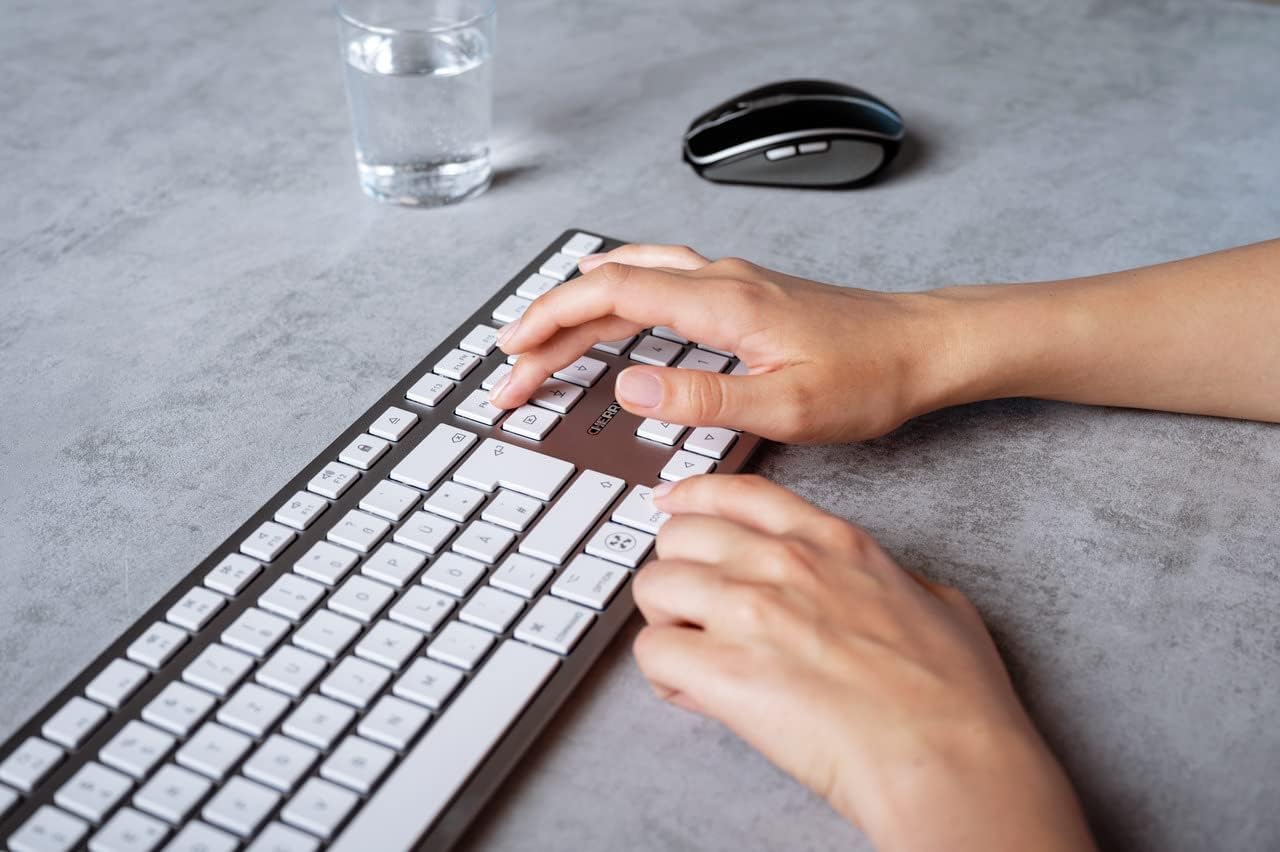
Image 5.1: A user typing on the Cherry KW 9100 keyboard, demonstrating its ergonomic design and key spacing.
5.3. Gestione energetica
To conserve battery life, the keyboard will enter a sleep mode after a period of inactivity. To wake it up, simply press any key. The keyboard will reconnect automatically to the last active device.
6. Manutenzione
6.1. Pulizia
Per pulire la tastiera, strofinare delicatamente la superficie con un panno morbido e privo di lanugine. Per lo sporco ostinato, strofinare leggermenteampPulire il panno con acqua o una soluzione detergente delicata e non abrasiva. Assicurarsi che nessun liquido penetri nella tastiera. Non utilizzare prodotti chimici aggressivi o materiali abrasivi.
6.2. Conservazione
When not in use for extended periods, store the keyboard in a dry, cool place. It is recommended to fully charge the battery before long-term storage.
7. Risoluzione Dei Problemi
| Problema | Possibile causa | Soluzione |
|---|---|---|
| La tastiera non si connette tramite 2.4 GHz. | USB receiver not properly inserted; keyboard switch in 'BT' mode; low battery. | Ensure receiver is fully inserted. Slide keyboard switch to 'RF'. Charge the keyboard. Try a different USB port. |
| La tastiera non si connette tramite Bluetooth. | Keyboard switch in 'RF' mode; Bluetooth off on Mac; low battery; pairing issue. | Slide keyboard switch to 'BT'. Ensure Bluetooth is enabled on your Mac. Charge the keyboard. Remove and re-pair the keyboard in Mac's Bluetooth settings. |
| I tasti non rispondono o sono in ritardo. | Batteria scarica; interferenza; tastiera in modalità sospensione. | Charge the keyboard. Move closer to the receiver/Mac. Press any key to wake the keyboard. |
| Function keys (F1-F15) not working as expected. | System settings; 'Fn' key usage. | Check your Mac's Keyboard settings (System Settings > Keyboard) for function key behavior. Try pressing the 'Fn' key simultaneously with the desired function key. |
| La batteria si scarica rapidamente. | Frequent use; keyboard not entering sleep mode. | Ensure the keyboard is allowed to enter sleep mode when idle. Fully charge the keyboard. |
8. Specifiche
| Caratteristica | Dettaglio |
|---|---|
| Numero di modello | JK-9110US-1 |
| Marca | Ciliegia |
| Tecnologia di connettività | Bluetooth, USB-A (for receiver), USB-C (for charging) |
| Dispositivi compatibili | Mac computers with Bluetooth 4.0 or higher and USB-A connections |
| Descrizione della tastiera | a basso profilofile, extra-slim, wireless, scissor-switch keyboard with adjustable angle and rechargeable battery |
| Caratteristica speciale | Magnetic (for angle adjustment), Travel |
| Colore | Argento |
| Materiale | Metallo, Plastica |
| Dimensioni del prodotto | 17.32 x 5.12 x 0.59 pollici (44 x 13 x 1.5 cm) |
| Peso dell'articolo | 1.94 libbre (0.88 kg) |
| Produttore | CILIEGIA |
9. Garanzia e supporto
Your Cherry KW 9100 Slim Wireless Rechargeable Keyboard is covered by a manufacturer's warranty. For detailed warranty information, technical support, or service inquiries, please visit the official Cherry webo contattare direttamente l'assistenza clienti. Conservare la prova d'acquisto per eventuali reclami in garanzia.
Supporto online: www.cherry.de


