1. Introduzione
This manual provides comprehensive instructions for the safe and efficient use of your MARKLIFE P50 Portable Bluetooth Thermal Label Printer. Please read this manual thoroughly before operating the device and retain it for future reference.
2. Informazioni sulla sicurezza
- Non smontare, riparare o modificare il dispositivo.
- Tenere il dispositivo lontano da acqua, umidità e temperature elevate.
- Use only MARKLIFE approved labels and accessories.
- Evitare di toccare la testina di stampa subito dopo la stampa, poiché potrebbe essere calda.
- Tenere fuori dalla portata dei bambini.
3. Contenuto della confezione
Verifica che tutti gli articoli siano presenti nel tuo pacco:
- Stampante per etichette MARKLIFE P50
- 3 Rolls of Labels (2x 1.57"x1.18" white gap labels, 1x 2"x2" circle gap label)
- Cavo di ricarica USB-C
- Manuale dell'utente (questo documento)
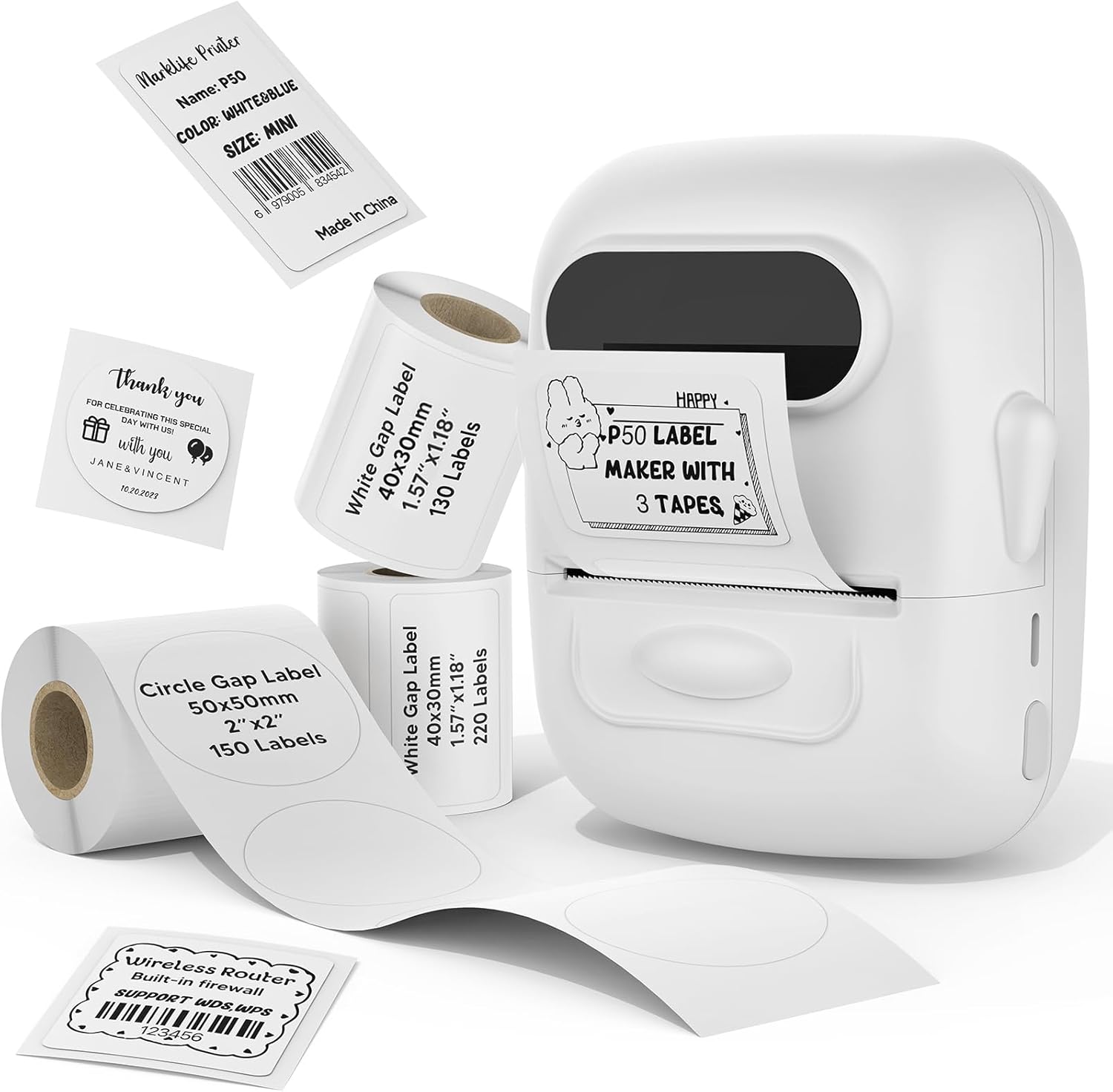
Image: MARKLIFE P50 Label Printer and various label rolls included in the package.
4. Prodotto finitoview
The MARKLIFE P50 is a compact, portable thermal label printer designed for various labeling needs. It connects wirelessly via Bluetooth to your smartphone or tablet and can also connect to a Windows PC via USB. It utilizes thermal printing technology, requiring no ink, and supports black and white printing only.

Image: The MARKLIFE P50 printer being placed into a handbag, highlighting its portable design and built-in 1200mAh battery with Type-C charging.
5. Impostazione
5.1 Ricarica del dispositivo
Before first use, fully charge the printer using the provided USB-C cable and a compatible power adapter (not included). The charging indicator light will show the charging status.
5.2 Caricamento delle etichette
- Aprire il coperchio dello scomparto delle etichette.
- Inserire il rotolo di etichette con la superficie di stampa rivolta verso l'alto.
- Ensure the label edge is aligned and extends slightly out of the printer slot.
- Close the cover firmly. The printer will automatically detect the label type and size.

Image: Illustration of label loading and compatible label widths (0.59 to 2.24 inches) for the P50 printer.
5.3 App Installation and Bluetooth Pairing (for Mobile Devices)
- Download the "Marklife" app from your device's app store (iOS or Android).
- Turn on the P50 printer.
- Abilita il Bluetooth sul tuo smartphone o tablet.
- Open the Marklife app and follow the on-screen instructions to connect to your P50 printer. The app will typically detect the printer automatically.
5.4 PC Connection (for Windows)
For Windows PC connectivity, download the official software from the MARKLIFE website. Connect the printer to your PC using the USB-C cable. The software will guide you through the printing process.

Image: The P50 label printer connected to both a laptop and a smartphone, illustrating its support for mobile and PC devices.
6. Funzionamento
6.1 Basic Printing (via App)
- Ensure the printer is powered on and connected to the Marklife app.
- Select a template or create a new label design within the app.
- Enter your desired text, add images, barcodes, or QR codes.
- Adjust print settings (e.g., quantity, density) as needed.
- Tap the "Print" button in the app to initiate printing.

Image: Various label applications, such as clothing tags with barcodes, handmade soap labels, and price tags for baked goods, demonstrating the printer's versatility.
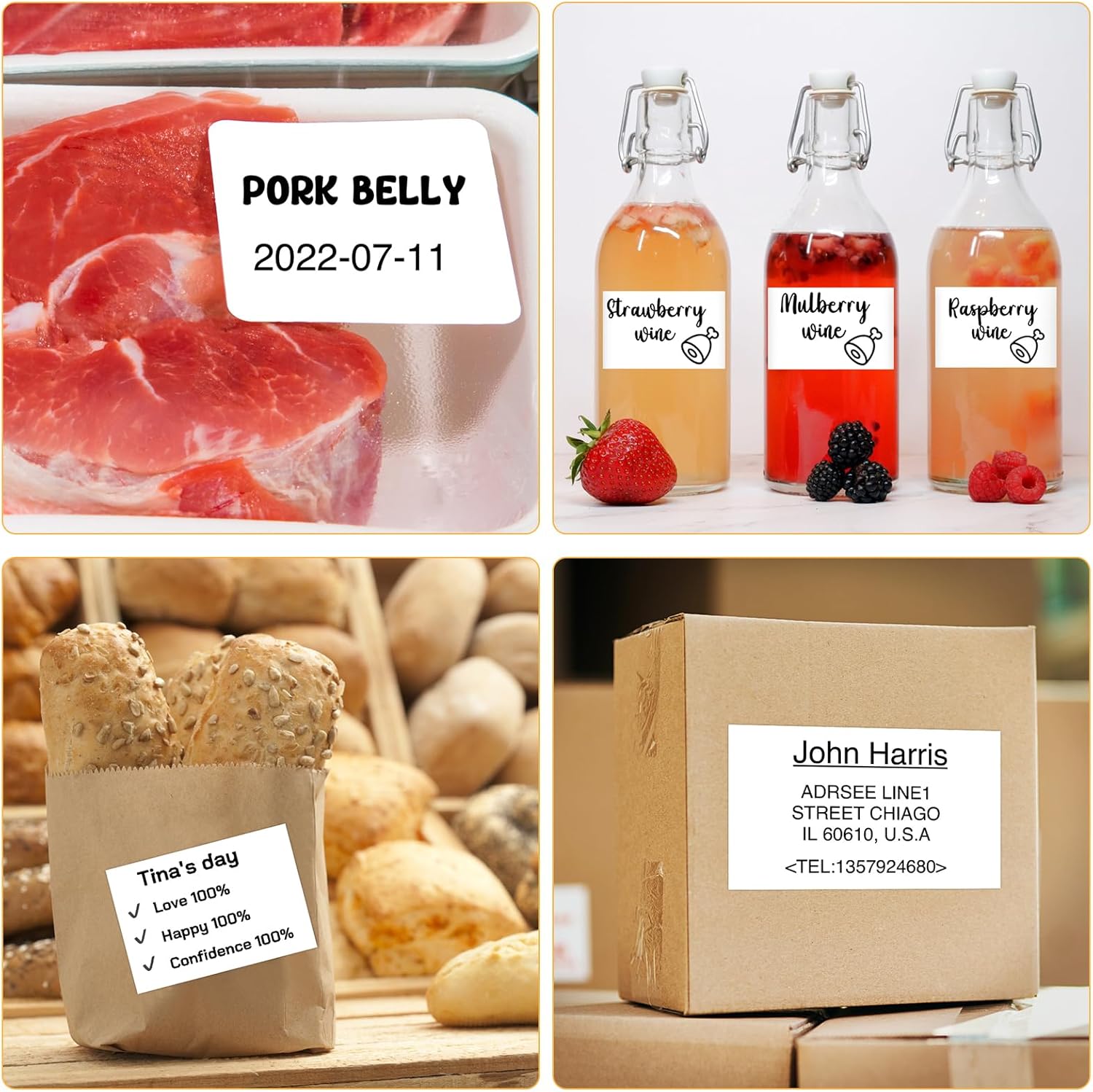
Immagine: Examples of labels for food items (pork belly, beverages) and a shipping address label, showcasing different label content possibilities.
6.2 Stampa batch
The Marklife app supports batch printing for multiple copies of the same label or sequential labels. Refer to the app's specific instructions for detailed steps on batch printing functionality.

Image: The MARKLIFE P50 printer actively printing multiple barcode labels in a batch, demonstrating stable printing over a long duration.
7. Manutenzione
- Pulizia della testina di stampa: Utilizzare leggermente un panno morbido e privo di lanugine dampened with alcohol to gently wipe the print head. Ensure the printer is off and cooled down before cleaning.
- Pulizia dell'esterno: Wipe the printer's exterior with a soft, dry cloth. Do not use harsh chemicals.
- Conservazione delle etichette: Store label rolls in a cool, dry place away from direct sunlight to preserve their quality.
8. Risoluzione Dei Problemi
| Problema | Possibile causa | Soluzione |
|---|---|---|
| La stampante non si accende | Batteria scarica o problema di alimentazione | Charge the printer using the USB-C cable. |
| Impossibile connettersi tramite Bluetooth | Bluetooth disattivato, problema con l'app o stampante non rilevabile | Ensure Bluetooth is enabled on your device. Restart the printer and the app. Try re-pairing. |
| Qualità di stampa scadente | Dirty print head, incorrect label loading, or low print density setting | Clean the print head. Re-load labels correctly. Adjust print density in the app. |
| Le etichette non vengono alimentate correttamente | Improper label loading or label jam | Open the cover, re-seat the label roll, ensuring it's aligned. Clear any jammed labels. |
9. Specifiche
| Caratteristica | Dettaglio |
|---|---|
| Modello | P50 |
| Tecnologia di stampa | Termico |
| Connettività | Bluetooth, USB |
| Dispositivi compatibili | Android, iOS, PC Windows |
| Dimensione massima del supporto | 2 pollici (57 mm) |
| Intervallo di larghezza di stampa | 0.59" - 2.24" (15 mm - 57 mm) |
| Uscita della stampante | Monocromatico (bianco e nero) |
| Batteria | Built-in 1200mAh (rechargeable) |
| Porta di ricarica | USB-C |
| Dimensioni del prodotto | 4"P x 3"L x 2"A (circa) |
| Peso dell'articolo | 6 once (circa) |
10. Garanzia e supporto
The MARKLIFE P50 Label Printer comes with a limited warranty. For warranty details, technical support, or customer service inquiries, please refer to the official MARKLIFE weboppure contatta direttamente l'assistenza clienti. Conserva la ricevuta d'acquisto come prova d'acquisto.
Produttore: MARKLIFE


