1. Introduzione
This manual provides essential information for the safe and efficient use of your HP EliteOne 840 G9 All-in-One Computer. Please read this manual thoroughly before operating the device and retain it for future reference. It covers setup, operation, maintenance, and troubleshooting.
2. Informazioni sulla sicurezza
Per evitare danni al dispositivo o lesioni personali, osservare le seguenti precauzioni di sicurezza:
- Ensure the computer is placed on a stable, flat surface to prevent tipping.
- Do not block ventilation openings. Maintain adequate space around the device for proper airflow.
- Utilizzare solo l'alimentatore fornito con il dispositivo.
- Keep the device away from liquids and excessive moisture.
- Evitare di esporre il dispositivo a temperature estreme o alla luce solare diretta.
- Disconnect the power cable before cleaning or if the device will be unused for an extended period.
3. Contenuto della confezione
Verificare che tutti gli articoli siano presenti nel pacco:
- Computer All-in-One HP EliteOne 840 G9
- Adattatore di alimentazione e cavo
- Tastiera
- Topo
- Documentazione (incluso questo manuale)
4. Componente suview
Familiarize yourself with the main components and ports of your HP EliteOne 840 G9 All-in-One Computer.
4.1 Front View

Figura 4.1: Davanti view of the HP EliteOne 840 G9 All-in-One Computer, displaying the 23.8-inch Full HD screen, integrated webcam at the top, and Bang & Olufsen speakers at the bottom. A wired keyboard and mouse are connected.
4.2 Posteriore e laterale Views
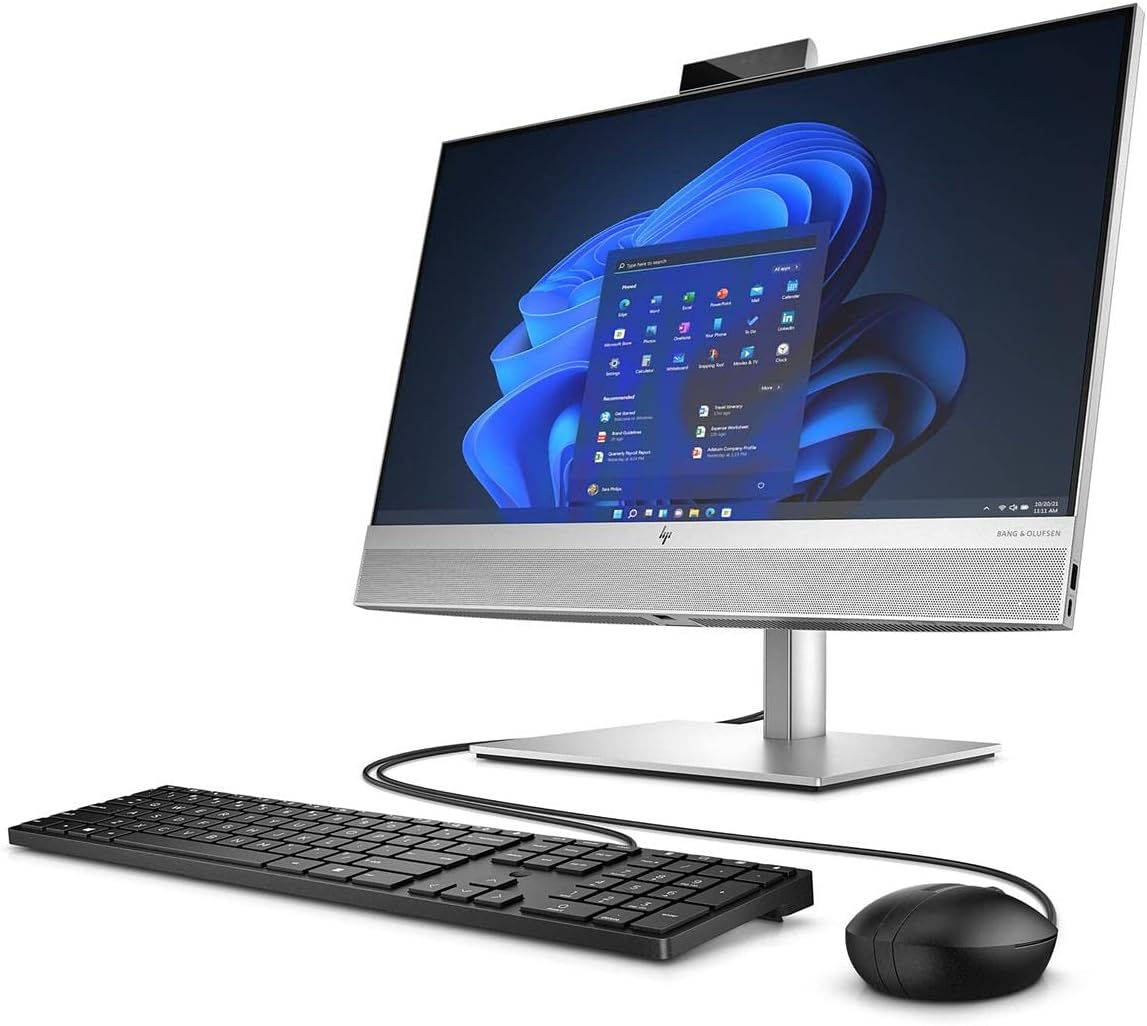
Figura 4.2: Lato posteriore view of the HP EliteOne 840 G9, highlighting the connectivity ports on the back panel and side. These typically include USB ports, video output ports, and an Ethernet port.

Figura 4.3: A different angle of the rear and side of the HP EliteOne 840 G9, providing a clearer view of the stand mechanism and additional port locations.
The HP EliteOne 840 G9 features a 23.8-inch Full HD display, an integrated webcam, and various ports for peripheral connectivity. The stand provides stability and allows for screen angle adjustments.
5. Impostazione
Follow these steps for the initial setup of your All-in-One computer:
- Disimballare il computer: Carefully remove the computer and all accessories from the packaging. Place the computer on a sturdy, flat surface.
- Collegare tastiera e mouse: Connect the wired keyboard and mouse to the available USB ports on the back or side of the computer.
- Connetti alimentazione: Plug the power cable into the power adapter, then connect the adapter to the power input port on the back of the computer. Plug the other end of the power cable into a grounded electrical outlet.
- Accensione: Press the power button, usually located on the side or bottom bezel of the display. The computer will start and guide you through the initial Windows 11 setup process.
- Complete Windows Setup: Follow the on-screen instructions to configure Windows 11, including language, region, network connection, and user account creation.
6. Istruzioni per l'uso
6.1 Accensione/spegnimento
- Per accendere: Premere il pulsante di accensione.
- Spegnere: Fare clic sul pulsante Start in Windows, quindi selezionare Arresta il sistema > Arresta il sistema.
- Ricominciare: Fare clic sul pulsante Start in Windows, quindi selezionare Arresta > Riavvia.
- Per dormire: Fare clic sul pulsante Start in Windows, quindi selezionare Alimentazione > Sospensione.
6.2 Utilizzo di Windows 11
Your HP EliteOne 840 G9 comes pre-installed with Windows 11. Navigate the operating system using the connected keyboard and mouse. The Start menu provides access to applications, settings, and system functions.
6.3 Display e audio
- Regolazione della luminosità del display: Use the function keys on your keyboard or the display settings within Windows to adjust brightness.
- Controllo audio: Adjust volume using the keyboard's media keys or the volume icon in the Windows taskbar. The integrated Bang & Olufsen speakers provide high-quality audio.
6.4 WebUtilizzo della camma
L'integrato webcam can be used for video conferencing and other applications. Ensure proper lighting for optimal video quality. Privacy settings for the webcam can be managed within Windows settings.
7. Manutenzione
7.1 Pulizia
- Schermo: Utilizzare un panno morbido e privo di lanugine leggermente dampcon acqua o un detergente per schermi. Non spruzzare il detergente direttamente sullo schermo.
- Chassis: Wipe with a soft, dry cloth. Avoid abrasive cleaners.
- Ventilazione: Periodically check and gently clean the ventilation openings to prevent dust buildup, which can affect performance.
7.2 Aggiornamenti software
Regularly update your Windows operating system and drivers to ensure optimal performance and security. Windows Update can be accessed through the Settings menu.
7.3 Backup dei dati
Eseguire regolarmente il backup dei dati importanti su un'unità esterna o su un archivio cloud per evitare la perdita di dati.
8. Risoluzione Dei Problemi
Questa sezione affronta i problemi più comuni che potresti incontrare.
8.1 Nessun potere
- Assicurarsi che il cavo di alimentazione sia collegato saldamente sia al computer sia alla presa elettrica.
- Verificare che la presa elettrica funzioni collegandovi un altro dispositivo.
- Controllare che l'adattatore di alimentazione non presenti danni visibili.
8.2 Problemi di visualizzazione
- If the screen is blank, ensure the computer is powered on and not in sleep mode.
- Regola la luminosità del display.
- Se è collegato un monitor esterno, assicurarsi che nelle impostazioni di Windows sia selezionata l'uscita video corretta.
8.3 Periferica non risponde
- For wired devices (keyboard, mouse), ensure they are securely plugged into the correct USB ports. Try a different USB port.
- Riavviare il computer.
- Check device drivers in Windows Device Manager.
8.4 Prestazioni lente
- Chiudere le applicazioni non necessarie in esecuzione in background.
- Assicurarsi che Windows e i driver siano aggiornati.
- Verificare la presenza di malware o virus.
- Assicurarsi che ci sia spazio libero sufficiente sull'SSD.
9. Specifiche
Key technical specifications for the HP EliteOne 840 G9 All-in-One Computer:
| Caratteristica | Specificazione |
|---|---|
| Nome del modello | EliteOne 840 G9 |
| Numero modello articolo | 69S91UT#ABA |
| Processore | Intel Core i5-12500 Hexa-core (6 Core) 3 GHz (12th Gen) |
| Memoria RAM | 16 GB di memoria DDR5 SDRAM |
| Magazzinaggio | 512 GB M.2 PCI Express NVMe SSD |
| Display | 23.8" Full HD (1920 x 1080) |
| Coprocessore grafico | Grafica Intel UHD 630 (integrata) |
| Sistema operativo | Finestre 11 |
| Dimensioni (LxWxH) | 19.5 x 15.6 x 7.9 pollici |
| Peso dell'articolo | 12.71 libbre |
| Colore | Nero |
| Tipo di unità ottica | BD-R |
| Codice UPC | 196548574346 |
10. Garanzia e supporto
Per informazioni sulla garanzia e supporto tecnico, fare riferimento alla documentazione inclusa con il prodotto o visitare il sito ufficiale dell'assistenza HP website. HP provides resources for troubleshooting, driver downloads, and service options.
Di solito puoi trovare informazioni di supporto visitando www.hp.com/support.