1. Introduzione
Thank you for choosing the typecase Touch iPad Keyboard Case. This manual provides detailed instructions for setting up, operating, and maintaining your keyboard case to ensure optimal performance and longevity. Please read this manual thoroughly before use.
2. Compatibilità
This keyboard case is designed for specific iPad models. Please verify your iPad model number to ensure compatibility.
- iPad di decima generazione (10.9 pollici, 2022): Modelli A2696, A2757, A2777
- iPad A16 (11th Generation, 2025): Modelli A3354, A3355, A3356
To verify your iPad model:
- Metodo 1: Check the back of your iPad for the model number (e.g., A2696).
- Metodo 2: Go to iPad Settings > General > About > Model Number. Tap the model number to display the A-number.
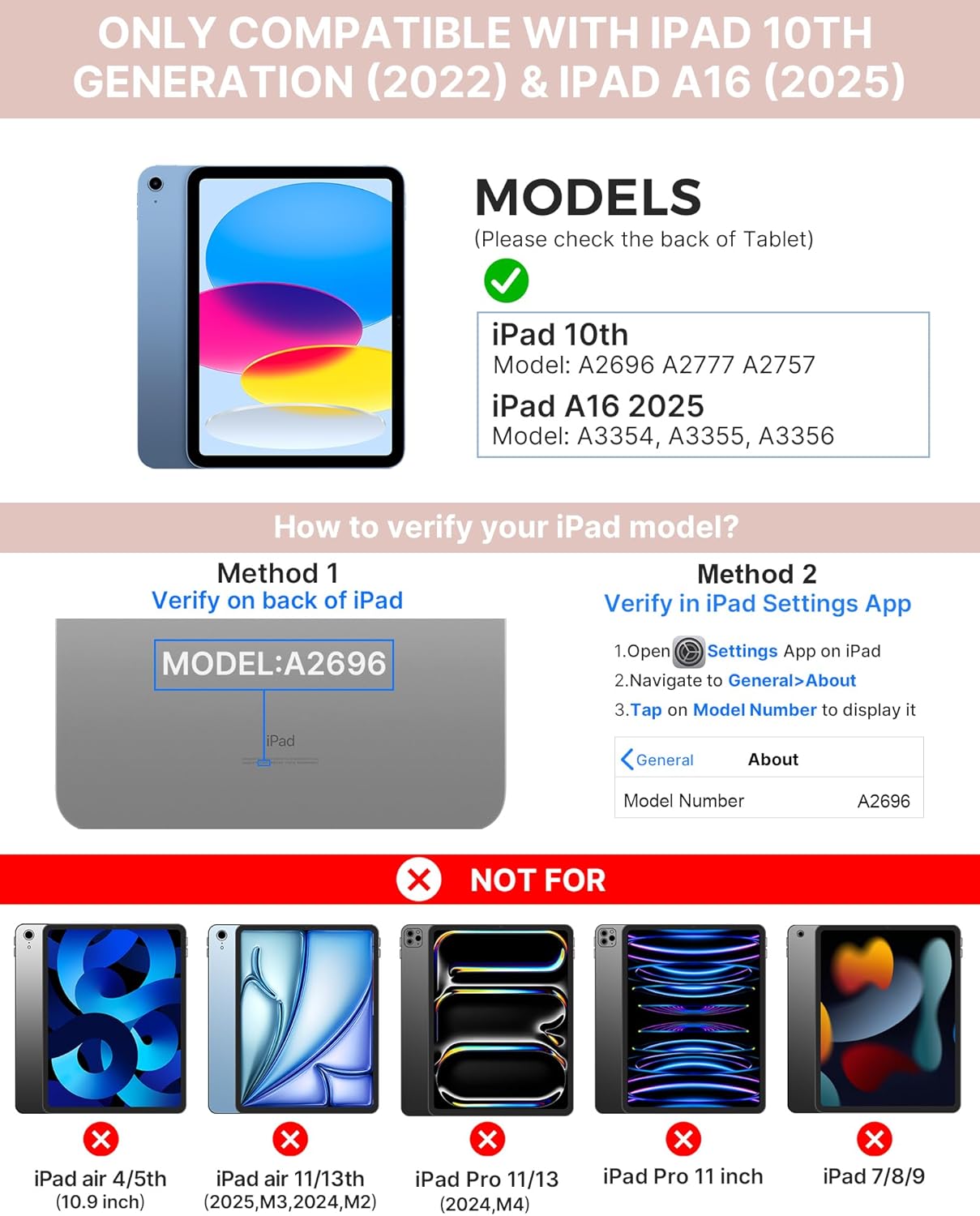
Image: Visual guide for identifying compatible iPad models and verifying the model number on the device or through settings.
3. Contenuto della confezione
Il pacchetto include:
- 1 x typecase Touch iPad Keyboard Case
- Cavo di ricarica 1 x USB-C
- 1 x Manuale utente
4. Istruzioni per l'installazione
4.1 Ricarica della tastiera
Prima del primo utilizzo, caricare completamente la tastiera. Collegare il cavo di ricarica USB-C in dotazione alla porta di ricarica della tastiera e a una fonte di alimentazione. La spia di carica indicherà lo stato di carica.
- Stand-by: Fino a 1 anno
- Daytime use (2 hours/day with backlight off): Fino a 3 mesi
- Nighttime use (2 hours/day with backlight on): Fino a 2 settimane

Image: Close-up of the keyboard's USB-C charging port and battery life specifications.
4.2 Associazione con iPad
- Assicurarsi che la tastiera sia carica.
- Accendi la tastiera premendo il pulsante di accensione. La spia Bluetooth lampeggerà.
- Sul tuo iPad, vai a Impostazioni > Bluetooth.
- Attiva il Bluetooth. Il tuo iPad cercherà i dispositivi disponibili.
- Select "typecase Keyboard" from the list of devices.
- Seguire le istruzioni visualizzate sullo schermo per completare il processo di associazione. La spia Bluetooth sulla tastiera diventerà fissa una volta completata l'associazione.
5. Istruzioni per l'uso
5.1 Installazione dell'iPad
Gently insert your iPad into the case, ensuring all edges are securely seated. The case provides full protection for your device.
5.2 Funzioni della tastiera
The keyboard features a standard 78-key layout with a dedicated row of iPadOS shortcut keys for enhanced productivity.

Immagine: dall'alto view of the keyboard layout, highlighting the 78-key design and iPadOS shortcuts.
Tasti retroilluminati
The keyboard features 11-color RGB LED backlighting with adjustable brightness levels. This allows for comfortable typing in various lighting conditions.
- Premere il tasto chiave della lampadina per scorrere i colori della retroilluminazione.
- Premere Tasto Fn + lampadina per regolare la luminosità della retroilluminazione.
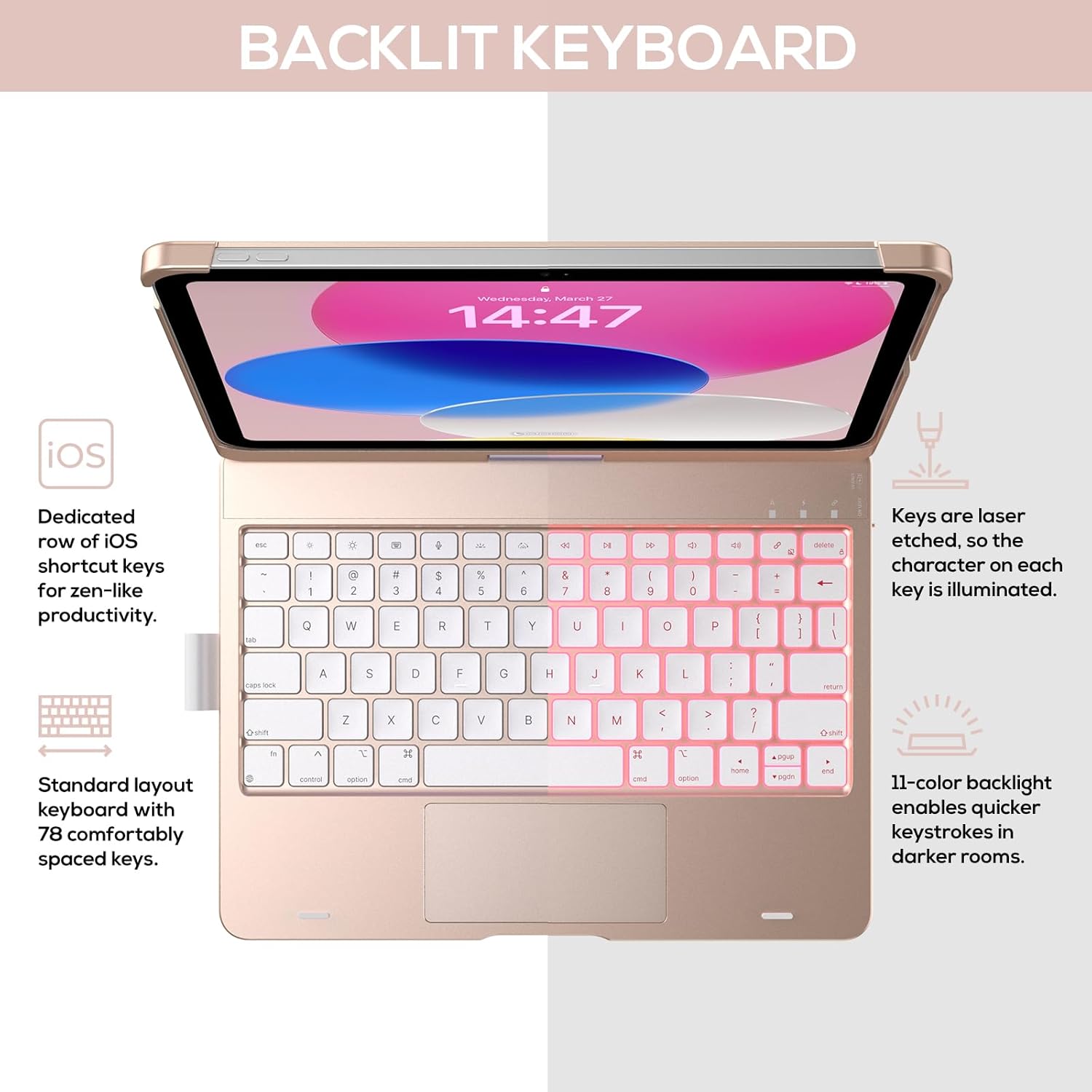
Image: The keyboard with illuminated keys, demonstrating the 11-color backlight and dedicated iOS shortcut keys.
Trackpad multi-touch 5.3
The integrated precision trackpad supports multi-gesture controls, enhancing productivity for tasks like document editing, web browsing, and presentation building.
- Tocco con un dito: Fare clic/selezionare
- Scorrimento con due dita: Scorri verso l'alto/verso il basso o verso sinistra/destra
- Pizzica per zoomare: Ingrandisci/riduci
- Scorrimento verso l'alto con tre dita: Apri App Switcher
- Scorrimento verso il basso con tre dita: Torna alla schermata iniziale

Image: Diagram showing common multi-touch gestures for the trackpad, including managing files, web navigazione e cambio di app.
5.4 360° Rotatable Hinge and Use Modes
The patented 360° hinge allows for versatile use of your iPad in 7 unique modes, adapting to various tasks from typing to viewing.
- Modalità portatile: Traditional laptop setup for typing.
- Modalità Stand: Ideale per viewcontenuto.
- Modalità tenda: Stable for touch interaction or presentations.
- Modalità Tablet: Fold the keyboard behind the iPad for tablet use. Keys are protected in this mode.
- Modalità angolo: Angled for comfortable drawing or writing.
- Modalità di condivisione: Rotate the screen to share content with others.
- Modalità di protezione: Close the case to fully protect the iPad.
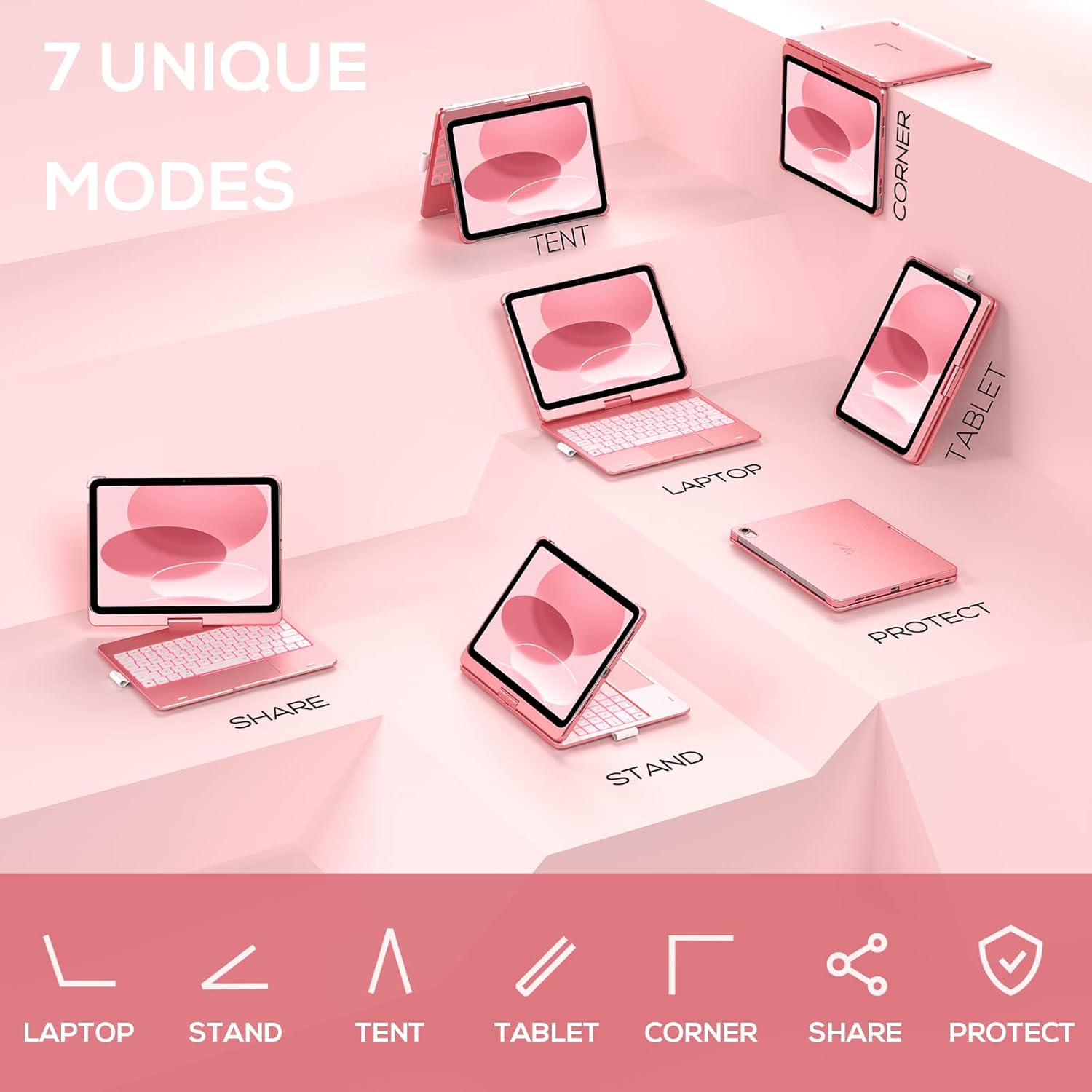
Image: A visual representation of the seven different configurations the keyboard case can be used in, including laptop, stand, and tablet modes.
5.5 Funzione di sospensione/riattivazione automatica
The case features an auto sleep/wake function. Opening the case will wake your iPad, and closing it will put your iPad to sleep, helping to conserve battery life for both the iPad and the keyboard.

Image: A user's hand on the trackpad, illustrating the built-in trackpad and the auto sleep/wake feature that activates when the case is opened or closed.
5.6 Supporto per Apple Pencil
An integrated holder is provided for your Apple Pencil, ensuring it is securely stored and easily accessible.
6. Manutenzione
6.1 Pulizia
To clean the keyboard case, use a soft, damp cloth. Avoid using harsh chemicals or abrasive materials, as these may damage the surface. Ensure the charging port is dry before charging.
6.2 Conservazione
Quando non viene utilizzata per lunghi periodi, conservare la custodia con tastiera in un luogo fresco e asciutto. Si consiglia di caricare completamente la tastiera prima di riporla per un lungo periodo, per preservare la salute della batteria.
7. Risoluzione Dei Problemi
7.1 La tastiera non si connette
- Assicurarsi che la tastiera sia accesa e carica.
- Verifica che il Bluetooth sia abilitato sul tuo iPad.
- Dimentica il dispositivo nelle impostazioni Bluetooth del tuo iPad e prova a riassociarlo.
- Riavvia sia l'iPad che la tastiera.
7.2 I tasti non rispondono
- Assicurarsi che la tastiera sia correttamente connessa tramite Bluetooth.
- Controllare il livello della batteria della tastiera.
- Pulisci eventuali detriti attorno ai tasti.
7.3 Il trackpad non funziona
- Assicurarsi che la tastiera sia collegata.
- Check iPad settings for trackpad functionality (Settings > General > Trackpad).
- Riavviare la tastiera e l'iPad.
7.4 Retroilluminazione non funzionante
- Assicurati che la tastiera sia accesa.
- Press the backlight control keys (light bulb key, Fn + light bulb key) to activate or adjust.
- Controllare il livello della batteria; una batteria scarica potrebbe disattivare la retroilluminazione.
8. Specifiche
| Numero di modello | KB201T-100 |
| Dimensioni del prodotto | 11 x 8.6 x 1.5 pollici (11"L x 8.6"W x 1.5"H) |
| Peso dell'articolo | 1.43 libbre |
| Tecnologia di connettività | Bluetooth |
| Descrizione della tastiera | Flexible, 78-key layout with iPadOS shortcuts |
| Caratteristiche speciali | 360° Rotatable, 11-Color Backlit, Ergonomic, Lightweight, Multi-Touch Trackpad, Auto Sleep/Wake, Apple Pencil Holder |
| Retroilluminazione della tastiera | RGB (11 colori) |
| Tipo di batteria | 1 batteria ai polimeri di litio (inclusa) |
9. Garanzia e supporto
typecase is committed to product quality and customer satisfaction. This product comes with the following support:
- Servizio di sostituzione: Within 1 year of purchase.
- Politica di rimborso: Entro 30 giorni dall'acquisto.
For any issues or inquiries, please contact typecase customer support for quick feedback and assistance.

Image: Information on typecase's after-sales service, including replacement, refund, and customer support.


