1. Introduzione
This manual provides instructions for the proper setup, operation, and maintenance of your Targus 18-inch Dual Fan Laptop Cooling Pad with Adjustable Stand, model AWE90GL. This device is designed to enhance your laptop's performance by dissipating heat and providing an ergonomic viewangolo di ing.

Immagine 1.1: In alto view of the Targus AWE90GL Cooling Pad.
2. Caratteristiche del prodotto
- Dual High-Performance Fans: Two integrated fans operate at 1,900 RPM to effectively disperse heat from your laptop.
- Supporto regolabile: Offers three distinct height positions for customized viewing angles, promoting ergonomic posture and reducing strain.
- Padded Air Mesh Base: Provides cushioned comfort for lap use and prevents slippage.
- Alimentato tramite USB-A: Connects directly to your laptop via an integrated USB-A cable, requiring no external power adapter.
- Compatibilità universale: Designed to accommodate laptops up to 18 inches in size.
- Non-Skid Pads: Located on the top surface to securely hold your laptop in place.

Image 2.1: Key features and dimensions of the cooling pad, highlighting the vented base, padded base, and three viewangoli di inclinazione.

Immagine 2.2: Dall'alto verso il basso view illustrating the perforated surface for optimal airflow to the dual fans.
3. Istruzioni per l'installazione
- Disimballare il pad di raffreddamento: Estrarre con cautela il tappetino refrigerante dalla confezione.
- Posizionare il cuscinetto di raffreddamento: Place the cooling pad on a stable, flat surface or on your lap.
- Connetti al laptop: Locate the integrated USB-A cable on the cooling pad. Plug the USB-A connector into an available USB-A port on your laptop. The fans will begin operating automatically upon connection.
- Posiziona il portatile: Carefully place your laptop onto the non-skid surface of the cooling pad. Ensure it is centered and stable.

Image 3.1: Illustration of connecting the cooling pad's USB-A cable to a laptop.

Image 3.2: A laptop positioned securely on the cooling pad, demonstrating proper placement.
4. Istruzioni per l'uso
4.1 Funzionamento del ventilatore
The dual fans activate automatically when the USB-A cable is connected to a powered USB port on your laptop. To turn off the fans, simply disconnect the USB-A cable from your laptop.
4.2 Adjusting the Stand Height
The cooling pad features an adjustable stand with three height settings. To adjust the height:
- Ensure your laptop is removed from the cooling pad for easier adjustment.
- Gently lift the top platform of the cooling pad.
- Engage the support arm into one of the three available notches on the base to achieve your desired viewangolo di ing.
- Carefully lower the platform until it rests securely on the support arm.
- Place your laptop back onto the cooling pad.
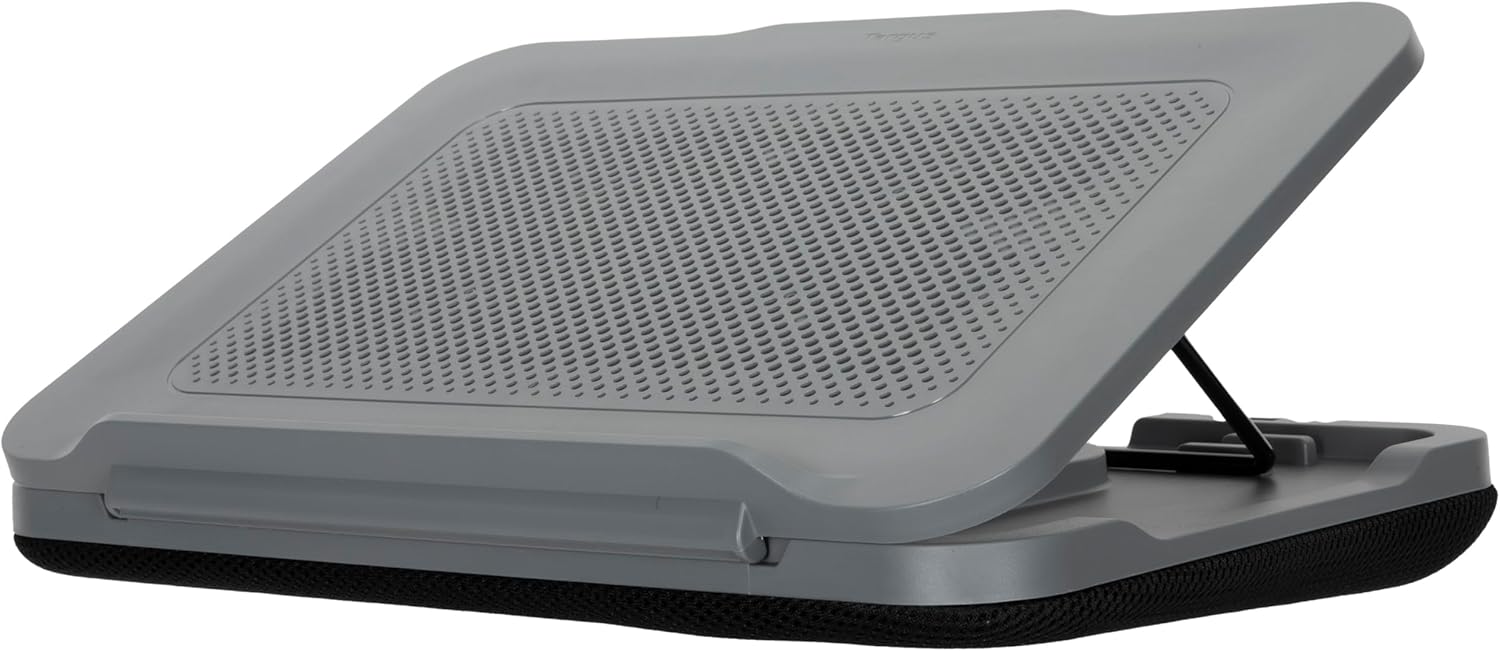
Immagine 4.1: Lato view of the cooling pad demonstrating an elevated position for ergonomic use.

Immagine 4.2: Dettagliata view of the adjustable support arm and notches for setting the height.
5. Manutenzione
Per garantire prestazioni ottimali e longevità del tuo tappetino refrigerante, segui queste linee guida per la manutenzione:
- Pulizia: Use a soft, dry cloth to wipe down the surfaces of the cooling pad. For stubborn dirt, a slightly damp è possibile utilizzare un panno e procedere immediatamente all'asciugatura.
- Evitare i liquidi: Do not immerse the cooling pad in water or expose it to excessive moisture.
- Prese d'aria pulite: Periodically check and gently clean the fan grilles and air vents to prevent dust buildup, which can impede airflow and fan efficiency.
- Magazzinaggio: Quando non in uso, conservare il cuscinetto refrigerante in un luogo fresco e asciutto, lontano dalla luce solare diretta.
6. Risoluzione Dei Problemi
- I ventilatori non girano:
- Ensure the USB-A cable is securely plugged into an active USB-A port on your laptop.
- Try plugging the USB-A cable into a different USB-A port on your laptop.
- Verify that your laptop is powered on and not in sleep mode.
- Laptop is sliding on the pad:
- Ensure the laptop is placed centrally on the non-skid pads.
- Check that the non-skid pads are clean and free from dust or debris.
- Raffreddamento insufficiente:
- Ensure the cooling pad's fan grilles and your laptop's vents are not obstructed.
- Verify that the fans are spinning.
- Confirm that your laptop's size is within the recommended 18-inch compatibility.
7. Specifiche
| Caratteristica | Specificazione |
|---|---|
| Numero di modello | AWE90GL |
| Dimensioni del prodotto (L x P x A) | 15.5 x 11.25 x 2.25 pollici (39.37 x 28.58 x 5.72 cm) |
| Peso dell'articolo | 2.31 libbre (1.05 kg) |
| Materiale | Polyester (Padded Base) |
| Colore | Grigio |
| Velocità della ventola | 1,900 giri/min (giri al minuto) |
| Fonte di alimentazione | USB-A (Laptop Powered) |
| Compatibilità del computer portatile | Fino a 18 pollici |
8. Garanzia e supporto
For warranty information, technical support, or customer service inquiries, please refer to the official Targus website or contact Targus customer support directly. Keep your purchase receipt for warranty claims.
Targus Ufficiale Websito: www.targus.com


