1. Introduzione
This manual provides detailed instructions for the VENTION USB C Hub, Model TOPHB. This 7-in-1 multiport adapter is designed to expand the connectivity of your USB-C enabled devices, offering a range of ports for data transfer, video output, and power delivery. Please read this manual carefully before using the product to ensure proper operation and longevity.
2. Prodotto finitoview
The VENTION USB C Hub (Model TOPHB) is a versatile 7-in-1 adapter that integrates essential ports into a compact design. It is compatible with various USB-C devices, including laptops, tablets, and smartphones.
Contenuto della confezione:
- VENTION USB C Hub (Model TOPHB)
- Manuale d'uso
Caratteristiche principali:
- Porta HDMI: Supporta l'uscita video 4K@30Hz per display esterni.
- Porta USB-C PD: Provides up to 100W Power Delivery for fast charging.
- Porte USB 3.0 (x3): Offre un trasferimento dati ad alta velocità fino a 5 Gbps.
- Lettore di schede SD: Supporta schede SD standard.
- TF (Micro SD) Card Reader: Supports Micro SD cards.
- Simultaneous SD/TF card reading and writing.
- Lega di alluminio resistente casing per un'efficiente dissipazione del calore.
- Blue LED indicator for operational status.

Image: The VENTION USB C Hub connected to a laptop, showcasing its multiple ports including HDMI, USB-C PD, USB 3.0, and SD/TF card slots, with various peripherals like a USB drive and memory cards.
3. Istruzioni per l'installazione
The VENTION USB C Hub is designed for plug-and-play functionality, requiring no additional drivers for most operating systems.
Collegamento dell'Hub:
- Locate an available USB-C port on your host device (laptop, tablet, or smartphone).
- Insert the USB-C connector of the VENTION hub firmly into the USB-C port of your device.
- A blue LED indicator on the hub will illuminate, confirming that the hub is powered on and ready for use.

Image: The VENTION USB C Hub with its blue LED indicator glowing, indicating that it is successfully connected and operational.
4. Istruzioni per l'uso
4.1 Uscita video HDMI
Connect an external monitor or TV to the hub's HDMI port for high-definition video output.
- Supports resolutions up to 4K (3840x2160) at 30Hz.
- Your device's display settings can be configured for mirror mode (duplicate display) or extend mode (separate display).

Image: A visual representation of connecting a laptop to an external monitor using the hub, showing options for mirroring the display or extending it.
4.2 Trasferimento dati USB 3.0
Le tre porte USB 3.0 consentono di collegare diverse periferiche USB e di trasferire dati ad alta velocità.
- Connect USB flash drives, external hard drives, keyboards, mice, and other USB devices.
- Data transfer speeds up to 5Gbps.
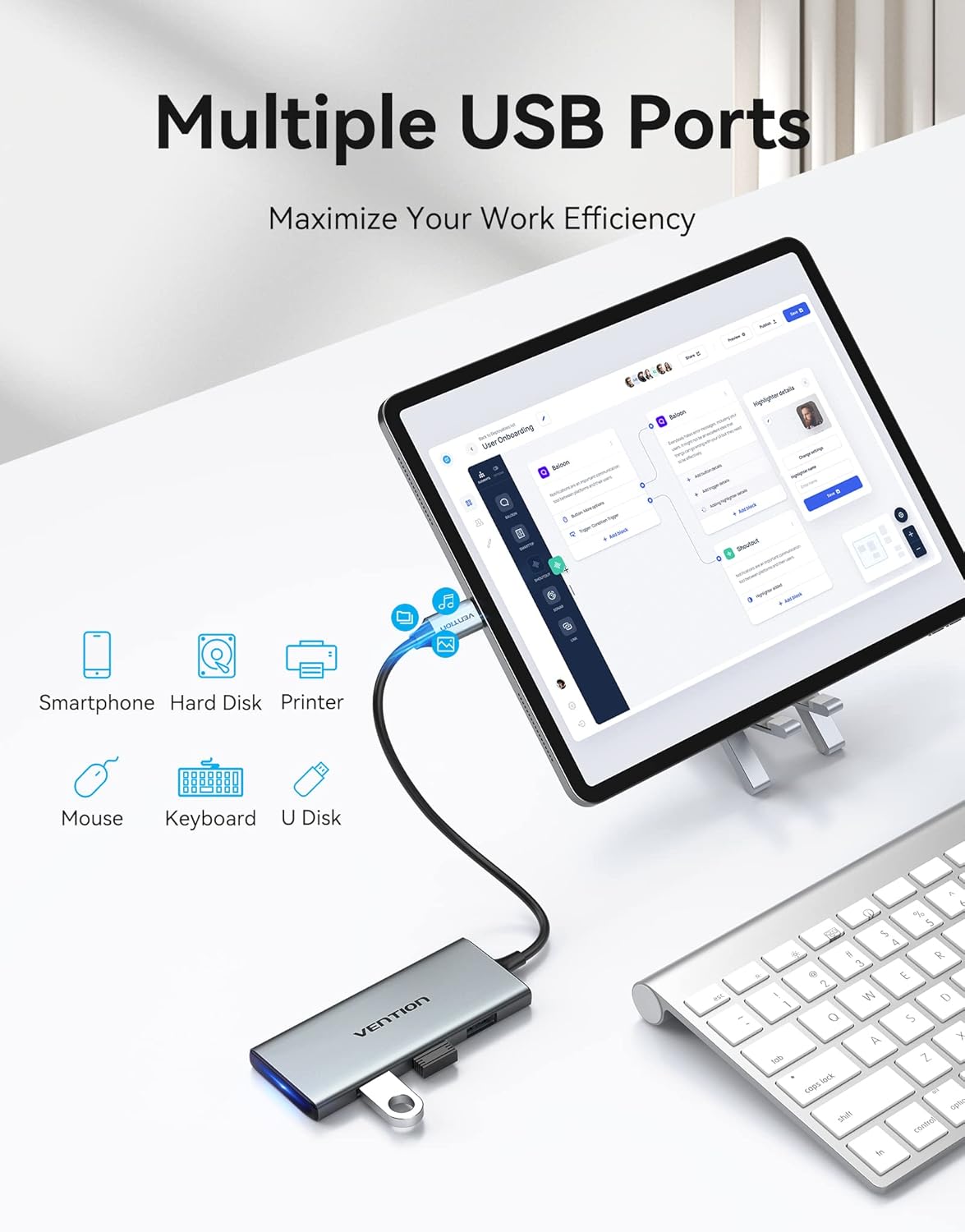
Image: A tablet connected to the VENTION USB C Hub, demonstrating the use of multiple USB ports for connecting a keyboard and a USB drive, enhancing productivity.
4.3 Lettore di schede SD/TF
The integrated card readers support both standard SD and Micro SD (TF) cards, allowing for quick access to media files.
- Inserire le schede SD o TF nei rispettivi slot.
- Supports simultaneous reading and writing for both card types.
- Reading/writing speed up to 70MB/s.

Image: A VENTION USB C Hub connected to a laptop, with an SD card inserted into its slot, illustrating the card reader functionality for transferring photos and videos from a camera.
4.4 Ricarica Power Delivery (PD)
The USB-C PD port allows you to charge your host device while using the hub.
- Connect your original USB-C power adapter to the hub's USB-C PD port.
- Supports up to 100W power delivery to your host device.

Image: The VENTION USB C Hub connected to a laptop and a power adapter, demonstrating its 100W Power Delivery charging capability.
4.5 Video ufficiale del prodotto
Video: An official product video from Vention showcasing the features and usage of the 7-in-1 USB-C Docking Station, including its compact design, various ports, and connectivity options.
5. Manutenzione
To ensure the longevity and optimal performance of your VENTION USB C Hub, follow these maintenance guidelines:
- Pulizia: Utilizzare un panno morbido e asciutto per pulire il mozzo. Evitare detergenti liquidi o materiali abrasivi.
- Magazzinaggio: Conservare l'hub in un luogo fresco e asciutto, lontano dalla luce solare diretta e da temperature estreme.
- Gestione: Evitare di far cadere il mozzo o di sottoporlo a forti urti.
- Dissipazione del calore: La lega di alluminio casing is designed for efficient heat dissipation. Ensure the hub is placed in a well-ventilated area during prolonged use.
6. Risoluzione Dei Problemi
If you encounter issues with your VENTION USB C Hub, refer to the following common problems and solutions:
| Problema | Possibile causa | Soluzione |
|---|---|---|
| Nessuna visualizzazione sul monitor esterno. | Incorrect cable connection; incompatible resolution; host device not configured for external display. | Ensure HDMI cable is securely connected. Check display settings on your host device (e.g., Windows Display Settings, macOS System Preferences > Displays) to detect and configure the external monitor. Try a different HDMI cable. |
| Dispositivi USB non riconosciuti. | Loose connection; insufficient power; device driver issue. | Ensure USB devices are firmly plugged into the hub. If using a high-power device, connect a power adapter to the hub's PD port. Try connecting the USB device directly to your host device to rule out device-specific issues. |
| Slow charging via PD port. | Power adapter not sufficient; cable issue. | Ensure you are using a power adapter capable of delivering sufficient wattage (e.g., 100W for maximum speed). Use a high-quality USB-C to USB-C cable that supports Power Delivery. |
| SD/TF cards not detected. | Card not fully inserted; card format issue. | Ensure the card is fully and correctly inserted into the slot. Try the card in another device to check if the card itself is faulty. |
If the problem persists after trying these solutions, please contact VENTION customer support for further assistance.
7. Specifiche
| Caratteristica | Dettaglio |
|---|---|
| Numero di modello | TOPHB |
| Interfaccia Hardware | HDMI, MicroSD, Thunderbolt, USB 3.0 |
| Uscita HDMI | 4K a 30 Hz |
| Porta USB-C PD | Erogazione di potenza fino a 100 W |
| Porte USB 3.0 | 3 ports, 5Gbps data transfer |
| Lettore di schede | Slot SD e TF (Micro SD), lettura/scrittura simultanea |
| Dispositivi compatibili | Hard Disk Drive, Keyboards, Laptops, Monitors, Smartphones |
| Caratteristiche speciali | Fast Charging, Fast Data Transfer, Heat Resistant, Indicator Light, Lightweight |
| Peso dell'articolo | 2.46 once |
| Dimensioni del pacco | 7.09 x 3.58 x 1.02 pollici |
8. Garanzia e supporto
For warranty information, technical support, or any inquiries regarding your VENTION USB C Hub, please refer to VENTION's official websito o contattare direttamente il servizio clienti. Conservare la ricevuta d'acquisto per eventuali reclami in garanzia.
You can visit the VENTION Store for more information: VENTION Official Store


