1. Introduzione
This manual provides comprehensive instructions for the setup, operation, maintenance, and troubleshooting of your HDWR typerCLAW-BC130 Wireless Keyboard with Touchpad. Please read this manual carefully before using the product to ensure optimal performance and longevity.
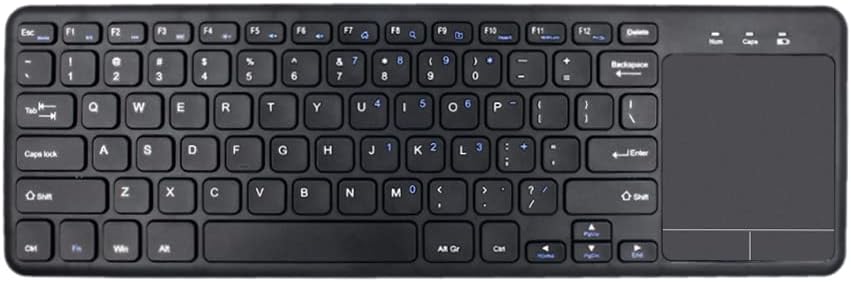
Immagine 1.1: Dall'alto verso il basso view of the HDWR typerCLAW-BC130 Wireless Keyboard with integrated touchpad.
2. Contenuto della confezione
Assicurarsi che tutti gli articoli siano presenti nel pacco:
- HDWR typerCLAW-BC130 Wireless Keyboard
- USB Receiver (quantity: 3, typically one is used for connection)
- Manuale dell'utente (questo documento)
3. Caratteristiche del prodotto
- Funzionamento senza fili: The keyboard operates wirelessly via a USB receiver, providing a cable-free connection within a 10-meter range. This allows for flexible placement and use.
- Risparmio energetico: Powered by two AAA batteries, the keyboard can operate continuously for over 60 hours. An energy-saving mode automatically puts the keyboard to sleep after 10 minutes of inactivity to extend battery life.
- Design ergonomico e portatile: The TyperCLAW BC130 is less than 2 cm thick and weighs under 300g, making it suitable for mobile use and saving workspace. Its slim profile contributes to comfortable typing.
- Touchpad integrato: The convenient touchpad provides precise control, effectively replacing a traditional computer mouse. It supports multi-touch gestures for enhanced navigation.
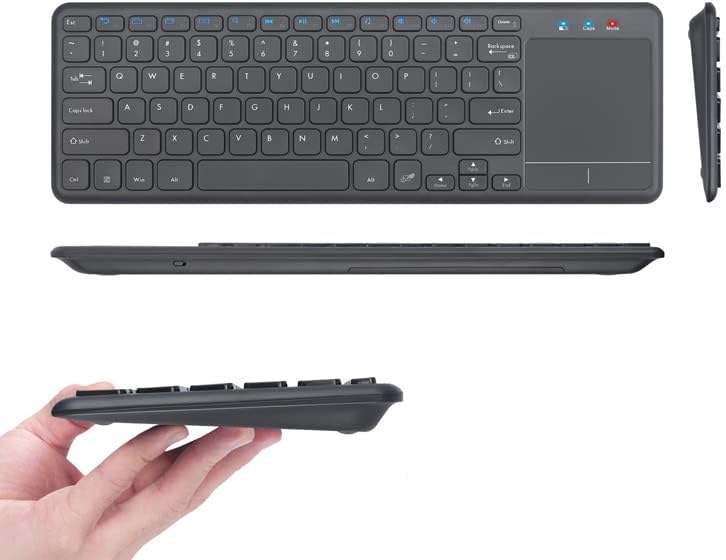
Immagine 3.1: Varie views highlighting the slim and portable design of the keyboard.

Image 3.2: A hand demonstrating interaction with the integrated touchpad.
4. Impostazione
4.1. Installazione della batteria
- Individuare il vano batteria sul lato inferiore della tastiera.
- Aprire il coperchio del vano batterie.
- Inserire due batterie AAA, assicurandosi della corretta polarità (+/-).
- Chiudere saldamente il coperchio del vano batterie.
4.2. Collegamento del ricevitore USB
- Take one of the provided USB receivers from the package.
- Collega il ricevitore USB a una porta USB disponibile sul tuo computer o laptop.
- Il sistema operativo dovrebbe rilevare e installare automaticamente i driver necessari. L'operazione potrebbe richiedere alcuni istanti.
4.3. Accensione
- Locate the power switch on the keyboard (usually on the side or top edge).
- Spostare l'interruttore in posizione 'ON'.
- Ora la tastiera dovrebbe essere collegata e pronta all'uso.
5. Istruzioni per l'uso
5.1. Digitazione di base
Use the keys as you would with any standard keyboard. The layout is designed for familiar and efficient typing.
5.2. Utilizzo del touchpad
- Tocco con un solo dito: Funziona come un clic sinistro.
- Tocco con due dita: Funziona come un clic destro.
- Trascinamento con un solo dito: Sposta il cursore.
- Scorrimento con due dita: Trascina due dita verso l'alto o verso il basso per scorrere verticalmente.
5.3. Modalità di risparmio energetico
The keyboard automatically enters power-saving mode after 10 minutes of inactivity. To wake it up, simply press any key or move the touchpad. This feature helps conserve battery life.
6. Manutenzione
6.1. Pulizia
- Spegnere la tastiera prima di pulirla.
- Utilizzare un panno morbido e privo di lanugine leggermente damplucidato con acqua o una soluzione detergente delicata.
- Evitare l'uso di prodotti chimici aggressivi, abrasivi o solventi.
- Per rimuovere polvere e detriti tra i tasti, utilizzare aria compressa.
6.2. Sostituzione della batteria
When the keyboard's performance degrades or it stops responding, it may be time to replace the AAA batteries. Follow the battery installation steps in Section 4.1.
6.3. Conservazione
If storing the keyboard for an extended period, remove the batteries to prevent leakage and potential damage. Store in a cool, dry place away from direct sunlight.
7. Risoluzione Dei Problemi
- La tastiera non risponde:
- Assicurati che la tastiera sia accesa.
- Controllare che le batterie siano installate correttamente e abbiano una carica sufficiente. Sostituirle se necessario.
- Assicurati che il ricevitore USB sia collegato saldamente a una porta USB funzionante del computer. Prova una porta USB diversa.
- Move the keyboard closer to the USB receiver to ensure it's within the 10-meter operating range.
- Riavvia il computer.
- Il touchpad non funziona:
- Assicurarsi che la tastiera sia accesa e collegata.
- Clean the touchpad surface to remove any dirt or obstructions.
- Check if there's a function key (Fn + Fx) that disables/enables the touchpad. Refer to the keyboard's key legends.
- Connessione intermittente:
- Ensure there are no large metallic objects or other wireless devices interfering with the signal between the keyboard and the receiver.
- Try using a different USB receiver if available.
8. Specifiche
| Caratteristica | Dettaglio |
|---|---|
| Marca | HDWR |
| Numero di modello | typerCLAW-BC130 |
| Colore | Nero |
| Tecnologia di connettività | Wireless (USB Receiver), Micro USB (for charging/data if applicable) |
| Dispositivi compatibili | Computer portatile, PC |
| Compatibilità del sistema operativo | Windows 10 (and likely other modern OS versions) |
| Caratteristiche speciali | Ergonomic, Integrated Touchpad, Power Saving Mode |
| Fonte di alimentazione | 2 batterie AAA |
| Durata della batteria | Oltre 60 ore di funzionamento continuo |
| Materiale | Plastica |
| Paese di origine | Polonia |
9. Informazioni sulla garanzia
The HDWR typerCLAW-BC130 Wireless Keyboard comes with a Garanzia del produttore di 1 anno. Please retain your proof of purchase for warranty claims. For specific terms and conditions, refer to the warranty card included with your product or contact HDWR customer support.
10. Supporto
For further assistance, technical support, or warranty inquiries, please contact HDWR customer service through their official websito o le informazioni di contatto fornite sulla confezione del prodotto.