1. Introduzione
This manual provides essential instructions for setting up, operating, and maintaining your Huawei H158-381 5G CPE Pro 5 Router. Please read this guide thoroughly before using the device to ensure proper functionality and safety.
2. Contenuto della confezione
Verifica che tutti i seguenti elementi siano inclusi nella confezione del prodotto:
- Huawei H158-381 5G CPE Pro 5 Router
- Adattatore di alimentazione 12V 3A
- Guida rapida (questo manuale)
3. Prodotto finitoview
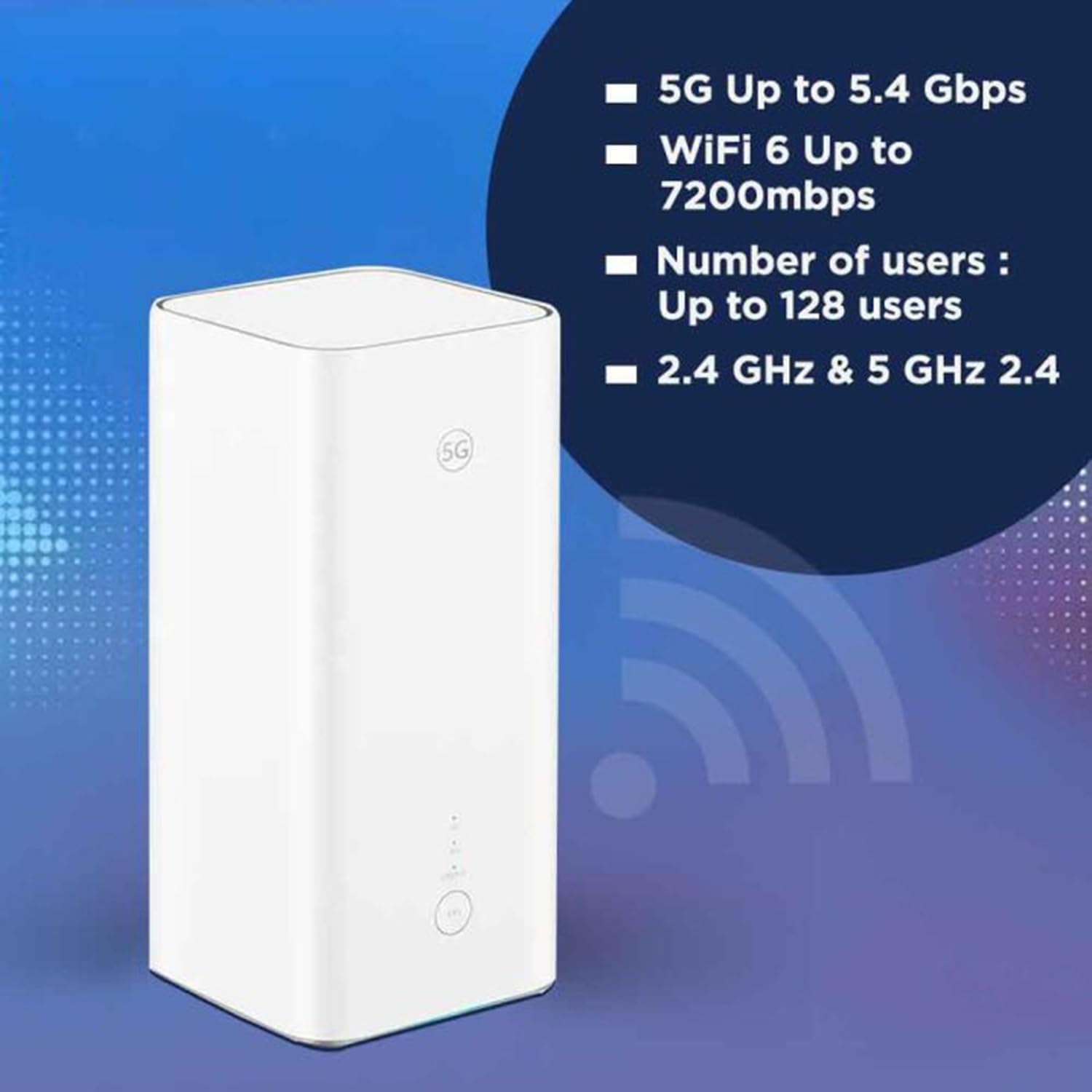
The Huawei H158-381 5G CPE Pro 5 Router is a high-performance wireless router designed for advanced internet connectivity. It supports both 5G and 4G networks, offering high-speed data transmission and robust Wi-Fi capabilities.
Caratteristiche principali:
- 5G and 4G Network Compatibility: Supports 5G frequencies in NSA and SA modes (n1/3/5/7/20/28/71/38/40/41/77/78/79) and 4G bands (B1/3/5/7/8/18/19/20/26/28/32/34/38/39/40/41/42/43). Note: 2G and 3G are not supported.
- Dati ad alta velocità: Achieves download speeds up to 5.4 Gbps and upload speeds up to 500 Mbps on 5G (network dependent).
- Wi-Fi 6 (AX7200): Provides Wi-Fi speeds up to 7200 Mbps across 2.4 GHz and 5 GHz bands, supporting up to 128 connected users.
- Sicurezza WPA3: Enhanced wireless security protocol for a safer network.
- Nano-SIM Slot: For mobile broadband connectivity.
- Integrated 5G NR Antenna: Features a 12 dBi internal antenna for optimized signal reception.
- Porte Ethernet: Includes 2 Ethernet ports for wired connections.
Componenti fisici:


4. Guida all'installazione
4.1 Installazione della scheda SIM
- Locate the Nano-SIM card slot on your router.
- Insert a Nano-SIM card into the slot. Ensure the SIM card is correctly oriented according to the diagram near the slot.
- Importante: It is recommended to disable the PIN code of your SIM card using a mobile phone before inserting it into the router for a smoother setup process.
4.2 Collegamento di alimentazione
- Connect the provided 12V 3A power adapter to the router's power input port.
- Collegare l'alimentatore a una presa elettrica adeguata.
- The router will automatically power on. Wait for the status indicators to stabilize.
4.3 Configurazione iniziale
Once powered on, the router will attempt to connect to the mobile network. You can access the router's web interface or use the dedicated mobile application for further configuration, such as changing Wi-Fi names and passwords.
5. Istruzioni per l'uso
5.1 Connessione dei dispositivi tramite Wi-Fi
- Sul tuo dispositivo (smartphone, laptop, tablet), cerca le reti Wi-Fi disponibili.
- Select the Wi-Fi network name (SSID) corresponding to your router. The default SSID and password are usually found on a label at the bottom of the router.
- Inserisci la password Wi-Fi quando richiesto.
- Ora il tuo dispositivo dovrebbe essere connesso a Internet.
5.2 Collegamento dei dispositivi tramite Ethernet
The router features two Ethernet ports for wired connections:
- Connect one end of an Ethernet cable to an Ethernet port on the back of the router.
- Connect the other end of the Ethernet cable to the Ethernet port on your device (e.g., computer, gaming console, smart TV).
- Il dispositivo dovrebbe stabilire automaticamente una connessione di rete cablata.
6. Funzionalità avanzate
6.1 Supporto antenna esterna
The Huawei H158-381 router supports external 5G antennas to enhance signal reception. To utilize this feature:
- Install your external 5G antennas according to their respective instructions.
- Connect the external antennas to the designated external antenna ports on the router.
- Open the router's management application (e.g., Deco app), navigate to Advanced > External Antennas, and activate the external antennas option.
- When activated, the external antennas will replace a portion of the internal antennas for signal reception.
6.2 Product Summary Video
Guarda questo video per una rapida panoramicaview of the Huawei H158-381 5G CPE Pro 5 Router's features and benefits.
6.1 video: A product summary video showcasing the Huawei H158-381 5G CPE Pro 5 Router's design and core functionalities.
7. Specifiche tecniche
| Caratteristica | Specificazione |
|---|---|
| Marca | Marchio |
| Produttore | Marchio |
| Serie | Da H158 a H381 |
| Dimensioni del prodotto | 10.3 x 10.3 x 22.6 cm; 915 g |
| Numero modello articolo | Da H158 a H381 |
| Colore | Bianco |
| Tipo di connettività | Wifi |
| Tipo senza fili | 802.11ax |
| Numero di porte Ethernet | 2 |
| Voltage | 12 Volt |
| Sistema operativo | RouterOS |
| Batterie incluse | NO |
| Aggiornamenti software garantiti fino al | 23 maggio 2025 |
| Nome del modello | Da H158 a H381 |
| Caratteristiche speciali | WPS |
| Classe di banda di frequenza | Doppia banda |
| Standard di comunicazione wireless | 802.11ax |
| Dispositivi compatibili | Game console, tablet, personal computer, smartphone, smart television, streaming device, security camera, printer, smart thermostat |
| Usi consigliati del prodotto | Casa, Affari |
| Componenti inclusi | Manual, 12V 3A Charger, Router H158-381 |
| Tecnologia di connessione | Ethernet, Wi-Fi |
8. Manutenzione
To ensure the longevity and optimal performance of your router, consider the following maintenance tips:
- Posizionamento: Posizionare il router in una posizione centrale, lontano da ostacoli e altri dispositivi elettronici che potrebbero causare interferenze.
- Pulizia: Mantenere il router pulito e privo di polvere. Utilizzare un panno morbido e asciutto per la pulizia.
- Aggiornamenti del firmware: Regularly check for and install firmware updates to benefit from improved performance, security, and new features. This can usually be done through the router's web interfaccia o app mobile.
- Ventilazione: Assicurarsi che il router abbia una ventilazione adeguata per evitare il surriscaldamento. Non coprire le aperture di ventilazione.
9. Risoluzione Dei Problemi
Se riscontri problemi con il router, prova a seguire i seguenti passaggi per la risoluzione dei problemi:
- Nessuna connessione internet:
- Verificare che la scheda SIM sia inserita e attivata correttamente.
- Ensure the router is powered on and all indicator lights are functioning as expected.
- Restart the router by unplugging it from the power source, waiting 30 seconds, and plugging it back in.
- Verify your mobile data plan is active and has sufficient data.
- Velocità Wi-Fi lenta:
- Avvicinatevi al router per migliorare la potenza del segnale.
- Ridurre il numero di dispositivi connessi o le attività che richiedono molta larghezza di banda.
- Verificare la presenza di interferenze da altri dispositivi elettronici.
- Consider using external antennas if signal strength is consistently low.
- Impossibile accedere alle impostazioni del router:
- Assicurati che il tuo dispositivo sia connesso alla rete Wi-Fi del router o tramite un cavo Ethernet.
- Verify you are entering the correct IP address (usually 192.168.8.1 or 192.168.1.1) in your web browser.
- Confirm you are using the correct administrator username and password.
If problems persist, consult the official Huawei support websito o contattare il servizio clienti per ulteriore assistenza.
10. Garanzia e supporto
Per informazioni sulla garanzia, fare riferimento alla scheda di garanzia inclusa con il prodotto o visitare il sito ufficiale HUAWEI website. Technical support and customer service contact details can also be found on the HUAWEI support portal.