1. Introduzione
This manual provides detailed instructions for the UrbanX UX030 Lightweight Wireless Keyboard and Mouse. This combo offers multi-device connectivity via Bluetooth 5.1 and 2.4GHz, featuring a slim design, rechargeable batteries, and customizable RGB backlighting. Please read this manual thoroughly before use to ensure proper operation and to maximize your product experience.

Image 1: UrbanX UX030 Wireless Keyboard and Mouse Combo. The image displays the black wireless keyboard with green RGB backlighting and the black wireless mouse with a rainbow RGB light strip.
2. Contenuto della confezione
- UrbanX UX030 Wireless Keyboard
- UrbanX Wireless Mouse
- Ricevitore USB (per connessione a 2.4 GHz)
- Cavo di ricarica USB
- Manuale dell'utente (questo documento)
3. Impostazione
3.1 Ricarica dei dispositivi
Before initial use, fully charge both the keyboard and mouse. Connect the provided USB charging cable to the Micro USB port on each device and to a power source (e.g., computer USB port, USB wall adapter). The charging indicator light will illuminate during charging and turn off when fully charged.

Image 2: UrbanX UX030 Keyboard charging via Micro USB cable. The image shows the Micro USB port on the keyboard with a charging cable connected, and an icon indicating a built-in rechargeable battery.

Image 3: UrbanX Wireless Mouse charging port. The image shows the front of the mouse with a Micro USB charging port.
3.2 Collegamento della tastiera
The keyboard supports both Bluetooth 5.1 and 2.4GHz wireless connections.
Connessione wireless a 2.4 GHz:
- Locate the USB receiver, usually stored in the mouse or keyboard compartment.
- Collegare il ricevitore USB a una porta USB disponibile sul computer o sul dispositivo.
- Turn on the keyboard using the ON/OFF switch. The keyboard should automatically connect.
Connessione Bluetooth 5.1:
- Accendere la tastiera utilizzando l'interruttore ON/OFF.
- Premere il tasto Fn key simultaneously with one of the Bluetooth keys (Bluetooth 1, Bluetooth 2, O Bluetooth 3) to select a Bluetooth channel. The indicator light for the selected channel will blink.
- Sul tuo dispositivo (computer, tablet, smartphone), attiva il Bluetooth e cerca nuovi dispositivi.
- Select "UrbanX Keyboard" from the list of available devices to pair.
- Repeat for up to three different devices using the other Bluetooth channels.
3.3 Collegamento del mouse
The mouse supports both Bluetooth 5.0 and 2.4GHz wireless connections.
Connessione wireless a 2.4 GHz:
- Ensure the USB receiver is plugged into your device.
- Turn on the mouse using the ON/OFF switch. The mouse should automatically connect.
Connessione Bluetooth 5.0:
- Accendere il mouse utilizzando l'interruttore ON/OFF.
- Press the Bluetooth pairing button on the mouse (usually on the bottom or side) until the indicator light blinks.
- Sul tuo dispositivo, attiva il Bluetooth e cerca nuovi dispositivi.
- Select "UrbanX Mouse" from the list of available devices to pair.
3.4 Compatibilità del sistema operativo
The keyboard and mouse are compatible with a wide range of operating systems, including Windows 7/8/10/XP/Vista, iPad, Mac OS, Android, and iOS. The keyboard automatically recognizes your device's system and maps keys accordingly.

Image 4: UrbanX UX030 Keyboard showing compatibility with Android, Windows, and iOS operating systems. The image highlights specific keys for OS switching.
4. Istruzioni per l'uso
4.1 Accensione/spegnimento
- Tastiera: Use the ON/OFF switch located on the top right side of the keyboard.
- Topo: Use the ON/OFF switch located on the bottom of the mouse.
4.2 Switching Between Connected Devices (Keyboard)
To switch between devices connected via Bluetooth, press Fn + Bluetooth 1, Fn + Bluetooth 2, O Fn + Bluetooth 3. The keyboard will connect to the previously paired device on that channel.
4.3 Shortcut Keys (Keyboard)
The keyboard features 12 shortcut keys for media control and other functions. These are typically accessed by pressing the Fn tasto in combinazione con il tasto funzione corrispondente (F1-F12).
- Fn + F1-F12: Access various functions such as media playback control, volume adjustment, and more. Refer to the key legends for specific functions.
- Blocco Fn: Use the Fn Lock feature to toggle between standard F-key functions and multimedia functions without holding the Fn key.
4.4 Adjusting RGB Backlight (Keyboard)
The keyboard features customizable RGB backlighting. Use the dedicated backlight key (often marked with a light bulb icon) to cycle through different colors and brightness levels. Some models may require pressing Fn + backlight key.
4.5 Regolazione DPI del mouse
The mouse offers adjustable DPI settings (800-1200-1600) for precise cursor control. Press the DPI button (usually located near the scroll wheel) to cycle through the sensitivity levels.

Image 5: UrbanX Wireless Mouse highlighting its features: LED lighting, Bluetooth 5.0, 2.4G wireless, and rechargeable battery.
5. Manutenzione
5.1 Pulizia
To clean your keyboard and mouse, power them off first. Use a soft, lint-free cloth slightly dampened with water or a mild cleaning solution. Avoid using harsh chemicals or abrasive materials. Do not immerse the devices in liquid.
5.2 Cura della batteria
- Recharge the devices when the battery indicator is low.
- Evitare di scaricare completamente la batteria frequentemente per prolungarne la durata.
- If not in use for an extended period, charge the devices every 3-6 months to prevent deep discharge.
- The devices feature an energy-saving mode that puts them to sleep after 30 minutes of inactivity to conserve battery. Press any key or move the mouse to wake them up.
6. Risoluzione Dei Problemi
6.1 Device Not Connecting
- Assicurarsi che sia la tastiera che il mouse siano accesi e completamente carichi.
- For 2.4GHz connection, verify the USB receiver is securely plugged into your device.
- For Bluetooth connection, ensure Bluetooth is enabled on your host device and the devices are in pairing mode. Try re-pairing the devices.
- Avvicinare i dispositivi al computer per escludere problemi di portata.
- Try connecting to a different USB port or a different device to isolate the problem.
6.2 Keyboard/Mouse Not Responding
- Controllare i livelli della batteria e ricaricarla se necessario.
- Spegnere e riaccendere i dispositivi.
- If using Bluetooth, try switching to a different Bluetooth channel or re-pairing.
- If using 2.4GHz, try unplugging and replugging the USB receiver.
6.3 Backlight Not Working (Keyboard)
- Ensure the keyboard is sufficiently charged. Low battery may disable backlighting.
- Press the backlight key (or Fn + backlight key) to turn it on or adjust brightness.
7. Specifiche
| Caratteristica | Dettaglio |
|---|---|
| Numero di modello | UX030-RGB |
| Marca | Urban X |
| Tecnologia di connettività | Bluetooth 5.1 (Keyboard), Bluetooth 5.0 (Mouse), 2.4GHz Wireless |
| Dispositivi compatibili | Wiko Power U30, Mobile Phone, Tablet, Laptop, Smartphone, Windows, iOS, Mac OS, Android |
| Disposizione della tastiera | Inglese americano |
| Dimensioni della tastiera | 1.3 x 5.47 x 15.16 pollici (circa 3.3 x 13.9 x 38.5 cm) |
| Peso della tastiera | 10 once (circa 283 grammi) |
| Tipo di batteria | Ricaricabile integrato |
| Impostazioni DPI del mouse | 800-1200-1600 DPI |
| Durata dei tasti della tastiera | 3,000,000 key pushes |
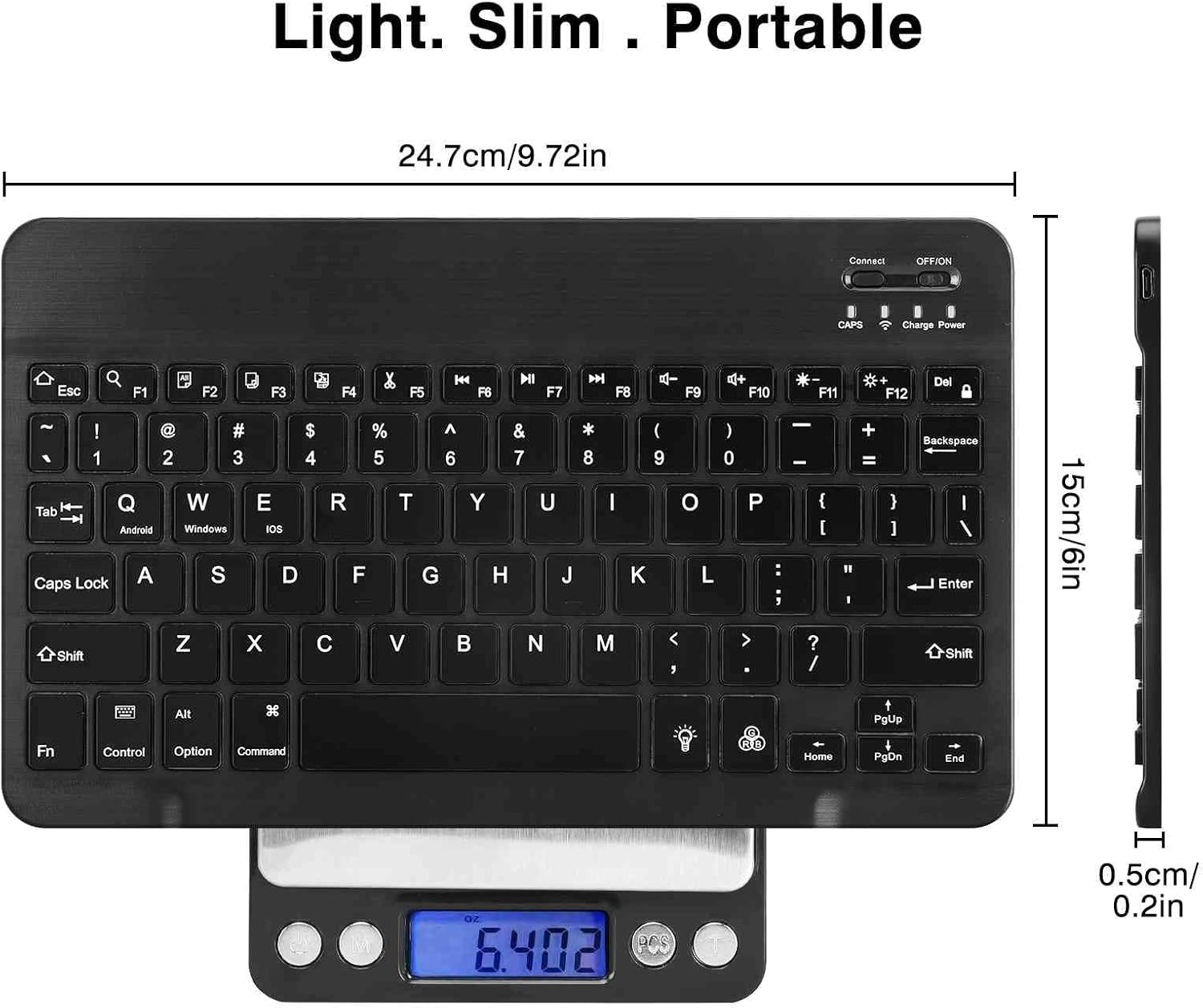
Image 6: UrbanX UX030 Keyboard dimensions. The image shows the keyboard with measurements indicating its length (24.7cm / 9.72in), width (15cm / 6in), and thickness (0.5cm / 0.2in).
8. Garanzia e supporto
For warranty information and customer support, please refer to the product packaging or contact UrbanX customer service directly. Keep your purchase receipt for warranty claims.
