1. Introduzione
This manual provides instructions for the ABLEWE USB to HDMI Adapter. This device allows you to connect a computer or laptop via a USB port to an external display device such as an HDTV, monitor, or projector using an HDMI interface. It supports both video and audio transmission.

Image 1.1: ABLEWE USB to HDMI Adapter. This image displays the compact, purple aluminum adapter with its integrated USB 3.0 cable and HDMI output port.
2. Specifiche del prodotto
- Marca: ABLEWE
- Modello: Adattatore da USB a HDMI
- Tipo di connettore: USB 3.0 (input), HDMI (output)
- Standard USB: USB 3.0 (retrocompatibile con USB 2.0)
- Risoluzione supportata: Up to 1080P@60Hz (1920x1080P@60Hz), also supports 720P@60Hz and 480P@60Hz
- Uscita audio: Supports simultaneous audio and video transmission
- Materiale: Aluminum exterior
- Peso dell'articolo: 3.52 once
- Dimensioni della confezione: 5.59 x 3.39 x 0.87 pollici
3. Requisiti di sistema
The ABLEWE USB to HDMI Adapter is compatible with the following operating systems:
- Windows 11 / 10 / 8.1 / 8 / 7 / Vista / XP (Note: 64-bit editions of Windows XP are not supported)
- Sistema operativo Mac
- Sistema operativo Chrome
Note: This adapter does NOT support Linux operating systems.

Image 3.1: Universal Compatibility. This image illustrates the adapter's compatibility with different operating systems (Windows, Mac OS, Chrome OS) and its ability to connect source devices like desktops and laptops to target devices such as HDTVs, monitors, and projectors.
4. Installazione e configurazione
Follow these steps to install and set up your ABLEWE USB to HDMI Adapter:
- Collegare l'adattatore: Plug the USB 3.0 connector of the adapter into an available USB port on your computer or laptop.
- Collegare il cavo HDMI: Connect one end of an HDMI cable (not included) to the HDMI output port of the adapter. Connect the other end of the HDMI cable to the HDMI input port on your HDTV, monitor, or projector.
- Installazione del driver: The adapter is equipped with internal drivers. Upon connecting the adapter to your computer, the driver installation prompt should appear automatically. Follow the on-screen instructions to complete the installation. If the prompt does not appear, you can download the necessary driver from the official DisplayLink website. A mini-CD with drivers may also be included as a backup.
- Configurazione display: Once the driver is installed, your computer should detect the external display. You may need to adjust display settings in your operating system to configure mirror mode, extend mode, or screen rotation.
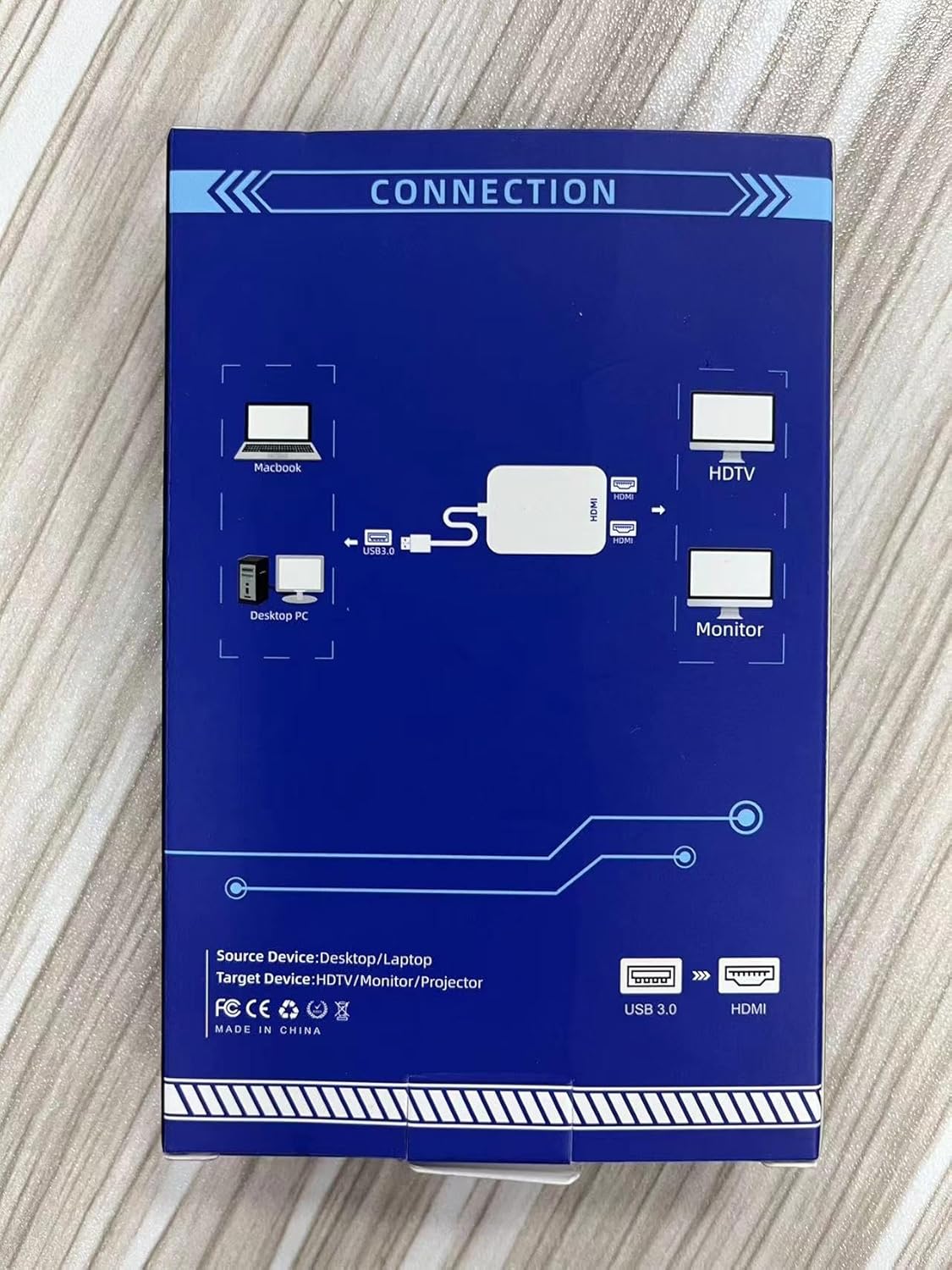
Image 4.1: Connection Diagram. This image illustrates the physical connection process, showing how to connect the adapter from a source device (laptop/desktop) to a target display (HDTV/monitor).
5. Modalità operative
L'adattatore supporta due modalità di visualizzazione principali:
- Modalità specchio: This mode duplicates your computer's display onto the external screen. Both screens will show the same content, providing a larger visual experience.
- Modalità estesa: This mode extends your computer's desktop across two screens, allowing you to display different content on each screen. This is useful for multitasking and increasing produttività.
You can switch between these modes through your operating system's display settings.
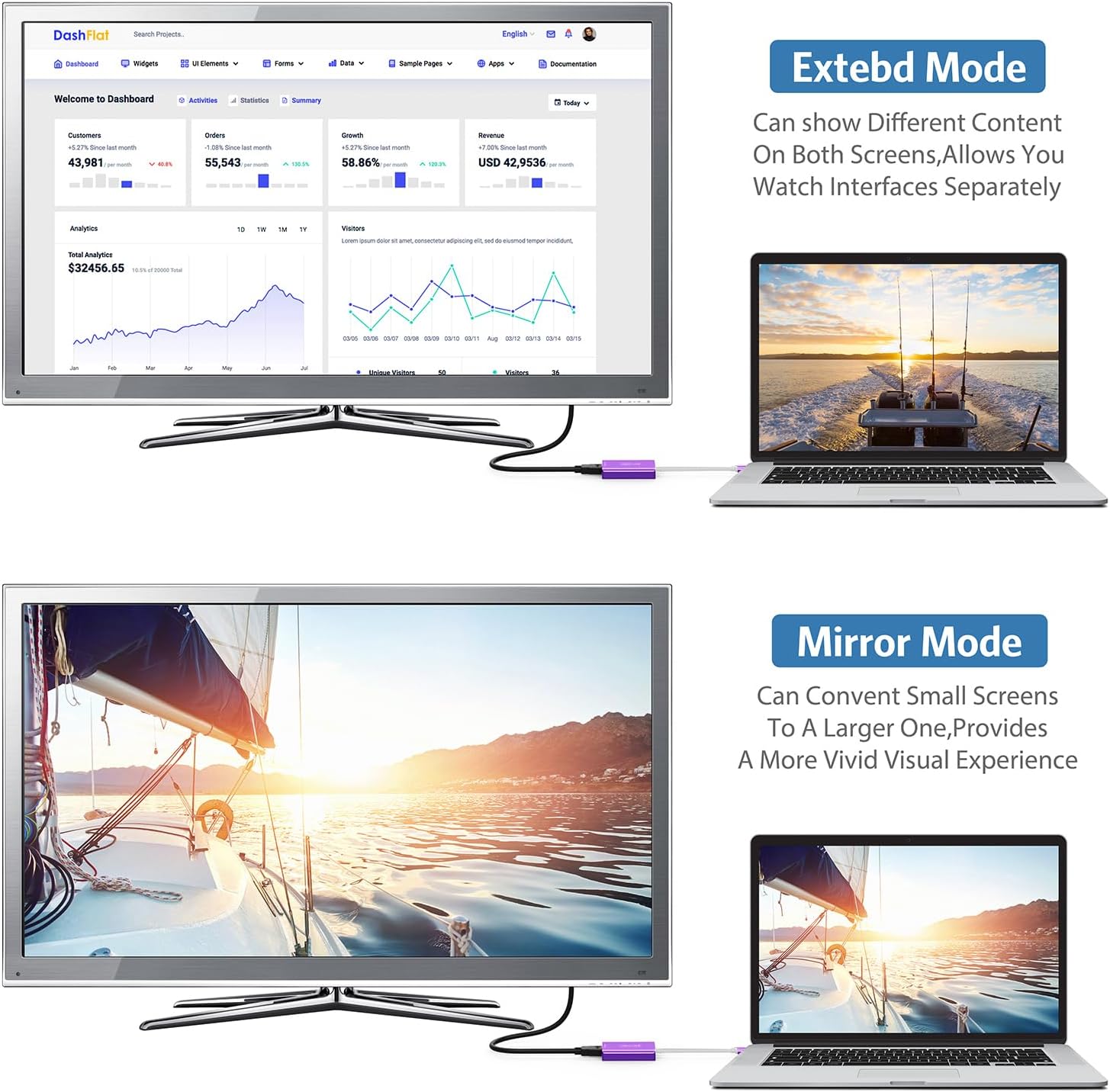
Image 5.1: Extend and Mirror Modes. This image visually explains the difference between Extend Mode (displaying separate content on each screen) and Mirror Mode (duplicating content across screens).

Image 5.2: Full HD 1080P Output. This image shows a laptop connected to a large television, displaying a high-definition image, illustrating the adapter's capability for 1080P video output.
6. Uscita audio
The ABLEWE USB to HDMI Adapter supports simultaneous audio and video transmission. Once connected, audio from your computer will be routed through the HDMI cable to your external display or connected audio system. You may need to select the HDMI output as your default audio device in your computer's sound settings.

Image 6.1: Audio Output Support. This image depicts a laptop connected to a television, with graphical elements representing sound waves, indicating that the adapter transmits audio along with video.
7. Rotazione dello schermo
The adapter supports screen rotation, allowing you to adjust the orientation of your external display (e.g., portrait or landscape mode) to meet specific needs. This feature can be configured through your computer's display settings.

Image 7.1: Screen Rotation. This image illustrates the capability of rotating the display on the external monitor, with icons showing different orientation options.
8. Manutenzione
To ensure the longevity and optimal performance of your ABLEWE USB to HDMI Adapter, follow these maintenance guidelines:
- Pulizia: Use a soft, dry cloth to clean the adapter's exterior. Avoid using liquid cleaners or abrasive materials.
- Magazzinaggio: Conservare l'adattatore in un luogo fresco e asciutto quando non lo si utilizza. Evitare temperature estreme e la luce solare diretta.
- Gestione: Handle the adapter with care. Avoid dropping it or subjecting it to strong impacts. Do not bend the cable excessively.
- Connessione: Ensure that all connections are secure but do not force plugs into ports.
9. Risoluzione Dei Problemi
If you encounter issues with your ABLEWE USB to HDMI Adapter, consider the following troubleshooting steps:
- Nessuna visualizzazione sul monitor esterno:
- Ensure the adapter is securely plugged into both the computer's USB port and the external display's HDMI port.
- Verify that the external display is powered on and set to the correct HDMI input source.
- Check if the necessary drivers are installed correctly. Reinstall the drivers if needed (refer to Section 4).
- Test with a different HDMI cable or external display to rule out cable or display issues.
- Riavvia il computer.
- Nessuna uscita audio:
- Ensure the HDMI output is selected as the default audio device in your computer's sound settings.
- Check the volume levels on both your computer and the external display/audio system.
- Scarsa qualità video o ritardo:
- Ensure the adapter is connected to a USB 3.0 port on your computer for optimal performance. While backward compatible with USB 2.0, performance may be limited.
- Verify that your computer's graphics drivers are up to date.
- Reduce the resolution of the external display in your computer's display settings if experiencing significant lag.
- Problemi di installazione del driver:
- If the automatic driver installation fails, download the latest driver directly from the official DisplayLink websito.
- Ensure your operating system is supported (refer to Section 3).
10. Garanzia e Supporto Tecnico
ABLEWE provides a 12-month warranty for this USB to HDMI Adapter. Additionally, lifetime technical support is available for any issues you may encounter.
For technical assistance or warranty claims, please contact ABLEWE customer support through the retailer where the product was purchased or refer to the contact information provided with your product packaging.


