1. Introduzione
The CCKHDD Mini USB Fingerprint Reader provides a secure and convenient method for password-free login and file encryption on Windows 10 and 11 systems. Utilizing advanced biometric technology, this compact device offers quick and reliable fingerprint recognition, enhancing your digital security and streamlining access to your computer and encrypted data.

Image 1.1: The CCKHDD Mini USB Fingerprint Reader, a compact device designed for secure biometric authentication.
This manual provides detailed instructions for setting up, operating, and maintaining your fingerprint reader, along with troubleshooting tips and product specifications.
2. Configurazione e installazione
2.1 Requisiti di sistema
- Operating System: Windows 10 (genuine), Windows 11 (genuine).
- For non-genuine Windows 10/11 installations, a new local administrator account must be created.
- Porta USB disponibile.
2.2 Installazione del driver
For genuine Windows 10 and Windows 11 operating systems, driver installation is typically not required. The system will automatically recognize the device upon connection.
- Insert the fingerprint reader into an available USB port on your computer.
- The system should automatically detect and prepare the device for use.
Note for Non-Genuine Windows Versions: If you are using a non-genuine version of Windows 10 or 11, you may need to manually install drivers and create a new local administrator account. Refer to online resources (e.g., Google or YouTube) for detailed instructions on creating a new administrator account.
2.3 Fingerprint Enrollment and Settings (Windows Hello)
Follow these steps to set up your fingerprint for Windows Hello login:
- Fare clic sul Inizio button on your desktop.
- Selezionare Impostazioni.
- In the Windows Settings window, click Conti.
- Vai a Opzioni di accesso.
- Individuare Windows Hello Fingerprint e clicca Impostare.
- You will be prompted to set up your PIN password if you haven't already. This is required for Windows Hello.
- Follow the on-screen instructions to swipe or place your finger on the fingerprint sensor. Continue until the Windows Hello setup process is complete.
- After the setup is complete, it is recommended to restart your computer.
- Upon next login, you can select your fingerprint as the login method, eliminating the need to enter your password.
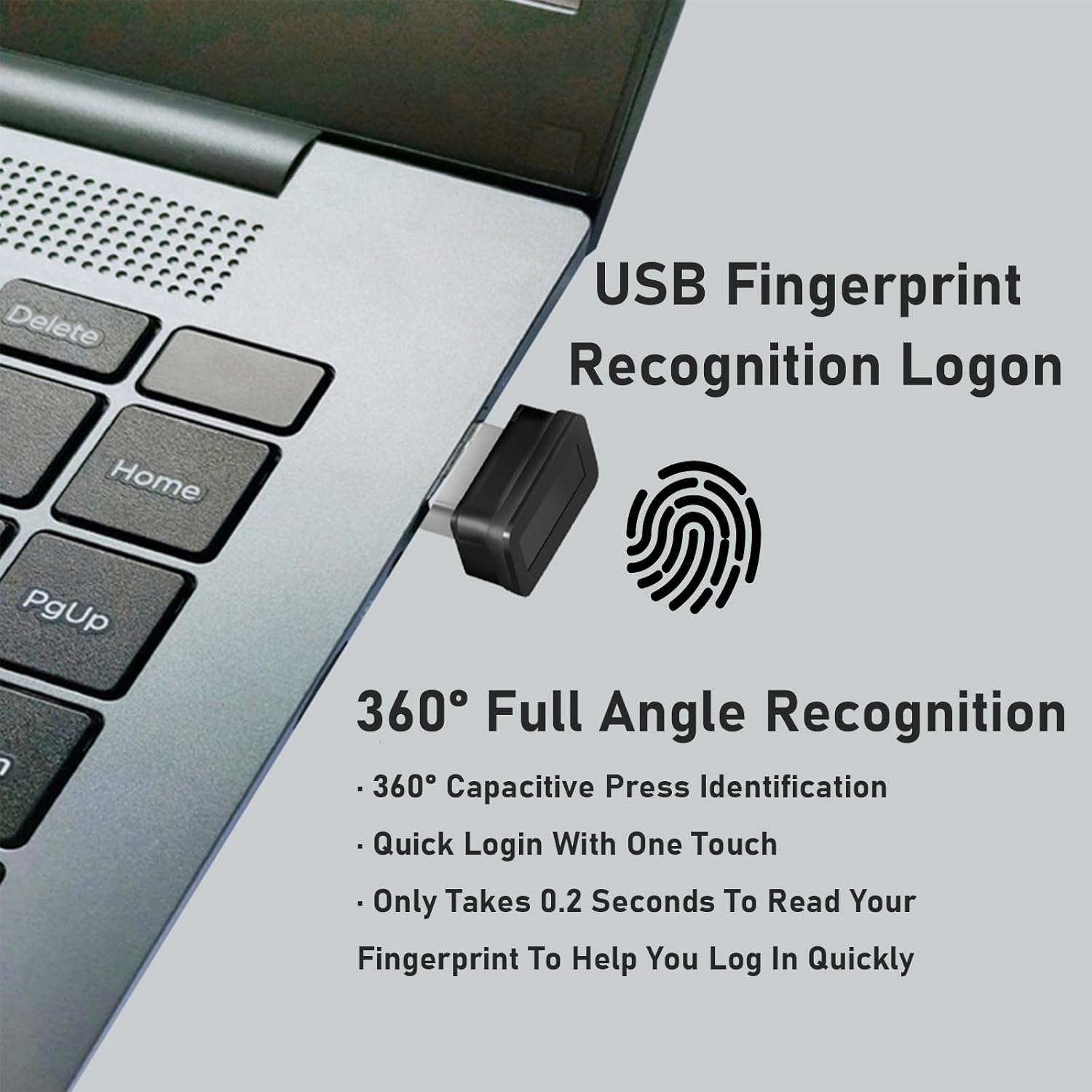
Image 2.1: The fingerprint reader connected to a laptop, illustrating its use for login with 360° recognition.
3. Istruzioni per l'uso
3.1 Fast Login and Recognition
The fingerprint reader utilizes capacitive fingerprint identification technology for rapid authentication.
- 0.2 Seconds Fast Login: The device can verify fingerprints within 0.2 seconds, providing quick access to your system.
- 360° One-Touch Operation: The sensor supports recognition from any angle, allowing for flexible finger placement.
- Adaptive Recognition: The system automatically improves fingerprint information after each successful identification, adapting to slight changes in your fingerprints and continuously enhancing the recognition rate. This means the more you use it, the more sensitive and accurate it becomes.

Image 3.1: Visual representation of the fast login speed and low error rates (FAR & FRR) of the fingerprint reader.
3.2 Multi-Fingerprint and Multi-Account Login
The device supports the registration of multiple fingerprints and multiple user accounts, making it suitable for shared computers or for registering different fingers for convenience.
- È possibile registrare fino a 10 impronte digitali.
- The advanced "Match On Host" technology ensures high security with a False Acceptance Rate (FAR) of <0.01% and a False Rejection Rate (FRR) of <0.1%.
- This feature allows multiple users to securely log in to their respective accounts on the same computer using their unique fingerprints.
3.3 SMART ID Encryption Function
The SMART ID feature provides enhanced security for your online accounts and local files.
- Crittografia della password: Encrypt and save passwords for most websites. You can quickly open and decrypt them using your fingerprint. This offers a more secure alternative to saving passwords directly in your browser.
- File Crittografia: Set up encrypted areas to automatically encrypt all files within a designated folder. Access and decrypt these files quickly with your fingerprint.
- This function provides increased security, convenience, privacy, and scalability for business professionals and general users alike.

Image 3.2: Diagram illustrating the SMART ID encryption function, showing compatibility with various online services for password management.
4. Manutenzione
To ensure the longevity and optimal performance of your CCKHDD Mini USB Fingerprint Reader, follow these general maintenance guidelines:
- Pulizia: Gently wipe the fingerprint sensor surface with a soft, dry, lint-free cloth. Avoid using abrasive materials, harsh chemicals, or liquids directly on the sensor.
- Gestione: Handle the device with care. Avoid dropping it or subjecting it to excessive force, which could damage internal components.
- Magazzinaggio: When not in use, store the fingerprint reader in a clean, dry environment, away from extreme temperatures and direct sunlight.
- Porta USB: Always insert and remove the device from the USB port carefully to prevent damage to both the reader and the computer's port.
5. Risoluzione Dei Problemi
This section addresses common issues you might encounter with your fingerprint reader.
5.1 Problemi comuni e soluzioni
- Issue: Fingerprint reader not recognized by Windows.
Soluzione: Ensure the device is fully inserted into a working USB port. Try a different USB port. For non-genuine Windows installations, ensure drivers are installed and a local administrator account is created.
- Issue: Fingerprint not recognized during login.
Soluzione: Ensure your finger is clean and dry. Place your finger firmly and consistently on the sensor as you did during enrollment. Try re-enrolling your fingerprint if the issue persists. Remember that the device learns over time, so consistent placement helps improve recognition.
- Issue: Cannot set up Windows Hello Fingerprint.
Soluzione: Ensure you have a PIN set up for Windows Hello. Windows Hello Fingerprint requires a PIN as a fallback. Verify your Windows operating system is genuine. If not, ensure a local administrator account is active and drivers are installed.
- Issue: SMART ID encryption not working.
Soluzione: Ensure the fingerprint reader is properly connected and recognized. Verify that the SMART ID software (if applicable, though typically integrated with Windows Hello) is correctly configured. Restart your computer and try again.
If you continue to experience issues, please refer to the "Customer Support" section for assistance.
6. Specifiche
| Caratteristica | Dettaglio |
|---|---|
| Marca | CCKHDD |
| Nome del modello | Biometric-01 |
| Dimensioni del prodotto | 1.88 x 0.76 x 2.21 cm (0.74 x 0.3 x 0.87 pollici) |
| Peso dell'articolo | 18 grammi |
| Tecnologia di connettività | USB |
| Tipo di scanner | Capacitive Fingerprint |
| Velocità di riconoscimento | 0.2 secondi |
| Tasso di falsa accettazione (FAR) | <0.01% |
| Tasso di falsi rifiuti (FRR) | <0.1% |
| Sistema operativo supportato | Windows 10/11 (genuine recommended) |
| Caratteristiche | 360° Touch Biometric, Windows Hello Features, Password-Free Login, File Encryption, SMART ID |

Image 6.1: Dimensions of the CCKHDD Mini USB Fingerprint Reader, highlighting its compact and portable design.
7. Garanzia e assistenza clienti
CCKHDD is committed to providing high-quality products and excellent customer service.
7.1 Servizio Clienti
If you have any questions, concerns, or require assistance with your USB fingerprint reader, please do not hesitate to contact CCKHDD customer support. Our professional support team is available to help ensure your satisfaction with our products.
Contact information for customer service is typically provided on the product packaging or the official CCKHDD websito.
7.2 Informazioni sulla garanzia
Specific warranty details for the CCKHDD Mini USB Fingerprint Reader are usually included with the product packaging or available on the manufacturer's official websito. Conservare la prova d'acquisto per eventuali reclami in garanzia.


