1. Introduzione
This document serves as a comprehensive guide for the VENTION USB 3.0 Hub 3-Port USB Sound Card. It is designed to assist users in understanding the product's features, proper installation, operational procedures, and troubleshooting steps. Please read this manual carefully to ensure safe and efficient use of your device.
2. Prodotto finitoview
2.1 Caratteristiche principali
- Connettività versatile: This 2-in-1 external stereo audio adapter allows simultaneous connection of multiple USB devices and high-quality audio through its 3.5mm jack.
- Trasferimento dati ad alta velocità: Equipped with USB 3.0 technology, the hub provides data transfer speeds of up to 5Gbps, enabling quick transfer of large files.
- Compatto e portatile: Its sleek and lightweight design makes it easy to carry, ideal for travel and on-the-go use.
- Collega e usa: No software or drivers are required for operation. Simply connect it to your computer's USB port for immediate use.
- Ampia compatibilità: Compatible with Windows, Mac, and Linux operating systems, ensuring broad device support.
2.2 Componenti del prodotto e Views

Figura 2.2.1: Un overhead view of the VENTION USB 3.0 Hub, showcasing il suo compatto nero casing, three blue USB 3.0 ports, and dual 3.5mm audio jacks (pink for microphone, green for headphone/speaker) on the front, with an integrated USB-A cable.
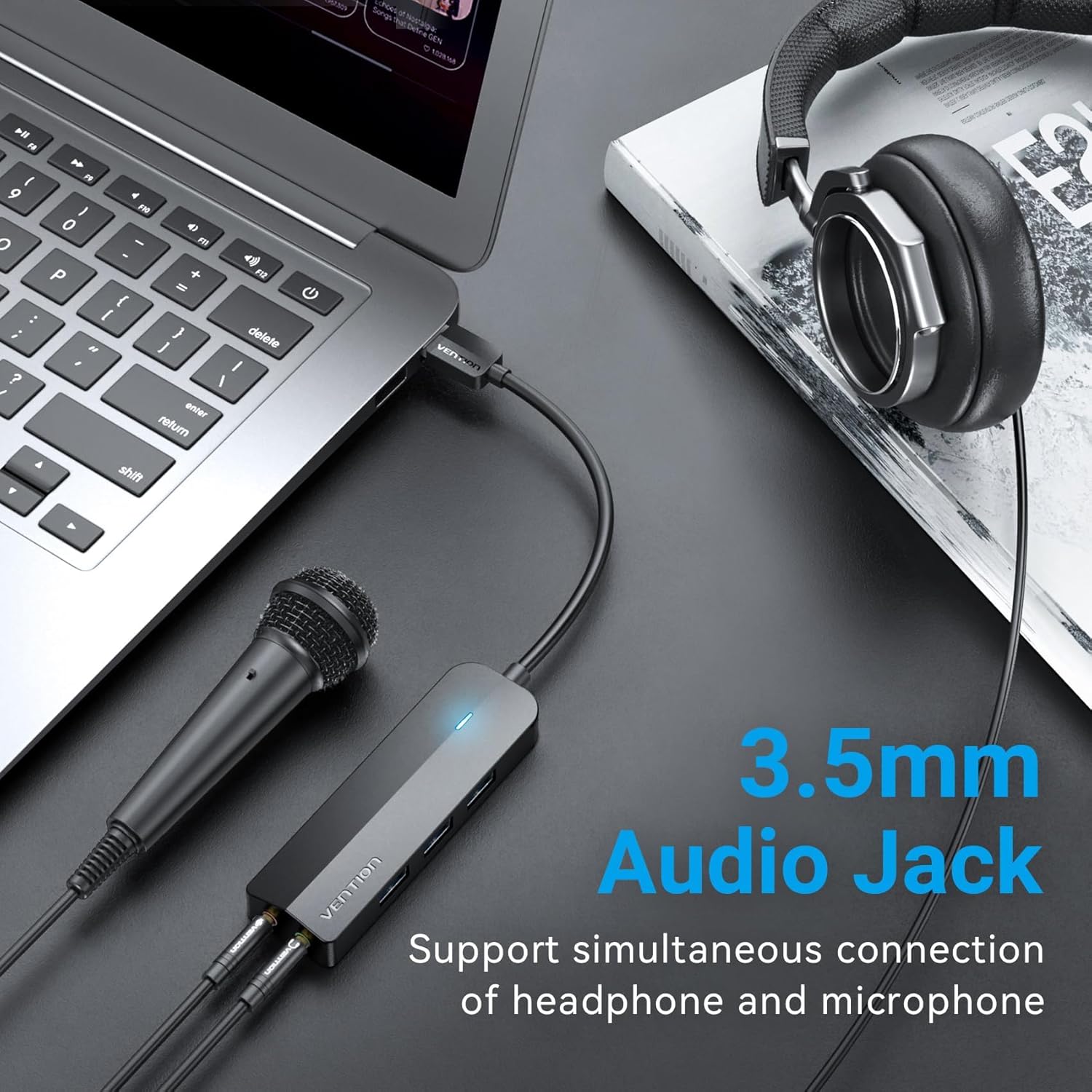
Figure 2.2.2: The hub connected to a laptop, demonstrating the simultaneous connection of a headphone and a microphone via its 3.5mm audio jacks, highlighting its audio capabilities.
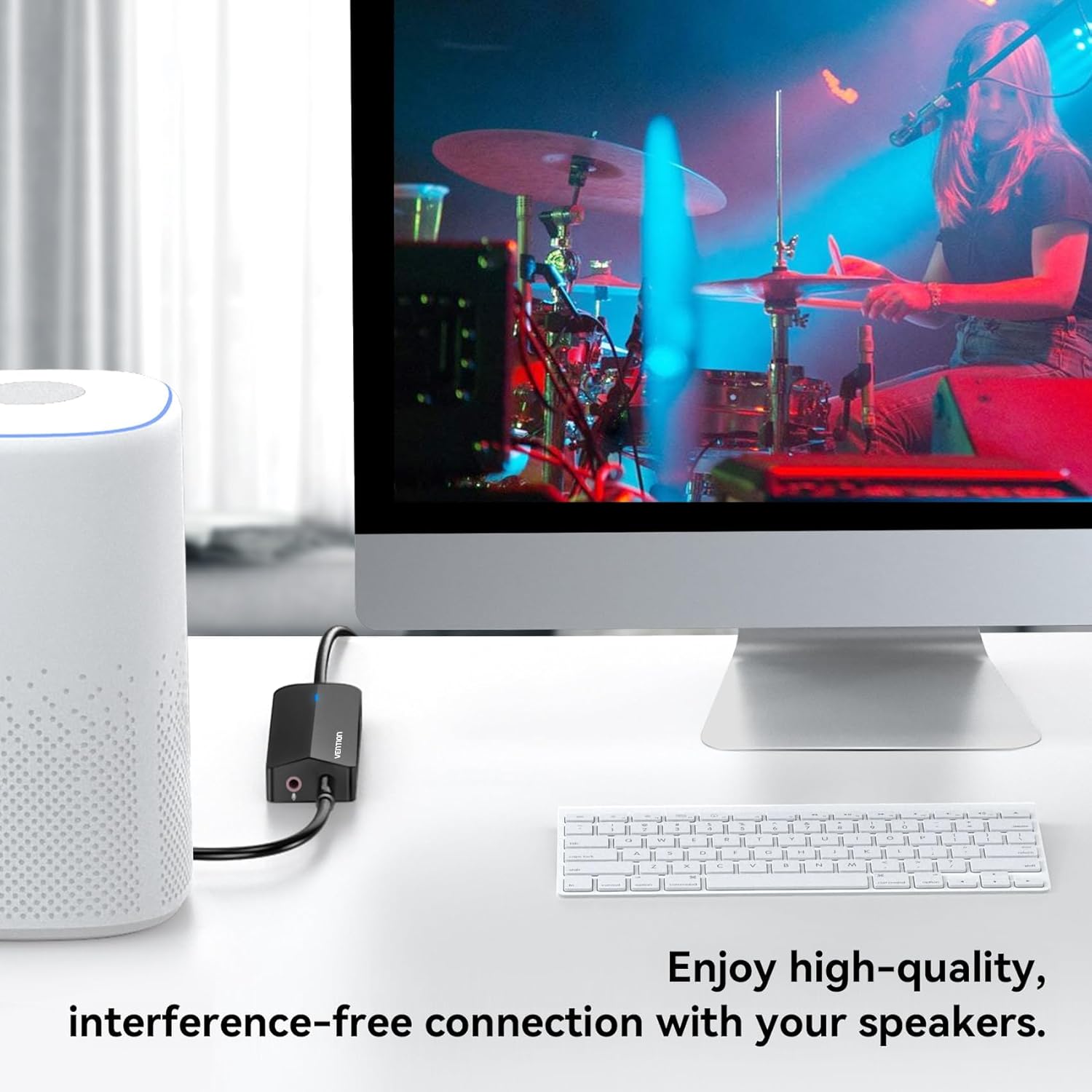
Figure 2.2.3: The hub integrated into a desktop setup, illustrating its use for connecting to external speakers, ensuring high-quality and interference-free audio output.
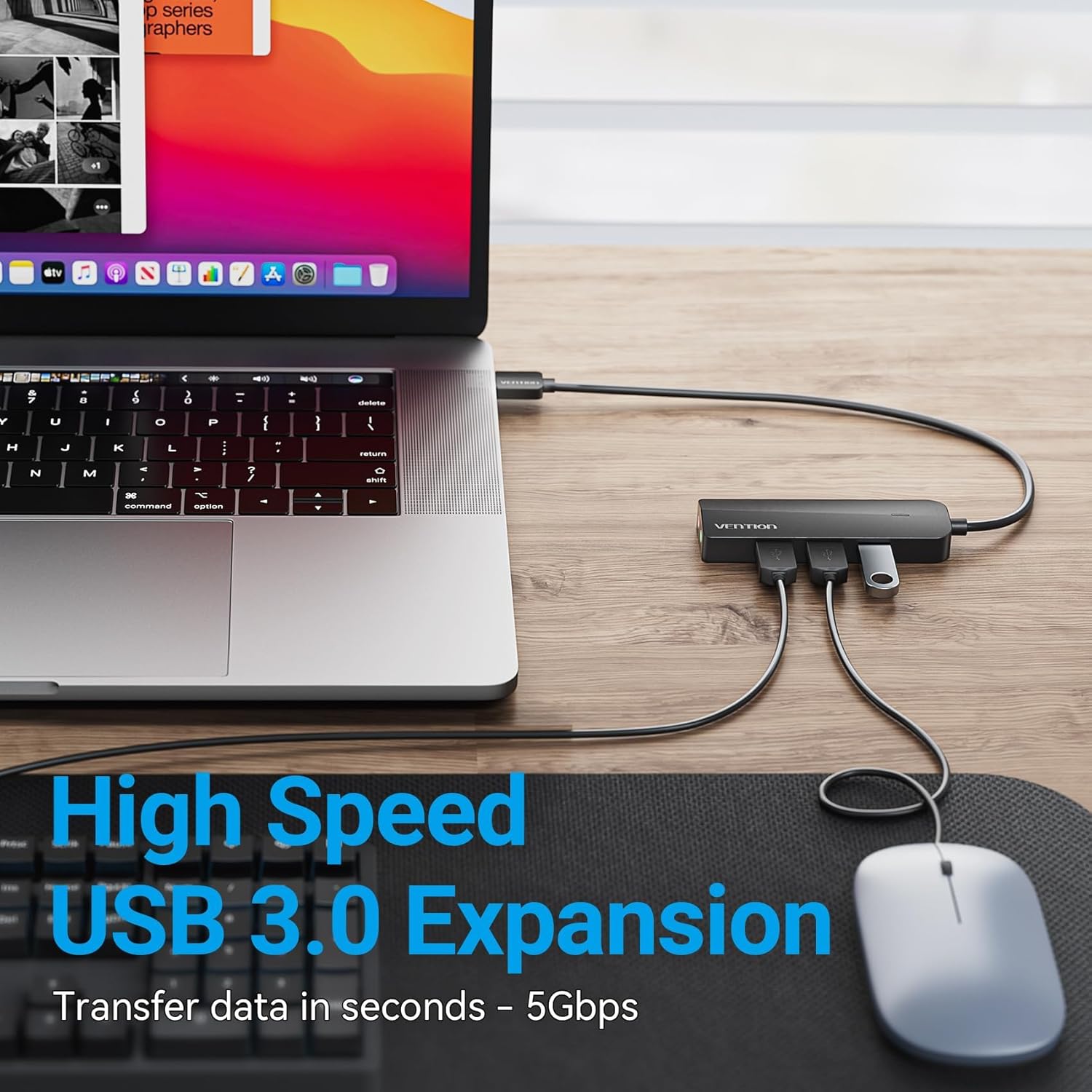
Figure 2.2.4: The hub providing high-speed USB 3.0 expansion, shown connected to a laptop with multiple USB devices, emphasizing its capability for rapid data transfer.

Figure 2.2.5: The hub connected to an external power supply, demonstrating its ability to power high-capacity hard drives effortlessly, ensuring stable operation for demanding peripherals.
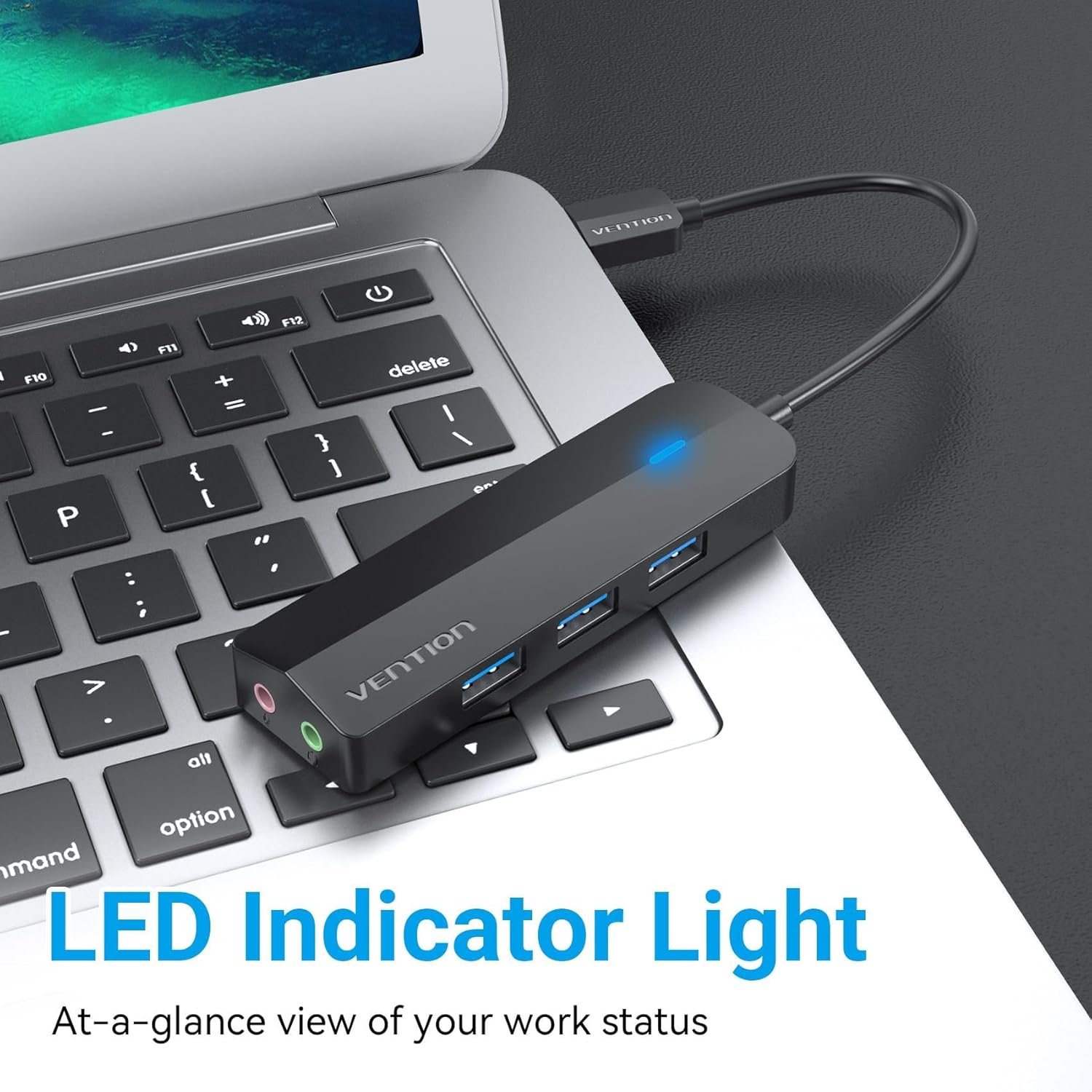
Figure 2.2.6: A close-up of the hub, highlighting its illuminated LED indicator light, which provides an immediate visual cue of its operational status.
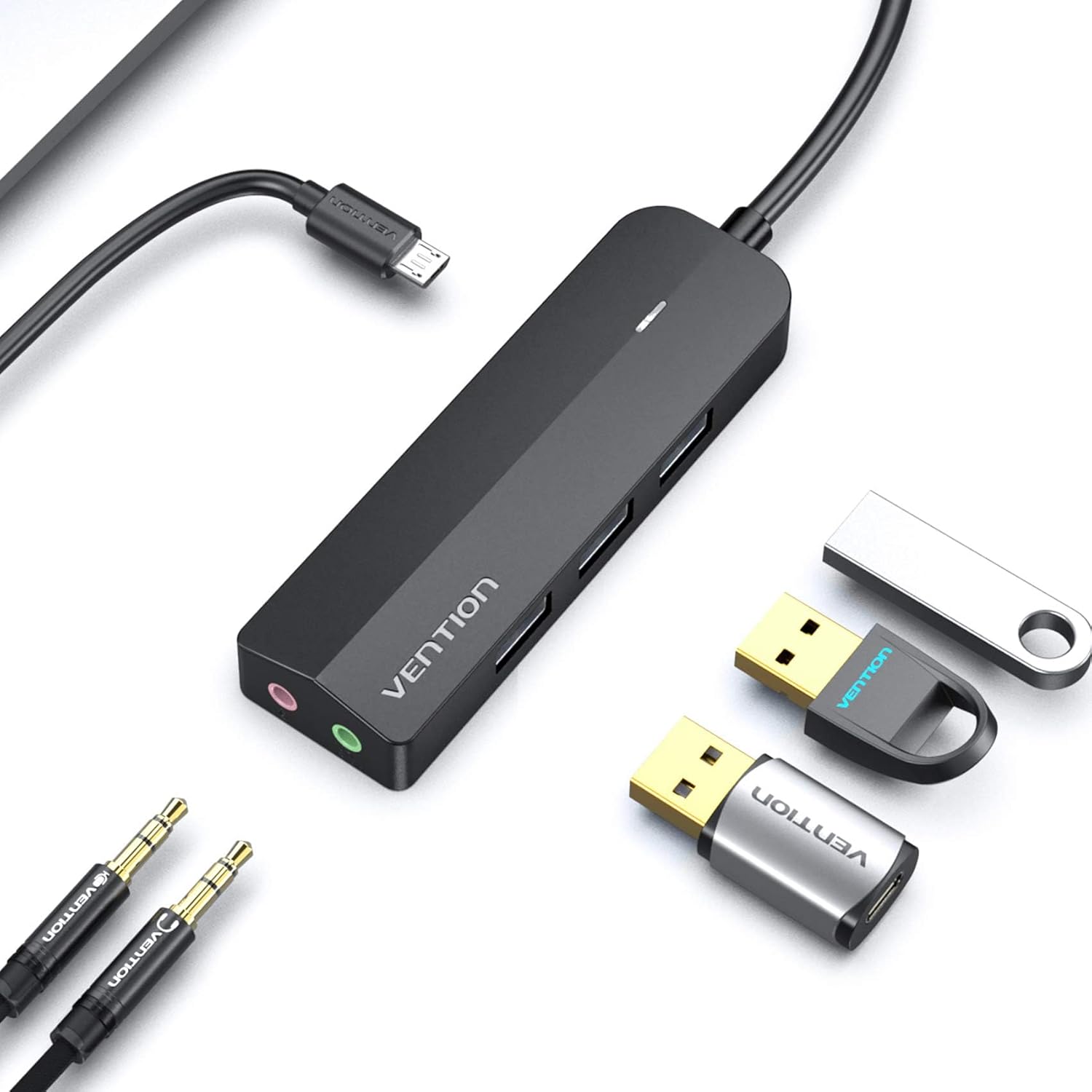
Figure 2.2.7: The hub displayed alongside various USB drives and audio cables, illustrating its versatility and compatibility with a range of common computer peripherals.
3. Impostazione
- Connetti al dispositivo host: Plug the USB-A connector of the VENTION USB 3.0 Hub into an available USB port on your computer (laptop, desktop, Mac, or Linux system).
- Installazione automatica del driver: The device is designed for plug-and-play functionality. Your operating system will automatically detect and install the necessary drivers. No manual driver installation is required.
- Verifica connessione: The LED indicator light on the hub will illuminate, confirming a successful connection and power supply.
- Alimentazione esterna opzionale (per dispositivi ad alta potenza): If you intend to connect high-capacity hard drives or other power-intensive USB devices, connect an external 5V power adapter (not included) to the micro USB port on the hub. This ensures stable power delivery to all connected peripherals.
4. Istruzioni per l'uso
4.1 Using the USB 3.0 Hub Ports
- Collegamento di dispositivi USB: Insert your USB devices (e.g., flash drives, external hard drives, keyboards, mice, printers) into the three available USB 3.0 ports on the hub.
- Trasferimento dati ad alta velocità: The USB 3.0 ports support data transfer speeds of up to 5Gbps. For optimal performance, ensure your connected devices also support USB 3.0.
- Compatibilità con le versioni precedenti: The ports are backward compatible with USB 2.0 and USB 1.1 devices, though data transfer speeds will be limited to the respective standards of the connected device.
4.2 Using the 3.5mm Audio Jacks
- Uscita cuffie/altoparlanti: Plug your headphones or speakers into the green 3.5mm audio output jack (marked with a headphone icon).
- Ingresso microfono: Plug your microphone into the pink 3.5mm microphone input jack (marked with a microphone icon).
- Impostazioni audio di sistema: After connecting, you may need to select the "USB Audio Device" or "USB PnP Sound Device" as your default playback and recording device in your computer's sound settings. This is typically found in the Control Panel (Windows) or System Preferences (Mac).
- Controllo del volume: Adjust volume levels through your computer's operating system or the connected audio device itself.
5. Manutenzione
- Pulizia: Use a soft, dry cloth to gently clean the surface of the device. Avoid using liquid cleaners, solvents, or abrasive materials, as these can damage the finish or internal components.
- Magazzinaggio: When not in use, store the device in a cool, dry place, away from direct sunlight, high humidity, and extreme temperatures.
- Gestione: Avoid dropping the device or subjecting it to strong impacts. Do not bend or pull the cable excessively, as this can cause internal damage.
- Ventilazione: Ensure the device is not covered during operation to allow for proper heat dissipation and prevent overheating.
6. Risoluzione Dei Problemi
| Problema | Possibile causa | Soluzione |
|---|---|---|
| Device not recognized / LED not lit | Connessione allentata, porta USB difettosa, problema con il driver. |
|
| Nessuna uscita/ingresso audio | Incorrect audio device selected, faulty cable/headset. |
|
| Velocità di trasferimento dati lenta | Connected device is USB 2.0/1.1, insufficient power. |
|
| Microphone noise/interference | Electrical interference, ground loop. |
|
7. Specifiche
| Caratteristica | Dettaglio |
|---|---|
| Marca | VENZIONE |
| Modello | Double Jack-3 Usb Port (B0CBBZSPBG) |
| Interfaccia Hardware | USB 3.0 (retrocompatibile con USB 2.0/1.1) |
| Porte USB | 3 x USB 3.0 tipo A |
| Jack audio | 1 x 3.5mm Headphone Output, 1 x 3.5mm Microphone Input |
| Modalità di uscita audio | Stereo |
| Velocità di trasferimento dati | Fino a 5 Gbps (USB 3.0) |
| Dispositivi compatibili | Laptop, Personal Computer, Headphone, Speaker, Microphone |
| Sistemi operativi | Windows, Mac OS, Linux |
| Alimentazione elettrica | USB Bus-powered; Optional Micro USB for external 5V power (for high-power devices) |
| Peso dell'articolo | 2.99 once (84.76 grammi) |
| Dimensioni del pacco | 7.76 x 3.7 x 1.06 pollici (19.71 x 9.4 x 2.69 cm) |
| Produttore | VENZIONE |
| Paese di origine | Cina |
8. Garanzia e supporto
For detailed warranty information and technical support, please refer to the official VENTION website or contact VENTION customer service directly. It is recommended to retain your purchase receipt for any warranty claims.
Ufficiale Websito: www.vention.cn


