Manuale utente del proiettore GooDee Smart 4K
Model: YG600-Movin
Introduzione
Thank you for choosing the GooDee Smart 4K Projector. This projector is designed to provide an immersive home theater experience with its advanced features, including 5G WiFi, Bluetooth 5.2, Netflix/Prime Video certification, Dolby Audio, and 4K support. This manual will guide you through the setup, operation, and maintenance of your new projector to ensure optimal performance and longevity.
Informazioni sulla sicurezza
Si prega di leggere attentamente tutte le avvertenze e le istruzioni di sicurezza prima di utilizzare questo prodotto per evitare lesioni o danni. Conservare il presente manuale per riferimento futuro.
- Non ostruire le aperture di ventilazione. Garantire un flusso d'aria adeguato attorno al proiettore.
- Non esporre il proiettore alla pioggia o all'umidità per evitare scosse elettriche o incendi.
- Utilizzare solo gli accessori specificati dal produttore.
- Scollegare il proiettore durante i temporali o quando non viene utilizzato per lunghi periodi.
- Affidare tutti gli interventi di assistenza a personale qualificato.
- Evitare l'esposizione diretta degli occhi alla lente del proiettore quando lamp è acceso.
Cosa c'è nella scatola
Verificare che tutti gli articoli siano presenti nella confezione:
- GooDee Smart 4K Projector (Model: YG600-Movin)
- Cavo di alimentazione
- Telecomando
- Cavo HDMI
- Copriobiettivo per proiettore
- Kit di pulizia
- Manuale dell'utente (questo documento)
Prodotto finitoview
Familiarize yourself with the main components of your GooDee Smart 4K Projector.
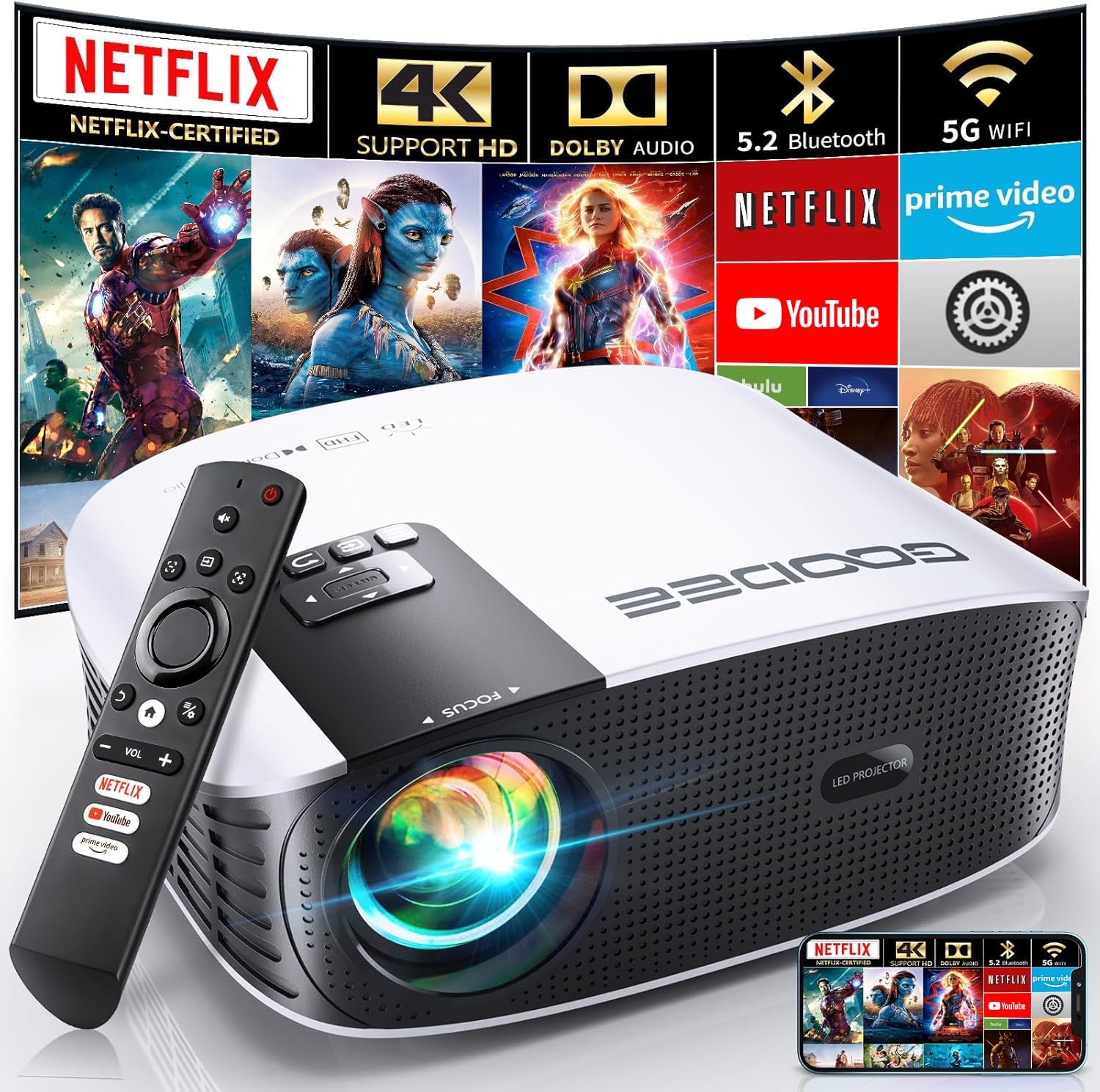
The GooDee Smart 4K Projector and its included remote control. The projector features a sleek white and black design with a prominent lens and control panel.

Un dettagliato view of the projector's front and side, highlighting the lens and ventilation grilles.

The rear panel of the projector, displaying various input and output ports for connectivity.
Impostare
1. Posizionamento
Place the projector on a stable, flat surface. Ensure there is sufficient space around the projector for proper ventilation. The optimal projection distance varies based on desired screen size (up to 400 inches diagonal).
2. Collegamento elettrico
Collegare il cavo di alimentazione all'ingresso di alimentazione del proiettore e quindi a una presa di corrente.
3. Accensione iniziale
Press the power button on the projector or the remote control to turn on the device. The GooDee logo will appear, followed by the smart OS interface.
4. Connessione di rete (WiFi)
Navigate to the settings menu on the projector's interface. Select "Network" or "WiFi" and choose your desired network. Enter the password if prompted. The projector supports both 2.4G and 5G WiFi connections for stable and fast streaming.

Illustration demonstrating the difference in stability and speed between 2.4G and 5G WiFi connections, with 5G offering a faster experience.
5. Messa a fuoco e correzione trapezoidale
The GooDee YG600-Movin features electric focus and electric keystone correction. Use the remote control to adjust the focus until the image is clear and sharp. For keystone correction, adjust until the projected image forms a perfect rectangle. This eliminates trapezoidal distortion.

Visual representation of the electric focus and keystone correction functions, showing how the remote can be used to achieve a clear and rectangular image.

A detailed diagram showing the remote control's buttons for electric focus and keystone correction, simplifying screen adjustment.
Istruzioni per l'uso
1. Navigating the Smart OS
The projector runs on a smart operating system, providing direct access to various applications. Use the remote control's directional buttons and OK button to navigate through menus and select apps. The home screen provides quick access to certified streaming services.

The projector's smart interface showing pre-installed applications like Netflix, Prime Video, and YouTube, ready for direct streaming.
2. Using Certified Streaming Apps
The GooDee YG600-Movin is certified for Netflix, Amazon Prime Video, and YouTube. Simply select the app from the home screen and log in with your credentials to start streaming content directly. Due to copyright restrictions, direct mirroring or casting from mobile devices for these apps is not supported.
3. Mirroring dello schermo wireless
For other content, the projector supports wireless screen mirroring for iOS, Android, and Windows devices. Ensure your device and the projector are connected to the same WiFi network. Follow the on-screen instructions for your specific device (e.g., AirPlay for iOS, Miracast for Android/Windows).
This video demonstrates how to use the DLNA Wireless Simultaneous function for screen mirroring with your GooDee Smart Projector.
4. Audio Output (Dolby Audio & Bluetooth)
The projector features built-in 2*5W speakers with genuine Dolby Audio for a rich sound experience. For enhanced audio, connect external Bluetooth speakers or soundbars using the latest Bluetooth 5.2 technology. Navigate to the Bluetooth settings, enable Bluetooth, and pair with your desired audio device.

An image highlighting the projector's Dolby Audio capabilities and Bluetooth 5.2 connectivity for external sound systems.
5. Funzione Zoom
The projector offers a 50%-100% zoom function, allowing you to adjust the screen size without physically moving the projector. Use the remote control to fine-tune the image size to fit your projection surface.

This graphic illustrates the projector's ability to adjust screen size from 50% to 100% and apply keystone correction for an optimal viewing esperienza fino a 400 pollici.
Manutenzione
Una manutenzione regolare garantisce la longevità e le prestazioni ottimali del proiettore.
1. Pulizia dell'obiettivo
Utilizzare il kit di pulizia fornito o un panno morbido e privo di lanugine, specificamente progettato per lenti ottiche. Pulire delicatamente la lente con movimenti circolari. Evitare l'uso di detergenti abrasivi o di esercitare una forza eccessiva.
This video from GooDee-US demonstrates recommended methods for cleaning your smart projector screen.
2. Pulizia dell'esterno
Pulire l'esterno del proiettore con un panno morbido e asciutto. Per macchie ostinate, utilizzare un panno leggermenteamp cloth can be used, followed by a dry wipe. Do not use harsh chemicals.
3. Prevenzione della polvere
The projector is designed with imported high-tech materials to block dust and prolong its life. However, it is still recommended to keep the projector in a clean environment and use the lens cover when not in use.
Risoluzione dei problemi
| Problema | Possibile causa | Soluzione |
|---|---|---|
| Nessuna immagine proiettata | Power cable loose, projector off, input source incorrect. | Check power connection, turn on projector, select correct input source. |
| Immagine sfocata | Sfocato, chiave di volta errata. | Use electric focus and keystone correction on the remote control. |
| Nessun suono | Volume troppo basso, dispositivo audio esterno non connesso/associato. | Increase volume, check Bluetooth connection, ensure external device is on. |
| Impossibile connettersi al WiFi | Incorrect password, out of range, network issue. | Verify password, move closer to router, restart router and projector. |
| Streaming apps not working | Network issue, app error, copyright restriction for mirroring. | Check internet connection, restart app, remember certified apps cannot be mirrored. |
Specifiche
| Caratteristica | Dettaglio |
|---|---|
| Numero di modello | YG600-Movin |
| Dimensioni del prodotto | 7.5 x 3.6 x 9.6 pollici |
| Peso dell'articolo | 4.53 libbre |
| Risoluzione dello schermo | Nativo 1920 x 1080 (supporto 4K) |
| Luminosità | 800 ANSI lumen |
| Tecnologia di connettività | Bluetooth 5.2, Wi-Fi (2.4G+5G WIFI6), HDMI, IR, USB |
| Dimensione massima dello schermo | 400 pollici |
| Caratteristiche speciali | Internet Built-In, Portable, Speakers, Built-In Wi-Fi, Electric Focus, Electric Keystone Correction, Netflix/Prime Video/YouTube Certified |
| Audio | Dolby Audio, 2*5W Built-in Speakers |
| Funzione di zoom | dal 50% all'100% |
Garanzia e supporto
GooDee provides lifetime technical support for your projector. If you encounter any issues or have questions regarding your product, please do not hesitate to contact GooDee customer service. Refer to the contact information provided in your product packaging or on the official GooDee websito per assistenza.
Per problemi comuni, fare riferimento alla sezione Risoluzione dei problemi di questo manuale.


