1. Introduzione
This manual provides detailed instructions for the operation and maintenance of your NEWYES Scan Reader Pen 4, model AS1505. This device is designed to assist with reading, language translation, and text extraction, offering features such as text-to-speech, photo translation, and a dyslexia reading mode. Please read this manual thoroughly to ensure proper use and to maximize the device's functionality.
2. Prodotto finitoview

Figura 2.1: Frontale e laterale view of the NEWYES Scan Reader Pen 4, displaying its user interface.

Figure 2.2: Device dimensions and button layout.
2.1 Caratteristiche principali
- Modalità di lettura per la dislessia: Adjustable speech speed and word pause times, with British and American accent options.
- Text to Speech: Scans and reads text aloud with adjustable speed and pause.
- Traduzione fonetica: Supports phonetic recognition and translation for various languages.
- Traduzione della foto: Integrated 5-megapixel camera for accurate text translation from images.
- Real-time Text Extraction: Transcribes scanned text to the device screen and can synchronize with phones, tablets, or computers. Supports translation into 112 languages and export to TXT/DOC/PDF.
- Dizionari integrati: Includes Collins EN-EN dictionary and EN-ES, EN-FR, EN-CN, EN-IT, EN-DE, EN-AR, EN-JP dictionaries.
- Connettività Bluetooth: For connecting external audio devices like headphones.
3. Impostazione
3.1 Ricarica del dispositivo
The NEWYES Scan Reader Pen 4 is equipped with a rechargeable Lithium Metal battery. Before first use, fully charge the device using the provided USB-C cable and a compatible power adapter. The battery indicator on the screen will show charging status.
3.2 Accensione/spegnimento
- Per accendere: Press and hold the Power button (refer to Figure 2.2 for location) until the screen illuminates.
- Per spegnere: Press and hold the Power button until a power-off option appears on the screen, then select 'Power Off'. A short press will put the device into sleep mode.
3.3 Configurazione iniziale
Upon first power-on, you will be guided through initial setup steps:
- Selezione della lingua: Choose your preferred operating language for the device interface.
- Ora e data: Impostare l'ora e la data correnti.
- Connessione Wi-Fi: Connect to a stable Wi-Fi network to enable online translation, real-time text extraction, and software updates. Navigate to Settings > Wi-Fi and select your network, then enter the password.
4. Istruzioni per l'uso
4.1 Dyslexia Reading Mode
This mode is designed to assist users with reading difficulties by customizing the audio output.
- From the main menu, select the 'Dyslexia Aid' icon.
- Adjust the 'Speed' slider to control the reading pace.
- Adjust 'Word Pauses' and 'Punctuation Pauses' to set the duration of breaks between words and punctuation marks.
- Select your preferred accent: British or American.
- Scan the text you wish to read. The device will read it aloud according to your selected settings.

Figure 4.1: Dyslexia Reading Mode settings interface.
4.2 Text to Speech & Phonetic Translation
This function allows the device to scan printed text and convert it into spoken audio, with optional translation.
- Select 'Text Scanner' or 'Speech Translation' from the main menu.
- Position the pen's scanning tip over the text you want to read or translate.
- Gently slide the pen across the text. Ensure the text is within the scanning window.
- The scanned text will appear on the screen and be read aloud. If translation is enabled, the translated text will also be displayed and spoken.
- Adjust speech speed and pause times as needed within the settings for this mode.
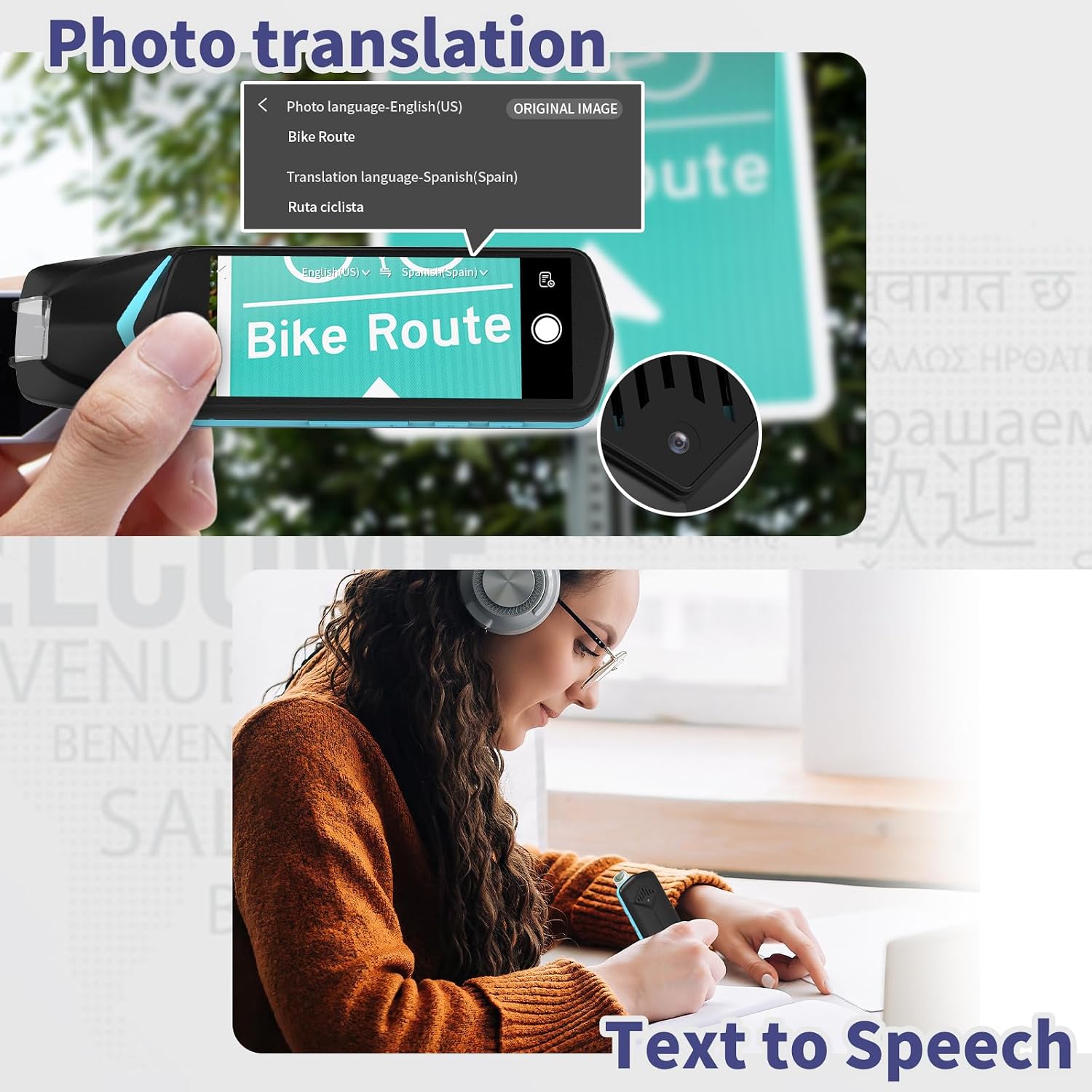
Figure 4.2: Scanning text from a book for text-to-speech output.
4.3 Traduzione fotografica
Use the built-in camera to translate text from images.
- Selezionare "Traduzione foto" dal menu principale.
- Point the device's camera at the text you wish to translate. Ensure the text is clear and well-lit.
- Tocca lo schermo per catturare l'immagine.
- Il dispositivo elaborerà l'immagine e visualizzerà il testo tradotto.

Figure 4.3: Using photo translation on a sign.
4.4 Real-time Text Extraction
This feature allows you to scan text and have it appear simultaneously on a connected device.
- Ensure the Scan Reader Pen is connected to Wi-Fi.
- Install the companion application on your smartphone, tablet, or computer.
- Pair your Scan Reader Pen with the application via Bluetooth or Wi-Fi.
- Select 'Text Scanner' on the pen and begin scanning text.
- The transcribed text will appear in real-time on your connected device.
- From the companion application, you can translate the scanned content into 112 languages and export it in TXT, DOC, or PDF format.

Figure 4.4: Real-time text extraction to a smartphone.
4.5 Dictionary Function
Access built-in dictionaries for word definitions and translations.
- Select the 'Collins' or 'Dictionary' icon from the main menu.
- Scan a word or manually input it using the on-screen keyboard.
- The device will display the definition from the Collins English-English dictionary or provide translations in the supported language pairs (EN-ES, EN-FR, EN-CN, EN-IT, EN-DE, EN-AR, EN-JP).

Figure 4.5: Accessing the built-in Collins Dictionary.
4.6 Connessione Bluetooth
Connect Bluetooth headphones or speakers for private listening.
- Vai su Impostazioni > Bluetooth.
- Assicurati che il tuo dispositivo audio Bluetooth sia in modalità di associazione.
- Select your device from the list of available devices on the Scan Reader Pen's screen.
- Once paired, audio output will be routed to the connected Bluetooth device.
5. Manutenzione
- Pulizia: Use a soft, dry cloth to clean the device's exterior. For the screen, use a microfiber cloth. Avoid abrasive cleaners or solvents.
- Scanning Tip: Keep the scanning tip free from dust and debris to ensure accurate scanning. Use a soft brush if necessary.
- Magazzinaggio: Conservare il dispositivo in un luogo fresco e asciutto, lontano dalla luce solare diretta e da temperature estreme.
- Cura della batteria: Per prolungare la durata della batteria, evitare di scaricare completamente il dispositivo frequentemente. Caricarlo regolarmente, anche se non utilizzato per periodi prolungati.
6. Risoluzione Dei Problemi
| Problema | Possibile causa | Soluzione |
|---|---|---|
| Il dispositivo non si accende. | Batteria scarica; dispositivo bloccato. | Charge the device for at least 30 minutes. If still unresponsive, perform a hard reset by holding the power button for 10-15 seconds. |
| Scanning is inaccurate or fails. | Scanning tip dirty; improper scanning angle/speed; poor lighting; text too large/small. | Clean the scanning tip. Ensure the pen is held at a consistent angle and moved smoothly. Provide adequate lighting. Ensure text size is appropriate for scanning. |
| Problemi di connessione Wi-Fi. | Incorrect password; out of range; network interference. | Verifica la password Wi-Fi. Avvicinati al router Wi-Fi. Riavvia il dispositivo e il router. |
| Dispositivo Bluetooth non connesso. | Device not in pairing mode; out of range. | Ensure the Bluetooth device is in pairing mode. Move the devices closer. Restart both devices. |
| Audio output is unclear or distorted. | Volume too high/low; speaker/headphone issue. | Adjust the volume. Test with different headphones or use the built-in speaker. |
7. Specifiche
| Caratteristica | Dettaglio |
|---|---|
| Numero di modello | AS1505 |
| Dimensioni del pacco | 7.36 x 3.35 x 1.65 pollici |
| Peso dell'articolo | 10 once |
| Tipo di batteria | 1 batteria al litio metallico (inclusa) |
| Tipo di scanner | Testo |
| Risoluzione | 600 DPI |
| Tecnologia dei sensori ottici | CSI |
| Requisiti minimi di sistema | Finestre 7 |
| Prima data disponibile | 15 settembre 2023 |
8. Garanzia e supporto
For warranty information and technical support, please refer to the documentation included with your purchase or visit the official NEWYES website. You may also contact the seller, NEWYES-US, for assistance with your product.


