1. Introduzione
Welcome to your new Porodo 2-in-1 Wireless Office Mouse. This device offers versatile connectivity options (2.4G USB and Bluetooth 5.1), adjustable DPI settings, and a long-lasting battery, designed for efficient and comfortable use across various devices.
This manual provides detailed instructions for setup, operation, maintenance, and troubleshooting to ensure you get the most out of your mouse.
2. Contenuto della confezione
- Porodo 2-in-1 Wireless Office Mouse
- Ricevitore USB (per connessione 2.4G)
- Cavo di ricarica
- Manuale d'uso
3. Prodotto finitoview
Familiarize yourself with the components and design of your Porodo wireless mouse.

Immagine: dall'alto verso il basso view of the Porodo PD-21MIOM-BK wireless mouse, highlighting the scroll wheel, main buttons, and brand logo.
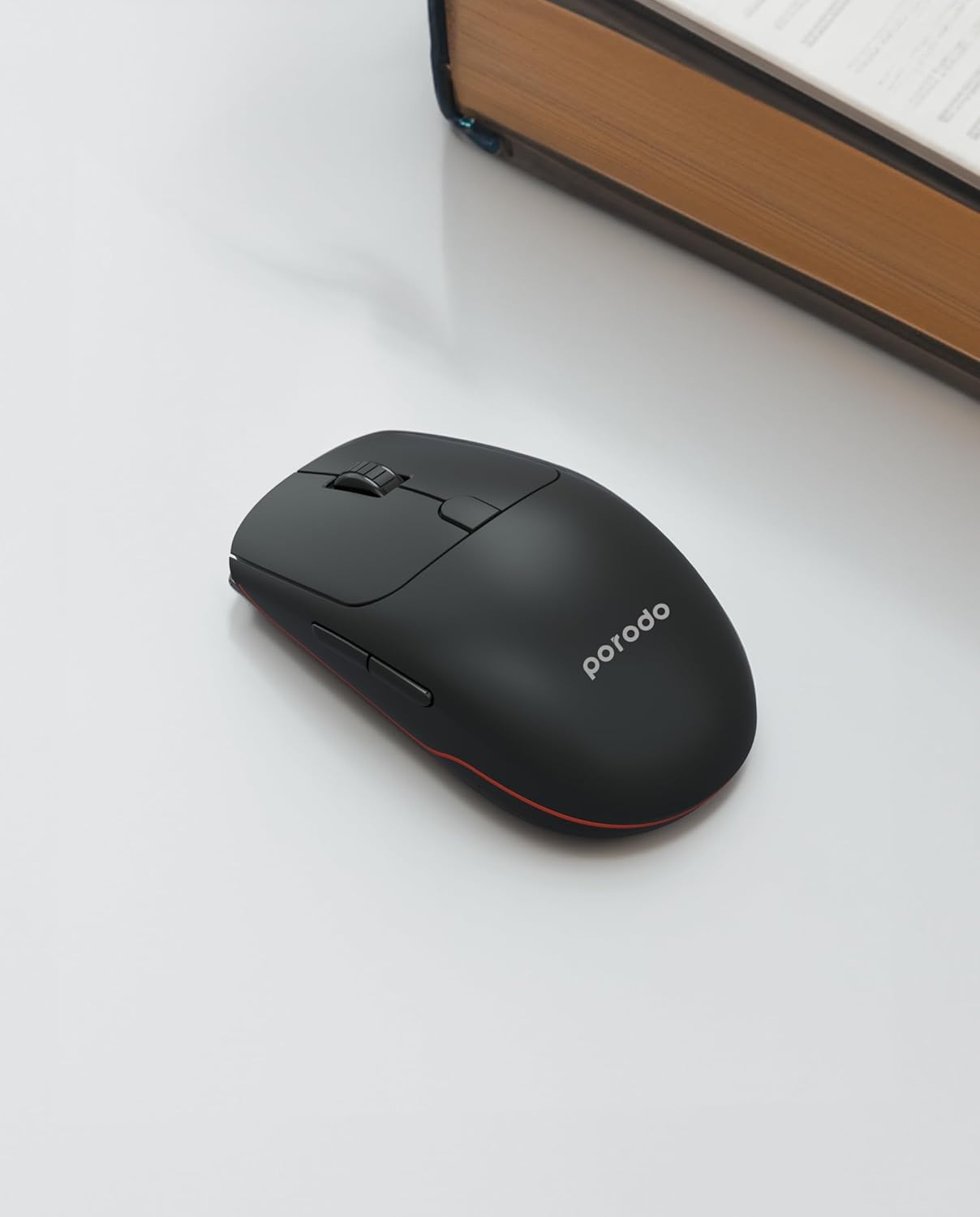
Immagine: Angolata view of the Porodo PD-21MIOM-BK wireless mouse, showing its ergonomic design and side buttons.
4. Impostazione
4.1 Ricarica del mouse
The mouse features a built-in 500mAh 3.7V battery. Before first use, or when the battery is low, connect the mouse to a USB power source using the provided charging cable. A full charge provides approximately 480 hours of usage.
4.2 Connessione tramite ricevitore USB 2.4G
- Individuare il ricevitore USB, solitamente conservato in uno scomparto nella parte inferiore del mouse.
- Collega il ricevitore USB a una porta USB disponibile sul tuo computer.
- Turn on the mouse using the power switch (usually on the underside). The mouse should automatically connect to the receiver.
- Your computer will typically install the necessary drivers automatically.
4.3 Connessione tramite Bluetooth 5.1
- Assicurarsi che il mouse sia acceso.
- Switch the mouse to Bluetooth mode using the mode switch on the underside.
- On your device (laptop, tablet, smartphone), navigate to the Bluetooth settings.
- Cercare new devices. The mouse should appear as "Porodo Mouse" or similar.
- Selezionare il mouse da associare.
- Una volta associato, il mouse è pronto per l'uso.
5. Istruzioni per l'uso
5.1 Regolazione DPI
The mouse supports adjustable DPI settings between 800 and 1600. To change the DPI, press the DPI button (usually located near the scroll wheel or on the underside). Each press cycles through the available DPI settings. Adjust the DPI to suit your preference for cursor speed and precision.
5.2 Cambio delle modalità di connessione
If your mouse supports both 2.4G and Bluetooth, there is a switch on the underside to select the desired connection mode. Move the switch to the 2.4G position for USB receiver connection or to the Bluetooth position for Bluetooth pairing.
5.3 Funzioni di base
- Clic sinistro: Selezione e attivazione primaria.
- Clic destro: Accede ai menu contestuali.
- Rotella di scorrimento: Scorre i documenti e web pagine. È possibile anche cliccarci sopra per attivare la funzionalità del clic centrale.
- Pulsanti laterali: Often used for forward/back navigation in web browser.
6. Manutenzione
6.1 Pulizia
Per pulire il mouse, utilizzare un panno morbido e asciutto. Per lo sporco ostinato, leggermente dampen the cloth with water or a mild cleaning solution. Avoid using harsh chemicals or abrasive materials. Do not immerse the mouse in water or any liquid.
6.2 Cura della batteria
To prolong battery life, avoid fully discharging the mouse frequently. Recharge when the low battery indicator appears. If storing the mouse for an extended period, ensure it is partially charged and turn off the power.
7. Risoluzione Dei Problemi
7.1 Il mouse non risponde
- Controllare il livello della batteria e ricaricarla se necessario.
- Assicurarsi che il mouse sia acceso.
- For 2.4G connection: Ensure the USB receiver is securely plugged into a working USB port. Try a different USB port.
- For Bluetooth connection: Ensure Bluetooth is enabled on your device and the mouse is in pairing mode or already paired. Try re-pairing the mouse.
- Riavvia il computer o il dispositivo.
7.2 Movimento irregolare del cursore
- Pulisci il sensore ottico sul lato inferiore del mouse.
- Assicurarsi di utilizzare il mouse su una superficie adatta (non riflettente, di colore uniforme).
- Verificare la presenza di interferenze da altri dispositivi wireless.
8. Specifiche
| Caratteristica | Dettaglio |
|---|---|
| Marca | Porodo |
| Numero di modello | PD-21MIOM-BK (7267547498421) |
| Tecnologia di connettività | 2.4G USB, Bluetooth 5.1 |
| Tipo di batteria | 500mAh 3.7V Built-In Lithium Battery |
| Durata media della batteria | Fino a 480 ore |
| wireless Range | 8 metri |
| Tecnologia di rilevamento del movimento | Ottico |
| Impostazioni DPI | 800-1600 DPI |
| Numero di pulsanti | 3 |
| Orientamento della mano | Ambidestro |
| Peso dell'articolo | 60 grammi |
| Dimensioni del prodotto | Dimensioni: 12 x 6 x 0.1 cm |
| Dispositivi compatibili | Computer portatile, computer personale, smartphone, tablet |
| Sistema operativo | Linux, Windows XP (and modern operating systems) |
9. Garanzia e supporto
Your Porodo PD-21MIOM-BK 2-in-1 Wireless Office Mouse comes with a standard manufacturer's warranty. Please refer to the warranty card included in your package or visit the official Porodo websito per termini e condizioni di garanzia dettagliati.
For technical support or customer service, please contact Porodo customer support through their official channels.


