1. Introduzione
Thank you for choosing the Baseus AeQur G10 TWS Earphones. This manual provides detailed instructions on how to set up, operate, maintain, and troubleshoot your new earphones. Please read this manual thoroughly before using the product to ensure optimal performance and longevity.
2. Contenuto della confezione
Disimballare con cura la scatola e assicurarsi che tutti gli articoli elencati di seguito siano presenti e in buone condizioni. Se alcuni articoli risultano mancanti o danneggiati, contattare il rivenditore.
- Baseus AeQur G10 TWS Earphones (Left and Right)
- Custodia di ricarica
- USB-A/USB-C Wireless Dongle
- Cavo di ricarica USB-C
- Diverse misure di gommini auricolari
- Manuale dell'utente (questo documento)

Image 2.1: Complete package contents of the Baseus AeQur G10 TWS Earphones.
3. Prodotto finitoview
Familiarize yourself with the components of your Baseus AeQur G10 TWS Earphones.
3.1 auricolari
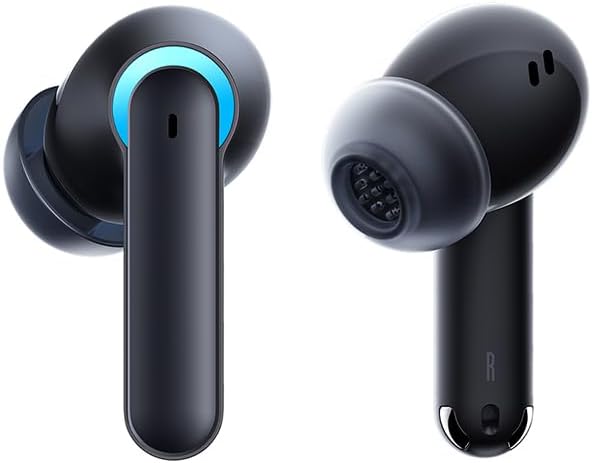
Image 3.1: Left and Right Baseus AeQur G10 Earphones. Each earphone features a touch control area, microphone, and charging contacts.
3.2 Custodia di ricarica

Image 3.2: Baseus AeQur G10 Earphones in their charging case with the lid open. The case has charging slots for each earphone and an LED indicator for battery status.
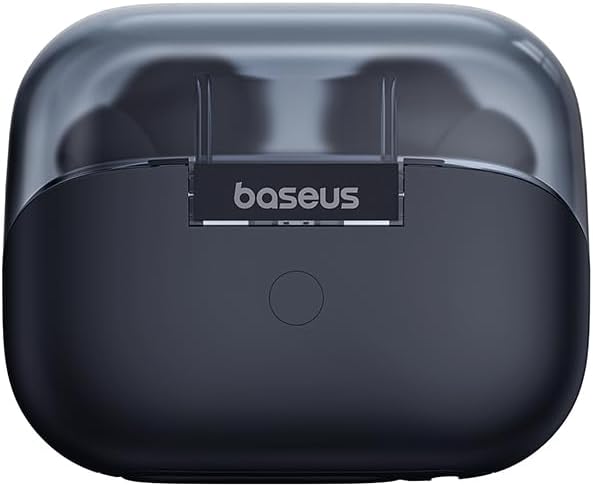
Immagine 3.3: posteriore view of the Baseus AeQur G10 charging case, displaying the Baseus brand logo and a USB-C charging port (not explicitly visible but implied by common design).
3.3 USB-A/USB-C Wireless Dongle
The included wireless dongle allows for low-latency connection to various devices, including PCs, laptops, gaming consoles, and mobile devices.

Image 3.4: Compatibility diagram for the Baseus AeQur G10, illustrating connections to Type-C Androids & Tablets, Type-C/USB-A PCs & Laptops, PS5/PS4/Switch, Steam Deck, and VR devices.
4. Impostazione
4.1 Carica iniziale
- Inserisci entrambi gli auricolari nella custodia di ricarica.
- Collegare il cavo di ricarica USB-C alla porta di ricarica sulla custodia e l'altra estremità a una fonte di alimentazione USB (ad esempio, una porta USB del computer, un adattatore da parete).
- The LED indicator on the case will show charging status. A full charge typically takes approximately 1.5 hours for the earphones and 2 hours for the case.
4.2 Associazione con dispositivi Bluetooth
- Assicurarsi che gli auricolari siano nella custodia di ricarica e che la custodia abbia una carica sufficiente.
- Open the charging case lid. The earphones will automatically enter pairing mode (indicated by a flashing LED on the earphones or case).
- Sul tuo dispositivo (smartphone, tablet, laptop), attiva il Bluetooth e cerca nuovi dispositivi.
- Select "Baseus AeQur G10" from the list of available devices.
- Una volta effettuata la connessione, l'indicatore LED smetterà di lampeggiare e verrà emesso un tono di conferma.
4.3 Connecting via USB Wireless Dongle
- Insert the USB-A or USB-C end of the wireless dongle into the corresponding port on your device (PC, laptop, gaming console).
- Assicurarsi che gli auricolari siano nella custodia di ricarica e che il coperchio sia aperto.
- The earphones will automatically attempt to connect to the dongle. The dongle's LED indicator will show connection status.
- Once connected, the LED on the dongle will become solid, and you will hear a confirmation tone from the earphones.
5. Istruzioni per l'uso
5.1 Accensione/spegnimento
- Accensione: Open the charging case lid, or take the earphones out of the case. They will power on automatically.
- Spegni: Riponi gli auricolari nella custodia di ricarica e chiudi il coperchio. Si spegneranno automaticamente e inizieranno a caricarsi.
5.2 Indossare gli auricolari
- Identify the 'L' (left) and 'R' (right) markings on each earphone.
- Inserire delicatamente gli auricolari nei condotti uditivi.
- Rotate them slightly to find a comfortable and secure fit. Choose the appropriate ear tip size for optimal sound quality and comfort.
5.3 Comandi touch
The Baseus AeQur G10 earphones feature touch-sensitive controls on each earbud. The specific functions may vary slightly depending on the device and application.
| Azione | Funzione |
|---|---|
| Tocco singolo (S/D) | Riproduci/Metti in pausa la musica, Rispondi/Termina chiamata |
| Doppio tocco (L) | Traccia precedente |
| Doppio tocco (R) | Traccia successiva |
| Triplo tocco (S/D) | Attiva l'Assistente Vocale |
| Pressione lunga (S/D, 2s) | Rifiuta chiamata |
| Pressione lunga (S/D, 3s) | Attiva/disattiva la modalità Gioco/Musica (se applicabile) |
6. Manutenzione
6.1 Pulizia
- Per pulire gli auricolari e la custodia di ricarica, utilizzare un panno morbido, asciutto e privo di lanugine.
- For earwax or debris in the ear tips, gently remove the ear tips and clean them with a cotton swab lightly dampened with rubbing alcohol. Ensure they are completely dry before reattaching.
- Non utilizzare detergenti abrasivi, solventi o spray aerosol.
6.2 Conservazione
- Quando non li usi, conserva sempre nella custodia di ricarica per proteggerli e mantenerli carichi.
- Conservare in un luogo fresco e asciutto, lontano da temperature estreme e dalla luce solare diretta.
6.3 Cura della batteria
- Charge the earphones and case regularly, even if not used frequently, to maintain battery health.
- Evitare di scaricare completamente le batterie per periodi prolungati.
7. Risoluzione Dei Problemi
If you encounter issues with your Baseus AeQur G10 earphones, refer to the following common solutions:
7.1 Nessun suono o connessione intermittente
- Ensure earphones are charged and properly connected to your device (Bluetooth or dongle).
- Controlla il livello del volume sia sugli auricolari che sul dispositivo collegato.
- Avvicinati al dispositivo per evitare interferenze o problemi di portata.
- Try disconnecting and re-connecting the earphones.
- For Bluetooth, forget the device on your phone and re-pair.
- For dongle, unplug and re-plug the dongle.
7.2 Gli auricolari non si caricano
- Assicurarsi che il cavo di ricarica sia collegato saldamente sia alla custodia sia alla fonte di alimentazione.
- Verificare che la fonte di alimentazione sia attiva.
- Pulisci i contatti di ricarica su entrambi gli auricolari e all'interno della custodia con un batuffolo di cotone asciutto.
- Prova un cavo di ricarica o un adattatore di alimentazione diverso.
7.3 Only One Earphone Working
- Riporre entrambi gli auricolari nella custodia di ricarica, chiudere il coperchio, attendere qualche secondo, quindi aprire il coperchio ed estrarli nuovamente.
- Assicurarsi che entrambi gli auricolari siano carichi.
- Prova a reimpostare gli auricolari (fai riferimento alle istruzioni del produttore) websito per istruzioni specifiche sul reset, se necessario).
8. Specifiche
Key technical specifications for the Baseus AeQur G10 TWS Earphones:
| Caratteristica | Specificazione |
|---|---|
| Nome del modello | A00055400111-00 |
| Marca | Baseo |
| Colore | Nero |
| Posizionamento dell'orecchio | Nell'orecchio |
| Fattore di forma | Nell'orecchio |
| Tecnologia di connettività | Wireless (Bluetooth) |
| Tecnologia di comunicazione wireless | Bluetooth |
| Batterie | 1 batteria agli ioni di litio richiesta (inclusa) |
| Dimensioni del prodotto | Dimensioni: 10 x 5 x 1.27 cm |
| Peso dell'articolo | 220 grammi |
| Produttore | Baseo |
| Usi specifici | Viaggio |
9. Garanzia e supporto
Baseus products are designed and manufactured to the highest quality standards. For information regarding warranty coverage, technical support, or service, please refer to the warranty card included with your product or visit the official Baseus websito. Conservare la prova d'acquisto per eventuali reclami in garanzia.
For further assistance, you may contact Baseus customer support through their official channels.


