1. Introduzione
Thank you for choosing the Maxcom Smartwatch FW53 Nitro. This manual provides essential information for the safe and efficient use of your device. Please read it carefully before using the smartwatch and keep it for future reference.
The Maxcom FW53 Nitro is a versatile smartwatch designed to enhance your daily activities, offering features such as activity tracking, notification alerts, and health monitoring when connected to a compatible smartphone.
2. Informazioni sulla sicurezza
- Non tentare di smontare, riparare o modificare il dispositivo. Ciò potrebbe invalidare la garanzia e causare danni.
- Tenere il dispositivo lontano da temperature estreme, luce solare diretta e umidità.
- Evitare di esporre il dispositivo a forti urti o vibrazioni.
- Use only the charger provided or recommended by the manufacturer.
- Consultare un medico prima di iniziare un nuovo regime di allenamento o se si soffre di una condizione medica che potrebbe essere influenzata dall'uso dello smartwatch.
- This device is not a medical device and should not be used for diagnosing or treating any medical condition.
3. Contenuto della confezione
Si prega di controllare il contenuto della confezione all'apertura. Se qualche articolo risulta mancante o danneggiato, contattare il rivenditore.
- Maxcom Smartwatch FW53 Nitro
- Cavo di ricarica
- Manuale dell'utente (questo documento)
4. Dispositivo suview
The Maxcom FW53 Nitro features a rectangular display and a single physical button for navigation and control. The back of the device houses the charging contacts and health sensors.
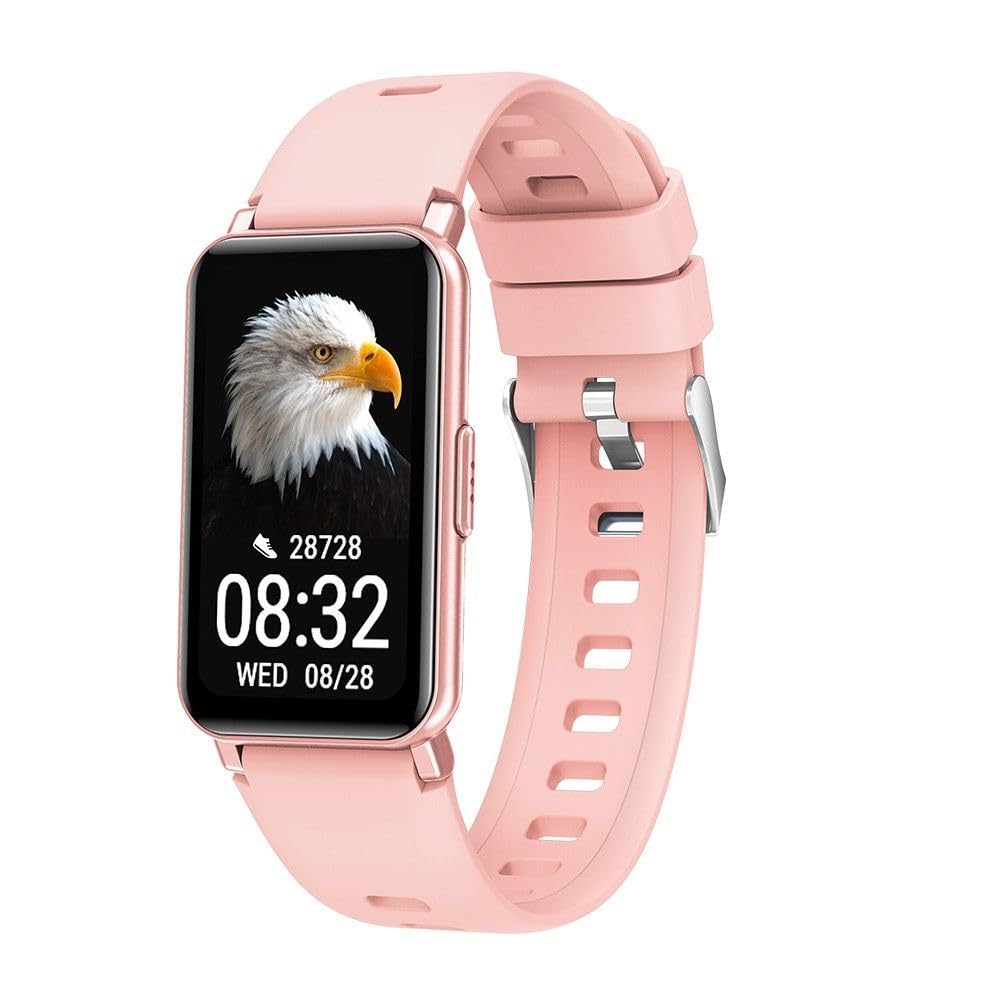
Image 1: Maxcom Smartwatch FW53 Nitro Gold. This image displays the front view of the smartwatch, highlighting its rectangular screen and overall design.
Note: No additional product images or official seller videos were available in the provided data for embedding.
4.1. componenti
- Schermo touchscreen: For interacting with the user interface.
- Pulsante laterale: Typically used for powering on/off, returning to the home screen, or accessing the menu.
- Sensore di frequenza cardiaca: Located on the back of the watch, for monitoring heart rate.
- Contatti di ricarica: Located on the back of the watch, for connecting the charging cable.
5. Impostazione
5.1. Ricarica dello smartwatch
- Collegare il cavo di ricarica a un adattatore di alimentazione USB (non incluso) o alla porta USB di un computer.
- Align the magnetic charging pins of the cable with the charging contacts on the back of the smartwatch. The cable will snap into place.
- The watch display will show a charging indicator. Allow the device to charge fully before first use. A full charge typically takes 1-2 hours.
5.2. Accensione/Spegnimento
- Per accendere: Tenere premuto il pulsante laterale per alcuni secondi finché non viene visualizzato il logo Maxcom.
- Per spegnere: From the home screen, swipe down or navigate to the settings menu, then select the 'Power Off' option. Alternatively, press and hold the side button and select 'Power Off' when prompted.
5.3. Associazione con lo smartphone
The Maxcom FW53 Nitro connects to your smartphone via Bluetooth using a dedicated companion application.
- Scarica l'App: Cercare the official Maxcom smartwatch companion app (refer to the packaging or quick start guide for the exact app name) on the App Store (iOS) or Google Play Store (Android) and install it on your smartphone.
- Abilita Bluetooth: Assicurati che il Bluetooth sia abilitato sul tuo smartphone.
- Apri l'app: Avvia l'app complementare sul tuo smartphone e segui le istruzioni sullo schermo per creare un account o effettuare l'accesso.
- Aggiungi dispositivo: All'interno dell'app, vai alla sezione "Aggiungi dispositivo" o "Associa dispositivo". L'app cercherà gli smartwatch disponibili.
- Seleziona il tuo smartwatch: Select 'FW53 Nitro' from the list of discovered devices.
- Conferma associazione: Potrebbe apparire una richiesta di associazione sia sullo smartphone che sullo smartwatch. Conferma l'associazione su entrambi i dispositivi.
- Configurazione completa: Follow any remaining prompts in the app to complete the setup, including granting necessary permissions for notifications, location, etc.
6. Utilizzo dello smartwatch
6.1. Navigazione di base
- Scorri verso l'alto/il basso: To scroll through menus or notifications.
- Scorri verso sinistra/destra: To switch between different watch faces or quick access widgets.
- Rubinetto: Per selezionare un elemento o aprire un'applicazione.
- Pressione del pulsante laterale: A short press usually returns to the home screen or acts as a back button. A long press may access power options or a specific function.
6.2. Caratteristiche principali
- Notifiche: Ricevi avvisi per chiamate, messaggi e notifiche delle app dallo smartphone associato.
- Monitoraggio delle attività: Monitora i passi effettuati, la distanza percorsa e le calorie bruciate.
- Monitoraggio della frequenza cardiaca: Measures your heart rate throughout the day or on demand.
- Monitoraggio del sonno: Tiene traccia dei tuoi schemi di sonno, inclusi sonno profondo e leggerotages.
- Modalità Sportive: Offers various modes for tracking specific exercises (e.g., running, walking).
- Controllo della musica: Controlla la riproduzione musicale sul tuo smartphone direttamente dall'orologio.
- Telecamera remota: Utilizza l'orologio come otturatore remoto per la fotocamera del tuo smartphone.
- Tempo atmosferico: Visualizza le informazioni meteo aggiornate quando è connesso allo smartphone.
6.3. Utilizzo dell'app complementare
The companion app on your smartphone is crucial for unlocking the full potential of your Maxcom FW53 Nitro. It allows you to:
- View detailed activity and health data.
- Personalizza i quadranti dell'orologio.
- Imposta allarmi e promemoria.
- Gestisci le impostazioni di notifica.
- Update the smartwatch firmware.
- Configure personal profile informazioni.
7. Manutenzione
7.1. Pulizia
- Pulisci regolarmente lo smartwatch e il cinturino con un panno morbido e asciutto.amp, panno privo di pelucchi.
- Non utilizzare prodotti chimici aggressivi, detergenti abrasivi o solventi.
- Prima di caricarlo, assicurarsi che il dispositivo sia asciutto.
7.2. Cura della batteria
- Evitare di scaricare completamente la batteria frequentemente.
- Per preservare la salute della batteria, caricare regolarmente il dispositivo, anche quando non lo si utilizza.
- Store the device in a cool, dry place if not used for an extended period.
7.3. Aggiornamenti software
Controlla periodicamente l'app complementare per verificare la disponibilità di aggiornamenti software. Gli aggiornamenti possono migliorare le prestazioni, aggiungere nuove funzionalità e correggere bug. Assicurati che l'orologio sia sufficientemente carico prima di avviare un aggiornamento.
8. Risoluzione Dei Problemi
| Problema | Possibile soluzione |
|---|---|
| Smartwatch does not power on | Assicurati che il dispositivo sia completamente carico. Tieni premuto il pulsante laterale per almeno 10 secondi. |
| Impossibile associare allo smartphone | Ensure Bluetooth is enabled on your phone. Restart both the smartwatch and smartphone. Make sure the companion app is installed and running. Forget the device in your phone's Bluetooth settings and try pairing again. |
| Le notifiche non vengono ricevute | Check notification permissions in your phone's settings for the companion app. Ensure the app is running in the background. Verify notification settings within the companion app. |
| Dati sanitari imprecisi | Ensure the watch is worn snugly on your wrist, not too tight or too loose. Clean the sensor area on the back of the watch. Ensure your personal information (age, height, weight) is accurate in the companion app. |
| La batteria si scarica rapidamente | Reduce screen brightness. Limit background app refresh. Turn off features like continuous heart rate monitoring if not needed. Ensure no apps are constantly running in the background on the watch. |
8.1. Ripristino delle impostazioni di fabbrica
If you encounter persistent issues, a factory reset may resolve them. This will erase all data on your smartwatch and restore it to its original factory settings.
- Navigate to the 'Settings' menu on your smartwatch.
- Look for an option like 'System', 'Reset', or 'Factory Reset'.
- Confermare il ripristino quando richiesto.
9. Specifiche
| Caratteristica | Dettaglio |
|---|---|
| Nome del modello | FW53 Nitro |
| Marca | MassimoCom |
| Connettività | Bluetooth |
| Dispositivi compatibili | Smartphone |
| Composizione della batteria | Litio-polimero |
| GPS | Via smartphone (uses phone's GPS) |
| Forma | Rettangolare |
| Dimensioni dello schermo | 0.634 inches (Please note this value is as provided in product data and may refer to a specific measurement unit or be a typo. Actual display size may vary.) |
| Pubblico di destinazione | Adult Mixed |
10. Supporto
For further assistance, technical support, or warranty information, please refer to the contact details provided with your purchase or visit the official Maxcom websito. Conserva la ricevuta d'acquisto come prova d'acquisto.


