Introduzione
This manual provides detailed instructions for the OWC Gemini Thunderbolt (USB-C) Docking Station and External RAID Storage Solution. It covers setup, operation, maintenance, troubleshooting, and technical specifications to ensure optimal performance and longevity of your device.
Informazioni sulla sicurezza
- Leggere attentamente tutte le istruzioni prima di utilizzare il dispositivo.
- Non esporre il dispositivo a umidità o temperature estreme.
- Utilizzare solo l'alimentatore fornito con il dispositivo.
- Non tentare di aprire o riparare il dispositivo da soli. Per qualsiasi intervento di assistenza, rivolgersi a personale qualificato.
- Garantire un'adeguata ventilazione attorno al dispositivo per evitare il surriscaldamento.
Contenuto della confezione
Verifica che tutti gli articoli siano presenti nel tuo pacco:
- OWC Gemini Thunderbolt (USB-C) Docking Station
- Adattatore di alimentazione
- Thunderbolt (USB-C) Cable
- Manuale dell'utente (questo documento)
- Drives (pre-installed for 32TB model)
Prodotto finitoview
The OWC Gemini is a versatile docking station and external storage solution designed for high-performance data management and expanded connectivity.

Immagine: Frontale view of the OWC Gemini Thunderbolt Docking Station, showcasing its sleek black design and OWC branding.
Caratteristiche principali
- Doppi alloggiamenti per unità: Supports 2.5-inch and 3.5-inch SATA drives for flexible storage configurations.
- RAID hardware: Offers RAID 0, RAID 1, SPAN, and JBOD modes for optimized performance or data redundancy.
- Thunderbolt (USB-C) Connectivity: Two Thunderbolt 3 (USB-C) ports for host connection, daisy-chaining, and power delivery (up to 27W).
- Connettività estesa: Includes two USB 3.2 Gen 2 Type-A ports, one HDMI port, one 2.5 Gigabit Ethernet port, and one SD 4.0/UHS-II media slot.
- High-Resolution Display Support: HDMI 2.1 supports up to 8K @ 120Hz, and Thunderbolt 3 supports up to 8K @ 60Hz or 4K @ 120Hz.
Layout delle porte
The OWC Gemini provides a comprehensive set of ports for various connectivity needs.

Immagine: Posteriore view of the OWC Gemini Docking Station, highlighting the 7 ports of connectivity including Thunderbolt, USB, HDMI, and Ethernet.
- Thunderbolt 3 (USB-C) Host Port: Si collega al tuo computer.
- Thunderbolt 3 (USB-C) Downstream Port: For daisy-chaining, additional displays, or charging USB-C devices.
- Porte USB 3.2 Gen 2 Tipo-A (x2): Per collegare periferiche USB.
- Porta HDMI 2.1: Per collegare un display esterno.
- Porta Ethernet da 2.5 Gigabit: Per una connettività di rete ad alta velocità.
- Slot per supporti SD 4.0/UHS-II: Located on the front panel for convenient access.
- Ingresso alimentazione CC 12 V: Si collega all'alimentatore.

Image: Close-up of the front panel of the OWC Gemini, showing the easily accessible SD card slot.
Impostare
1. Drive Installation (if applicable)
For models without pre-installed drives, follow these steps to install 2.5-inch or 3.5-inch SATA drives.

Image: The OWC Gemini unit illustrating its two flexible drive bays, compatible with both 2.5-inch and 3.5-inch drives.
- Assicurarsi che il dispositivo sia spento e scollegato dal computer.
- Open the drive bay door(s) according to the product's physical design.
- Insert your 2.5-inch or 3.5-inch SATA drives into the bays, ensuring they are securely seated.
- Close the drive bay door(s).
2. Configurazione RAID
The OWC Gemini supports hardware RAID. Refer to the specific RAID configuration utility or physical switches on the device (if present) to set your desired RAID level (RAID 0, RAID 1, SPAN, or JBOD).
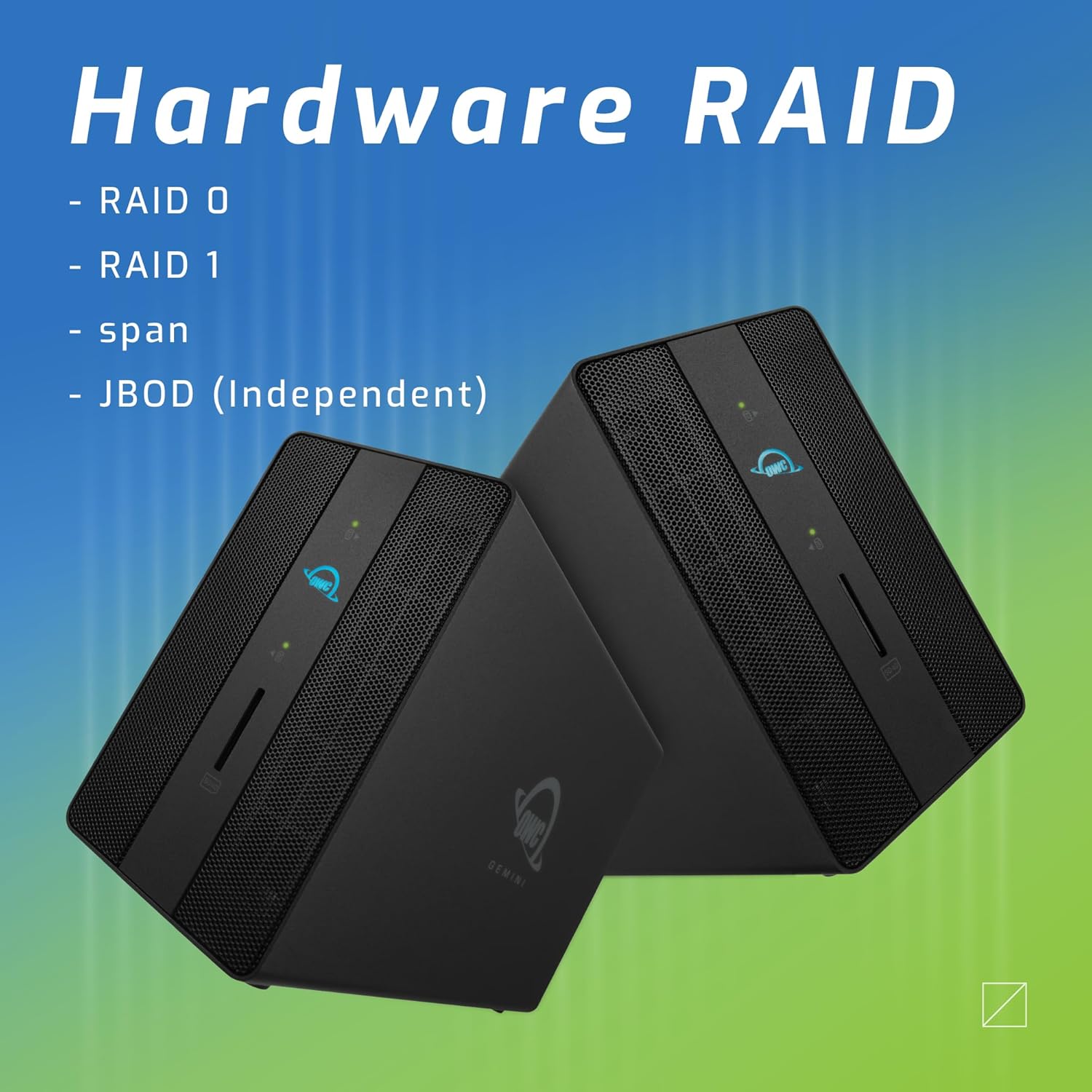
Image: Two OWC Gemini units, emphasizing the hardware RAID capabilities for configurations like RAID 0, RAID 1, SPAN, and JBOD.
RAID Levels Explained:
- RAID 0 (striping): Combines drives for maximum speed and capacity, but offers no data redundancy.
- RAID 1 (mirroring): Duplicates data across drives for redundancy, sacrificing half the total capacity for data protection.
- SPAN (Concatenazione): Combines drives into a single large volume without striping or mirroring.
- JBOD (Just a Bunch Of Disks): Treats each drive as an independent volume.
3. Connessione al computer
- Connect the power adapter to the DC 12V power input on the OWC Gemini and then to a power outlet.
- Connect one end of the Thunderbolt (USB-C) cable to the host port on the OWC Gemini.
- Connect the other end of the Thunderbolt (USB-C) cable to a Thunderbolt (USB-C) port on your computer.
- Il dispositivo dovrebbe accendersi automaticamente.
4. Initializing Drives
After connecting, your operating system may prompt you to initialize and format the new drives. Follow the on-screen instructions. For macOS, use Disk Utility. For Windows, use Disk Management.
Istruzioni per l'uso
Trasferimento dati
Once the drives are initialized and formatted, they will appear as accessible volumes on your computer. You can drag and drop files to and from these volumes as you would with any other storage device.
Utilizzo delle porte USB
Connect USB peripherals such as external drives, keyboards, or mice to the two USB 3.2 Gen 2 Type-A ports. These ports support data transfer speeds up to 10 Gb/s.
Collegamento di uno schermo esterno
Use the HDMI 2.1 port to connect an external monitor. The Gemini supports resolutions up to 8K @ 120Hz via HDMI.
Connettività di rete
Connect an Ethernet cable from your network router or switch to the 2.5 Gigabit Ethernet port on the Gemini for high-speed wired network access.
Using the SD Card Slot
Insert an SD 4.0/UHS-II compatible SD card into the front-facing slot for quick data transfer from cameras or other devices.
Daisy-Chaining and Power Delivery

Image: A close-up of the OWC Gemini's Thunderbolt ports, illustrating their use for daisy-chaining, connecting additional displays, and charging USB-C devices.
The second Thunderbolt 3 (USB-C) port allows you to:
- Ghirlanda di margherite additional Thunderbolt devices.
- Collegare un additional display (up to 8K @ 60Hz or 4K @ 120Hz).
- Charge USB-C devices with up to 27 watts of power.
Manutenzione
- Pulizia: Utilizzare un panno morbido e asciutto per pulire l'esterno del dispositivo. Non utilizzare detergenti liquidi o spray.
- Ventilazione: Ensure that the ventilation grilles are not obstructed to prevent overheating.
- Aggiornamenti del firmware: Controllare periodicamente l'OWC websito per gli aggiornamenti del firmware per garantire prestazioni e compatibilità ottimali.
- Espulsione sicura: Always safely eject the OWC Gemini from your operating system before disconnecting it or powering it off to prevent data corruption.
Risoluzione dei problemi
Dispositivo non riconosciuto
- Ensure all cables are securely connected, especially the Thunderbolt cable to both the Gemini and your computer.
- Verify the power adapter is correctly connected and the device is receiving power.
- Try connecting the Gemini to a different Thunderbolt port on your computer.
- Riavvia il computer.
- Check your operating system's Disk Utility (macOS) or Disk Management (Windows) to see if the drives are detected but uninitialized or unformatted.
Velocità di trasferimento dati lente
- Ensure you are using a Thunderbolt 3 compatible cable and port.
- Check the RAID configuration. RAID 1 (mirroring) will have slower write speeds than RAID 0 (striping).
- Chiudere tutte le applicazioni non necessarie che potrebbero consumare risorse di sistema.
- Assicurati che i driver del tuo computer siano aggiornati.
Problemi di visualizzazione
- Verify the HDMI cable is securely connected to both the Gemini and your monitor.
- Check your display settings in your operating system.
- Ensure your monitor supports the resolution and refresh rate you are attempting to use.
- Se disponibile, provare un altro cavo HDMI o un altro monitor.
Problemi di connessione di rete
- Ensure the Ethernet cable is securely connected to both the Gemini and your network device.
- Controlla le impostazioni di rete del tuo computer.
- Riavvia il router/modem.
Specifiche
| Caratteristica | Dettaglio |
|---|---|
| Marca | OWC |
| Numero di modello | OWCTB3GM000H32 |
| Capacità di archiviazione | 32.0TB (as configured) |
| Alloggiamenti unità | 2 (supports 2.5" and 3.5" SATA drives) |
| Livelli RAID | SPAN, RAID 0, RAID 1, JBOD (Hardware RAID) |
| Interfaccia host | Thunderbolt 3 (USB-C) |
| Velocità di trasferimento dati | Up to 40 Gb/s (Thunderbolt 3), Up to 10 Gb/s (USB 3.2 Gen 2) |
| Porti | (1) Thunderbolt 3 (USB-C) Host, (1) Thunderbolt 3 (USB-C) Downstream, (2) USB 3.2 Gen 2 Type-A, (1) HDMI 2.1, (1) 2.5 Gigabit Ethernet, (1) SD 4.0/UHS-II |
| Supporto di visualizzazione | HDMI 2.1: Up to 8K @ 120Hz; Thunderbolt 3: Up to 8K @ 60Hz or 4K @ 120Hz |
| Erogazione di potenza | Up to 27W via Thunderbolt 3 |
| Dispositivi compatibili | Desktop, Laptop, Tablet (with Thunderbolt/USB-C port) |
| Colore | Nero |
| Peso | 9.35 libbre (circa) |
| Codice UPC | 810100983697 |
Garanzia e supporto
Informazioni sulla garanzia
OWC products are covered by a limited warranty. Please refer to the official OWC webConsultare il sito o la documentazione di acquisto per i termini e le condizioni di garanzia specifici. Conservare la prova d'acquisto per eventuali reclami in garanzia.
Supporto tecnico
For technical assistance, troubleshooting, or further inquiries, please visit the official OWC support websito o contattare il loro servizio clienti.


