Introduzione
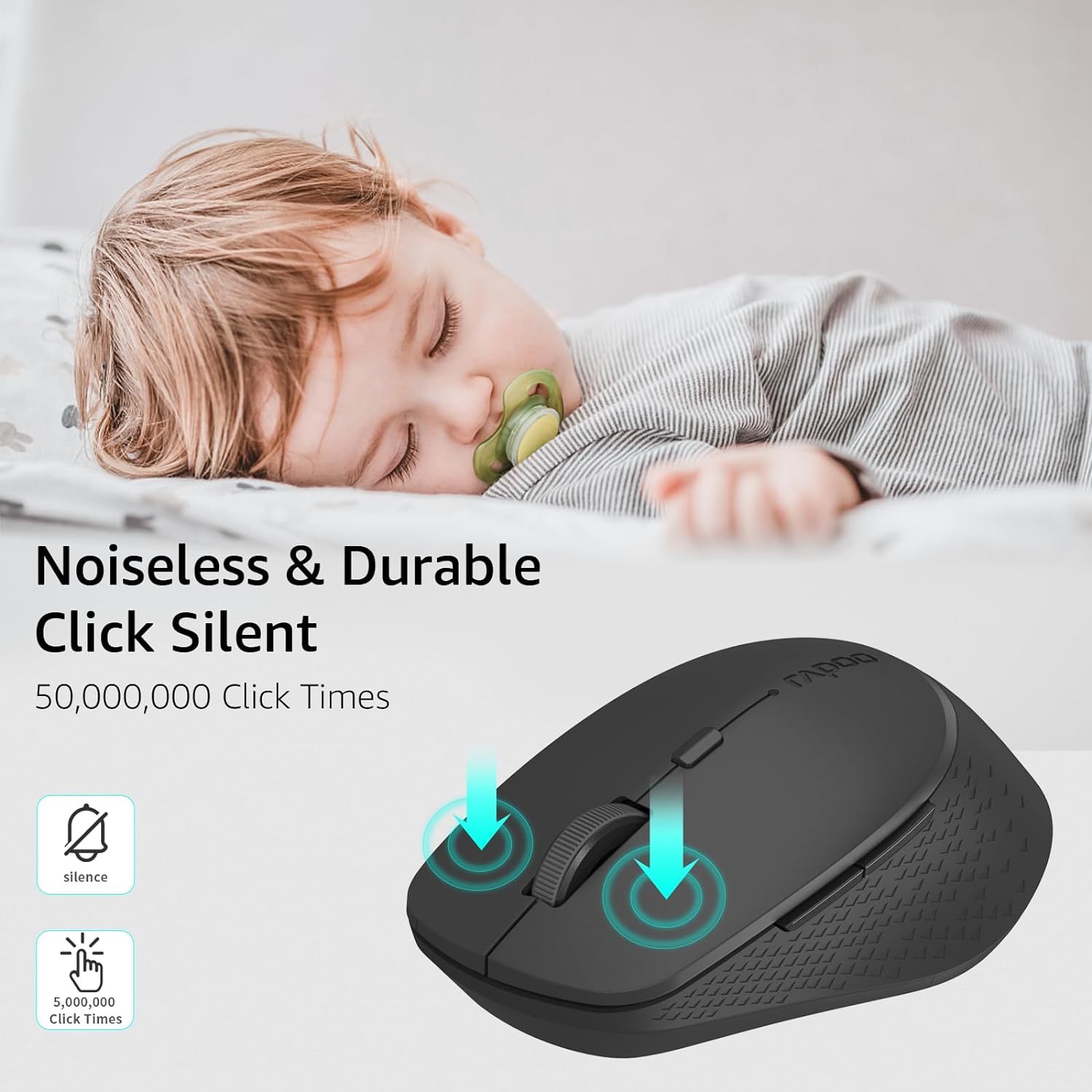
This manual provides detailed instructions for the setup, operation, and maintenance of your Rapoo M300G Silent Wireless Mouse. Please read this guide thoroughly to ensure proper use and to maximize the performance of your device. The Rapoo M300G offers versatile connectivity options, silent clicking, and adjustable DPI settings for an optimized user experience.
Contenuto della confezione
Verificare che tutti gli articoli siano presenti nel pacco:
- Rapoo M300G Wireless Mouse x 1
- Batteria AA x 1
- USB Receiver x 1 (typically stored inside the mouse)
- Manuale del prodotto x 1
Prodotto finitoview
Familiarize yourself with the components of your Rapoo M300G mouse:

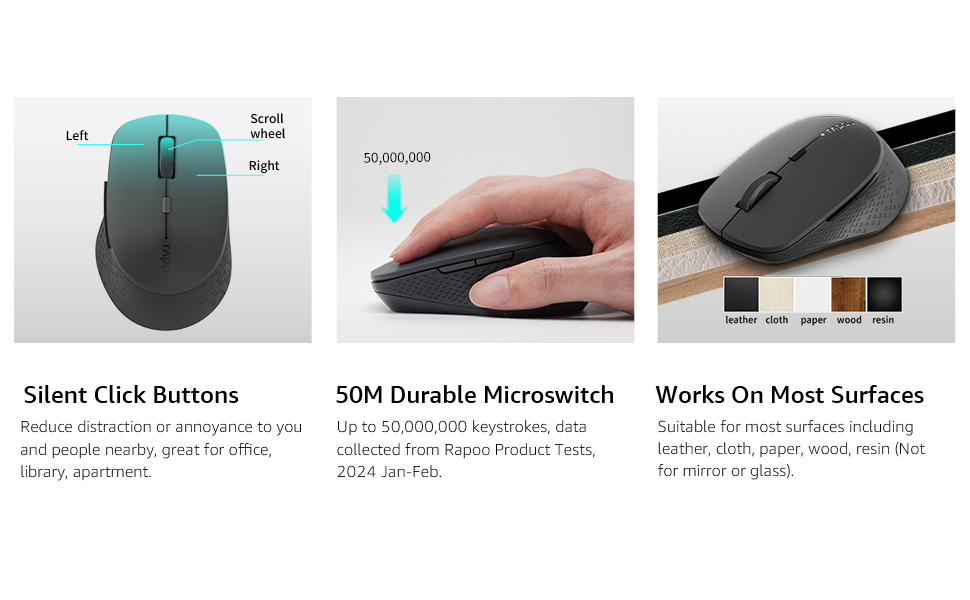
- Pulsante sinistro: Funzione di clic standard.
- Pulsante destro: Funzione standard del clic destro.
- Rotella di scorrimento: Per scorrere i documenti e web pagine. Può anche essere premuto per la funzionalità del clic centrale.
- Pulsante di commutazione DPI: Regola la sensibilità del mouse (DPI).
- Pulsante Avanti: Naviga in avanti in web browser o file esploratori.
- Pulsante indietro: Naviga indietro in web browser o file esploratori.
- Multi-function Button Switch (Underside): Used to switch between 2.4GHz and Bluetooth modes, and for Bluetooth pairing.
Impostare
1. Installazione della batteria
The Rapoo M300G mouse requires one AA battery (included).
- Individuare il coperchio del vano batteria sul lato inferiore del mouse.
- Far scorrere il coperchio per aprirlo.
- Inserire la batteria AA, assicurandosi che i terminali positivo (+) e negativo (-) siano allineati correttamente con le marcature all'interno del vano.
- Chiudere saldamente il coperchio del vano batterie.

2. Connessione wireless a 2.4 GHz
To connect via the 2.4GHz USB receiver:
- Rimuovere il ricevitore USB dal suo alloggiamento all'interno del vano batteria del mouse.
- Collega il ricevitore USB a una porta USB disponibile sul tuo computer.
- Accendere il mouse utilizzando l'interruttore di alimentazione posto nella parte inferiore.
- Set the multi-function button switch on the underside of the mouse to the 2.4G mode (indicated by a small icon).
- Il computer dovrebbe rilevare e installare automaticamente i driver necessari. Il mouse è pronto per l'uso.
3. Connessione Bluetooth
The Rapoo M300G supports Bluetooth 5.0 and 4.0. To connect via Bluetooth:
- Accendere il mouse utilizzando l'interruttore di alimentazione posto nella parte inferiore.
- Set the multi-function button switch on the underside of the mouse to the Bluetooth mode (indicated by a Bluetooth icon).
- Press and hold the multi-function button switch for 3-5 seconds until the indicator light on the mouse starts blinking, indicating it is in pairing mode.
- Sul tuo computer o dispositivo, apri le impostazioni Bluetooth e cerca nuovi dispositivi.
- Select "Rapoo M300G" from the list of available devices to pair.
- Once paired, the indicator light on the mouse will stop blinking and remain solid for a few seconds, then turn off. The mouse is now connected.

Operazione
1. Regolazione DPI
The Rapoo M300G features 5 adjustable DPI levels: 800, 1000, 1200, 1600, and 2400. To change the DPI:
- Premere il tasto Pulsante interruttore DPI located behind the scroll wheel.
- Each press cycles through the available DPI settings. The mouse cursor speed will change accordingly.

2. Commutazione multi-dispositivo
The M300G supports connection to two devices simultaneously (one via 2.4GHz, one via Bluetooth). To switch between connected devices:
- Premere brevemente il tasto Multi-function Button Switch on the underside of the mouse.
- The mouse will switch between the 2.4GHz connection and the Bluetooth connection.
3. Compatibilità superficiale
The advanced optical tracking technology allows the Rapoo M300G to operate effectively on various surfaces without a mouse pad, including leather, cloth, paper, wood, and resin. Performance may vary on glass or mirrored surfaces.

Manutenzione
- Pulizia: Per pulire il mouse, utilizzare un panno morbido e asciutto. Evitare l'uso di prodotti chimici aggressivi o materiali abrasivi.
- Sostituzione della batteria: Replace the AA battery when the mouse performance degrades or the indicator light signals low power.
- Magazzinaggio: When not in use for extended periods, turn off the mouse to conserve battery life. Store the USB receiver in its dedicated slot to prevent loss.

Risoluzione dei problemi
| Problema | Possibile causa | Soluzione |
|---|---|---|
| Il mouse non risponde | Low battery; Mouse turned off; Incorrect connection mode; USB receiver not connected (2.4GHz); Bluetooth not paired (Bluetooth). | Replace battery; Turn on mouse; Switch to correct mode (2.4G or BT); Plug in USB receiver; Re-pair Bluetooth. |
| Il movimento del cursore è irregolare | Sensore ottico sporco; Superficie non adatta; Batteria scarica. | Clean optical sensor; Use on a suitable surface or mouse pad; Replace battery. |
| Impossibile passare da un dispositivo all'altro | Incorrect button press; Device not properly paired. | Ensure a brief press of the multi-function button; Verify both devices are correctly paired/connected. |
| I pulsanti laterali non funzionano (Mac OS) | Limited Mac OS compatibility for side buttons. | This is a known limitation. Side buttons may not function on Mac OS. |
Specifiche
- Modello: Modello M300G
- Connettività: Bluetooth 5.0, Bluetooth 4.0, 2.4GHz Wireless
- Impostazioni DPI: 800, 1000, 1200, 1600, 2400 (regolabile)
- Pulsanti: 6 (Sinistra, Destra, Rotellina di scorrimento, Interruttore DPI, Avanti, Indietro)
- Energia: 1 batteria AA
- Durata della batteria: Fino a 12 mesi (in condizioni normali)
- Dimensioni: 4.09 x 2.57 x 0.04 pollici (103.91 x 65.43 x 37.29 mm)
- Peso: 2.46 once (circa 70 g)
- Compatibilità: Windows, Mac OS, Linux, iOS, Android, Chrome OS
Garanzia e supporto
Your Rapoo M300G Silent Wireless Mouse comes with a Garanzia di un anno dalla data di acquisto. Inoltre, un 30-day return and refund or replacement policy is offered. For technical support or warranty claims, please refer to the contact information provided on the Rapoo official websito o sui canali di supporto del tuo rivenditore.


