Introduzione
This manual provides detailed instructions for the setup, operation, and maintenance of your Prechen 10.1 inch Portable Touchscreen Monitor, Model HD-101. Please read this manual thoroughly before using the device to ensure proper functionality and to prevent damage.
Caratteristiche del prodotto
- Portable Touchscreen: This 10.1-inch monitor is compact and lightweight, designed for portability. The touchscreen functionality allows for intuitive navigation and interaction, enhancing productivity on the go.
- Display IPS ad alta risoluzione: Features a 1920x1200 resolution with a 16:10 aspect ratio, delivering clear and vibrant visuals. IPS technology provides wide viewing angles and accurate color reproduction, suitable for various applications.
- Connettività versatile: Equipped with HDMI and USB-C ports, offering flexible connection options. It can be easily connected to Windows PCs, laptops, and gaming consoles like Xbox. Note: USB-C is for touch functionality and power.
- Altoparlanti integrati: Built-in speakers provide clear and dynamic audio, eliminating the need for external speakers during media consumption, gaming, or virtual meetings.
- Compatibile con montaggio VESA: The monitor supports VESA mounting standards, allowing for attachment to compatible stands or arms for customized workspace setups and comfortable viewangoli di inclinazione.
Impostare
Contenuto della confezione
Verificare che tutti gli articoli siano presenti nel pacco:
- Prechen 10.1 inch Portable Touchscreen Monitor
- Cavo HDMI
- Cavo da USB-C a USB-C
- USB-A to USB-C Cable (for power/touch)
- Adattatore di alimentazione
- Manuale dell'utente (questo documento)
Collegamento del monitor
- Collegamento elettrico: Connect the provided power adapter to the DC Power Port on the monitor and plug it into a power outlet. Alternatively, if your device supports power delivery, connect a USB-C to USB-C cable to the USB-C (Power & Touch) port for both power and signal.
- Collegamento video:
- HDMI: Connect one end of the HDMI cable to the HDMI port on the monitor and the other end to the HDMI output of your computer or device.
- USB-C (DisplayPort Alternate Mode): If your device supports DisplayPort Alternate Mode over USB-C, connect a USB-C to USB-C cable to the USB-C (Power & Touch) port on the monitor and your device. This single cable can provide video, power, and touch functionality.
- Funzionalità touch: For touch functionality, ensure the USB-C (Power & Touch) port is connected to your device. If using HDMI for video, you will also need to connect a USB-A to USB-C cable from your device's USB-A port to the monitor's USB-C (Power & Touch) port.
- Uscita audio: If you wish to use external headphones or speakers, connect them to the 3.5mm Audio Port on the monitor.
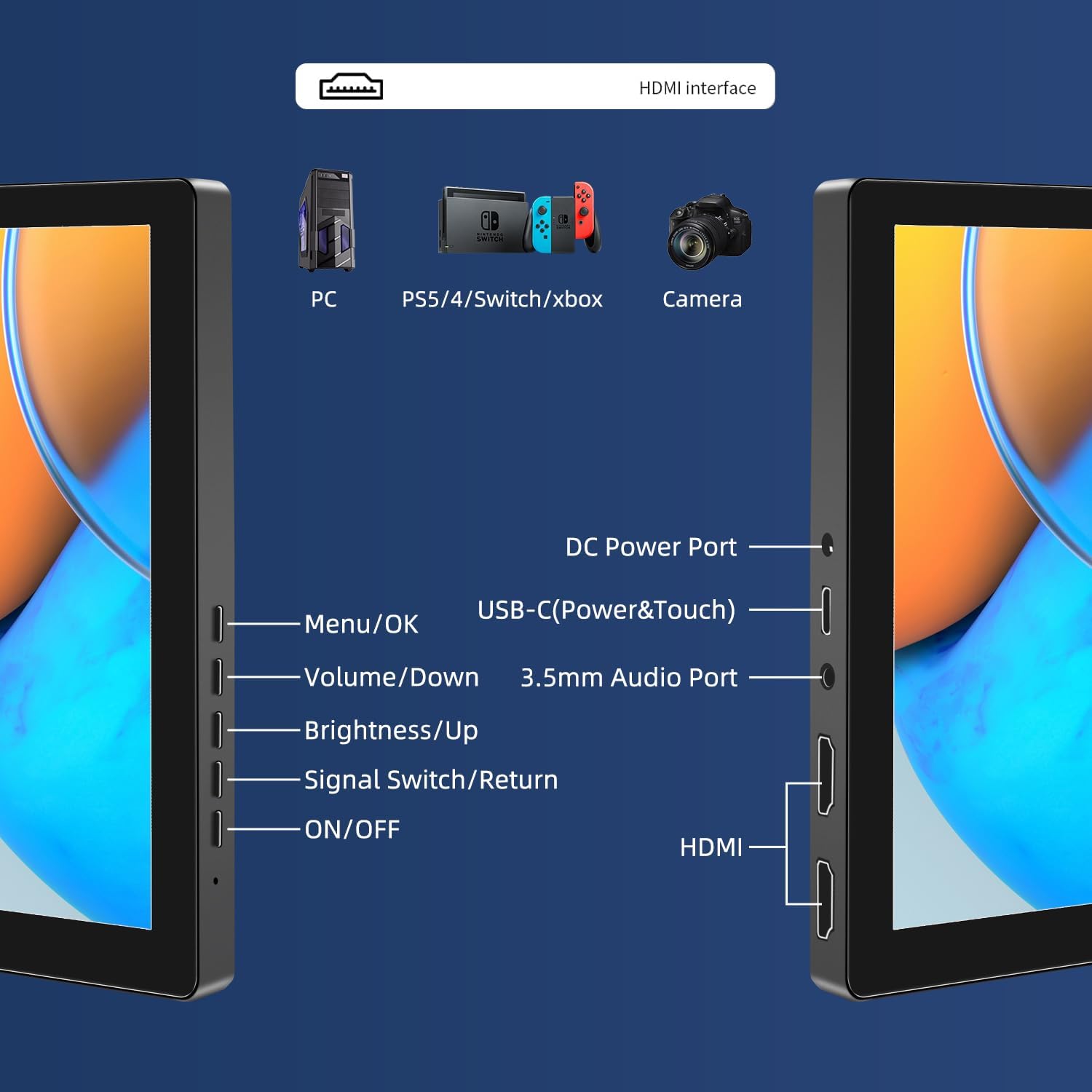
Immagine: Oltreview of the monitor's ports including DC Power, USB-C (Power & Touch), 3.5mm Audio, HDMI, and control buttons.
Istruzioni per l'uso
Accensione/spegnimento
- To power on the monitor, press the ACCESO/SPENTO pulsante.
- Per spegnere, tenere premuto il pulsante ACCESO/SPENTO button for a few seconds until the screen turns off.
Utilizzo del menu OSD (On-Screen Display)
Il menu OSD consente di regolare varie impostazioni di visualizzazione.
- Premere il tasto Menù/OK pulsante per aprire il menu OSD.
- Utilizzare il Volume basso E Luminosità/Aumento pulsanti per navigare tra le opzioni del menu.
- Premere Menù/OK per selezionare un'opzione o confermare un'impostazione.
- Premere il tasto Signal Switch/Return button to go back to the previous menu or exit the OSD.
Adjusting Display Modes
The monitor supports multiple display modes when connected to a computer:
- Modalità duplicata: Visualizza lo stesso contenuto sia sullo schermo principale che sul monitor portatile.
- Modalità estesa: Estende il desktop su entrambi gli schermi, offrendo più spazio di lavoro.
- Modalità secondo schermo: Utilizza solo il monitor portatile come display.
These modes are typically configured through your operating system's display settings (e.g., Windows Display Settings, macOS System Preferences).
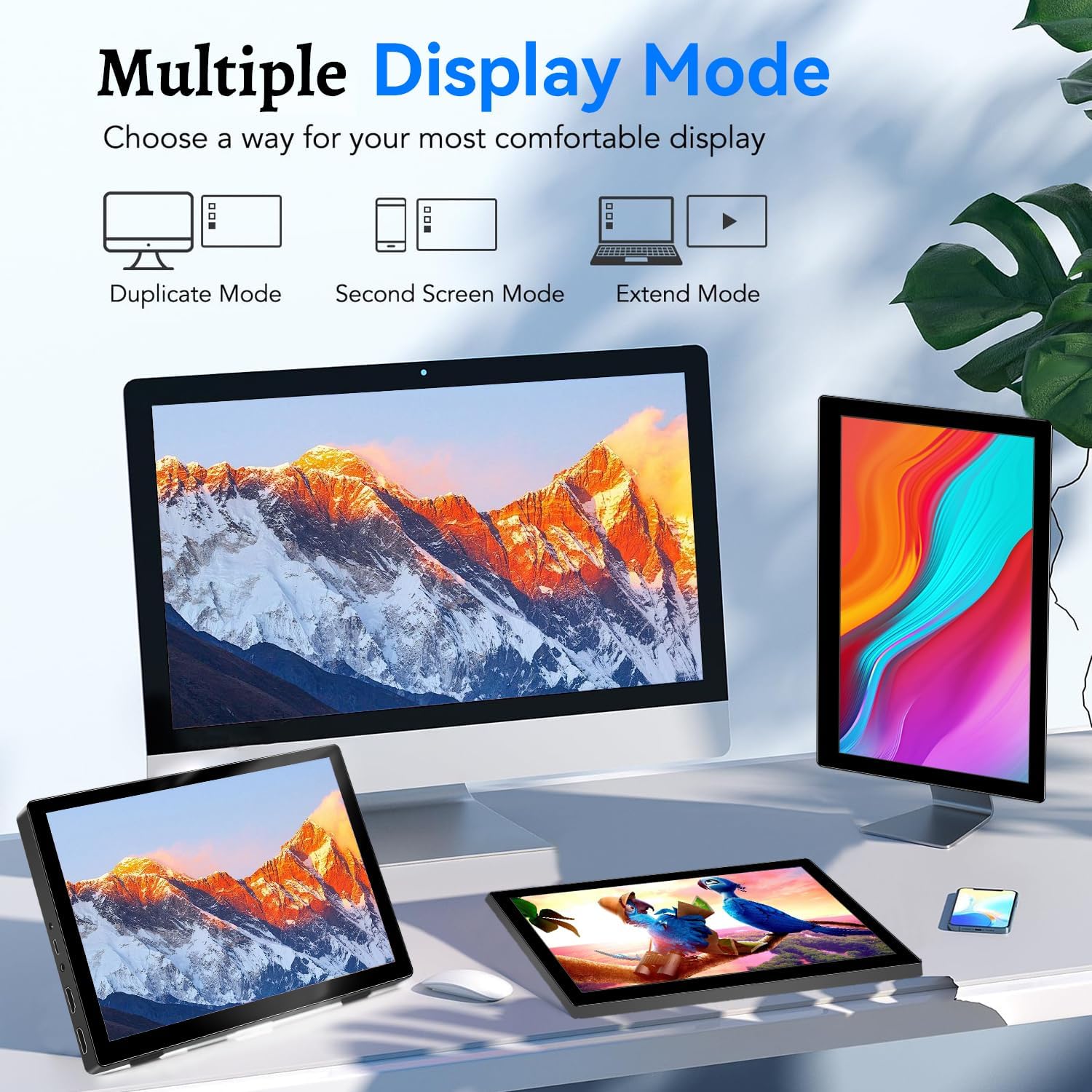
Image: Visual representation of Duplicate, Second Screen, and Extend display modes.
Using Touchscreen Functionality
The monitor supports 10-point touchscreen technology. Ensure the USB-C (Power & Touch) port is correctly connected to your device for touch input to function.

Immagine: Examples of 10-point touchscreen gestures for interaction.
Manutenzione
- Pulizia dello schermo: Utilizzare un panno morbido e privo di lanugine leggermente dampPulire con acqua o con un detergente per schermi non abrasivo. Non spruzzare il detergente direttamente sullo schermo.
- Pulizia del Casing: Pulisci il monitor casincon un panno morbido e asciutto. Evitare l'uso di detergenti aggressivi o solventi.
- Magazzinaggio: Quando non in uso, conservare il monitor in un luogo fresco e asciutto, lontano dalla luce solare diretta e da temperature estreme.
- Gestione: Evitare di far cadere o sottoporre il monitor a forti urti. Non posizionare oggetti pesanti sopra il monitor.
Risoluzione dei problemi
| Problema | Possibile causa | Soluzione |
|---|---|---|
| Nessuna visualizzazione/Schermo nero |
|
|
| Il touchscreen non risponde |
|
|
| Nessun audio dagli altoparlanti |
|
|
| Image quality issues (blurry, distorted) |
|
|
Specifiche
| Caratteristica | Dettaglio |
|---|---|
| Marca | Prechen |
| Numero di modello | Modello HD-101 |
| Dimensioni dello schermo | 10.1 pollici |
| Risoluzione | 1920 x 1200 (UXGA Wide) |
| Proporzioni | 16:10 |
| Tipo di pannello | Informazione pubblica |
| Frequenza di aggiornamento | Frequenza 60 Hz |
| Tempo di risposta | 1 millisecondi |
| Connettività | 1x HDMI, 1x USB-C (Power & Touch), 1x 3.5mm Audio Jack, 1x DC Power Port |
| Dimensioni (L x P x A) | Dimensioni: 21.8 x 15.8 x 1.4 cm |
| Peso | 990 grammi |
| Produttore | Shenzhen Kenowa Electronics Co., LTD |
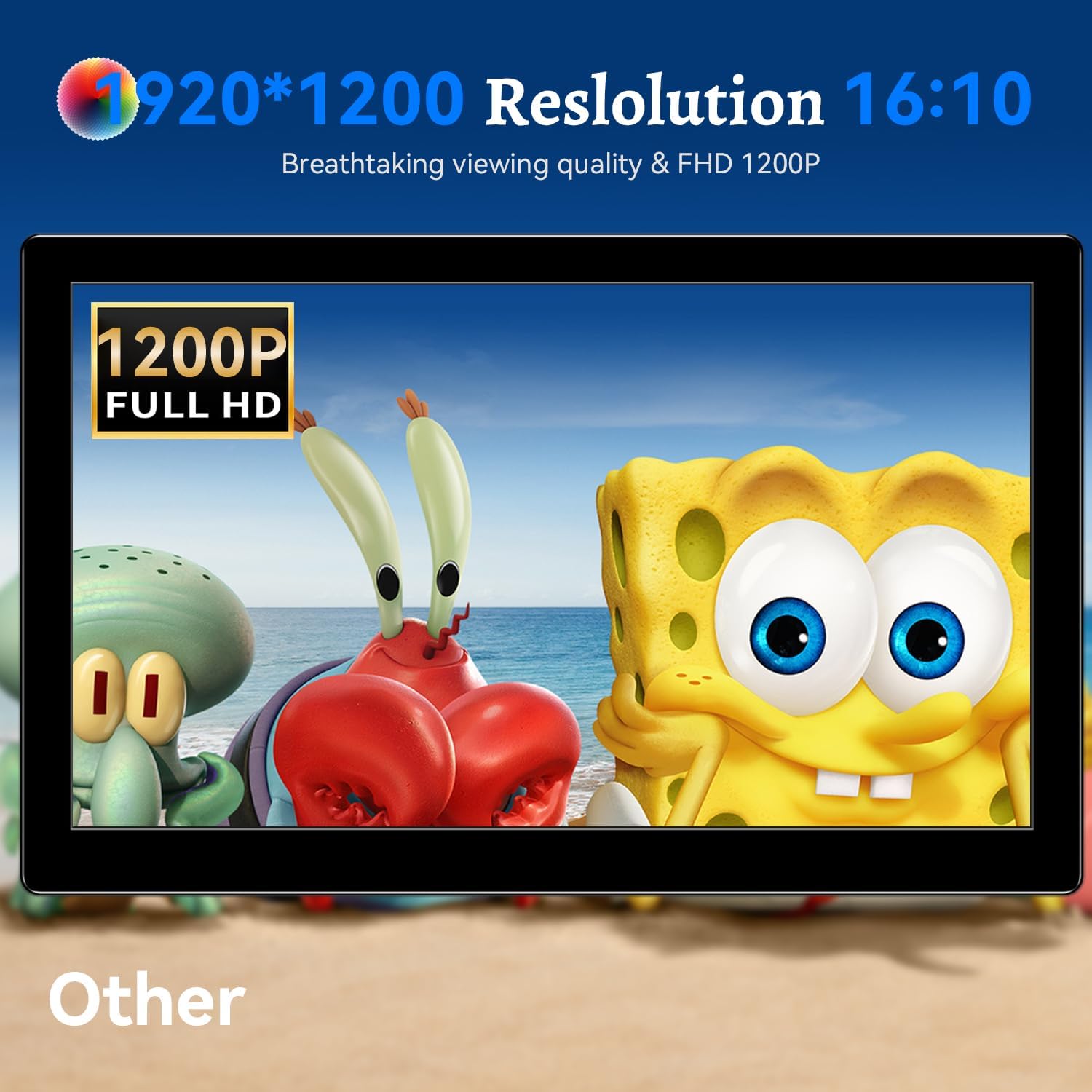
Immagine: Il monitor mostraasing its 1920x1200 Full HD resolution.

Image: The monitor's IPS panel offering wide viewing angles and rich colors.
Garanzia e supporto
For warranty information and technical support, please refer to the warranty card included with your product or contact Prechen customer service through their official website. Please have your model number (HD-101) and purchase details ready when contacting support.