1. Introduzione
The MUNBYN P047 is an 80mm thermal receipt printer designed for various business environments. It offers versatile connectivity options including Bluetooth, USB, Serial, and Ethernet, supporting Android, Windows, Mac, Linux, and ChromeOS systems. This printer is ideal for point-of-sale (POS) systems, providing fast and efficient receipt printing without the need for ink.
Nota importante sulla compatibilità: This printer is not compatible with PayPal, DoorDash, Grubhub, or Vagaro. It also does not support Wi-Fi connectivity directly, though it can connect via Ethernet to a network.
2. Cosa c'è nella scatola
Upon unboxing your MUNBYN P047 printer, please ensure all the following items are included:
- MUNBYN P047 Thermal Receipt Printer
- Adattatore di alimentazione
- Cavo di alimentazione
- Cavo USB
- Rullo di carta
- Manuale d'uso
- Sample Paper Roll

Figure 2.1: Included accessories with the MUNBYN P047 printer.
3. Impostazione
3.1 Configurazione fisica
- Connetti alimentazione: Connect the power adapter to the printer's power port and then plug the power cord into a standard wall outlet.
- Caricare la carta termica:
- Press the cover open button on the side of the printer to open the paper compartment cover.
- Insert the thermal paper roll into the compartment, ensuring the paper feeds from the bottom and the leading edge extends out of the printer. The paper should be placed so that it feeds downwards towards the print head.
- Chiudere saldamente il coperchio del vano carta finché non scatta in posizione.
- Attiva: Flip the power switch located on the front of the printer to the 'On' position. The power indicator light will illuminate.

Figure 3.1: Loading thermal paper into the printer.
Video 3.1: Demonstrates how to install a USB printer, including physical setup steps like paper loading.
3.2 Connectivity Setup
The P047 printer offers multiple ways to connect to your devices:
- Connessione Bluetooth: Ideal for Android and iOS devices.
- Connessione USB: Compatible with Windows, Mac, Linux, and ChromeOS PCs.
- Connessione seriale: For legacy systems.
- Connessione Ethernet (LAN): For network printing.
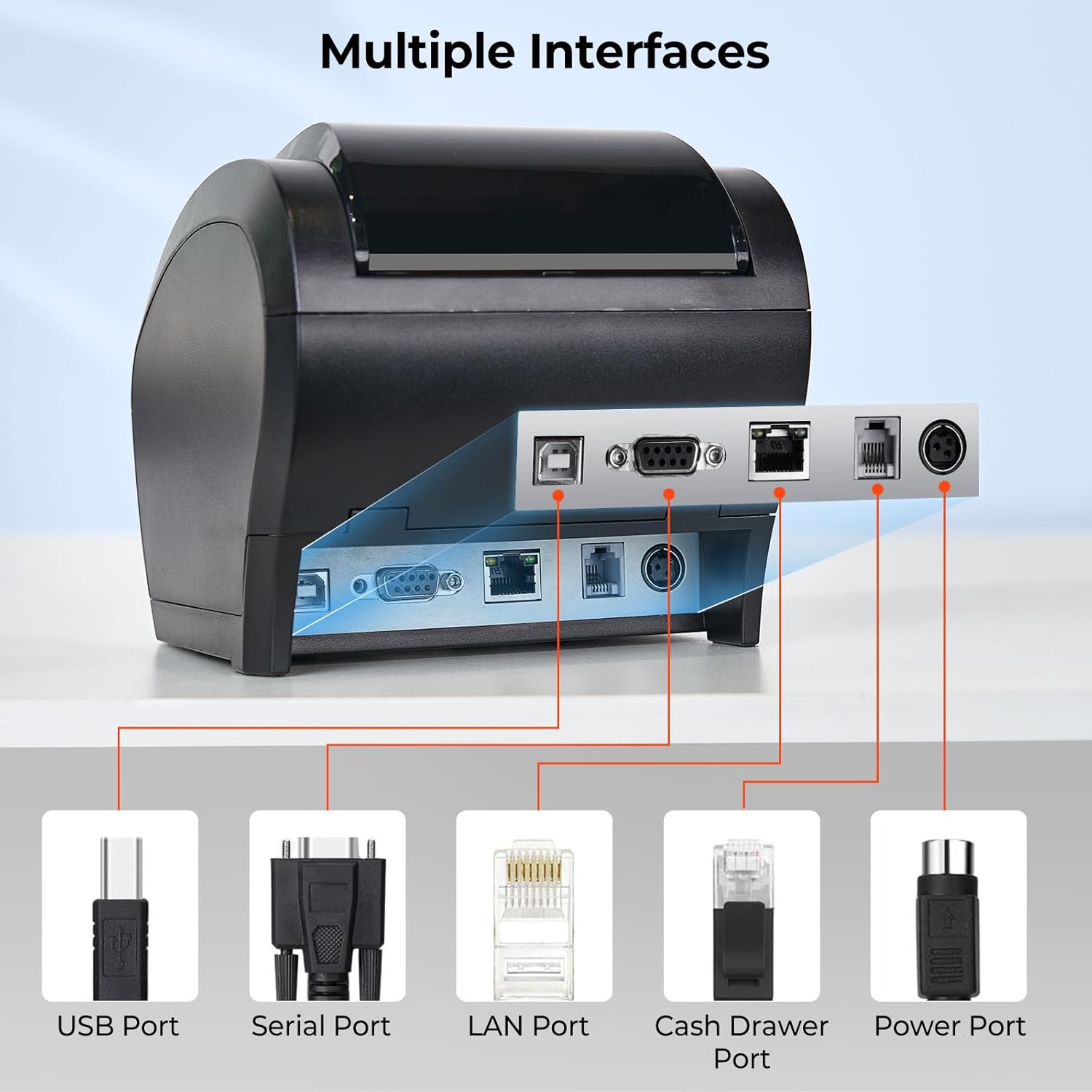
Figure 3.2: Multiple interface ports for versatile connectivity.
3.2.1 Accoppiamento Bluetooth (Android/iOS)
Per connettersi tramite Bluetooth:
- Assicurarsi che la stampante sia accesa.
- Sul tuo dispositivo Android o iOS, vai alle impostazioni Bluetooth e cerca i dispositivi disponibili.
- Locate and select the printer, typically named "TM-m30-b001". The default pair code is 0000.
- Once paired, you can use compatible POS applications (e.g., Loyverse, Uber Eats, Shopify POS) to print.
- Note for Shopify POS: Due to software updates, you may need to manually modify the Bluetooth name from "TM-m30-b001" to "TM-m30III" in your device's Bluetooth settings for compatibility. If the Bluetooth name is already "TM-m30III", no change is required.
Video 3.2: Guide on connecting the printer to Uber Eats app via Bluetooth on an Android device.
Video 3.3: Instructions for connecting the printer to Shopify POS via Bluetooth on an Android device.
3.2.2 Compatibilità del sistema e delle applicazioni
The MUNBYN P047 printer is designed for broad compatibility. Refer to the table below for a detailed overview of supported operating systems and POS applications.

Figure 3.3: Detailed compatibility matrix for the P047 printer.
4. Utilizzo della stampante
4.1 Stampa di base
Once connected to your device and configured with your POS software, the printer will automatically receive and print receipts. The P047 features a high printing speed of 300mm/s and an automatic paper cutter for efficient operation.
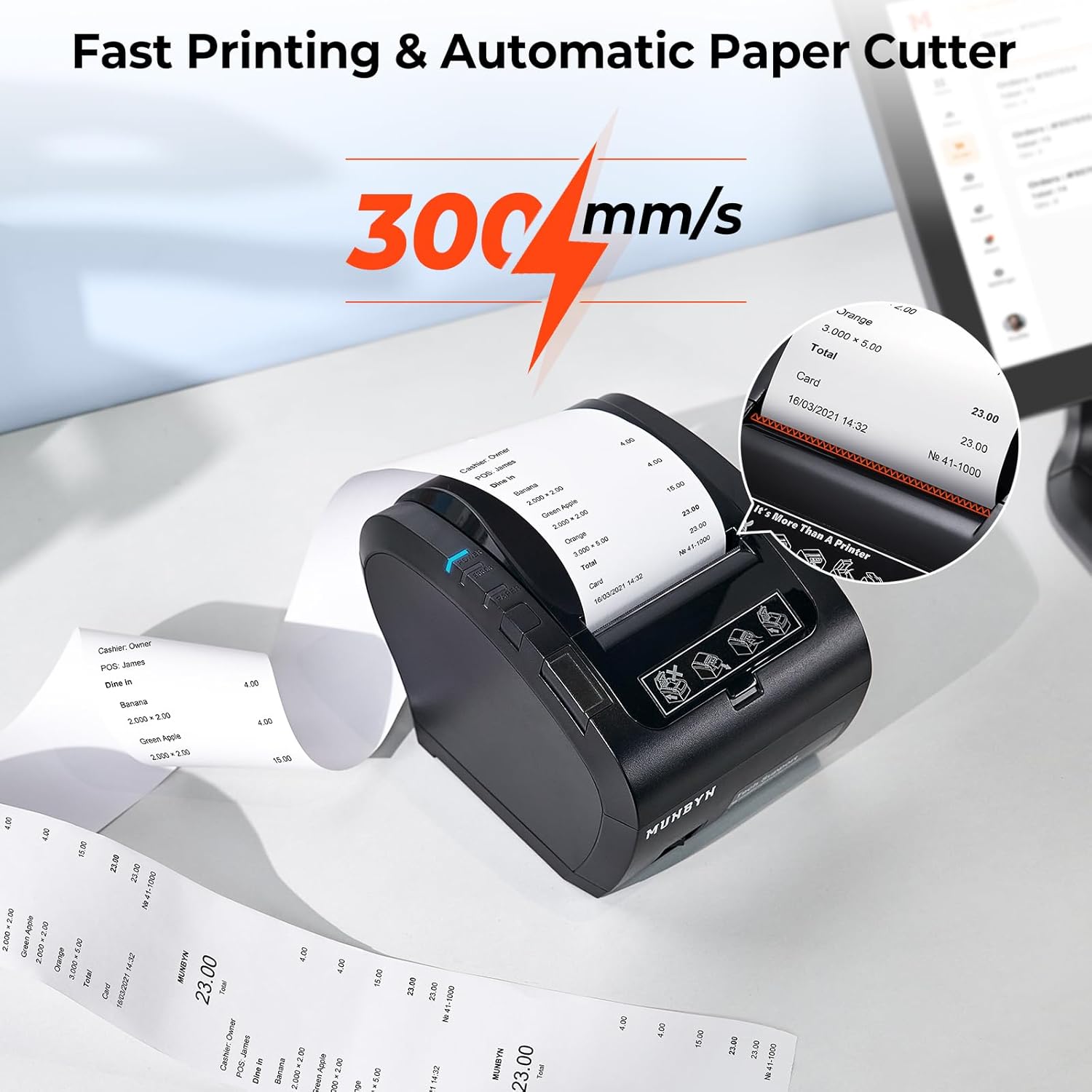
Figure 4.1: High-speed printing and automatic paper cutting.
4.2 Indicatori e pulsanti
The printer has several indicators and buttons for easy monitoring and control:
- Indicatore di alimentazione: Illuminates when the printer is powered on.
- Indicatore di errore: Lights up or flashes to indicate an error (e.g., paper jam, cover open).
- Indicatore carta: Indicates paper status (e.g., low paper, no paper).
- Pulsante di alimentazione: Premere per alimentare manualmente la carta.
- Pulsante di apertura del coperchio: Releases the paper compartment cover.
- Interruttore di alimentazione: Accende o spegne la stampante.
Figure 4.2: Front panel with indicators and buttons.
5. Manutenzione
5.1 Sostituzione della carta
When the paper roll is depleted or running low, replace it by following the paper loading instructions in Section 3.1. The printer uses 80mm thermal paper rolls.
5.2 Pulizia
Regular cleaning helps maintain print quality and extends the printer's lifespan. Use a soft, lint-free cloth to wipe the exterior. For the print head, refer to the detailed cleaning instructions in the official Troubleshooting Guide (PDF) available on the product page.
6. Risoluzione Dei Problemi
If you encounter issues with your MUNBYN P047 printer, please refer to the following common solutions:
- La stampante non risponde: Ensure the power cord is securely connected and the printer is turned on. Check the power indicator light.
- Nessuna stampa in uscita: Verify that thermal paper is correctly loaded and the paper compartment cover is closed. Check the paper indicator.
- Problemi di connessione Bluetooth: Confirm Bluetooth is enabled on your device and the printer is discoverable. Ensure the correct printer name is selected and the pair code (0000) is entered correctly. For Shopify POS, remember to check and potentially modify the Bluetooth name to "TM-m30III".
- Problemi di compatibilità: Double-check the compatibility table in Section 3.2.2 to ensure your operating system and POS application are supported. Note that some applications like DoorDash, Grubhub, and Vagaro are not supported.
- Riconoscimento app: The "EMlabel" App can assist your devices in recognizing the printer and facilitating setup.
For more detailed troubleshooting steps and solutions, please consult the official Guida alla risoluzione dei problemi (PDF).
If you have specific questions about product compatibility with your POS system, please contact MUNBYN customer support for prompt assistance.
7. Specifiche tecniche
| Caratteristica | Specificazione |
|---|---|
| Nome del modello | ITPP047P-USEB |
| Tecnologia di stampa | Termico |
| Uscita della stampante | Monocromo |
| Velocità di stampa massima (monocromatica) | 48 ppm (300 mm/s) |
| Risoluzione massima di stampa in bianco e nero | 203 dpi |
| Dimensioni massime del supporto di stampa | 80mm |
| Tecnologia di connettività | Bluetooth, USB, Serial, Ethernet |
| Dispositivi compatibili | PC, Tablets (Android, Windows, Mac, Linux, ChromeOS, iOS) |
| Dimensioni del prodotto | 11.26"P x 6.46"L x 6.3"A |
| Peso dell'articolo | 3.69 libbre |
| Tipo di inchiostro della stampante | Senza inchiostro (termica) |
8. Garanzia e supporto
The MUNBYN P047 Thermal Receipt Printer comes with a Limited Warranty. For specific warranty terms and conditions, please refer to the warranty documentation included with your product or contact MUNBYN customer support.
Assistenza clienti
For technical assistance, troubleshooting, or any inquiries regarding your MUNBYN product, please reach out to our support team:
- E-mail: support@munbyn.com
- Phone (PT): +1 403 477 1911 (8:00 AM - 5:00 PM PT)
- Phone (UTC+8): +86 178 1788 1067 (9:00 AM - 6:00 PM UTC+8)
Our dedicated support team is available to provide remote setup assistance, how-to videos, and local tech support to ensure you have the best experience with your MUNBYN printer.


