1. Introduzione
This manual provides comprehensive instructions for the setup, operation, and maintenance of your Pisichen Portable Touchscreen Monitor. Please read this manual thoroughly before using the product to ensure proper functionality and to maximize your user experience.
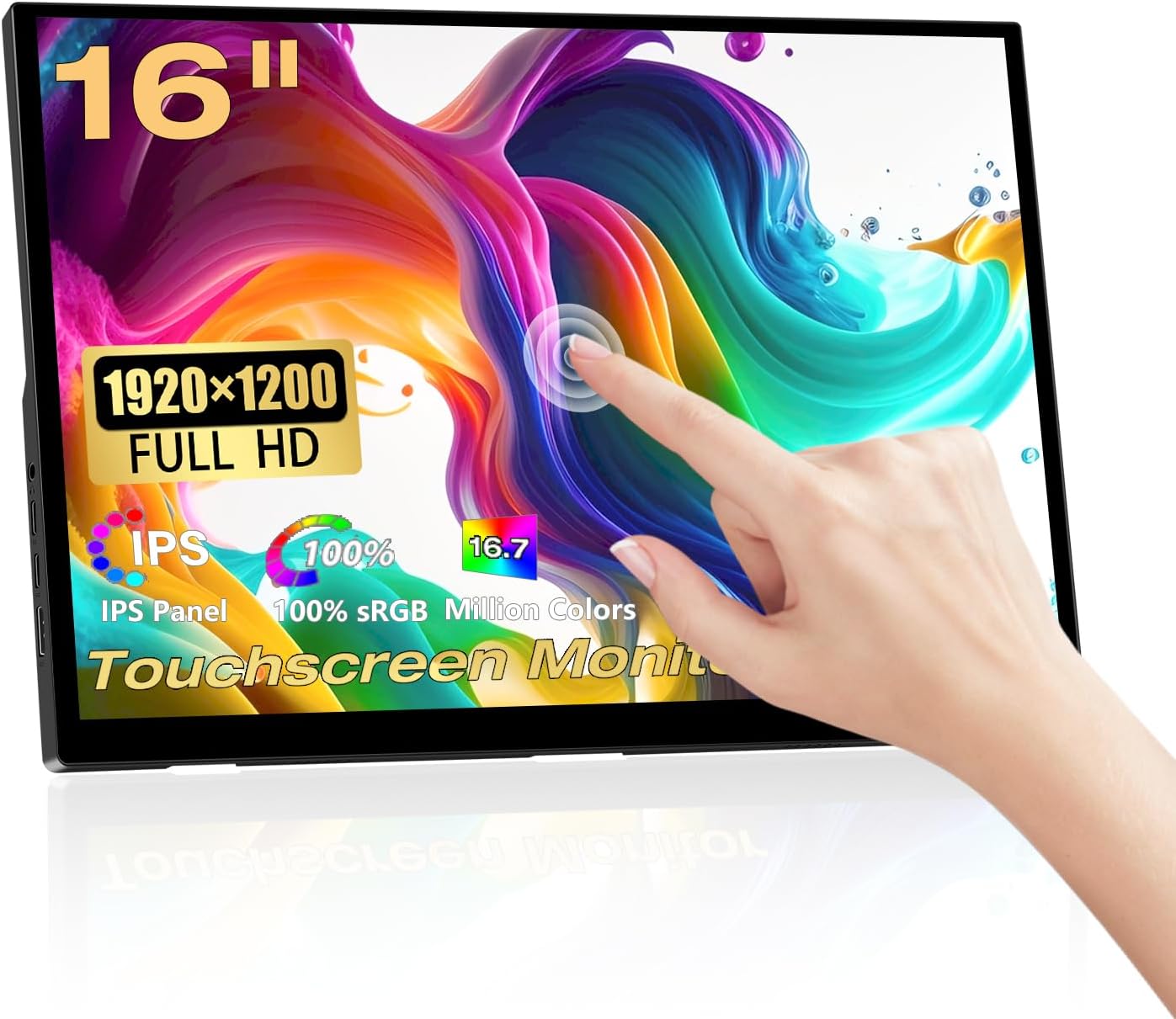
Image: Pisichen 16 Inch Portable Touchscreen Monitor, showcasinil suo design elegante e le sue funzionalità touch.
2. Caratteristiche principali
- FHD Portable Display: 16-inch Full HD (1920x1200P) IPS panel with 178° full viewing angle, 60Hz refresh rate, 1000:1 contrast, and 300 cd/m² brightness. Supports 100% sRGB and 16.7 million colors for accurate and vibrant visuals. Features blue light reduction and flicker-free technology for eye comfort.
- Responsive 10-Point Capacitive Touchscreen: Offers smooth and natural interaction with 10-point multi-touch capability, allowing for intuitive control without a mouse or keyboard.
- HDR Technology & Integrated Kickstand: High Dynamic Range (HDR) mode provides deeper and more realistic colors. The built-in adjustable kickstand (0-90°) and VESA compatibility (75x75mm) offer flexible placement options.
- Connettività versatile: Equipped with a standard HDMI port, two full-featured USB-C 3.1 ports, and an OTG USB-A port (for mouse/keyboard). Supports single Type-C cable for video and power transmission.
- Modalità di visualizzazione multiple: Supports duplicate mode, extend mode, and second screen mode for various applications with laptops, PCs, smartphones (USB Type-C 3.1 version), PS4/PS5, and other compatible devices.
- Doppi altoparlanti integrati: Features 1.5W dual speakers for audio output.

Image: The monitor displaying vibrant colors, highlighting its IPS panel for immersive visual enjoyment.

Image: Two monitors demonstrating the 178-degree ultra-wide viewing angle of the IPS panel, showing consistent color from different perspectives.

Immagine: Primo piano views of the monitor's design details, including the 90-degree integrated adjustable stand, VESA mount holes, and non-slip rubber mat.
3. Contenuto della confezione
Si prega di verificare che tutti gli articoli elencati di seguito siano inclusi nel pacco. Se alcuni articoli risultano mancanti o danneggiati, contattare l'assistenza clienti.
- Pisichen Portable Touchscreen Monitor (QTH-16INTS)
- Adattatore di alimentazione
- Cavo da USB-A a USB-C (x2)
- Cavo da HDMI a HDMI
- Cavo da USB-C a USB-C
- Manuale d'uso

Image: An illustration showing the monitor and its included accessories: Power Adapter, two USB-A to USB-C cables, one HDMI to HDMI cable, one USB-C to USB-C cable, and the User Manual.
4. Configurazione e connessioni
Your Pisichen Portable Touchscreen Monitor offers flexible connectivity options to suit various devices. Ensure your device supports the necessary video output and power delivery for optimal performance.
4.1. Porte disponibili

Image: A diagram illustrating the various ports on the monitor: 3.5mm audio port, USB C port 1, USB C port 2, HDMI port, Brightness/Up button, Menu/OK button, Volume/Down button, and USB-A port.
- Porta audio da 3.5 mm: Per collegare cuffie o altoparlanti esterni.
- USB C Port 1 (Full-featured): Supports video, audio, touch, and power delivery.
- USB C Port 2 (Full-featured): Supports video, audio, touch, and power delivery.
- Porta HDMI: Per l'ingresso video e audio da dispositivi con uscita HDMI.
- Porta USB-A: For connecting peripherals like a mouse or keyboard (OTG function).
- Pulsanti di controllo: Brightness/Up, Menu/OK, Volume/Down for OSD navigation.
4.2. Metodi di connessione

Image: A visual guide demonstrating two primary connection methods: single USB-C cable connection for video, audio, touch, and power, and two-cable connection using HDMI for video/audio and USB-C for power and touch data.
- Single Cable Connection (USB-C):
If your device (laptop, smartphone, etc.) has a full-featured USB-C 3.1 port (which supports DisplayPort Alternate Mode and Power Delivery), you can connect the monitor using a single USB-C to USB-C cable. This cable will transmit video, audio, touch signals, and power to the monitor.
Note: If the power supplied by the single USB-C cable is insufficient, the monitor may require additional power via the included power adapter connected to one of the USB-C ports.
- Two Cable Connection (HDMI + USB-C):
For devices with an HDMI output (e.g., PC, game console, older laptops), connect the HDMI port on your device to the monitor's HDMI port using the provided HDMI cable. For touch functionality and power, connect a USB-A to USB-C cable from your device's USB-A port to one of the monitor's USB-C ports. The power adapter can also be used for dedicated power if needed.
Note: For touch functionality to work with HDMI, the USB-A to USB-C cable must be connected from your device to the monitor.
5. Istruzioni per l'uso
5.1. Accensione/spegnimento
The monitor will typically power on automatically when connected to a powered device via USB-C or HDMI. To manually power off, disconnect the power source. The monitor does not have a dedicated power button.
5.2. Menu OSD (On-Screen Display).
Use the control buttons on the side of the monitor to navigate the OSD menu. The buttons are typically labeled or intuitively positioned for Brightness/Up, Menu/OK, and Volume/Down.
- Premere il tasto Menù/OK pulsante per aprire il menu OSD.
- Utilizzare il Luminosità/Aumento E Volume basso pulsanti per navigare tra le opzioni del menu.
- Premere Menù/OK di nuovo per selezionare un'opzione o confermare un'impostazione.
- To exit the menu, navigate to the 'Exit' option or wait for the menu to time out.
Common OSD settings include: Brightness, Contrast, Color Temperature, HDR Mode, Aspect Ratio, Input Source, and Volume.
5.3. Funzionalità touchscreen
The monitor supports 10-point capacitive touch. Ensure the USB-C cable (for single-cable connection) or the USB-A to USB-C cable (for HDMI connection) is properly connected to your device for touch input to function.

Image: A laptop and the portable monitor side-by-side, demonstrating the 10-point capacitive touch functionality for responsive interaction.

Image: A close-up showing the upgraded bezel-less touch panel, emphasizing its seamless design for accurate clicking and interaction.
Compatibilità: Touch functionality is generally supported by Windows, Chrome OS, and Android devices. macOS typically requires third-party drivers for full touch support, and basic touch (like mouse movement) might be recognized as a trackpad.
5.4. Modalità di visualizzazione
Depending on your connected device and operating system, you can configure the monitor for various display modes:
- Modalità duplicata (modalità specchio): Visualizza lo stesso contenuto sia sullo schermo principale che sul monitor portatile.
- Modalità estesa: Estende il desktop su entrambi gli schermi, offrendo più spazio di lavoro.
- Modalità solo secondo schermo: Displays content only on the portable monitor, with your primary screen turned off.
Queste impostazioni vengono solitamente regolate nelle impostazioni di visualizzazione del sistema operativo (ad esempio, Impostazioni di visualizzazione di Windows, Preferenze di sistema di macOS).
5.5. Adaptive Image Ratios
The monitor is designed to automatically recognize the input image ratio and adjust the display accordingly. However, some devices or content might require manual adjustment through the OSD menu or your device's display settings to prevent distortion.

Image: A comparison showing how the monitor adjusts to correct display ratios versus a distorted image when the ratio is not properly matched.
6. Manutenzione
Proper care and maintenance will extend the life of your portable monitor.
- Pulizia dello schermo: Pulisci delicatamente lo schermo con un panno morbido e privo di lanugine. Per le macchie ostinate, strofina leggermenteampPulisci il panno con acqua o una soluzione detergente specifica per schermi. Evita di utilizzare prodotti chimici aggressivi, alcol o materiali abrasivi.
- Pulizia del Casing: Utilizzare un panno morbido e asciutto per pulire la superficie del monitor.asing.
- Magazzinaggio: When not in use, store the monitor in a cool, dry place, away from direct sunlight and extreme temperatures. It is recommended to use a protective sleeve or case to prevent scratches during transport.
- Evitare i liquidi: Tenere il monitor lontano da liquidi e da umidità eccessiva.
- Maneggiare con cura: Evitare di far cadere il monitor o di sottoporlo a forti urti.
7. Risoluzione Dei Problemi
If you encounter issues with your Pisichen Portable Touchscreen Monitor, please refer to the following common problems and solutions:
| Problema | Possibile causa/soluzione |
|---|---|
| Nessuna visualizzazione / schermo nero |
|
| Touchscreen Not Responding or Slow |
|
| Flickering Display / Visual Artifacts |
|
| Image is Distorted or Cut Off |
|
| Nessun audio dagli altoparlanti |
|
If the problem persists after trying these solutions, please contact Pisichen customer support for further assistance.
8. Specifiche
| Caratteristica | Dettaglio |
|---|---|
| Numero di modello | QTH-16INTS |
| Dimensioni dello schermo | 16 pollici |
| Tipo di pannello | Informazione pubblica |
| Risoluzione | 1920 x 1200 pixel (FHD) |
| Proporzioni | 16:10 |
| Luminosità | 300 cd/m² |
| Rapporto di contrasto | 1000:1 |
| Viewangolo di ing | 178° (IPS) |
| Frequenza di aggiornamento | Frequenza 60 Hz |
| Gamma di colori | 100% sRGB |
| Colori di visualizzazione | 16.7 milioni |
| Schermo tattile | 10-point Capacitive Touch |
| Porti | 2x Full-featured USB-C 3.1, 1x HDMI, 1x USB-A (OTG), 1x 3.5mm Audio Jack |
| Altoparlanti | Built-in Dual 1.5W Speakers |
| Supporto VESA | 75x75mm Compatible |
| Dimensioni del prodotto | 0.39 x 14 x 9.2 pollici |
| Peso dell'articolo | 3.52 libbre |
| Produttore | Shenzhen Konowa Electronics Co., LTD |
9. Garanzia e supporto
For warranty information, technical support, or any inquiries regarding your Pisichen Portable Touchscreen Monitor, please contact the manufacturer or seller directly.
You can visit the official Pisichen store on Amazon for more information and contact options: Pisichen Store.
Protection plans may also be available for purchase separately to extend coverage beyond the standard warranty period. Please refer to the product listing for details on available protection plans.


