1. Introduzione
Thank you for choosing the LOFREE Touch PBT Wireless Mouse. This manual provides detailed instructions for setting up, operating, and maintaining your mouse to ensure optimal performance. Please read this manual thoroughly before use and retain it for future reference.
2. Contenuto della confezione
- LOFREE Touch PBT Wireless Mouse
- Ricevitore USB (2.4G)
- Cavo di ricarica da USB-C a USB-A
- Manuale d'uso
- Batteria ai polimeri di litio (preinstallata)
3. Prodotto finitoview
The LOFREE Touch PBT Wireless Mouse combines ergonomic design with advanced features for a superior user experience.

Figura 3.1: in alto view of the LOFREE Touch PBT Wireless Mouse, showcasing its unique design and OLED screen.
3.1. PBT Material
The mouse features PBT material on the MB1, MB2 buttons, and the upper case. This material provides a non-glossy, non-sticky, and skin-friendly texture, ensuring a reliable grip and comfortable ergonomics during extended use.

Figura 3.2: primo piano view highlighting the PBT material used on the mouse buttons.
3.2. Display OLED
An integrated OLED screen provides real-time information including DPI settings, battery level, and current connectivity mode. This allows for quick monitoring and adjustment of mouse parameters.

Figure 3.3: The OLED display indicating DPI, battery status, and connection type.
3.3. Replaceable Buttons
The mouse features replaceable buttons, allowing for customization of its appearance. This design also facilitates easier cleaning and maintenance.

Figure 3.4: Demonstrating the replaceable button feature of the mouse.
3.4. Tracciamento multi-superficie
Equipped with a PAW3805 sensor, the mouse is traceable on various surfaces, including clear glass. It features high-speed dynamic tracking with adaptive binding rate adjustment, suitable for diverse work and gaming environments.

Figure 3.5: The mouse tracking accurately on a clear glass surface.
4. Configurazione e connessione
The LOFREE Touch PBT Wireless Mouse supports three connection modes: Bluetooth 5.0, 2.4G Wireless (via USB receiver), and Wired (via USB-C cable).
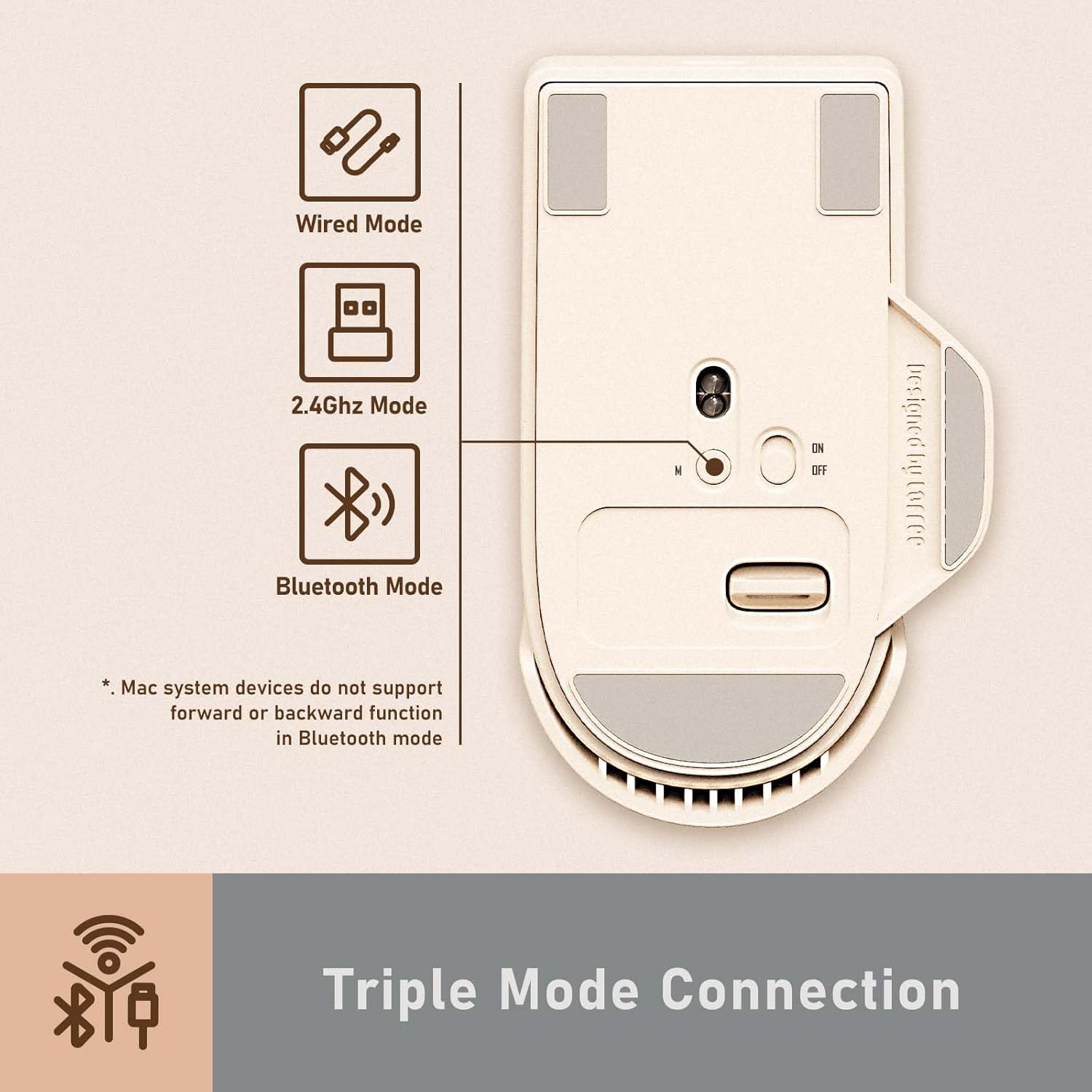
Figura 4.1: Oltreview of the triple mode connection options.
4.1. Accensione/spegnimento e selezione della modalità
Locate the power switch and mode selector on the underside of the mouse. Use the switch to turn the mouse ON or OFF. The mode selector allows you to choose between 2.4G Wireless and Bluetooth modes.
4.2. Connessione wireless 2.4G
- Turn on the mouse and select the 2.4G mode using the switch on the underside.
- Remove the USB receiver from its magnetic storage slot on the mouse.
- Collega il ricevitore USB a una porta USB disponibile sul tuo computer.
- The mouse should automatically connect. The OLED screen will indicate the 2.4G connection status.
4.3. Connessione Bluetooth
- Turn on the mouse and select the Bluetooth mode using the switch on the underside.
- Sul tuo computer o dispositivo, vai alle impostazioni Bluetooth.
- Cercare new devices and select "LOFREE Touch Mouse" (or similar) from the list.
- Follow any on-screen prompts to complete pairing. The OLED screen will show the Bluetooth connection status.
Note: Mac system devices do not support the forward or backward function of the mouse in Bluetooth mode.
4.4. Connessione cablata
- Connect the USB-C end of the charging cable to the mouse and the USB-A end to your computer.
- Il mouse passerà automaticamente alla modalità cablata e inizierà a caricarsi.
4.5. Compatibilità
The LOFREE Touch PBT Wireless Mouse is compatible with various operating systems, including Windows, macOS, and Android.

Figure 4.2: The mouse is compatible with Windows, Android, and macOS devices.
5. Istruzioni per l'uso
5.1. Regolazione DPI
The mouse offers adjustable DPI settings from 800 to 4000 DPI. You can customize the DPI in increments of 200 DPI. The current DPI setting is displayed on the OLED screen.
- To adjust DPI, press the dedicated DPI button located near the scroll wheel.
- Each press cycles through preset DPI values (800/1600/2400/3200/4000).
- For custom adjustments, refer to the advanced settings section (if applicable, typically via software, but not specified in product data).

Figure 5.1: The OLED screen displaying the current DPI setting.
5.2. Stato della batteria
The OLED screen continuously displays the current battery level, allowing you to monitor power and recharge as needed.
5.3. Funzioni di base dei pulsanti
- Left Click (MB1): Azione primaria.
- Right Click (MB2): Menu contestuale/azione secondaria.
- Rotella di scorrimento: Scorri verso l'alto/verso il basso, clicca con il tasto centrale.
- Pulsante DPI: Regola le impostazioni DPI.
- Pulsanti laterali: Typically for forward/backward navigation in web browsers. (Functionality may vary by operating system and connection mode).
6. Manutenzione
6.1. Pulizia
Per mantenere le prestazioni e l'aspetto del mouse:
- Utilizzare un panno morbido e asciutto per pulire la superficie del mouse.
- Per sporco ostinato, leggermente dampBagnare il panno con acqua o un detergente delicato e non abrasivo.
- The replaceable buttons can be removed for thorough cleaning underneath. Ensure they are dry before reattaching.
- Evitare l'uso di prodotti chimici aggressivi o materiali abrasivi, poiché potrebbero danneggiare la superficie PBT.
6.2. Ricarica
The mouse is equipped with a rechargeable Lithium Polymer battery. When the battery level is low, connect the mouse to a power source using the provided USB-C cable. The OLED screen will indicate charging status.
7. Risoluzione Dei Problemi
| Problema | Possibile causa | Soluzione |
|---|---|---|
| Il mouse non risponde | Batteria scarica, modalità di connessione errata, ricevitore non collegato (2.4G), Bluetooth non associato. | Charge the mouse. Verify the mode switch is set correctly. Re-insert the USB receiver. Re-pair Bluetooth. |
| Connessione lenta o intermittente | Interferenza, distanza dal ricevitore/dispositivo, batteria scarica. | Move closer to the receiver/device. Ensure no large metal objects are between the mouse and receiver. Charge the mouse. Try a different USB port. |
| Problemi di tracciamento | Dirty sensor, unsuitable surface. | Clean the optical sensor on the underside of the mouse. Use a clean, uniform surface. |
| Mouse enters sleep mode too quickly (2.4G) | Funzione di risparmio energetico. | The mouse is designed to wake up with button clicks or scroll wheel movement. Movement alone may not wake it in 2.4G mode. This is normal behavior. |
8. Specifiche
| Caratteristica | Dettaglio |
|---|---|
| Numero di modello | OE909 |
| Connettività | Bluetooth 5.0, 2.4G Wireless, Wired (USB-C) |
| Gamma DPI | 800 / 1600 / 2400 / 3200 / 4000 (adjustable in 200 DPI increments) |
| Sensore | Sensore ottico PAW3805 |
| Materiale | PBT (buttons and upper case) |
| Display | OLED (DPI, Battery, Connectivity) |
| Tipo di batteria | Polimero di litio (incluso) |
| Peso dell'articolo | 7.4 once (circa 210 grammi) |
| Dimensioni del pacco | 5.12 x 3.78 x 2.13 pollici |
9. Garanzia e supporto
LOFREE products are designed and manufactured to the highest quality standards. This product is covered by a limited warranty from the date of purchase. For detailed warranty terms and conditions, please refer to the warranty card included in your package or visit the official LOFREE websito.
If you encounter any issues or have questions regarding your LOFREE Touch PBT Wireless Mouse, please contact LOFREE customer support through their official channels. Provide your product model number (OE909) and purchase details for efficient assistance.