Introduzione
This manual provides detailed instructions for the setup, operation, and maintenance of your DOOGEE T10E Portable Tablet Keyboard. Please read this manual carefully before using the product to ensure proper functionality and longevity.
The DOOGEE T10E is a versatile Bluetooth keyboard designed to enhance your tablet experience, offering a comfortable typing solution and a protective case. It features a multi-touch trackpad and supports various shortcut modes for increased productivity.
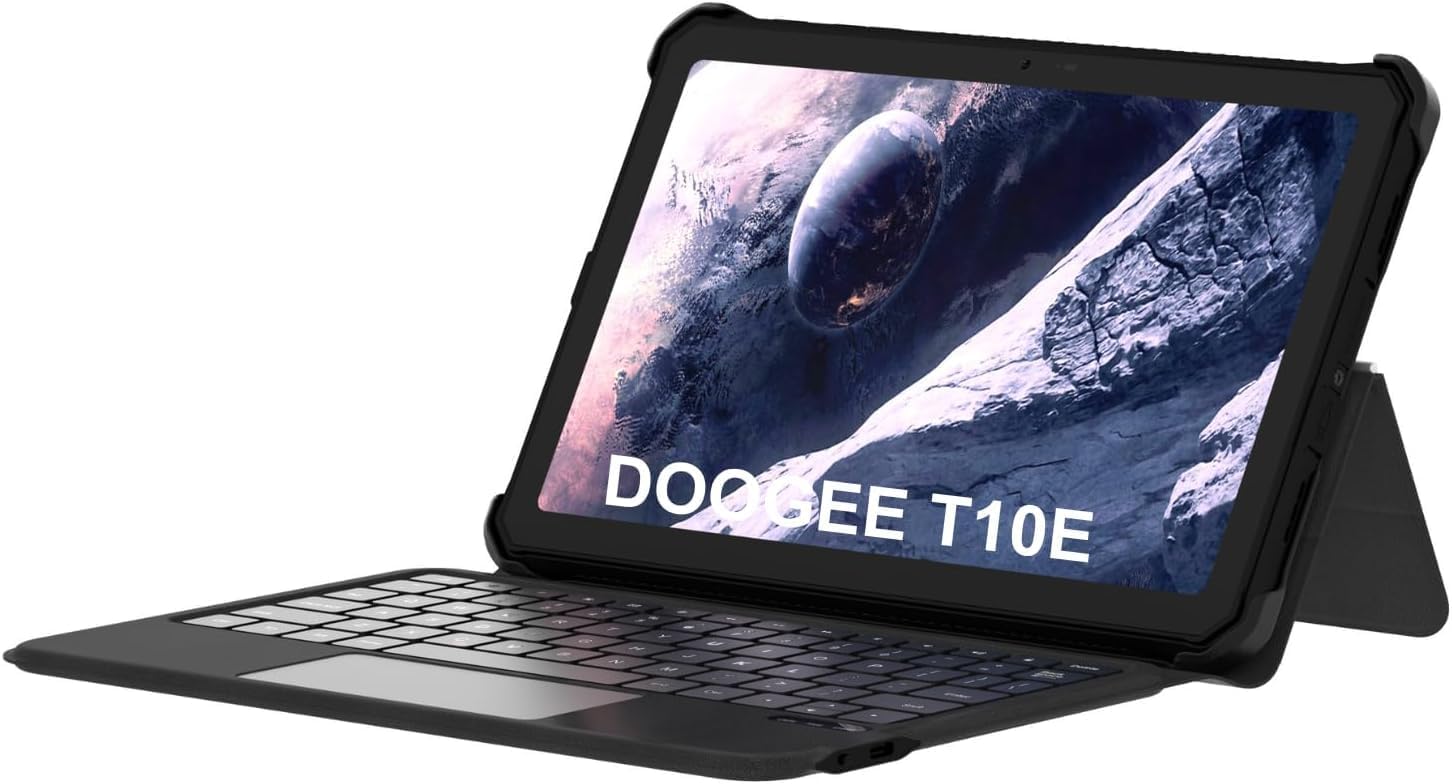
Image: The DOOGEE T10E Portable Tablet Keyboard with a tablet inserted, showcasing il suo fattore di forma simile a un laptop.
Contenuto della confezione
Assicurarsi che tutti gli articoli siano presenti nel pacco:
- DOOGEE T10E Portable Tablet Keyboard
- Cavo USB (per la ricarica)
- Manuale dell'utente (questo documento)
Istruzioni di installazione
1. Ricarica della tastiera
Before initial use, fully charge the keyboard. Connect the provided USB cable to the keyboard's charging port and the other end to a USB power adapter (not included) or a computer's USB port.
The charging indicator light will typically show red while charging and turn off or change color when fully charged. A full charge ensures extended usage time.
2. Attaching Your Tablet to the Case
The keyboard comes integrated with a protective case. Carefully align your tablet with the case's frame and gently press it into place, ensuring all edges are securely fitted. The case is designed to protect your tablet from scratches and bumps.

Image: The DOOGEE T10E keyboard case, showing the tablet slot and the detachable keyboard.
3. Accoppiamento Bluetooth
To connect the keyboard to your tablet via Bluetooth:
- Ensure the keyboard is powered on and fully charged. Look for a power switch, usually on the side or back of the keyboard.
- Activate Bluetooth on your tablet. Navigate to your tablet's Impostazioni > Bluetooth.
- Sulla tastiera, premere il tasto Collegare or Abbinamento button (often indicated by a Bluetooth icon or a specific function key combination, e.g., Fn + C). The Bluetooth indicator light on the keyboard will start blinking, indicating it's in pairing mode.
- On your tablet, search for available Bluetooth devices. You should see "DOOGEE T10E Keyboard" or a similar name appear in the list.
- Select the keyboard from the list to initiate pairing. Your tablet may display a pairing code; type this code on the keyboard and press Entrare.
- Once paired, the Bluetooth indicator light on the keyboard will stop blinking and remain solid, or turn off. Your tablet will confirm the connection.

Image: The DOOGEE T10E keyboard case highlighting Bluetooth LE Pairing, Multi-touch Trackpad, and Multi Shortcut Modes.
Istruzioni per l'uso
1. Funzioni di base della tastiera
The DOOGEE T10E features a standard QWERTY layout with 64 keys, providing a comfortable typing experience. All standard alphanumeric keys, symbols, and function keys (F1-F12) are available.
- Tasti funzione (Fn): Molti tasti hanno funzioni secondarie accessibili tenendo premuto il tasto Fn key and pressing the desired function key (e.g., volume control, media playback, screen brightness). Refer to the keycap legends for specific functions.
- Blocco maiuscole: Premere il tasto Blocco maiuscole key to toggle uppercase letters. An indicator light may illuminate when Caps Lock is active.
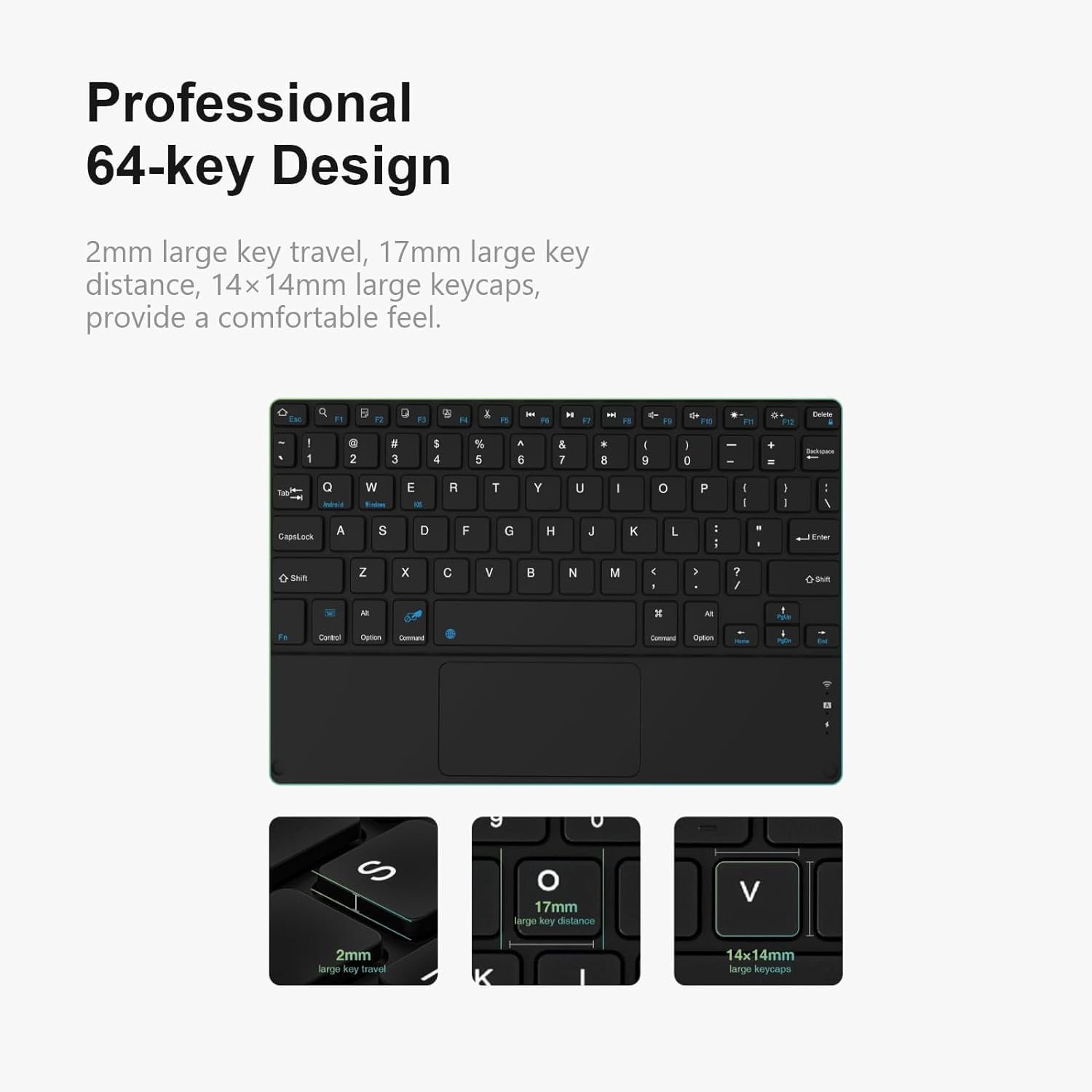
Immagine: dettagliata view of the DOOGEE T10E keyboard's 64-key layout, showing key travel, key distance, and keycap size.
2. Utilizzo del touchpad
The integrated multi-touch trackpad (approximately 3772mm²) allows for intuitive navigation and control of your tablet. It supports various gestures:
- Tocco con un solo dito: Funziona come un clic sinistro.
- Tocco con due dita: Functions as a right-click (context menu).
- Trascinamento con un solo dito: Sposta il cursore.
- Scorrimento con due dita: Scrolls up or down on web pagine o documenti.
- Pizzica per ingrandire: Use two fingers to pinch in or out to zoom.
- Gesti di scorrimento: Depending on your tablet's operating system, additional multi-finger swipe gestures may be supported for app switching or other functions.

Image: The DOOGEE T10E keyboard's large touchpad, illustrating various touch gestures for full screen control.
3. Multi Shortcut Modes
The keyboard supports various shortcut modes to enhance productivity. These shortcuts often involve combinations of the Fn key with other keys, or specific key combinations for common operating system functions. Consult your tablet's operating system documentation for a full list of supported keyboard shortcuts.
Manutenzione
Proper maintenance ensures the longevity and performance of your DOOGEE T10E keyboard.
- Pulizia: Utilizzare un panno morbido e privo di lanugine leggermente dampened with water or a mild cleaning solution to wipe the keyboard and case surfaces. Avoid harsh chemicals, abrasive cleaners, or excessive moisture.
- Rimozione della polvere: Utilizzare aria compressa per rimuovere polvere e detriti dagli spazi tra i tasti.
- Magazzinaggio: When not in use, store the keyboard in a cool, dry place away from direct sunlight and extreme temperatures. Ensure the tablet is securely in the case to protect both devices.
- Ricarica: Recharge the keyboard regularly, even if not used frequently, to maintain battery health.
Risoluzione dei problemi
If you encounter issues with your DOOGEE T10E keyboard, refer to the following common problems and solutions:
- La tastiera non si connette tramite Bluetooth:
- Assicurarsi che la tastiera sia accesa e completamente carica.
- Assicurati che il Bluetooth sia abilitato sul tuo tablet.
- Place the keyboard and tablet within close proximity (within 10 meters).
- Try unpairing the keyboard from your tablet's Bluetooth settings and then re-pairing it.
- Riavvia sia il tablet che la tastiera.
- I tasti non rispondono:
- Verificare se la tastiera è connessa tramite Bluetooth.
- Assicurarsi che la tastiera sia sufficientemente carica.
- Riavviare la tastiera e il tablet.
- Touchpad is not working:
- Verify the keyboard is connected.
- Assicurarsi che il touchpad non venga disattivato accidentalmente (alcune tastiere dispongono di un tasto funzione per attivare/disattivare il touchpad).
- Clean the touchpad surface to remove any obstructions.
- Breve durata della batteria:
- Assicurarsi che la tastiera sia completamente carica prima dell'uso.
- Reduce backlight usage if applicable (this model does not specify backlight, but it's a general tip).
- Spegnere la tastiera quando non la si utilizza.
Specifiche
| Caratteristica | Dettaglio |
|---|---|
| Marca | DOOGEE |
| Modello | T10E |
| Dispositivi compatibili | Computer portatile, Smart TV, Smartphone, Tablet |
| Descrizione della tastiera | Autonomo |
| Stile | Moderno |
| Materiale | Acrilonitrile-butadiene-stirene |
| Componenti inclusi | Cavo USB |
| Fonte di alimentazione | USB alimentato |
| Tipo di interruttore | Membrana |
| Disposizione della tastiera | Tastiera QWERTY |
| Peso dell'articolo | 1.37 libbre (0.62 kg) |
| Dimensioni del pacco | 11.3 x 7.44 x 1.18 pollici (28.7 x 18.9 x 3 cm) |
Garanzia e supporto
For warranty information and technical support, please refer to the warranty card included with your product or contact DOOGEE customer service directly. You can typically find contact details on the official DOOGEE websito o tramite il tuo rivenditore.
Conservare la ricevuta d'acquisto come prova d'acquisto per eventuali reclami in garanzia.


