1. Introduzione
This manual provides detailed instructions for the X9 Performance Full Size Bluetooth Keyboard with Phone Holder (Model X9RBBLKBDOCKG). This versatile keyboard offers triple-mode connectivity (2.4G wireless and dual Bluetooth), backlit keys, and an integrated dock for holding smartphones and tablets, enhancing productivity across multiple devices and operating systems.
Caratteristiche principali:
- Connettività a tripla modalità: Connects via 2.4G wireless (USB dongle) and two independent Bluetooth channels.
- Tasti retroilluminati: Adjustable white LED backlighting for visibility in various lighting conditions.
- Integrated Device Dock: Extra-long dock designed to hold a tablet and a phone simultaneously.
- Layout a grandezza naturale: 110-key layout with a dedicated number pad.
- Batteria ricaricabile: Built-in 1000 mAh battery with USB-C charging.
- Compatibilità multi-sistema operativo: Compatible with Windows, macOS, iOS, and Android devices.
- Chiave del copilota: Dedicated key for quick access to AI assistant features.
Contenuto della confezione:
- X9 Performance Full Size Bluetooth Keyboard
- Cavo di ricarica USB-C
- Ricevitore USB 2.4G (conservato nel vano batteria della tastiera)
- Manuale d'uso
2. Impostazione
2.1 Ricarica della tastiera
Before initial use, fully charge the keyboard. Connect the provided USB-C charging cable to the keyboard's charging port and the other end to a USB power source (e.g., computer USB port, USB wall adapter). The charging indicator light will illuminate during charging and turn off when fully charged.

Image: The X9 Performance keyboard connected to a USB-C charging cable, illustrating the charging process.
2.2 Accensione/Spegnimento
Individua l'interruttore di accensione sulla tastiera. Spostalo in posizione "ON" per accendere la tastiera. Spostalo in posizione "OFF" per spegnerla.
2.3 Connessione tramite wireless 2.4G
- Retrieve the 2.4G USB receiver from its storage slot in the keyboard's battery compartment.
- Collega il ricevitore USB 2.4G a una porta USB disponibile sul tuo computer o dispositivo.
- Premere il tasto 2.4G key on the keyboard. The indicator light for 2.4G will blink, then become solid when connected.
2.4 Connessione tramite Bluetooth (BT1 / BT2)
La tastiera supporta due connessioni Bluetooth indipendenti (BT1 e BT2).
- Tenere premuto uno dei due Modello BT1 or Modello BT2 key for 3-5 seconds until its indicator light blinks rapidly. This indicates pairing mode.
- On your device (e.g., tablet, smartphone, computer), navigate to Bluetooth settings.
- Cercare available devices and select "X9 Performance Keyboard" (or similar name).
- Follow any on-screen prompts to complete the pairing process. The indicator light on the keyboard will become solid when successfully connected.
- Repeat these steps for the second Bluetooth channel (BT2) if connecting another device.
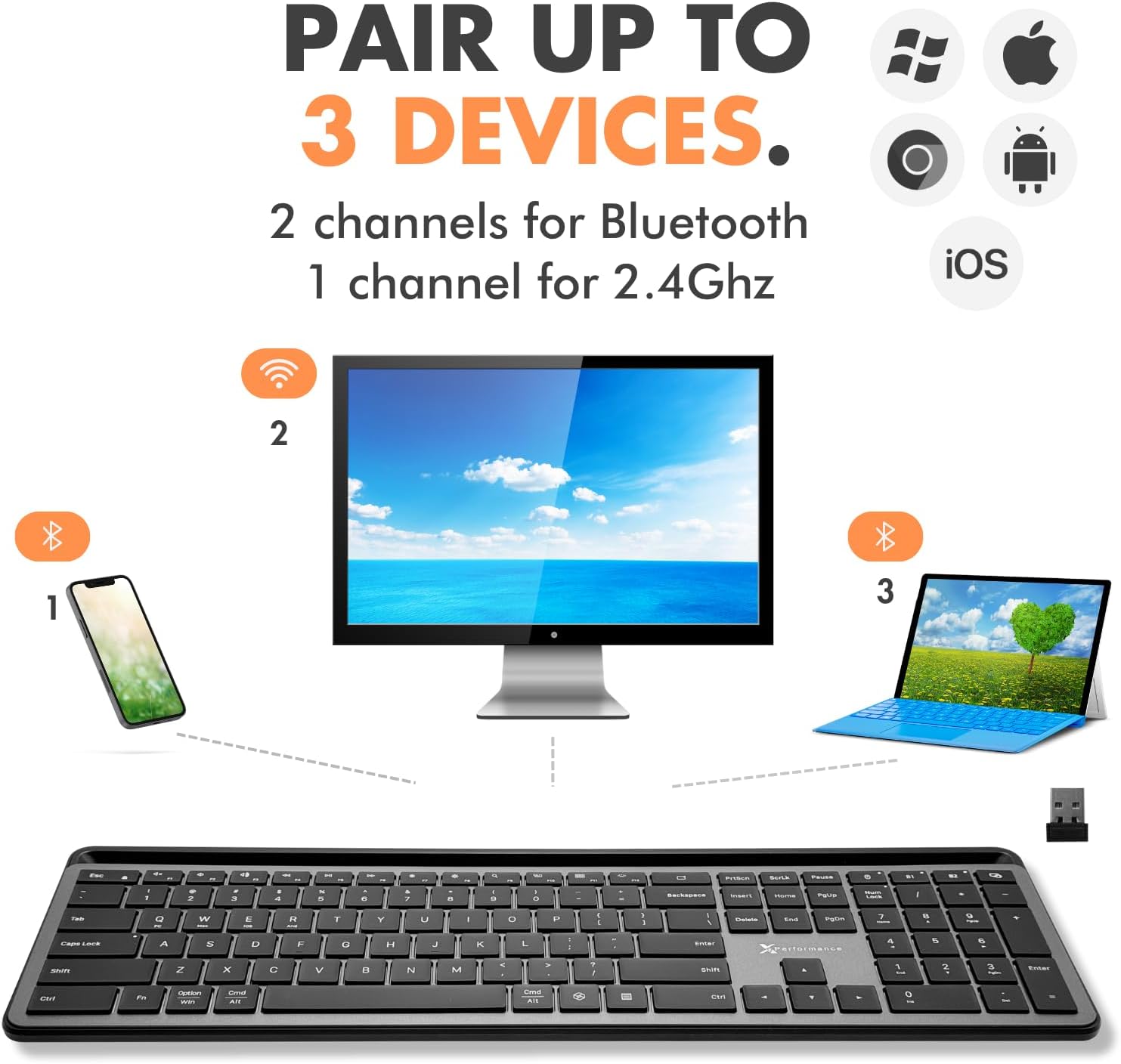
Image: A visual representation of the keyboard's triple-mode connectivity, showing connections to a phone, a monitor, and a laptop.
3. Istruzioni per l'uso
3.1 Passaggio tra dispositivi connessi
To switch between your connected devices, simply press the corresponding channel key: 2.4G, Modello BT1, O Modello BT2. The keyboard will quickly switch its connection to the selected device.
Video: Demonstrates the X9 Performance Bluetooth Keyboard with Phone Holder in use, highlighting its features and multi-device capabilities.
3.2 Controllo della retroilluminazione
The keyboard features adjustable white LED backlighting. Use the dedicated backlight key (often marked with a light bulb icon or similar) to cycle through brightness levels (Low, Medium, High) or to turn the backlight off.

Immagine: un primo piano view of the keyboard's backlit keys, illustrating the three brightness settings.
3.3 Using the Integrated Device Dock
The keyboard includes an extra-long dock at the top, designed to securely hold your smartphone and tablet simultaneously. This allows for easy viewing and interaction with your devices while typing.
Nota: The device dock is approximately 16.75 inches long and 0.45 inches wide. Devices with thick cases may not fit properly.

Image: The X9 Performance keyboard with a tablet and a phone positioned in its extra-long integrated dock.
3.4 Copilot Key Functionality
The keyboard features a dedicated Copilot key, providing quick access to AI assistant features on compatible operating systems and applications. Press this key to activate your device's AI assistant.

Image: A close-up of the keyboard showing the dedicated Copilot key.
3.5 Compatibilità del sistema operativo
The keyboard is designed for broad compatibility and works seamlessly with:
- Finestre
- sistema operativo macOS
- iOS (iPhone, iPad)
- Android (Smartphones, Tablets)
Specific function keys may behave differently depending on the operating system. Refer to your device's documentation for OS-specific keyboard shortcuts.
4. Manutenzione
4.1 Pulizia
Per pulire la tastiera, spegnerla e scollegare tutti i cavi. Utilizzare un panno morbido e privo di lanugine leggermente dampened with water or a mild, non-abrasive cleaner. Avoid excessive moisture and do not spray cleaners directly onto the keyboard. For keycaps, a soft brush or compressed air can remove debris.
4.2 Cura della batteria
Per prolungare la durata della batteria:
- Evitare di scaricare completamente la batteria frequentemente.
- Quando non si utilizza la tastiera per lunghi periodi, conservarla in un luogo fresco e asciutto.
- Caricare regolarmente la tastiera, anche se non viene utilizzata quotidianamente.
5. Risoluzione Dei Problemi
5.1 La tastiera non si connette
- Ensure the keyboard is powered on and sufficiently charged.
- For Bluetooth, ensure the correct BT channel (BT1 or BT2) is selected and in pairing mode (rapidly blinking indicator).
- For 2.4G wireless, ensure the USB receiver is securely plugged into your device and the 2.4G channel is selected.
- Prova a riavviare la tastiera e il dispositivo.
- Remove and re-pair the keyboard in your device's Bluetooth settings.
5.2 Retroilluminazione non funzionante
- Assicurati che la tastiera sia accesa.
- Premere il tasto della retroilluminazione per scorrere i livelli di luminosità.
- Check the battery level; low battery may disable backlighting.
5.3 I tasti non rispondono
- Verify the keyboard is connected to the correct device channel.
- Assicurarsi che la batteria sia carica.
- Riavviare la tastiera e il dispositivo collegato.
- Se si utilizza la tecnologia 2.4G, provare a collegare il ricevitore USB a una porta USB diversa.
6. Specifiche
| Numero di modello | X9RBBLKBDOCKG |
| Marca | Prestazioni X9 |
| Tecnologia di connettività | Bluetooth, RF (2.4G Wireless) |
| Dispositivi compatibili | Laptop, PC, Mac, iOS (iPhone, iPad), Android (Smartphone, Tablet) |
| Descrizione della tastiera | Backlit Multi Device Wireless Bluetooth Keyboard with Phone Dock |
| Caratteristiche speciali | 2.4G wireless, Rechargeable, Backlit, Full size with number pad, Multi-device dock, Copilot Key |
| Capacità della batteria | 1000 mAh |
| Retroilluminazione della tastiera | Single Color (White LED) |
| Dimensioni del prodotto | 17.33"L x 5.56"W x 0.89"H (44.02 x 14.12 x 2.26 cm) |
| Peso dell'articolo | 2.27 libbre (1.03 kg) |
| Device Dock Dimensions | 16.75"L x 0.45"W (approx.) |
7. Garanzia e supporto
For information regarding warranty coverage, technical support, or customer service, please refer to the X9 Performance official website or the contact information provided on your product packaging. Keep your purchase receipt for warranty claims.


