1. Introduzione
The Phomemo M950 Label Maker is a versatile, portable thermal label printer designed for both home and office use. It offers dual printing modes: direct input via its integrated keyboard and wireless printing via Bluetooth connection to a mobile application. This device utilizes thermal printing technology, eliminating the need for ink cartridges, and supports various label tape types for diverse labeling needs.
2. Informazioni sulla sicurezza
- Tenere il dispositivo lontano dall'acqua e da umidità elevata per evitare scosse elettriche o danni.
- Non smontare né tentare di riparare da soli il dispositivo. Contatta l'assistenza clienti per assistenza.
- Use only Phomemo-approved label tapes to ensure optimal performance and prevent damage to the print head.
- Tenere fuori dalla portata dei bambini.
- Evitare di esporre il dispositivo alla luce solare diretta o a temperature estreme.
- Charge the device using a compatible Type-C USB power adapter.
3. Contenuto della confezione
Please check the package contents upon unboxing. If any items are missing or damaged, contact your retailer or Phomemo customer support.
- Etichettatrice Phomemo M950
- 12mm Label Tape Roll (pre-installed or included separately)
- Cavo di ricarica USB di tipo C.
- Manuale dell'utente (questo documento)
4. Prodotto finitoview
Familiarize yourself with the components of your Phomemo M950 Label Maker.

Image: Phomemo M950 Label Maker showing its main features including no ink, one-touch key, keyboard editing, app editing, 203 DPI resolution, backlight support, Type-C recharge, and built-in cutter.
Caratteristiche principali:
- Input da tastiera: Integrated QWERTY keyboard for direct label creation.
- Connettività Bluetooth: Connects to smartphones for advanced label design via the Phomemo app.
- Stampa termica: No ink required, uses thermal label tapes.
- Schermo retroilluminato: Garantisce la visibilità in condizioni di scarsa illuminazione.
- Taglierina incorporata: For clean and precise label cutting.
- Batteria ricaricabile: Integrated 1200mAh battery, rechargeable via Type-C port.
5. Impostazione
5.1. Carica del dispositivo
Before first use, fully charge the label maker.
- Connect the provided USB Type-C cable to the charging port on the side of the label maker.
- Collegare l'altra estremità del cavo a un adattatore di alimentazione USB compatibile (non incluso) o a una porta USB del computer.
- La spia di carica indicherà lo stato di carica. Una volta completata la carica, la spia cambierà colore o si spegnerà.

Image: Phomemo M950 Label Maker highlighting the Type-C charging port and its compact dimensions.
5.2. Caricamento del nastro per etichette
Ensure the device is powered off before loading or replacing tape.
- Open the tape compartment cover located on the top or back of the device.
- Insert the label tape roll with the label side facing up, ensuring it sits securely in the compartment.
- Feed the end of the label tape through the tape guide until it protrudes slightly from the output slot.
- Chiudere bene il coperchio del vano nastro.
5.3. Accensione/Spegnimento
Per accendere o spegnere il dispositivo, tenere premuto il pulsante di accensione (solitamente contrassegnato dal simbolo di alimentazione) per alcuni secondi.
6. Istruzioni per l'uso
The Phomemo M950 offers two primary methods for creating labels.

Image: Phomemo M950 Label Maker illustrating the two usage modes: direct printing from the keyboard and printing via a mobile device using the 'Print Master' app.
6.1. Keyboard Printing
This mode allows you to create labels directly on the device without needing a smartphone.
- Accensione: Turn on the label maker. The screen will illuminate.
- Type Text: Use the QWERTY keyboard to type your desired label text. The text will appear on the display.
- Personalizza: Use the function keys (e.g., 'Fn', 'Shift', 'Symbol', 'Caps', 'Accent') to access various customization options such as font styles, sizes, symbols, and borders. The device supports multiple languages, borders, and symbols.
- Preview: Use the 'Preview' button to see how your label will look before printing.
- Stampa: Press the 'Print' button to print the label. The built-in cutter will automatically cut the label after printing.

Image: Phomemo M950 Label Maker showcasing its extensive features including support for 23+ languages, 103+ borders, and 790+ symbols and icons for label customization.
6.2. Bluetooth App Printing
For more advanced design options, connect your label maker to the 'Print Master' mobile app.
- Scarica l'app: Download the 'Print Master' app from your mobile device's app store (App Store for iOS, Google Play for Android).
- Abilita Bluetooth: Ensure Bluetooth is enabled on your mobile device and the Phomemo M950.
- Collegare: Open the 'Print Master' app and follow the on-screen instructions to connect to your M950 label maker via Bluetooth.
- Etichetta di progettazione: Use the app's interface to design your label. The app offers massive templates, additional fonts, borders, and icons.
- Stampa: Once your design is complete, tap the print icon in the app to send the label to the M950 for printing.

Image: Phomemo M950 Label Maker demonstrating the use of the 'Print Master' app with numerous templates, 270+ borders, 110+ fonts, 1500 icons, and 14+ languages for creative label design.
6.3. Adjusting Print Density
For optimal print quality, especially with ribbon tapes, adjust the print density.
- Press the 'Fn' key, then select 'Pinter Densities' (Printer Densities).
- Choose 'High' for clearer prints, particularly when using ribbon tapes.

Image: Step-by-step guide on how to set the print density to 'High' on the Phomemo M950 Label Maker for clear prints, especially for ribbon tapes.
7. Manutenzione
7.1. Pulizia della testina di stampa
Regular cleaning ensures consistent print quality.
- Turn off the label maker and open the tape compartment.
- Pulire delicatamente la testina di stampa con un panno morbido e privo di lanugine.amparricchito con alcol isopropilico.
- Lasciare asciugare completamente la testina di stampa prima di chiudere il vano e accendere il dispositivo.
7.2. Archiviazione su nastro
Store label tapes in a cool, dry place away from direct sunlight to preserve their quality and adhesive properties.
8. Risoluzione Dei Problemi
If you encounter issues with your Phomemo M950, refer to the following common problems and solutions.
| Problema | Possibile causa | Soluzione |
|---|---|---|
| Nessun potere | Batteria scarica; dispositivo spento | Charge the device; Press and hold power button to turn on. |
| Qualità di stampa scadente | Print head dirty; Incorrect print density; Low battery | Clean print head; Adjust print density to 'High'; Charge device. |
| Label not feeding | Tape incorrectly loaded; Tape jammed; Out of tape | Re-load tape correctly; Clear any jams; Replace tape roll. |
| Errore di connessione Bluetooth | Bluetooth off; Device not paired; App issue | Ensure Bluetooth is on for both devices; Re-pair in app; Restart app/device. |
| La taglierina non funziona | Tape jammed; Cutter mechanism obstructed | Clear any tape jams; Ensure no debris is blocking the cutter. |
9. Specifiche
| Caratteristica | Dettaglio |
|---|---|
| Nome del modello | Numero di modello: M950 |
| Marca | Fomeo |
| Tecnologia di stampa | Termico |
| Tecnologia di connettività | Bluetooth, Keyboard |
| Uscita della stampante | Monocromo |
| Risoluzione di stampa massima | 203 dpi |
| Dimensione massima del supporto | 12mm * 4000mm |
| Dispositivi compatibili | Smartphone |
| Energia | 10 Watt |
| Tipo di batteria | Ioni di litio da 1200 mAh incorporati |
| Porta di ricarica | USB di tipo C |
| Dimensioni del prodotto | Dimensioni: 15.2 x 5.4 x 11.2 cm |
| Peso dell'articolo | 490 grammi |
| Colore | Bianco |
| Caratteristica speciale | Portable, Backlight Screen, Built-in Cutter |
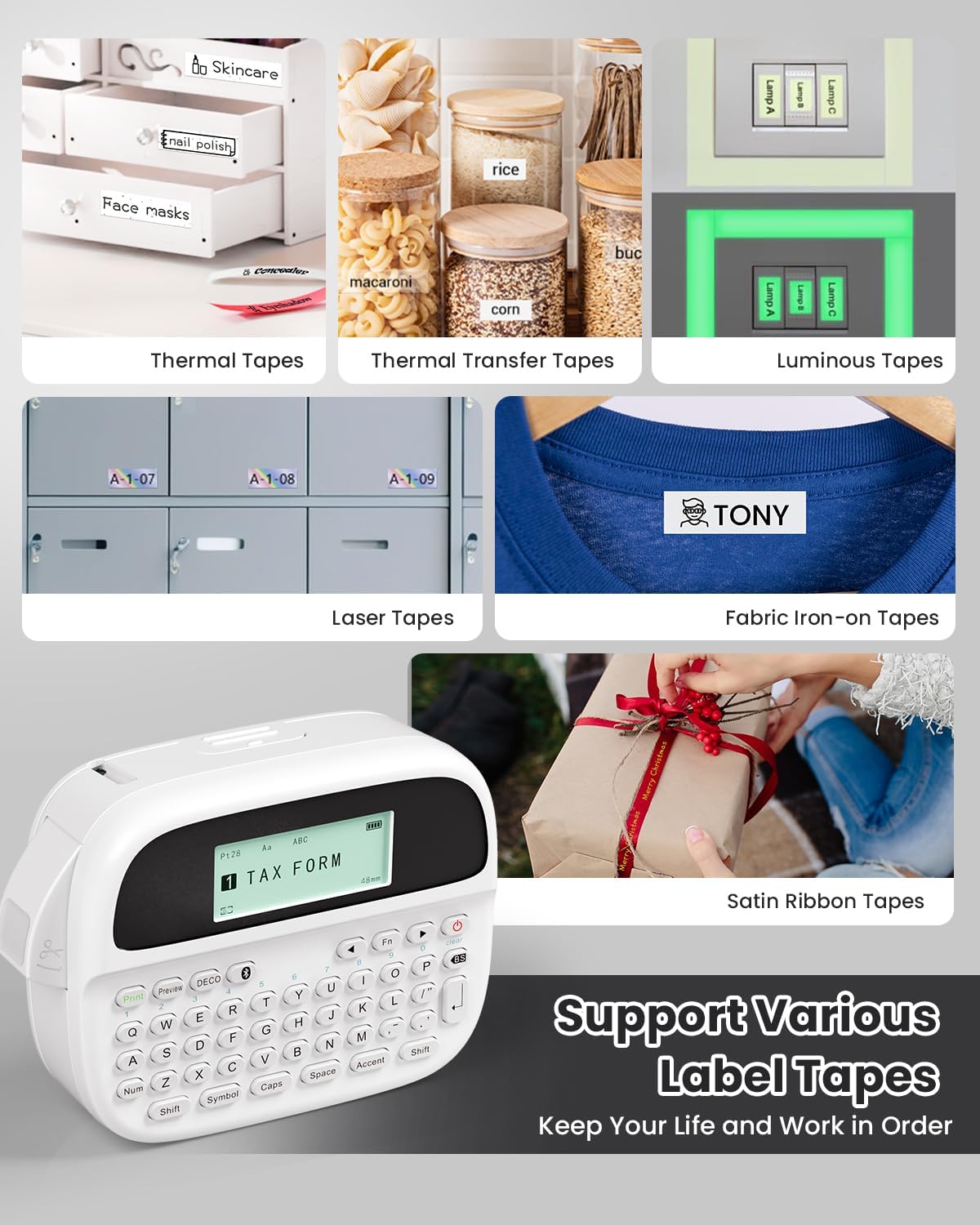
Image: Phomemo M950 Label Maker supporting various label tape types including Thermal, Thermal Transfer, Luminous, Laser, Fabric Iron-on, and Satin Ribbon tapes.

Image: Phomemo M950 Label Maker demonstrating its backlight screen feature, allowing for comfortable use even at night.
10. Garanzia e supporto
For warranty information, technical support, or service inquiries, please refer to the official Phomemo webo contattare direttamente il servizio clienti. Conservare la ricevuta d'acquisto come prova d'acquisto per eventuali reclami in garanzia.
Phomemo Official Websito: Visit Phomemo Store


