1. Impostazione
This section guides you through the initial setup of your DOOGEE U10 tablet.
1.1 Contenuto della confezione
Assicurarsi che tutti gli articoli siano presenti nella scatola:
- Tablet DOOGEE U10
- Cavo USB di tipo C.
- Adattatore di alimentazione
- Strumento di espulsione SIM (se applicabile)
- Guida rapida
- Scheda di garanzia
1.2 Disposizione del dispositivo
Prendi familiarità con le caratteristiche fisiche del tuo tablet.
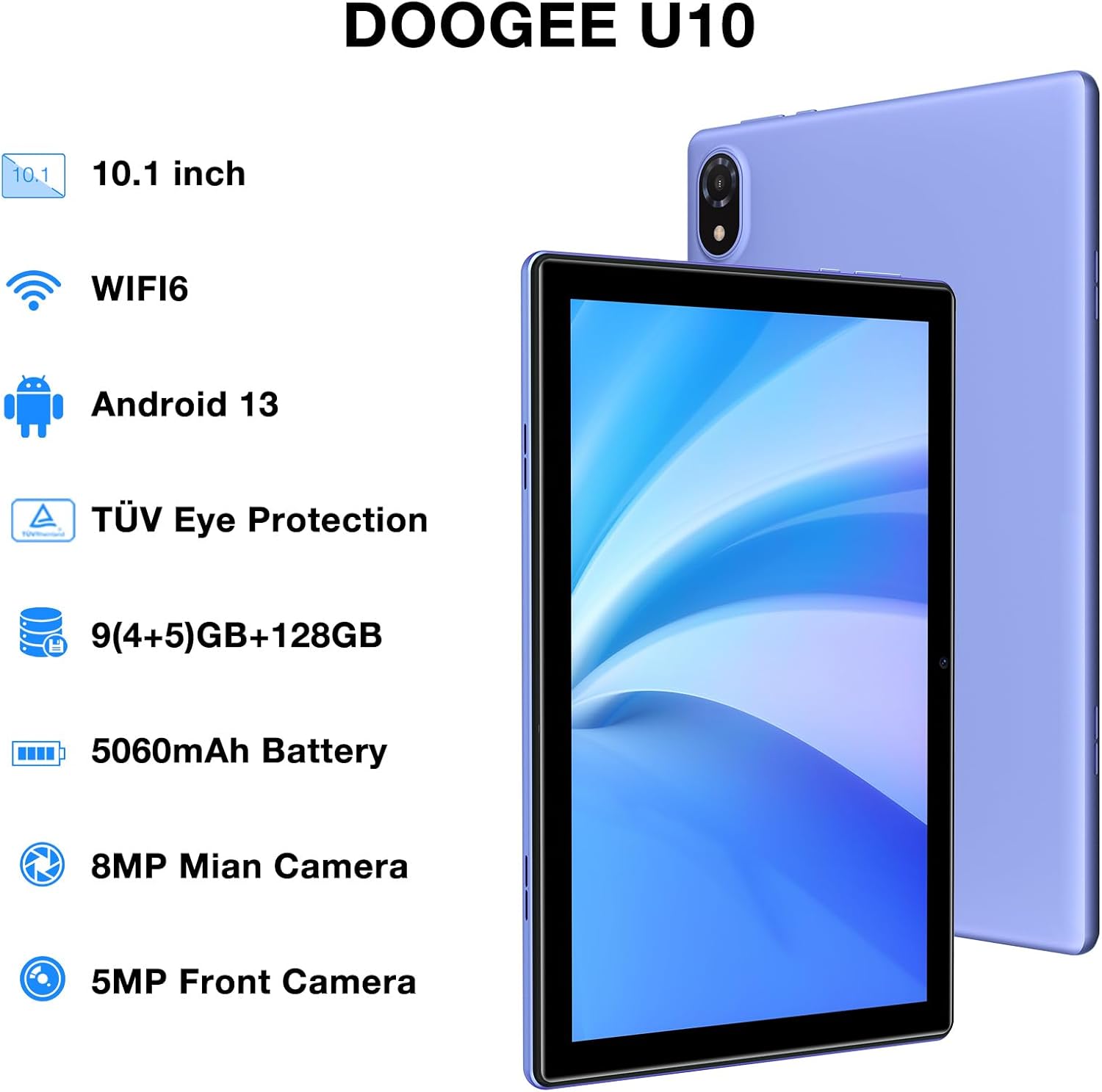
Figure 1: DOOGEE U10 Tablet Overview. This image highlights the tablet's 10.1-inch display, WiFi 6 capability, Android 13 operating system, TÜV Eye Protection, 9GB RAM, 128GB ROM, 5060mAh battery, 8MP main camera, and 5MP front camera.
- Pulsante di accensione: Situato sul lato, tieni premuto per accendere/spegnere o riavviare.
- Pulsanti del volume: Regola il volume dei contenuti multimediali e i suoni delle notifiche.
- Porta USB di tipo C: Per la ricarica e il trasferimento dei dati.
- Jack per cuffie da 3.5 mm: Collegare le cuffie cablate.
- Fotocamera frontale: Per videochiamate e selfie.
- Telecamera posteriore: Per scattare foto e registrare video.
- Relatori: Doppi altoparlanti stereo per l'uscita audio.
1.3 Accensione iniziale e ricarica
Before first use, fully charge your tablet. Connect the USB Type-C cable to the tablet and the power adapter to a wall outlet. The battery indicator will show charging status.
- Tenere premuto il pulsante di accensione finché non viene visualizzato il logo DOOGEE.
- Segui le istruzioni sullo schermo per selezionare la lingua, connetterti al Wi-Fi e configurare il tuo account Google.
2. Utilizzo del tablet
Learn how to navigate and use the core features of your DOOGEE U10 tablet.
2.1 Display e navigazione
The DOOGEE U10 features a 10.1-inch IPS HD display with a resolution of 1280x800 pixels, providing clear visuals for various tasks.

Figure 2: Vivid IPS HD Display. This image illustrates the tablet's 10.1-inch screen with 800x1280 HD+ resolution, ideal for media consumption.
- Gesti tattili: Tocca per selezionare, scorri per scorrere, pizzica per ingrandire.
- Schermata iniziale: Personalizza con widget e scorciatoie per le app.
- Notifiche: Scorri verso il basso dall'alto per accedere alle notifiche e alle impostazioni rapide.
- Riconoscimento facciale: Unlock your tablet using facial recognition for convenience.
2.2 Prestazioni e archiviazione
The tablet is powered by a Quad-Core RK3562 processor clocked at up to 2.0GHz, ensuring smooth performance. It comes with 9GB RAM (5GB physical + 4GB expansion) and 128GB internal storage, expandable up to 1TB via a microSD card.

Figure 3: Powerful Processor and Memory. This image details the tablet's Rockchip RK3562 Quad-Core processor, 9GB RAM, 128GB ROM, and support for 1TB TF card expansion.
2.3 Connettività
- Wi-Fi 6: Connect to high-speed Wi-Fi networks for faster browsing and streaming. Go to Settings > Network & internet > Wi-Fi.
- Bluetooth 5.0: Pair with wireless headphones, speakers, or other Bluetooth devices. Go to Settings > Connected devices > Bluetooth.
- OTG (in movimento): Connect USB peripherals like flash drives or keyboards using an OTG adapter (sold separately).
2.4 Funzioni della fotocamera
The tablet is equipped with an 8MP main camera and a 5MP front camera for photos and video calls.

Figure 4: Dual Camera System. This image showcases the tablet's 8MP main camera and 5MP front camera, suitable for capturing moments and video conferencing.
- Apri l'app Fotocamera dalla schermata iniziale o dal cassetto delle applicazioni.
- Tocca il pulsante di scatto per scattare una foto.
- Passa dalla fotocamera anteriore a quella posteriore tramite l'icona della fotocamera.
2.5 Gestione della batteria
The 5060mAh battery provides extended usage. To optimize battery life, adjust screen brightness, close unused apps, and enable power-saving modes.

Figure 5: Large Capacity Battery. This image highlights the 5060mAh battery, Type-C charging, 5V2A fast charging, and 3.5mm headphone jack, along with estimated usage times for gaming, movies, and music.
2.6 Esperienza multimediale
Enjoy an immersive audio experience with dual stereo speakers. The tablet supports Widevine L1, allowing for high-quality streaming from various video platforms.

Figure 6: Immersive Audio and DRM L1. This image illustrates the tablet's support for WiFi 6, Bluetooth 5.0, dual speakers, and DRM L1 for enhanced multimedia playback.
2.7 Modalità di protezione degli occhi
The DOOGEE U10 is TÜV SÜD blue light certified, reducing harmful blue light emissions to protect your eyes during prolonged use.

Figure 7: TÜV Certified Eye Protection. This image shows the TÜV Rheinland certification, indicating the tablet's low blue light feature for eye comfort.
2.8 Video ufficiali del prodotto
DOOGEE U10 Tablet Showcase
Questo video fornisce una panoramica generaleview and showcase of the DOOGEE U10 tablet's features and design.
DOOGEE U10 Fantastic Experience for Kids
This video demonstrates how the DOOGEE U10 tablet can be used by children, highlighting its suitability for educational and entertainment purposes for younger users.
3. Manutenzione
Una cura adeguata garantisce la longevità e le prestazioni ottimali del tuo tablet.
3.1 Pulizia del tablet
- Per pulire lo schermo e il corpo, utilizzare un panno morbido e privo di lanugine.
- Evitare l'uso di prodotti chimici aggressivi, detergenti abrasivi o spray aerosol.
- Per macchie ostinate, leggermente dampPulire il panno con acqua o con un detergente per schermi specifico per dispositivi elettronici.
3.2 Aggiornamenti software
Controlla e installa regolarmente gli aggiornamenti software per migliorare le prestazioni, la sicurezza e aggiungere nuove funzionalità.
- Vai su Impostazioni > Sistema > Aggiornamento del sistema.
- Connettiti a una rete Wi-Fi stabile prima di scaricare gli aggiornamenti.
4. Risoluzione Dei Problemi
Questa sezione affronta i problemi più comuni che potresti riscontrare con il tuo tablet DOOGEE U10.
4.1 Il dispositivo non si accende
- Assicurarsi che la batteria sia carica. Collegare il tablet al caricabatterie per almeno 30 minuti.
- Per forzare il riavvio, tenere premuto il pulsante di accensione per 10-15 secondi.
4.2 Problemi di connettività (Wi-Fi/Bluetooth)
- Toggle Wi-Fi or Bluetooth off and on in Quick Settings or Settings menu.
- Riavvia il tablet e il router/dispositivo Bluetooth.
- Dimentica la rete/il dispositivo e riconnettiti.
4.3 App che si bloccano o si bloccano
- Chiudere l'app problematica e riaprirla.
- Clear the app's cache: Settings > Apps > [App Name] > Storage & cache > Clear cache.
- Assicurati che l'app sia aggiornata all'ultima versione.
- Se il problema persiste, valuta la possibilità di disinstallare e reinstallare l'app.
5. Specifiche tecniche
Key technical details of the DOOGEE U10 tablet.
| Caratteristica | Specificazione |
|---|---|
| Nome del modello | Minore 10 |
| Sistema operativo | Androide 13 |
| Dimensioni dello schermo | 10.1 pollici |
| Risoluzione dello schermo | 1280 x 800 pixel (HD+) |
| Processore | Quad-Core (Rockchip RK3562, up to 2.0GHz) |
| Memoria RAM | 9 GB (5 GB fisici + 4 GB di espansione) |
| Memoria interna | 128 GB |
| Archiviazione espandibile | Up to 1TB (microSD/TF card) |
| Fotocamera principale | 8MP |
| Fotocamera frontale | 5MP |
| Capacità della batteria | 5060mAh |
| Connettività | Wi-Fi 6, Bluetooth 5.0, OTG |
| Dimensioni (LxWxH) | 9.6 x 6.4 x 0.4 pollici |
| Peso | Circa 1.13 libbre (427 g) |
| Protezione degli occhi | TÜV SÜD Low Bluelight Certified |
| Supporto DRM | Widevine L1 |
6. Garanzia e supporto
Informazioni sulla garanzia del prodotto e su come ottenere assistenza.
6.1 Garanzia limitata
The DOOGEE U10 tablet typically comes with a 2-year limited warranty. This warranty covers manufacturing defects and workmanship under normal use. Please refer to the warranty card included in your package for specific terms and conditions, including coverage details and exclusions.
Conserva la prova d'acquisto per le richieste di garanzia.
6.2 Assistenza clienti
If you encounter any issues not covered in the troubleshooting section or require further assistance, please contact DOOGEE customer support.
- Supporto online: Visita il sito ufficiale DOOGEE websito per FAQ, risorse di supporto e opzioni di contatto.
- Supporto via e-mail: Refer to your warranty card or quick start guide for specific email addresses.
- Centri Servizi: Information on authorized service centers may be available on the DOOGEE websito.
When contacting support, please have your tablet's model number (U10) and purchase information ready.


