Introduzione
This manual provides detailed instructions for the installation, operation, and maintenance of your ANJIELO SMART Wired 1080P Video Door Phone Apartment Intercom System. Please read this manual thoroughly before installation and use to ensure proper functionality and safety. Keep this manual for future reference.
Prodotto finitoview
The ANJIELO SMART Video Door Phone Intercom System is designed to enhance home security and communication. It features a 10-inch touch monitor and a 1080P outdoor doorbell unit. The system supports multiple unlocking methods, motion detection, automatic recording, and two-way audio communication.

Figura 1: Componenti del sistemaview. This image displays the main components of the ANJIELO SMART Video Door Phone Intercom System, including the indoor monitor and outdoor doorbell unit, highlighting their design and key features.
Contenuto della confezione
Verificare che tutti gli articoli siano presenti nel pacco:
- 1 monitor touch da interno da 10 pollici
- 1 x 1080P Outdoor Doorbell Unit
- 1 x Rain Cover for Outdoor Doorbell
- 1 cavo a 4 conduttori da 3 m (per il collegamento del campanello)
- 1 alimentatore esterno da 1.2 m (per monitor)
- 5 x IC Cards (for unlocking)
- Scheda Micro SD di 1 x 32GB
- Viti e ancoraggi di montaggio
- Manuale dell'utente (questo documento)
Specifiche
Unità campanello esterno
- Sensore della fotocamera: 1 / 2.7 CMOS
- Risoluzione: 1080P
- Lente: 3.2mm
- View Angolo: 148°
- Visione notturna: LED IR (120°)
- Consumo energetico: 200mA massimo
- Alimentazione elettrica: Fornito dall'unità interna
- Temperatura di esercizio: da -40℃ a +50℃
- Installazione: Surface mount with rain cover
- Dimensioni: Dimensioni: 137 mm x 85.5 mm x 23.5 mm
- Protezione: IP65 Waterproof, dustproof, vandal resistant

Figure 2: IP65 Waterproof Outdoor Doorbell. This image illustrates the outdoor doorbell unit, highlighting its robust IP65 waterproof design, suitable for various weather conditions.
Monitor touch da interno
- Schermo: Schermo touch TFT-LCD da 10 pollici
- Risoluzione: 1024x680
- Suoneria: Anelli melodici a 7 accordi
- Regolabile: Volume, Colore
- Connessione: 4-wires (to doorbell), WiFi (2.4GHz for Tuya App)
- Materiale del pannello: Copertura in acrilico/ABS
- Installazione: Montaggio in superficie
- Ingresso volumetage: CA 100-240 V 50/60 Hz
- Volume di lavorotage: DC 12V, 2A
- Dimensioni: 272 mm x 180 mm x 21 mm (10.6 × 71 × 1 pollici)
Funzionalità di sistema
- Max Doorbell Units: 2
- Max Indoor Monitors: 6
- Mobile Phone Sharing: Supports up to 5 mobile phones via Tuya App
- Compatibilità con serratura elettronica: Supports all 12V electronic locks
Guida all'installazione
1. Wiring Diagram and Requirements
The indoor monitor and outdoor doorbell unit require a wired connection using a 4-core cable. The provided 3m 4-core cable is for base installation. You can extend the distance using RVV4/Cat5/Cat6 wires, with a maximum distance exceeding 300ft (approximately 90 meters).

Figure 3: 4-Wire Cable Connection Diagram. This diagram illustrates the wired connection between the indoor monitor, outdoor doorbell, and an optional electronic lock, showing the required 4-wire cable for communication and power.
Nota importante: While the monitor supports WiFi for app connectivity, the connection between the indoor monitor and the outdoor doorbell is always wired.
2. Fasi di installazione
- Montare il campanello esterno: Choose a suitable location near your entrance. Use the provided rain cover and mounting screws to securely attach the doorbell unit to the wall. Ensure it is at an appropriate height for visitors.
- Montare il monitor interno: Select a convenient indoor location for the monitor. Use the provided mounting hardware to secure it to the wall.
- Collegare il cablaggio:
- Connect the 4-core cable from the outdoor doorbell to the indoor monitor. Ensure correct polarity if applicable (refer to specific wiring labels on devices).
- If connecting an electronic lock, wire it to the outdoor doorbell unit as per the lock's instructions and the system's wiring diagram. The system supports 12V electronic locks.
- Accensione: Connect the 1.2m external power supply to the indoor monitor and plug it into a standard AC outlet. The system will power on.
3. WiFi and Tuya App Connection
The main indoor monitor can connect to your home's 2.4GHz WiFi network to enable remote access via the Tuya app.
- Scarica l'app Tuya: Scarica e installa l'app "Tuya Smart" dall'app store del tuo smartphone (iOS o Android).
- Registrati/Accedi: Apri l'app e crea un nuovo account o accedi se ne hai già uno.
- Aggiungi dispositivo: On the indoor monitor, navigate to the WiFi settings. Follow the on-screen instructions to connect the monitor to your 2.4GHz WiFi network.
- Abbina all'app: In the Tuya app, select "Add Device" and follow the prompts to pair your video intercom system. This typically involves scanning a QR code displayed on the monitor or entering a device ID.
- Condividi accesso: The system supports sharing access with up to 5 mobile phones. Follow the app's instructions to invite family members or other authorized users.
Istruzioni per l'uso
1. Rispondere alle chiamate e audio bidirezionale
When a visitor presses the doorbell, all connected indoor monitors and paired mobile phones will ring. You can see, hear, and speak to the visitor from any monitor or your mobile phone.
- Dal monitor: Touch the screen to answer the call. You can then speak to the visitor.
- Dall'app mobile: Receive a notification on your phone. Open the Tuya app to view the visitor and engage in two-way audio.

Figure 4: Two-Way Audio Interface. This image shows the indoor monitor and mobile app interfaces during a two-way audio call, demonstrating how users can communicate with visitors at the door.
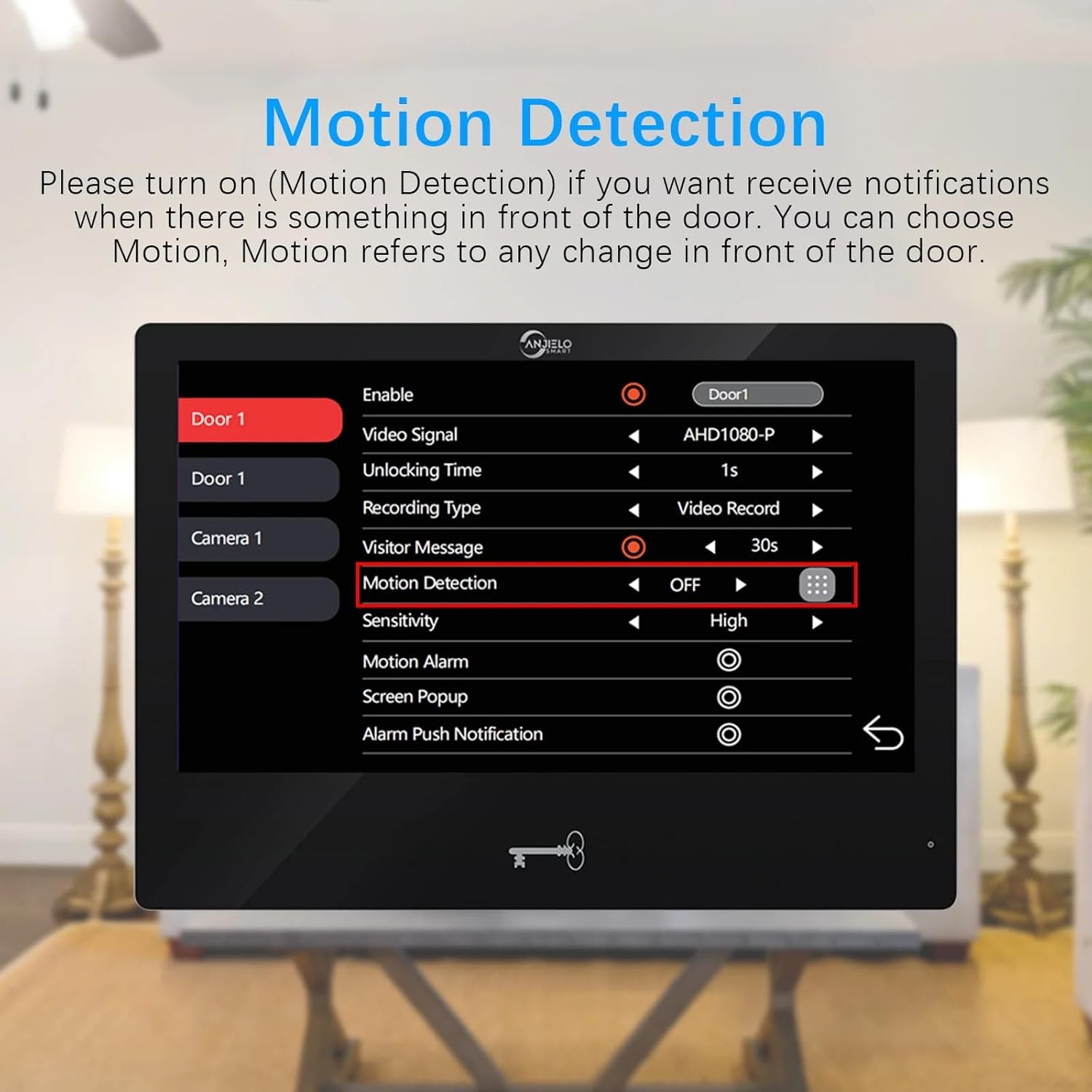
Figure 5: Real-time Two-Way Audio Interaction. This image depicts a user interacting with the indoor monitor, engaging in a conversation with a visitor, illustrating the practical application of the two-way audio feature.
2. Unlocking Methods (5-in-1)
The system offers five methods to unlock a connected 12V electronic lock:
- Password: Inserire una password preimpostata sulla tastiera del campanello esterno.
- Impronta digitale: Use a registered fingerprint on the outdoor doorbell's fingerprint reader.
- Scheda IC: Tap a registered IC card (5 included) on the outdoor doorbell's RFID reader.
- App Tuya: Sblocca la porta da remoto tramite l'app Tuya Smart sul tuo cellulare.
- Monitorare: Press the unlock button on the indoor touch monitor.
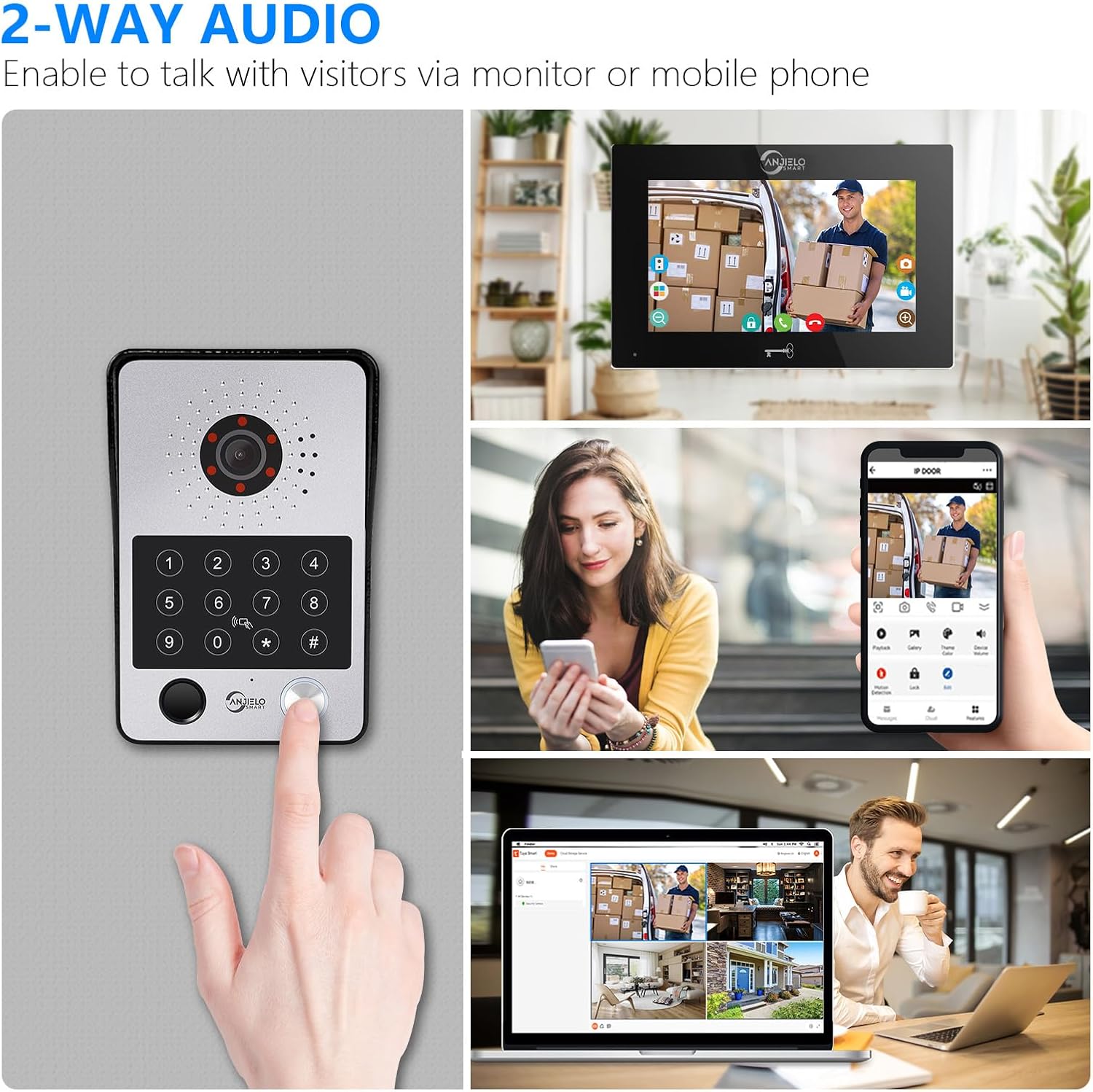
Figura 6: Oltreview of 5-in-1 Unlocking Methods. This image visually demonstrates the five different ways to unlock the door: Fingerprint, Password, IC Card, Monitor, and Tuya App, providing a comprehensive view of the system's access control features.
3. Rilevamento del movimento e registrazione automatica
The system is equipped with motion detection. When motion is detected in front of the doorbell or a visitor presses the doorbell, the camera will automatically record videos or capture snapshots.
- Attivazione: Motion detection can be enabled or disabled via the indoor monitor settings.
- Magazzinaggio: Recordings and snapshots are saved to the included 32GB Micro SD card.
- Viewin: Puoi riview recorded events directly on the indoor monitor or through the Tuya app on your mobile phone.
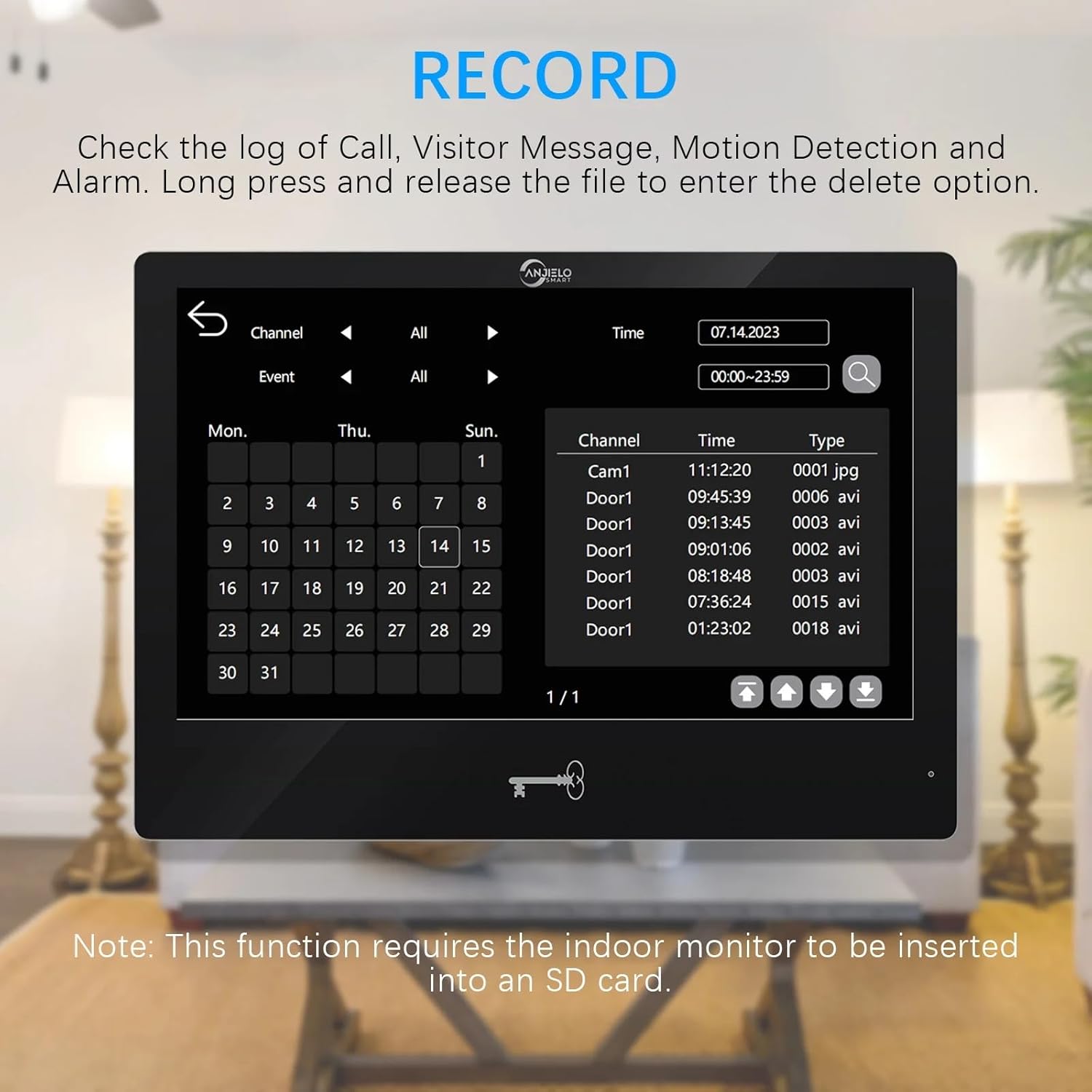
Figure 7: Motion Detection Settings. This image shows the motion detection configuration screen on the indoor monitor, allowing users to enable/disable the feature, adjust sensitivity, and set recording preferences.
4. Motion Detection Area Setting
When motion detection is enabled, you can define specific areas for detection to minimize false alarms. By default, the entire viewable area is active for motion detection.
- Access Setting: Sul monitor, accedere alle impostazioni di rilevamento del movimento.
- Adjust Area: Click the grid icon to enter the area selection mode. Click on squares within the grid to toggle them between active (motion detection enabled) and transparent (motion detection disabled) states.
5. Event Record Review
Puoi riview logs of calls, visitor messages, motion detection events, and alarms directly from the indoor monitor.
- Registri di accesso: Navigate to the "Record" section on the monitor.
- Browse Events: Use the interface to browse events by date and type.
- Elimina record: Premere a lungo su un file to enter the delete option.

Figure 8: Event Record Log. This image displays the event log interface on the indoor monitor, showing a chronological list of recorded events such as calls, motion detections, and alarms, with options to filter and review.
6. Call Forwarding and Internal Speaking
If you have multiple indoor monitors, the system supports call forwarding and internal audio communication between them.
- Inoltro di chiamata: When a visitor rings the doorbell, the call can be forwarded to other monitors if the primary one is not answered.
- Internal Speaking: You can initiate an audio-only call between different indoor monitors within your system.
Manutenzione
- Pulizia: Regularly wipe the indoor monitor screen and outdoor doorbell lens with a soft, damp stoffa. Evitare detergenti abrasivi.
- Aggiornamenti del firmware: Check for available firmware updates through the Tuya app or monitor settings to ensure optimal performance and security.
- Gestione della scheda SD: Periodicamente riview and delete old recordings from the Micro SD card to free up space.
- Ispezione del cablaggio: Occasionally inspect all wired connections for any signs of wear or damage, especially for outdoor components.
Risoluzione dei problemi
| Problema | Possibile causa | Soluzione |
|---|---|---|
| Nessuna immagine/video sul monitor | Loose wiring connection; Power issue; Doorbell camera malfunction. | Check all 4-core cable connections. Ensure monitor is powered. Restart the system. |
| Monitor not connecting to WiFi | Incorrect WiFi password; Router is 5GHz only; Weak signal. | Verify WiFi password. Ensure router is 2.4GHz compatible. Move monitor closer to router or use a WiFi extender. |
| Doorbell not ringing on monitor/phone | Wiring issue; Monitor volume too low; App notifications disabled. | Check doorbell-to-monitor wiring. Adjust monitor volume. Enable notifications in Tuya app. |
| Il rilevamento del movimento non funziona | Feature disabled; Sensitivity too low; SD card full. | Enable motion detection in settings. Increase sensitivity. Check/clear SD card. |
| Cannot unlock electronic lock | Incorrect wiring; Lock power issue; Incorrect password/card/fingerprint. | Verify lock wiring to doorbell. Ensure lock has power. Re-register unlocking credentials. |
Garanzia e supporto
Per informazioni sulla garanzia e supporto tecnico, fare riferimento al sito ufficiale ANJIELO SMART websito o contattare il rivenditore. Conservare la ricevuta d'acquisto come prova d'acquisto per eventuali reclami in garanzia.
Produttore: ANJIELOSMART
Numero modello: 94218B-BK-95112BKX2


