1. Introduzione
The GROWATT Shine LAN X is an advanced Ethernet monitoring dongle designed to provide seamless internet connectivity for your Growatt X, XE, or XH series solar photovoltaic (PV) inverters. This device enables real-time data logging and remote monitoring through the intuitive ShinePhone iOS/Android App or the comprehensive Growatt ShineServer portal. It ensures that you can efficiently track your solar energy system's performance from anywhere, at any time.
The Shine LAN X is compatible with a wide range of Growatt inverters, specifically those whose model references end with X, XE, or XH. This includes, but is not limited to, the MIC, MIN, MOD, MID, MAC, and MAX series inverters.
2. Informazioni sulla sicurezza
Please read and understand all safety instructions before installing or operating the Growatt Shine LAN X dongle. Failure to follow these instructions may result in electric shock, fire, or serious injury.
- Ensure the inverter is completely powered off and isolated from the grid before connecting or disconnecting the Shine LAN X dongle.
- Solo personale qualificato dovrebbe eseguire l'installazione e la manutenzione.
- Non esporre il dispositivo ad acqua, umidità o temperature estreme.
- Do not attempt to disassemble or repair the device. Contact qualified service personnel if repair is needed.
- Keep the device away from flammable materials and direct sunlight.
- Verify all connections are secure and correct before restoring power to the inverter.
3. Prodotto finitoview
3.1 Componenti
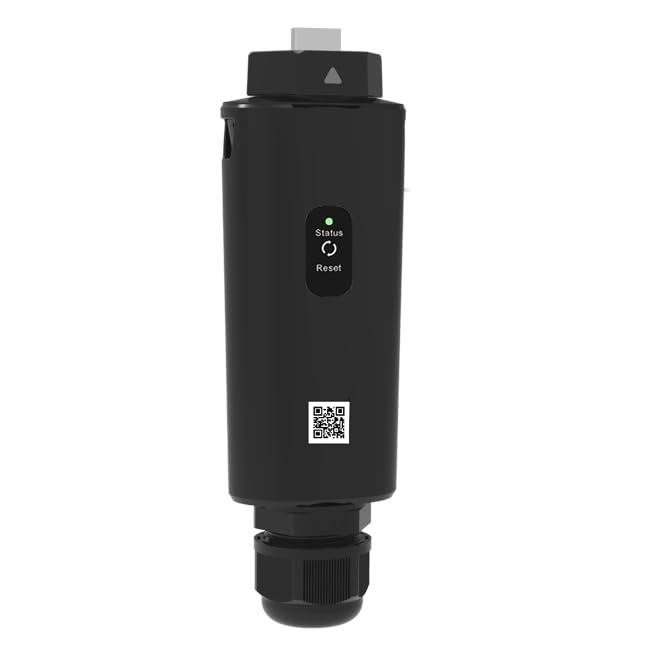
Figure 3.1.1: Growatt Shine LAN X Dongle
This image displays the Growatt Shine LAN X dongle, a compact black device with a status indicator light and a reset button on its front face. A QR code is also visible towards the bottom.

Figure 3.1.2: Ethernet Port
This image shows a detailed close-up of the Ethernet port located on the Growatt Shine LAN X dongle, ready for cable connection.
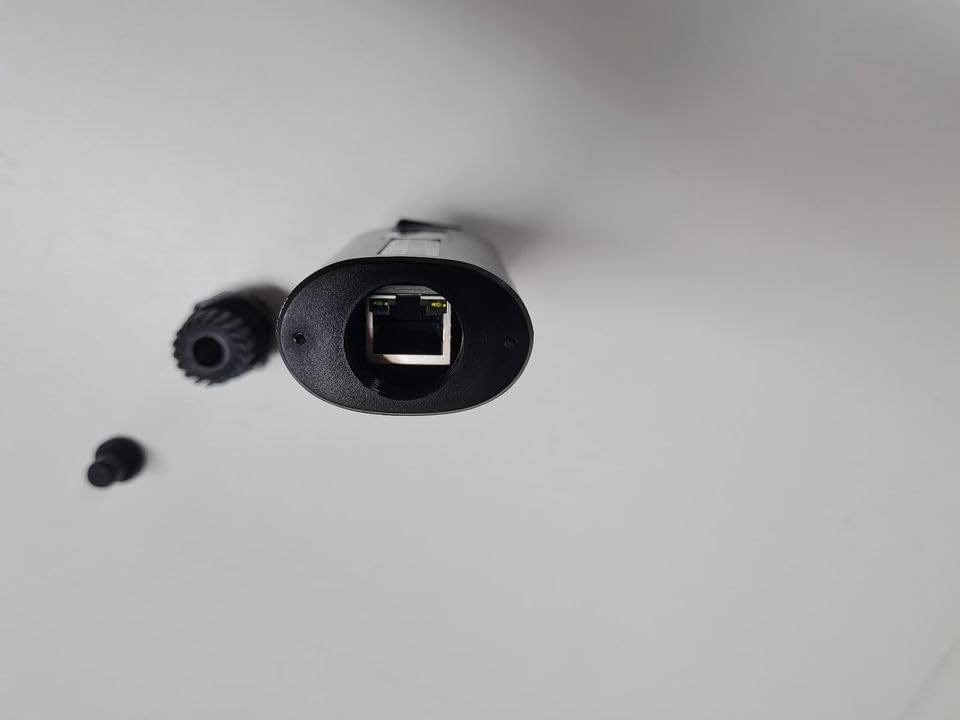
Figure 3.1.3: USB Connector
Questa immagine fornisce un primo piano view of the USB connector on the Growatt Shine LAN X dongle, which is used to connect to the inverter.
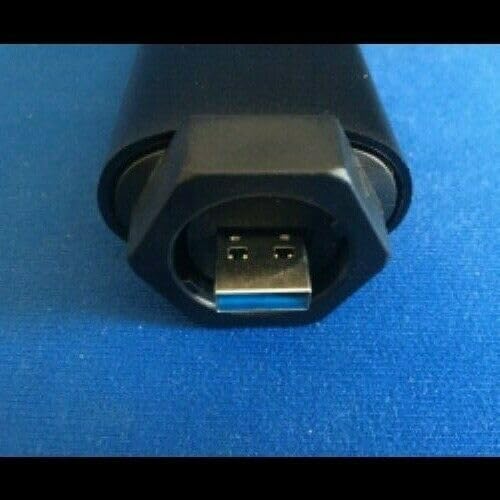
Figure 3.1.4: USB Connector (Alternate View)
This image offers an alternative close-up perspective of the USB connector on the Growatt Shine LAN X dongle, clearly showing the blue internal tab of a USB 3.0 Type-A port.
3.2 Caratteristiche principali

Figure 3.2.1: Shine LAN X Features
This image illustrates the Growatt Shine LAN X dongle in a usage scenario, placed near a person working on a laptop. The image highlights the device's main features: direct Ethernet connection, plug-and-play functionality, online monitoring and maintenance capabilities, and integrated memory for up to one month of data storage.
- Ethernet Direct Connection: Provides a stable and reliable wired connection to your local network.
- Collega e usa: Designed for easy installation and immediate use with compatible Growatt inverters.
- Online Monitoring and Maintenance: Enables remote access to inverter data for performance tracking and system diagnostics.
- Memoria integrata: Stores up to one month of data, ensuring data continuity even during temporary network outages.
- Ampia compatibilità: Supports Growatt X, XE, and XH series inverters, including MIC, MIN, MOD, MID, MAC, and MAX models.
4. Guida all'installazione
Follow these steps to properly install and configure your Growatt Shine LAN X dongle.

Figure 4.1: Quick Installation Guideline Overview
This image provides a comprehensive quick installation guideline for the Growatt ShineLan-X, detailing electrical connection, IP configuration, app download, device registration, and a product picture. An appendix covers quick troubleshooting for LED status and button descriptions.

Figure 4.2: Configuration Guide Overview
This image presents a detailed configuration guide for the Growatt ShineLan-X, outlining steps for connection, IP configuration, app download, registration, adding a plant, adding the datalogger, and checking the status. An appendix provides troubleshooting information for LED indicators and button descriptions, along with datalogger static IP configuration.
4.1 Step 1: Electrical Connection
- Ensure your Growatt inverter is powered off and disconnected from any power sources.
- Locate the USB port on your Growatt inverter. This is typically found at the bottom or side of the inverter.
- Insert the USB connector of the Shine LAN X dongle firmly into the inverter's USB port.
- Connect one end of an Ethernet cable to the RJ45 port on the Shine LAN X dongle and the other end to your router or network switch.
- Secure the components (dongle and Ethernet cable) to the inverter using the provided locking mechanism or screws, if applicable.
- Once connected, power on your inverter. The LED indicators on the Shine LAN X dongle should illuminate, indicating power and connection status.
4.2 Step 2: Configure the IP of the Datalogger
After installation, you may need to configure the IP address of the datalogger. By default, if your router's DHCP function is enabled, the datalogger will obtain an IP address automatically (Plug and Play). If you require a static IP, refer to the Appendix for detailed instructions.
- Aprire un web browser and enter the dynamic IP address of the datalogger Shine LAN X. You can find this IP address from your router's connected devices list or by using network scanning tools.
- Log in to the datalogger's built-in interface using the default account: amministratore e password: amministratore.
- Navigate to the network settings to configure DHCP or static IP settings as needed.
4.3 Step 3: Download the ShinePhone App
The ShinePhone App is essential for monitoring your inverter. Ensure you download the latest version.
- Scan the QR code below with your smartphone to download the ShinePhone App from the Apple App Store or Google Play Store.
- Alternatively, visit the official Growatt server for app downloads: http://server.growatt.com/app/xml/download_growatt.png.jsp or http://server-cn.growatt.com/app/xml/download_cn.png.jsp.
Figure 4.3.1: ShinePhone App QR Code
Scan this QR code to download the ShinePhone App for both Android and iOS devices.
4.4 Step 4: Register a Device / Add Plant
After installing the app, you need to register your account and add your solar plant.
- Open the ShinePhone App and follow the prompts to create a new account or log in.
- Navigate to the 'Plant' or 'Device Management' section.
- Select 'Add Plant' and fill in the required information, such as plant name, capacity, and location.
4.5 Step 5: Add Datalogger
Once your plant is set up, add the Shine LAN X datalogger to link it to your monitoring system.
- In the app, select 'Add Datalogger' or 'Add Device'.
- Enter the serial number and verification code of your Shine LAN X dongle. These details are typically found on the device itself or its packaging.
- Confirm the addition. The datalogger should now be linked to your plant and begin transmitting data.
5. Operativo
Once the Shine LAN X dongle is successfully installed and configured, you can begin monitoring your solar PV system's performance.
- ShinePhone App: Use the ShinePhone App on your iOS or Android device to view real-time data, historical performance, energy generation, and system status. The app provides a user-friendly interface for quick insights.
- Growatt ShineServer Portal: For more detailed analysis and management, log in to the Growatt ShineServer web portale (http://server.growatt.com). This platform offers advanced reporting, fault diagnostics, and remote configuration options.
- Registrazione dei dati: The dongle automatically logs data at 5-minute intervals and stores it for up to one month internally, ensuring no data loss during temporary network interruptions.
6. Manutenzione
The Growatt Shine LAN X dongle is designed for low maintenance. Follow these general guidelines to ensure optimal performance:
- Mantenere pulito: Periodically wipe the exterior of the dongle with a soft, dry cloth to remove dust and debris. Do not use liquid cleaners.
- Controllare le connessioni: Occasionally verify that the USB and Ethernet cables are securely connected to both the dongle and the inverter/router.
- Aggiornamenti del firmware: Ensure your Shine LAN X firmware is up-to-date. Firmware updates are typically managed through the ShineServer portal or ShinePhone App and can improve performance and add new features.
- Condizioni ambientali: Per evitare danni, assicurarsi che l'ambiente operativo rimanga entro gli intervalli di temperatura e umidità specificati.
7. Risoluzione Dei Problemi
This section provides solutions to common issues you might encounter with your Shine LAN X dongle.
7.1 LED Status Description
| Stato LED | Indicazione | Risoluzione dei problemi |
|---|---|---|
| LED spento | The USB connection with the inverter is error. | Replug the datalogger. |
| Il LED verde lampeggia | The communication between Shine LAN X, the inverter and router is normal. | Check if the router can access the internet. |
| Il LED blu lampeggia | The communication between Shine LAN X, the inverter, router and server is normal. | Condizioni operative normali. |
| La spia LED verde è sempre accesa | Shine LAN X failed to communicate with the router. | 1. Network cable is not connected. 2. Restart the router and confirm that the DHCP address allocation function is available. 3. If using a static IP, ensure the datalogger's IP address is consistent with the network segment set by the router. |
7.2 Shine LAN X Button Description
| Funzionamento del pulsante | Descrizione |
|---|---|
| Long press the button until the white light is on (about 10 seconds) | Reset the datalogger and restore the factory settings (factory default is dynamic IP). |
7.3 Datalogger Static IP Configuration (Appendix)
If you need to set a static IP address for your Shine LAN X dongle, follow these steps:
- Prepare a router whose DHCP function is turned on. Link the Shine LAN X to the router.
- Enter the router's built-in interface and find the dynamic IP address of the datalogger Shine LAN X.
- Open the browser, enter the dynamic IP address of the datalogger (e.g., 192.168.0.254) to access the built-in interface of the datalogger (account: amministratore, parola d'ordine: amministratore).
- Enter the 'Network Setting' page, turn off the DHCP enable of the datalogger, and enter the static IP, gateway, mask, DNS. Then click to save.
- Enter the 'Datalogger Setting' page, enable the reboot function, and then click 'Reboot'. The configuration of static IP is successful.
Nota: If you forget the static IP you have set before, there are two methods to restore it to the default dynamic IP:
- a) Press and hold the reset button of the Shine LAN X until the white light appears (approximately 10 seconds) to restore the factory settings.
- b) If the datalogger is connected to the inverter, you can change your computer's IP address to 192.168.0.2, the mask is 255.255.255.0, and the gateway is 192.168.0.1. Then enter 192.168.0.254 in the browser address bar to enter the built-in interface settings of the datalogger.
8. Specifiche

Figure 8.1: ShineLan-X Datasheet
This image presents the technical datasheet for the Growatt ShineLan-X, detailing hardware parameters, application parameters, and general data.
| Parametro | Valore |
|---|---|
| Parametri hardware | |
| Interfaccia dati | USB |
| Volume Nominaletage | 5 V (± 5%) |
| Corrente nominale | 400mA |
| Potenza nominale | 2W (MAX.3W) |
| Display | GUIDATO |
| Parametri dell'applicazione | |
| Supported Server | Server di lucentezza |
| Comunicazione inverter | USB (Modbus RTU protocol) |
| Comunicazione del server | TCP (Modbus TCP protocol) |
| Ethernet Interface Speed | 10 Mbps |
| Max. Communication Range | 100m (direct connection) |
| Tipo di configurazione | Configurazione dell'APP |
| Intervallo di trasmissione dei dati | 5 minuti |
| Server predefinito URL | server.growatt.com |
| Dati Generali | |
| Dimensioni (L / W / H) | 152 / 47 / 88 mm |
| Peso | 84g |
| Intervallo di temperatura di esercizio | -20°C ... +50°C |
| Valutazione della protezione ambientale | Grado di protezione IP65 |
| Certificazioni | CE, RoHS |
| Informazioni sul prodotto | |
| Produttore | ASTRA CONTROL |
| Numero di modello | SHINELANX |
| ASIN | B0D33S3326 |
| Data prima disponibilità | 1 maggio 2024 |
9. Garanzia e supporto
For technical assistance, warranty inquiries, or further information regarding your Growatt Shine LAN X dongle, please contact Growatt support.
- E-mail di supporto tecnico: service.nl@ginverter.com
- Telefono supporto tecnico: +31 (0) 85 040 9967
- Ufficiale Websito: www.growatt.com
Please have your product model number (SHINELANX) and serial number ready when contacting support to expedite assistance.


