1. Introduzione
This manual provides detailed instructions for the installation, operation, and maintenance of your TESmart USB 3.0 HDMI+DP+USB C KVM Switch (Model HDC403-P23). This device allows you to control up to four computers (three desktops and one USB-C laptop) from a single set of keyboard, mouse, and three monitors, supporting 4K@60Hz resolution. It integrates KVM functionality with a USB 3.0 docking station, offering enhanced connectivity and display management.
2. Informazioni sulla sicurezza
Prima di utilizzare il dispositivo, leggere e comprendere le seguenti precauzioni di sicurezza:
- Assicurarsi che l'adattatore di alimentazione sia collegato correttamente e corrisponda al volume specificatotage.
- Non esporre il dispositivo ad acqua, umidità o temperature estreme.
- Evitare di posizionare oggetti pesanti sul dispositivo.
- Non tentare di aprire o riparare il dispositivo da soli. Per qualsiasi intervento di assistenza, rivolgersi a personale qualificato.
- Per evitare danni, utilizzare solo l'adattatore di alimentazione e i cavi forniti.
- Disconnect power before cleaning the device. Use a soft, dry cloth.
3. Contenuto della confezione
Verificare che tutti gli articoli siano presenti nel pacco:

Image: A diagram illustrating the contents of the product package, including the KVM switch, various cables, power adapter, and accessories.
- 1x TESmart 4x3 KVM Switch (Model HDC403-P23)
- 1x adattatore di alimentazione DC 20V
- 2x KVM Cables (USB-B to USB-A, HDMI, DP)
- 4 cavi HDMI
- 1x cavo DisplayPort
- 1x cavo USB-C
- 1x Manuale utente (questo documento)
- Telecomando IR 1x
- 1x USB 3.0 Type-A to Type-B Cable
- 2x Rack-Ears
4. Prodotto finitoview e specifiche
4.1. Caratteristiche principali
- 4-Port Triple Monitor KVM Switch: Manages up to four computers (3 desktops + 1 USB-C laptop) with three monitors.
- Integrated USB 3.0 Docking Station: Features 4x USB 3.0 ports (two with power delivery), 2x USB 2.0 ports, 1x LAN port, 1x 3.5mm headphone jack, and 3 HDMI outputs.
- Ultra HD 4K Visuals: Supports resolutions up to 3840x2160 (4K) @60Hz, 3440x1440@100Hz, and 2560x1440@144Hz. Compatible with 3D, HDR, HDCP, and Dolby Vision, delivering clear and authentic video.
- EDID Emulators: Ensures consistent display settings across all connected computers, preventing resolution changes or window rearrangement during switching.
- MST Mode Support: For Windows laptops, a single USB-C cable can transmit audio, video, and USB data.
- Wired Network Sharing: Allows all four connected PCs to share a single wired network connection via the built-in USB Ethernet adapter.
- Multiple Switching Modes: Switch between computers using keyboard hotkeys, IR remote control, or front panel buttons.
- K&M Pass-through Mode: Ensures compatibility with various keyboard and mouse types, including wired, wireless, mechanical, and gaming peripherals.
4.2. Specifiche tecniche
| Caratteristica | Specificazione |
|---|---|
| Numero di modello | HDC403-P23 |
| Dimensioni del prodotto | 16.5 x 8.7 x 4.7 pollici |
| Peso | 6.94 libbre |
| Ingressi video | HDMI, DisplayPort, USB-C |
| Uscite video | 3x HDMI |
| Risoluzione massima | 4K@60Hz (3840x2160), 3440x1440@100Hz, 2560x1440@144Hz |
| Porte USB | 4x USB 3.0 (2 with power delivery), 2x USB 2.0 |
| Porta di rete | 1 porte LAN (RJ45) |
| Porta audio | 1 jack per cuffie da 3.5 mm |
| Volume di eserciziotage | 20V CC |
| Valutazione attuale | 5 Amps |
| Modalità di funzionamento | ACCESO SPENTO |
5. Configurazione e connessione
5.1. Schema di collegamento
Refer to the diagram below for a visual guide on connecting your computers and monitors to the KVM switch.
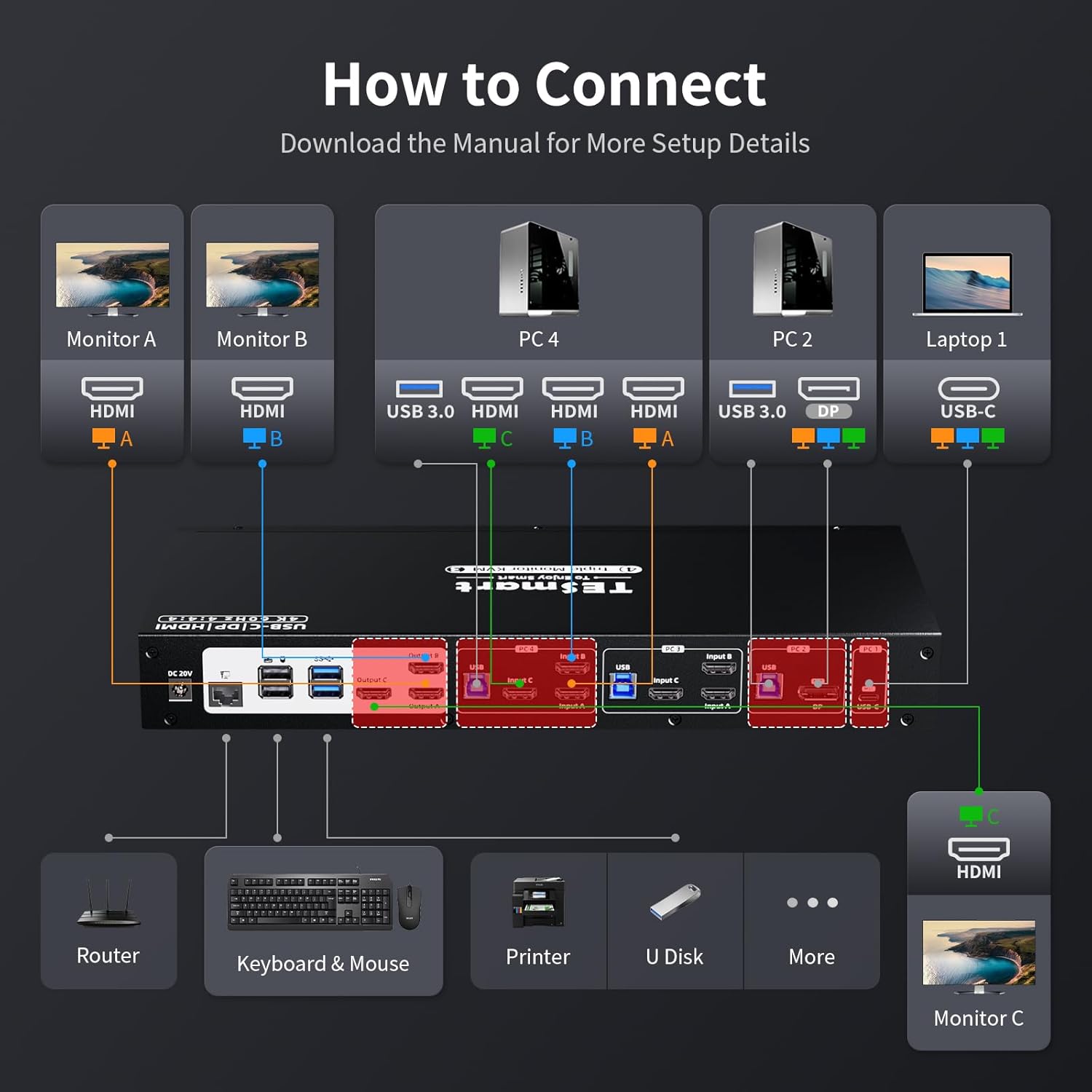
Image: A detailed diagram illustrating how to connect monitors (A, B, C) and various PCs (PC4, PC2, Laptop1) to the KVM switch, along with peripherals like keyboard, mouse, printer, and router.
5.2. Connessione passo dopo passo
- Spegnimento dei dispositivi: Prima di effettuare qualsiasi collegamento, assicurarsi che tutti i computer e i monitor siano spenti.
- Collega i monitor: Connect your three monitors to the KVM switch's HDMI Output A, B, and C ports using the provided HDMI cables.
- Collegare i computer:
- For each desktop PC, connect the video outputs (HDMI, DisplayPort) and a USB 3.0 cable from the PC to the corresponding Input A, B, C, and USB ports on the KVM switch.
- For a USB-C laptop, connect a USB-C cable from the laptop to the USB-C input on the KVM switch. This single cable can handle video, audio, and USB data for Windows systems supporting MST.
- Connetti le periferiche:
- Connect your keyboard and mouse to the dedicated USB 2.0 ports on the KVM switch.
- Connect other USB devices (e.g., printer, USB drive) to the USB 3.0 ports.
- Collega le cuffie o gli altoparlanti al jack audio da 3.5 mm.
- Connect an Ethernet cable from your router to the LAN port on the KVM switch to enable wired network sharing for all connected PCs.
- Accensione: Connect the DC 20V power adapter to the KVM switch and then plug it into a power outlet. Power on the KVM switch, followed by your monitors and computers.
5.3. EDID Emulators
The KVM switch features built-in EDID emulators. These emulators store the display information of your monitors, ensuring that your computers always receive the correct display settings. This prevents issues like resolution changes or window rearrangement when switching between inputs.

Image: A comparison showing how display settings can change without EDID emulators, and how they remain stable with EDID emulators enabled.
5.4. MST Mode and Wired Network
The KVM switch supports Multi-Stream Transport (MST) mode, particularly beneficial for Windows notebooks. With MST, a single USB-C connection to the KVM switch can transmit audio, video, and USB data, simplifying cable management.

Image: An illustration of MST mode, demonstrating how a single USB-C connection from a laptop to the KVM can manage multiple monitors.
Additionally, the integrated USB Ethernet adapter allows all connected PCs to share a single wired network connection, eliminating the need for separate network cables for each computer.

Image: A diagram showing a router connected to the KVM switch's LAN port, providing network access to all connected PCs.
6. Istruzioni per l'uso
6.1. Passaggio da un computer all'altro
The KVM switch offers three methods for switching between connected computers:
- Tasti di scelta rapida da tastiera: Use predefined key combinations on your connected keyboard to switch inputs. Refer to the specific hotkey commands in the full user manual for details (e.g., Right-Ctrl + Scroll Lock).
- Pulsanti del pannello frontale: Press the corresponding input button on the front panel of the KVM switch to select a computer.
- Telecomando IR: Use the included IR remote control to switch between inputs. Ensure the remote has a clear line of sight to the KVM switch's IR receiver.

Image: Visual representation of the three switching methods: keyboard hotkeys, front panel buttons, and IR remote control.
6.2. Modalità di visualizzazione
The KVM switch supports two primary display modes for managing your triple monitors:
- Shared Display Mode (Display Mode 1): All three monitors display content from the currently selected PC, extending the desktop across them or duplicating content as configured on the PC.
- Independent PC Views (Display Mode 2): Each monitor can display content from a different PC, allowing for a multi-computer, multi-monitor setup where you can view outputs from various sources simultaneously.

Image: Illustrations of Display Mode 1 (all monitors showing one PC) and Display Mode 2 (monitors showing different PCs).
6.3. USB 3.0 Docking Station Functionality
The integrated USB 3.0 docking station allows you to share various USB peripherals across all connected computers. This includes:
- Trasferimento dati: Connect USB drives, external hard drives, and other storage devices for shared access.
- Ricarica: Two USB 3.0 ports offer power delivery for charging devices like smartphones.
- Periferiche: Connect printers, scanners, webtelecamere e altri accessori USB.

Image: A visual guide to the KVM's docking station capabilities, showing connections for phone, hard disk drive, printer, USB driver, headset, audio splitter, speaker, and microphone.
The K&M pass-through mode ensures broad compatibility with various keyboard and mouse types, including specialized gaming or mechanical keyboards, by directly passing through their signals.
7. Manutenzione
Per garantire la longevità e le prestazioni ottimali del tuo switch KVM, segui queste linee guida per la manutenzione:
- Pulizia: Regularly wipe the device with a soft, dry, anti-static cloth. Avoid using liquid or aerosol cleaners, as they may damage the casing o componenti interni.
- Ventilazione: Assicurarsi che lo switch KVM sia posizionato in un'area ben ventilata per evitare il surriscaldamento. Non ostruire le aperture di ventilazione.
- Gestione dei cavi: Mantenere i cavi in ordine e privi di pieghe o piegature eccessive per evitare il degrado o il danneggiamento del segnale.
- Ciclo di alimentazione: Se il dispositivo non risponde, scollegare l'adattatore di alimentazione, attendere qualche secondo e ricollegarlo.
8. Risoluzione Dei Problemi
Se riscontri problemi con lo switch KVM, fai riferimento ai seguenti problemi comuni e alle relative soluzioni:
| Problema | Possibile causa/soluzione |
|---|---|
| Nessuna visualizzazione sui monitor dopo la commutazione. |
|
| La tastiera o il mouse non rispondono. |
|
| Display resolution or arrangement changes after switching. |
|
| USB devices (e.g., external drive, printer) not detected. |
|
| Problemi di connessione di rete. |
|
| MacBook Pro/Air second monitor not working. |
|
9. Garanzia e supporto
9.1. Informazioni sulla garanzia
The TESmart KVM Switch (Model HDC403-P23) comes with a standard Garanzia di 1 anno, which can be extended by an additional 2 anni upon product registration, totaling a 3-year warranty period. Please refer to the warranty card included in your package or visit the official TESmart websito per termini e condizioni dettagliati.
9.2. Supporto tecnico
For any technical assistance, troubleshooting, or inquiries regarding your TESmart KVM switch, please contact TESmart customer support. Supporto tecnico 24 ore su 7, XNUMX giorni su XNUMX è disponibile ad assisterti.
Contact information can typically be found on the TESmart official websito o nella confezione del prodotto.
10. Conformità normativa
This device complies with relevant regulatory standards. For specific compliance details, please refer to the product packaging or the official TESmart websito.


