1. Introduzione
Welcome to the user manual for your new BOOX Tablet Go 10.3. This ePaper E Ink tablet is designed to provide a comfortable and efficient digital experience for reading, writing, and productivity. With its 10.3-inch HD Carta 1200 glass screen and 300 PPI resolution, it offers a paper-like display that is gentle on the eyes. This manual will guide you through the setup, operation, maintenance, and troubleshooting of your device.
The BOOX Tablet Go 10.3 features a 2.4Ghz Octa-core CPU, 4GB RAM, and 64GB ROM, ensuring smooth performance for various tasks. It supports Wi-Fi and Bluetooth 5.0 connectivity, and runs on Android 12, allowing for the installation of third-party applications. Its ultra-thin design (4.6mm) and lightweight build (approx. 375g) make it highly portable for everyday use.
2. Cosa c'è nella scatola
Upon unboxing your BOOX Tablet Go 10.3, please ensure all the following items are present:
- Dispositivo BOOX Tablet Go 10.3
- Stilo BOOX

Image: The BOOX Tablet Go 10.3 with its accompanying stylus, displaying a daily schedule on its screen.
3. Guida all'installazione
3.1 Accensione iniziale
- Press and hold the Power Button located on the side of the device until the BOOX logo appears.
- Segui le istruzioni sullo schermo per selezionare la lingua e la regione.
3.2 Connessione al Wi-Fi
- Dalla schermata iniziale, tocca l'icona "Impostazioni".
- Navigate to 'Network & Internet' and select 'Wi-Fi'.
- Toggle Wi-Fi to 'On' and select your preferred network from the list.
- Se richiesto, inserisci la password Wi-Fi e tocca "Connetti".
3.3 Configurazione del Google Play Store
Your BOOX Tablet Go 10.3 comes with the Google Play Store pre-installed, allowing you to download a wide range of applications.
- Individua e tocca l'icona "Play Store" nella schermata iniziale o nel pannello delle applicazioni.
- Accedi con il tuo account Google. Se non ne hai uno, puoi crearne uno.
- Once signed in, you can browse and download apps like Kindle, Libby, OneNote, and more.
4. Istruzioni per l'uso
4.1 Navigazione di base
The BOOX Tablet Go 10.3 features a responsive touch screen for intuitive navigation. Swipe left or right to move between pages, tap icons to open applications, and use gestures for various functions.
4.2 Funzionalità per prendere appunti
The device offers an exceptional note-taking experience with its included stylus and paper-like feel. The Notes app provides various tools to enhance your creativity and productivity.
- Stylus Interaction: The BOOX stylus provides 4,096 levels of pressure sensitivity, allowing for precise and natural writing and drawing.
- Modelli: Utilize numerous pre-installed templates for different purposes, such as daily schedules, meeting notes, or creative sketches. You can also import custom templates.
- Art Tools: Ignite your creativity with a variety of brushes and lines. The Smart Scribe feature helps you effortlessly create precise shapes and straight lines.
- Strumento Lazo: Easily select, move, and organize your notes or drawings using the Free Lasso or Smart Lasso tools.
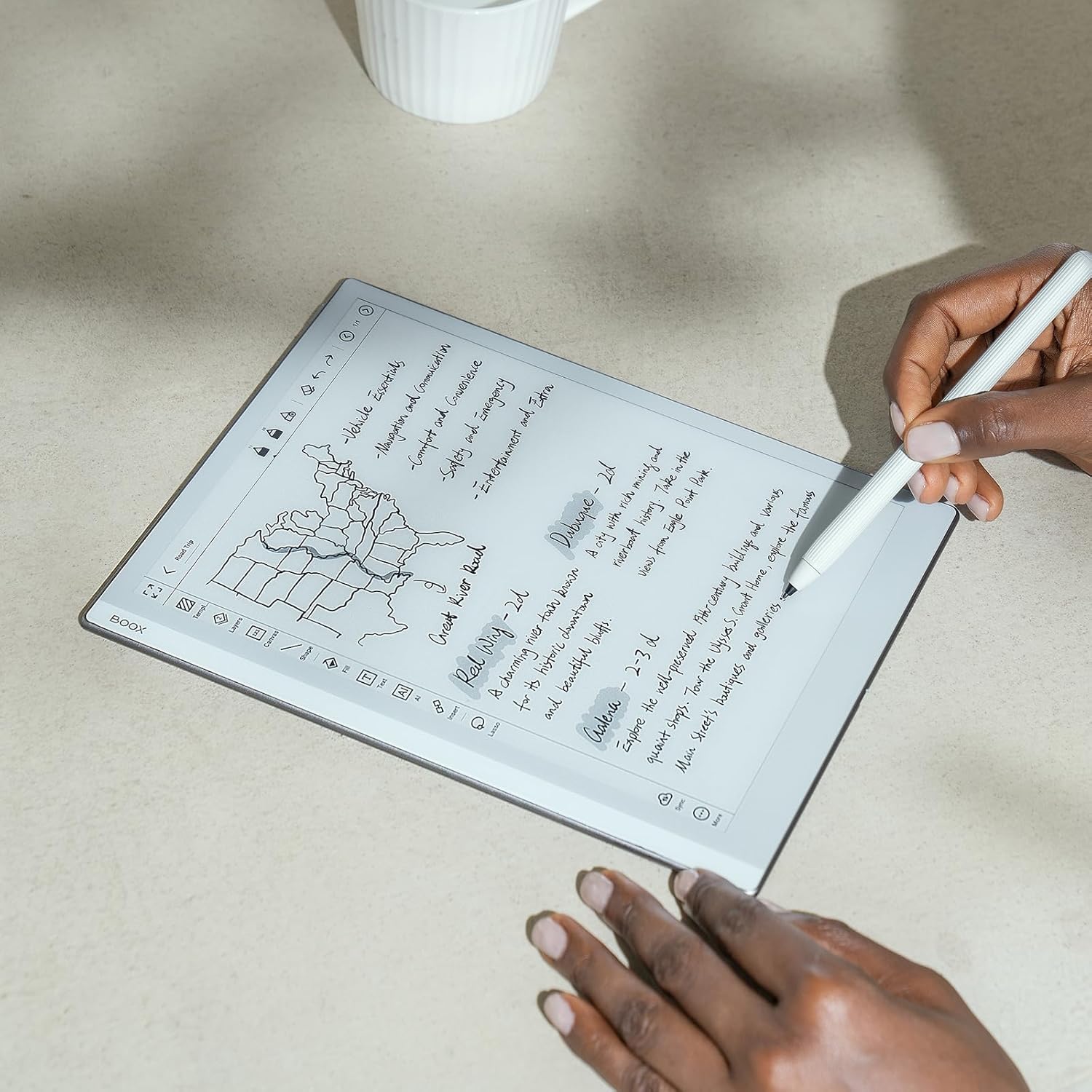
Image: A user's hands writing notes on the BOOX Tablet Go 10.3, demonstrating the natural writing experience.

Image: A user's hands drawing a detailed sketch on the BOOX Tablet Go 10.3, showcasing its artistic capabilities.
Video: Demonstrates the pen-to-paper writing feel on the BOOX Tablet Go 10.3, highlighting its responsiveness and precision.
4.3 Esperienza di lettura
The BOOX Tablet Go 10.3 is optimized for an immersive and comfortable reading experience, especially with its E Ink display that mimics real paper.
- NeoReader: The built-in NeoReader app supports a wide range of document formats including PDF, EPUB, MOBI, and more.
- Schermo che non danneggia la vista: The Carta 1200 screen with 300 PPI offers crisp, clear text without the need for a front light, making it ideal for reading in natural light conditions and reducing eye strain.
- Modalità scura: Customize your reading experience by enabling dark mode for a more flexible and concentrated view, especially in low-light environments (when external light is available).
- Rotazione automatica: The device features a G-sensor for auto-rotation, ensuring the display is always in the correct orientation regardless of how you hold it.

Image: The BOOX Tablet Go 10.3 displaying its library interface, showcasing various e-books.

Image: The BOOX Tablet Go 10.3 displaying a PDF document, demonstrating its ability to render complex layouts.
Video: Highlights the lightweight ePaper design of the BOOX Go Series, emphasizing its portability and ease of use for everyday tasks.
Video: Showcases the ultra-thin design and paper-like weight of the BOOX Go 10.3, making it comfortable to hold for extended periods.
4.4 File Gestione e condivisione
The device allows for easy management and sharing of your content.
- Onyx Cloud: Upload your notes and documents to the free Onyx Cloud for secure backup and access across devices.
- Opzioni di condivisione: Share your ideas and content through email or other third-party applications installed from the Google Play Store.
5. Manutenzione e cura
5.1 Pulizia dello schermo
To maintain optimal screen clarity, gently wipe the screen with a soft, lint-free cloth. For stubborn smudges, slightly dampImmergere il panno in acqua o in un detergente per schermi specifico per dispositivi elettronici. Evitare l'uso di prodotti chimici aggressivi o materiali abrasivi.
5.2 Ottimizzazione della durata della batteria
The BOOX Tablet Go 10.3 is equipped with a 3,700mAh Li-ion Polymer battery. To maximize battery life:
- Reduce screen refresh rate if not needed for dynamic content.
- Disattivare il Wi-Fi e il Bluetooth quando non vengono utilizzati.
- Close background applications that are not actively being used.
- Evitare temperature estreme poiché possono influire sulle prestazioni della batteria.
6. Risoluzione Dei Problemi
6.1 Problemi comuni e soluzioni
- Dispositivo non si accende: Ensure the device is charged. Connect it to a power source and try powering it on after a few minutes. If the issue persists, perform a hard reset by holding the power button for 10-15 seconds.
- Lo schermo non risponde: If the screen is unresponsive, try restarting the device. If the problem continues, ensure the screen is clean and free of debris.
- Lo stilo non funziona: Check if the stylus tip is worn out and needs replacement. Ensure there are no magnets near the screen, as they can interfere with stylus functionality.
- App che si bloccano/si bloccano: Close and reopen the app. Clear the app's cache in 'Settings > Apps'. If the issue persists, consider reinstalling the app.
- Problemi di connettività Wi-Fi: Restart your Wi-Fi router. Forget the network on your device and reconnect. Ensure you are within range of the Wi-Fi signal.
7. Specifiche tecniche
| Caratteristica | Specificazione |
|---|---|
| Schermo | Schermo in vetro HD Carta 1200 da 10.3" con lente di copertura piatta |
| Risoluzione | 2480x1860 (300 ppi) B/W |
| Tocco | BOOX stylus touch (4,096 levels of pressure sensitivity) + capacitive touch |
| processore | Octa-core da 2.4 GHz |
| Memoria RAM | 4 GB |
| ROM | 64 GB |
| Connettività | Wi-Fi (2.4 GHz + 5 GHz) + BT 5.0 |
| Sensore G | For Auto Rotation |
| Luce anteriore | No Front Light |
| Sistema operativo | Androide 12 |
| Formati dei documenti | PDF, CAJ, DJVU, CBR, CBZ, EPUB, AZW3, MOBI, TXT, DOC, DOCX, FB2, CHM, RTF, HTML, ZIP, PRC, PPT, PPTX, EPUB3 |
| Formati immagine | PNG, JPG, BMP, TIFF |
| Formati audio | WAV, MP3 |
| Pulsanti | Pulsante di accensione |
| Porti | USB-C (supporta OTG o jack audio) |
| Audio | Built-in Dual Speakers, Built-in Microphone |
| Batteria | Polimero agli ioni di litio da 3,700 mAh |
| Dimensioni | 235*183*4.6 mm (9.3" x 7.2" x 0.18") |
| Peso | Circa. 375 g (13.2 once) |
8. Garanzia e supporto
BOOX products are designed for durability and performance. For information regarding your product's warranty, please refer to the warranty card included in your product packaging or visit the official BOOX website. The manufacturer typically provides firmware updates and cloud storage for registered users.
For technical support, troubleshooting assistance, or any inquiries about your BOOX Tablet Go 10.3, please contact BOOX customer service through their official website or the support channels provided in your product documentation. Keep your purchase receipt handy for warranty claims.


