1. Introduzione
Grazie per l'acquistoasing the Pisichen 8-inch Touch Panel Mobile HD Mini Monitor. This compact and versatile display is designed to enhance your productivity and entertainment experience across various devices. Featuring a responsive 5-point capacitive touch screen and multiple connectivity options, it offers a seamless and immersive visual interface.

Figure 1.1: Pisichen 8-inch Touch Panel Mobile HD Mini Monitor
This monitor is equipped with:
- 5-Point Capacitive Touch: For intuitive and precise interaction.
- HD 800x480 Resolution: Delivering clear and vivid visuals.
- Connettività diversificata: Two HDMI ports and one USB-C port for broad compatibility.
- Modalità di visualizzazione multiple: Supports duplicate, extended, and second screen modes.
- HDR Mode & Built-in Speakers: Enhances visual depth and provides integrated audio.
2. Contenuto della confezione
Si prega di controllare la confezione per verificare la presenza dei seguenti elementi:
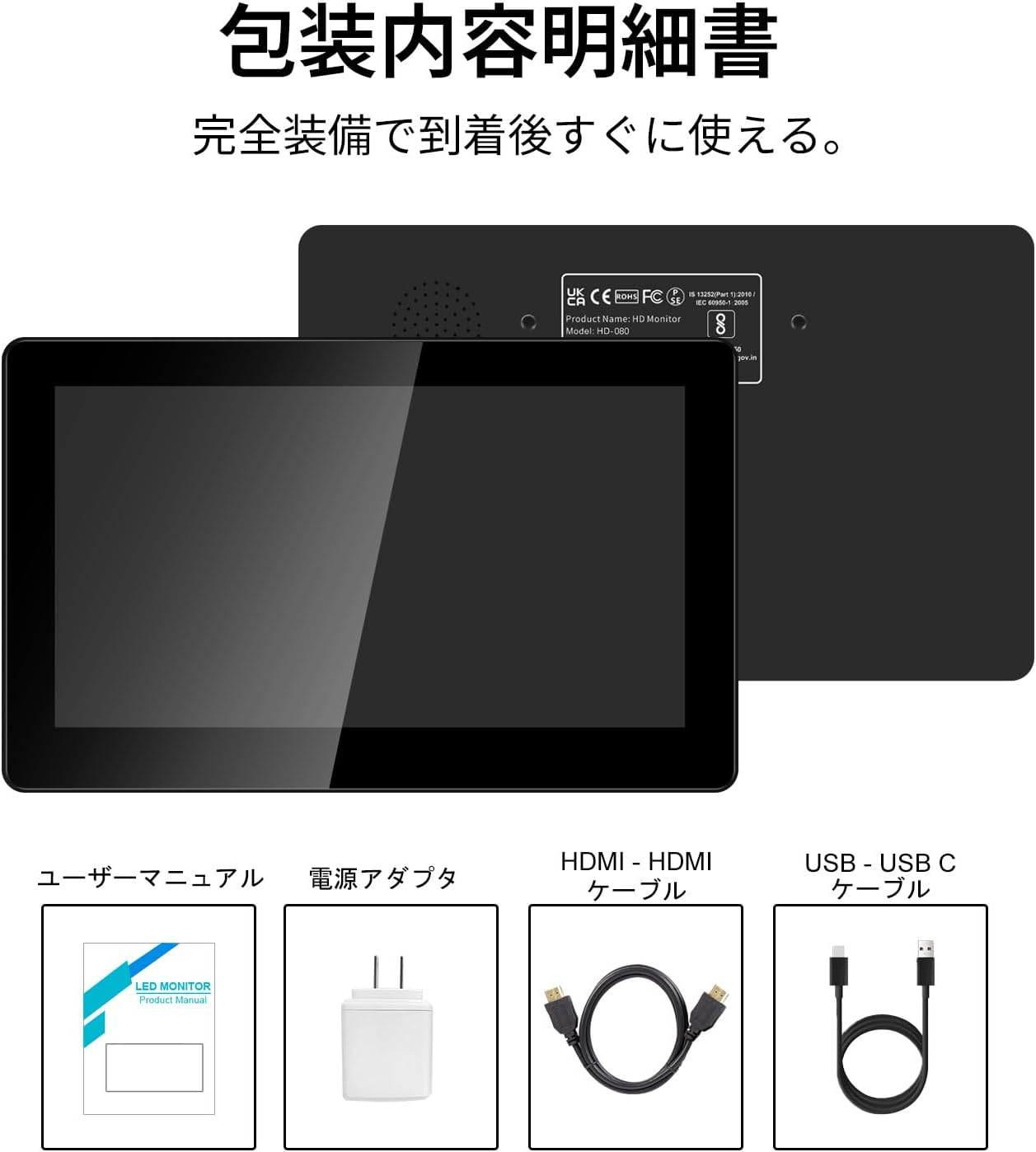
Figura 2.1: Contenuto della confezione
- Pisichen 8-inch Touch Panel Mobile HD Mini Monitor
- Manuale d'uso
- Adattatore di alimentazione
- Cavo da HDMI a HDMI
- USB-A to USB-C Cable (for power and touch functionality)
3. Istruzioni per l'installazione
Follow these steps to set up your Pisichen mini monitor:
3.1 Collegamento del monitor
- Collegamento elettrico: Connect the provided power adapter to the monitor's power port and plug it into a power outlet. Alternatively, use the USB-C port for power by connecting it to a compatible USB power source.
- Ingresso video:
- For HDMI devices (PC, laptop, game console): Use the HDMI to HDMI cable to connect your device's HDMI output to one of the monitor's HDMI ports (HDMI 1 or HDMI 2).
- For USB-C devices (with DisplayPort Alternate Mode support): Connect a USB-C to USB-C cable (not included) from your device to the monitor's USB-C port. This single cable can provide both video and power/touch.
- Touch Functionality (for HDMI connections): If using an HDMI connection and requiring touch functionality, connect the provided USB-A to USB-C cable from your source device's USB-A port to the monitor's USB-C port. This enables touch input.
- Uscita audio: If you prefer external audio, connect headphones or external speakers to the 3.5mm audio jack on the monitor.

Figure 3.1: Monitor Ports and Connections
3.2 Accensione iniziale
Once connected, press the ON/OFF button on the side of the monitor to power it on. The monitor should automatically detect the input signal. If not, use the menu buttons to select the correct input source.
4. Istruzioni per l'uso
4.1 Controlli di base
Il monitor è dotato di diversi pulsanti laterali per il controllo:
- Pulsante ON/OFF: Accende o spegne il monitor.
- Volume Down / Brightness Up: Adjusts volume or increases brightness.
- Volume Up / Brightness Down: Adjusts volume or decreases brightness.
- Signal Switch / Return: Switches between input signals or acts as a 'back' button in menus.
- Menu / OK: Opens the OSD (On-Screen Display) menu or confirms a selection.
4.2 Touch Panel Operation
The 5-point capacitive touch panel allows for intuitive interaction:
- Rubinetto: Seleziona elementi o attiva funzioni.
- Scorri: Scroll through content or navigate interfaces.
- Pizzica per ingrandire: Enlarge or reduce content (e.g., images, maps).
- Gesti multi-dita: Supported for specific operating systems and applications.

Figure 4.1: 5-Point Touch Panel Gestures
Note: Touch functionality may require specific driver installation on some operating systems or devices. Ensure your device supports touch input over the chosen connection method.
4.3 Modalità di visualizzazione
Il monitor supporta diverse modalità di visualizzazione quando è collegato a un computer:
- Modalità duplicata: Displays the same content on both your primary screen and the mini monitor.
- Modalità estesa: Estende il desktop su entrambi gli schermi, consentendo di avere più spazio di lavoro.
- Modalità secondo schermo: Uses only the mini monitor as the display.
- Modalità ritratto: The monitor can be rotated for vertical display, useful for specific applications.
These modes can typically be configured through your operating system's display settings.

Figura 4.2: Modalità di visualizzazione multiple
Modalità HDR 4.4
The monitor supports HDR (High Dynamic Range) mode, which can be enabled via the OSD menu or your connected device's display settings. HDR provides a wider range of colors and contrasts, resulting in a more vibrant and realistic image.
5. Manutenzione
To ensure the longevity and optimal performance of your Pisichen mini monitor, follow these maintenance guidelines:
- Pulizia dello schermo: Utilizzare un panno morbido e privo di lanugine leggermente dampened with water or a screen-cleaning solution. Avoid harsh chemicals, abrasive materials, or excessive moisture.
- Pulizia del Casing: Pulisci il monitor casing con un panno morbido e asciutto.
- Magazzinaggio: Quando non viene utilizzato per lunghi periodi, conservare il monitor in un luogo fresco e asciutto, lontano dalla luce solare diretta e da temperature estreme.
- Gestione: Evitare di far cadere il monitor o di sottoporlo a forti urti. Non posizionare oggetti pesanti sopra di esso.
- Ventilazione: Assicurarsi che le prese d'aria del monitor non siano ostruite per evitare il surriscaldamento.
6. Risoluzione Dei Problemi
Se riscontri problemi con il monitor, fai riferimento ai seguenti problemi comuni e alle relative soluzioni:
- Nessuna visualizzazione/schermo nero:
- Ensure the power adapter is securely connected and the monitor is powered on.
- Verify that the video cable (HDMI or USB-C) is properly connected to both the monitor and the source device.
- Check if the correct input source is selected using the monitor's menu buttons.
- Se possibile, effettuare una prova con un cavo video o un dispositivo sorgente diverso.
- Funzionalità No Touch:
- If using HDMI, ensure the USB-A to USB-C cable is connected from your source device to the monitor's USB-C port.
- For USB-C connections, ensure your device supports touch input over USB-C.
- Check your operating system's settings for touch screen calibration or driver status.
- Nessun audio:
- Increase the monitor's volume using the side buttons.
- Check your source device's audio output settings to ensure audio is being sent to the monitor.
- Se si utilizzano altoparlanti/cuffie esterni, assicurarsi che siano correttamente collegati al jack audio da 3.5 mm.
- Image Quality Issues (e.g., lines on screen, distorted colors):
- Controllare che il cavo video non sia danneggiato o che i collegamenti siano allentati.
- Regolare le impostazioni di visualizzazione del monitor (luminosità, contrasto, temperatura del colore) tramite il menu OSD.
- Ensure your source device's display resolution and refresh rate are compatible with the monitor's specifications.
- If persistent, try connecting to a different source device or using a different cable.
7. Specifiche
| Marca | Pesciolino |
| Numero di modello | HD-8TS-800P |
| Dimensioni dello schermo | 8 pollici |
| Risoluzione | 800 x 480 pixel |
| Proporzioni | 16:9 |
| Pannello touch | 5-point Capacitive Touch |
| Connettività | 2x HDMI, 1x USB-C (Power/Touch), 1x 3.5mm Audio Jack |
| Colore | Nero |
| Dimensioni del prodotto (L x A x P) | 206 x 130 x 20 mm (circa) |
| Peso del prodotto | 910 grammi |
| Caratteristiche | HDR Mode, Built-in Dual Stereo Speakers |
8. Garanzia e supporto
Pisichen is committed to providing reliable and high-quality products. While specific warranty details are not provided in this manual, please retain your proof of purchase for any warranty claims. For technical support, troubleshooting assistance, or inquiries regarding your product, please contact Pisichen customer service through the retailer where you purchased the product or visit the official Pisichen brand store online.
We strive for continuous innovation, product content updates, and ongoing improvement in product quality. Our goal is to be a company loved and trusted by our customers.