1. Introduzione
The Microsoft Surface Pro 10 is a versatile 2-in-1 device designed to adapt to various work styles, offering the functionality of both a tablet and a laptop. It features an Intel Core Ultra 5 processor, providing robust performance for daily tasks and advanced applications. This manual provides essential information to help you set up, operate, and maintain your device, ensuring optimal performance and longevity.
2. Cosa c'è nella scatola
Carefully unpack your Surface Pro 10 and ensure all items are present. The standard package includes:
- Microsoft Surface Pro 10 Device
- Unità di alimentazione
- Microsoft Surface Pro Keyboard
- Microsoft Surface Pro Slim Pen
- Guida rapida
- Documenti di sicurezza e garanzia
3. Dispositivo suview
Familiarize yourself with the physical components of your Surface Pro 10.

Figura 3.1: Davanti view of the Surface Pro 10 with the keyboard attached, showcasing il layout del display e della tastiera.

Figura 3.2: Lato view of the Surface Pro 10 in laptop configuration, highlighting the adjustable kickstand and connected keyboard.
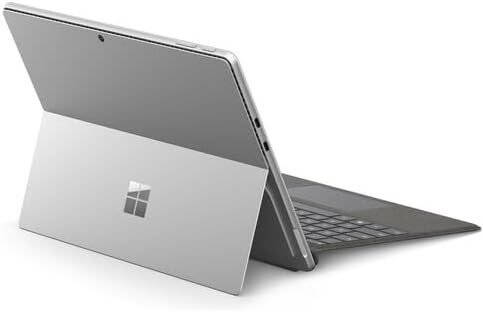
Figura 3.3: Posteriore view of the Surface Pro 10 with the kickstand deployed, revealing the device's sleek design and the iconic Microsoft logo.
Componenti chiave:
- 13-inch PixelSense Flow Display: High-resolution touchscreen for vibrant visuals and touch interaction.
- Fotocamera frontale: For video calls and facial recognition (Windows Hello).
- Fotocamera posteriore: Per catturare foto e video.
- Pulsante di accensione: Situato sul lato, serve per accendere/spegnere il dispositivo o metterlo in modalità sospensione.
- Pulsanti del volume: Situato lateralmente, per regolare i livelli audio.
- Porte USB-C: For charging, data transfer, and connecting external displays or accessories.
- Porta di connessione a Surface: Per la ricarica e il collegamento agli accessori Surface Dock.
- kickstand: Integrated into the back, allows for multiple viewangoli di inclinazione.
- Microfoni: For voice commands and audio recording.
4. Impostazione
4.1 Carica iniziale
- Connect the power supply to the Surface Connect port or one of the USB-C ports on your Surface Pro 10.
- Collegare l'alimentatore a una presa a muro.
- Lasciare caricare il dispositivo per almeno 30 minuti prima del primo utilizzo o finché l'indicatore della batteria non mostra una carica sufficiente.
4.2 Accensione/Spegnimento
- Per accendere: Press and hold the Power button until the Microsoft logo appears on the screen.
- Per spegnere: From the Windows desktop, select Inizio > Energia > Fermare. Alternatively, press and hold the Power button for a few seconds, then slide down to shut down.
- Per dormire: Briefly press the Power button. Press it again to wake the device.
4.3 Installazione iniziale di Windows
Upon first power-on, you will be guided through the Windows 11 setup process. Follow the on-screen prompts to:
- Seleziona la tua lingua e la tua regione.
- Connettersi a una rete Wi-Fi.
- Accetta i termini della licenza.
- Accedi con il tuo account Microsoft o creane uno nuovo.
- Set up Windows Hello (facial recognition or fingerprint, if available).
- Configura le impostazioni sulla privacy.
4.4 Attaching the Surface Pro Keyboard
Align the magnetic connector on the keyboard with the corresponding port at the bottom edge of your Surface Pro 10. The keyboard will snap into place magnetically. You can adjust the keyboard to lie flat or tilt it slightly for a more ergonomic typing experience.
4.5 Pairing the Surface Pro Slim Pen
The Surface Pro Slim Pen typically pairs automatically when first used with your Surface Pro 10. If not, follow these steps:
- Vai a Inizio > Impostazioni > Bluetooth e dispositivi > Aggiungi dispositivo > Bluetooth.
- Press and hold the top button on your Slim Pen for 5-7 seconds until the LED light flashes white.
- Select your Surface Slim Pen from the list of available devices and follow any on-screen prompts.
5. Utilizzo di Surface Pro 10
5.1 Switching Between Tablet and Laptop Modes
- Modalità portatile: Attach the Surface Pro Keyboard and adjust the kickstand for a traditional laptop experience.
- Modalità Tablet: Detach the keyboard or fold it back completely. Windows will automatically switch to Tablet Mode, optimizing the interface for touch input.
5.2 Utilizzo del touchscreen
The PixelSense Flow Display supports multi-touch gestures:
- Rubinetto: Seleziona un elemento o apri un'app.
- Toccare e tenere premuto: Access context menus (right-click equivalent).
- Pizzica per ingrandire: Ingrandisci o rimpicciolisci le immagini e web pagine.
- Swipe from Edges: Access quick settings, notifications, or switch between apps.
5.3 Using the Surface Pro Slim Pen
The Slim Pen allows for precise input and creative tasks:
- Scrittura/Disegno: Use the pen directly on the screen in compatible apps like Microsoft Whiteboard or OneNote.
- Selezione: Tap with the pen to select items.
- Gomma per cancellare: Use the eraser button on the pen to erase digital ink.
- Pulsante in alto: Customizable for quick access to apps like OneNote or screenshots.
5.4 Navigazione di base di Windows 11
- Menu di avvio: Access apps, settings, and power options.
- Barra delle applicazioni: Pin frequently used apps and view applicazioni aperte.
- Centro operativo: Swipe in from the right edge (or click the icon) for quick settings and notifications.
- Widgets: Swipe in from the left edge (or click the icon) for personalized information.
6. Manutenzione
6.1 Pulizia del dispositivo
- Utilizzare un panno morbido e privo di lanugine leggermente dampPulire il display con acqua o con un detergente per schermi approvato.
- For the body of the device and keyboard, use a soft, dry cloth.
- Evitare prodotti chimici aggressivi, detergenti abrasivi o umidità eccessiva.
6.2 Cura della batteria
- Evitare di scaricare completamente la batteria frequentemente.
- Conservare il dispositivo in un luogo fresco e asciutto quando non viene utilizzato per lunghi periodi.
- Use only the official Microsoft power supply or certified compatible chargers.
6.3 Aggiornamenti software
Regularly check for and install Windows updates to ensure your device has the latest security patches, features, and performance improvements. Go to Inizio > Impostazioni > Aggiornamento di Windows.
7. Risoluzione Dei Problemi
7.1 Il dispositivo non si accende
- Ensure the device is charged. Connect the power supply and wait a few minutes before attempting to power on.
- Perform a force restart: Press and hold the Power button for 15-20 seconds, then release and press it again briefly to turn on.
7.2 Problemi dello schermo (nessuna visualizzazione, sfarfallio)
- Riavviare il dispositivo.
- Ensure display drivers are up to date via Windows Update.
- If connected to an external display, try disconnecting it.
7.3 Problemi di connettività Wi-Fi o Bluetooth
- Check if Wi-Fi or Bluetooth is enabled in Quick Settings or Windows Settings.
- Restart your Surface Pro 10 and your router/modem.
- Dimentica la rete/il dispositivo e prova a riconnetterti.
- Update network drivers via Windows Update.
7.4 Performance Issues (Slowdowns, Freezes)
- Chiudere le applicazioni non necessarie in esecuzione in background.
- Check for and install all available Windows updates.
- Eseguire una pulizia del disco e ottimizzare le unità.
- Assicuratevi di avere sufficiente spazio di archiviazione libero.
8. Specifiche
The following table outlines the key technical specifications for the Microsoft Surface Pro 10 (Intel Core Ultra 5, 16GB RAM, 256GB SSD) model:
| Caratteristica | Specificazione |
|---|---|
| Nome del modello | Surface Pro 10 (ZEA-00001) |
| Dimensioni di visualizzazione dello schermo in piedi | 13 pollici |
| Risoluzione dello schermo | 2880 x 1920 pixel |
| Risoluzione massima dello schermo | 2880x1920 |
| Processore | 1.4 GHz Intel Core Ultra 5 |
| Disco rigido | SSD da 256 GB |
| Dimensione della memoria RAM installata | 16 GB di RAM DDR5 |
| Sistema operativo | Windows 11 Pro |
| Chipset Brand | Intel |
| Descrizione della scheda grafica | Integrato |
| Tipo senza fili | 802.11ax |
| Colore | Platino |
| Dimensioni del prodotto | 11.3 x 8.2 x 0.4 pollici |
| Batterie | 1 batteria agli ioni di litio (inclusa) |
9. Garanzia e supporto
Your Microsoft Surface Pro 10 comes with a limited hardware warranty. For detailed warranty information, please refer to the documentation included with your device or visit the official Microsoft Support websito. Per assistenza tecnica, guide alla risoluzione dei problemi e download di driver, visitare support.microsoft.com/surface.


