1. Introduzione
Thank you for choosing the MEER YG391 1080P WiFi Projector. This manual provides essential information for setting up, operating, and maintaining your projector to ensure optimal performance and longevity. Please read these instructions carefully before use.
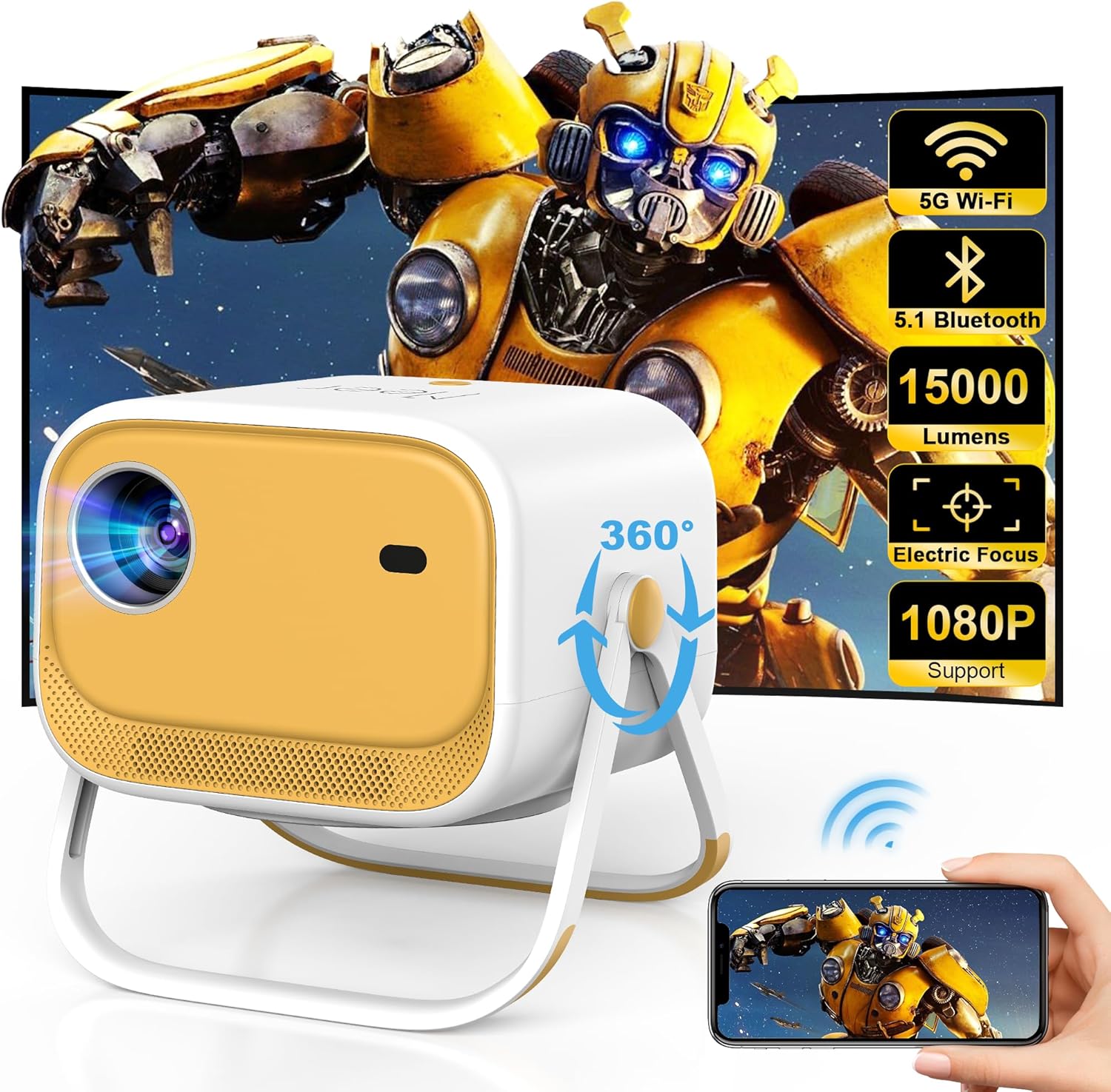
Image 1.1: The MEER YG391 Projector showcasing its compact design and key features like 5G Wi-Fi, Bluetooth 5.1, 15000 Lumens, Electric Focus, and 1080P support.
2. Prodotto finitoview
Caratteristiche principali:
- 360° Rotatable Stand with Handle: Integrated stand allows for flexible positioning and easy portability.
- 1080P Supported Display: Delivers crisp, sharp images with vibrant colors.
- Max 200-inch Screen: Espandi il tuo viewing esperienza fino a 200 pollici.
- Luminosità 15000 Lux: Provides clear visuals in various lighting conditions.
- Wi-Fi dual-band 5G/2.4G: Ensures stable and fast wireless connectivity for streaming.
- Bluetooth 5.1 bidirezionale: Connects to external speakers or functions as a standalone Bluetooth speaker.
- Messa a fuoco elettrica e correzione trapezoidale verticale automatica: Automatic image adjustments for optimal clarity and shape.
- Connettività multi-dispositivo: Includes HDMI, USB, and 3.5mm headphone jack for versatile connections.

Image 2.1: The projector's built-in adjustable stand and handle, demonstrating its 360° viewing angle capability and portability.
3. Istruzioni per l'installazione
3.1 Disimballaggio e accensione iniziale
- Carefully remove the projector, power cable, remote control, and HDMI cable from the packaging.
- Collegare il cavo di alimentazione al proiettore e a una presa di corrente.
- Press and hold the power button on the projector or use the remote control to turn it on.
- Inserire due batterie AAA (non incluse) nel telecomando.
3.2 Posizionamento e posizionamento
The MEER YG391 features a 360° rotatable stand, allowing for versatile placement. You can project onto a wall, screen, or even the ceiling.
- Tavolo/Pavimento: Use the integrated stand to position the projector on a flat surface. Adjust the angle as needed.
- Montaggio a soffitto: The projector includes a screw-in point on its base for compatibility with standard ceiling mounts (mount not included).

Image 3.1: The projector positioned to project an image onto the ceiling, demonstrating its flexible viewopzioni.
4. Istruzioni per l'uso
4.1 Connettività
4.1.1 Connessione WiFi (5G/2.4G)
- From the projector's home screen, navigate to the 'Settings' menu.
- Select 'WiFi' and choose your desired 5G or 2.4G network.
- Enter the WiFi password using the on-screen keyboard.

Image 4.1: Visual representation of the projector's dual-band 5G and 2.4G WiFi capabilities for stable and fast streaming.
4.1.2 Bluetooth bidirezionale 5.1
- Collegamento ad altoparlanti esterni: From the home screen, select 'Bluetooth' in settings. Pair with your Bluetooth speaker for enhanced audio.
- Using as a Standalone Speaker: The projector can also function as a Bluetooth speaker for your phone or other devices.
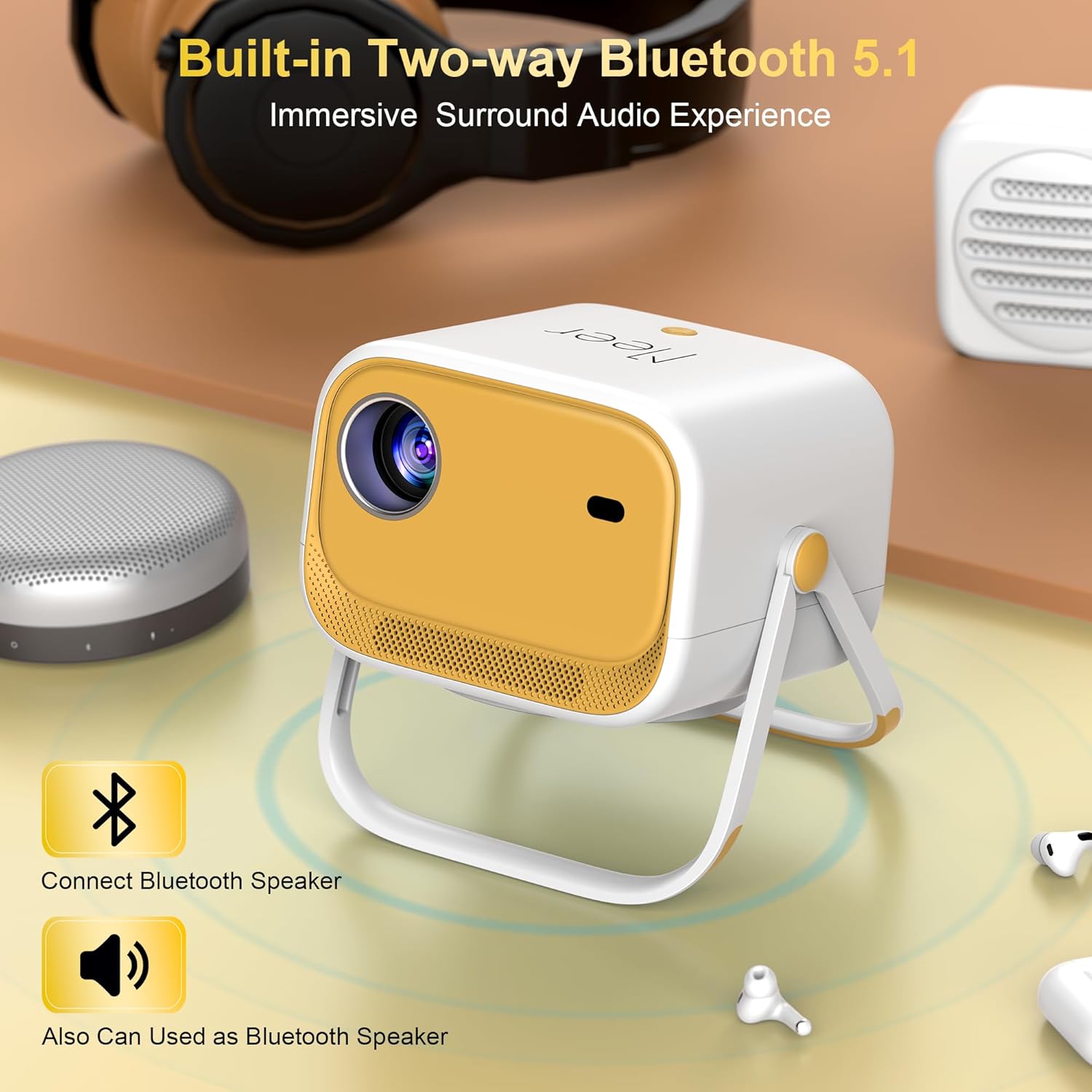
Image 4.2: The projector demonstrating its bidirectional Bluetooth 5.1 feature, allowing connection to external speakers or use as a standalone speaker.
4.1.3 Mirroring dello schermo (Airplay/Miracast)
Per duplicare lo schermo del tuo smartphone o tablet:
- Assicurati che il tuo dispositivo mobile e il proiettore siano connessi alla stessa rete Wi-Fi.
- On the projector's home screen, select 'Airplay' for iOS devices or 'Miracast' for Android devices.
- On your mobile device, open the 'Control Center' (iOS) or 'Screen Mirroring' settings (Android).
- Select the projector's name (e.g., 'NEWLINK-C0919') from the list of available devices.
- Lo schermo del tuo dispositivo verrà ora riprodotto sul proiettore.
Video 4.1: A short demonstration of connecting a smartphone to the MEER YG391 projector via screen mirroring (Airplay) to display content on a wall.
4.1.4 Connessioni cablate
- HDMI: Connect devices like Fire TV Stick, Chromecast, Roku, laptops, or gaming consoles (PS5) using an HDMI cable. Select 'HDMI' input on the projector.
- USB: Inserisci un'unità USB per riprodurre contenuti multimediali files directly. Select 'Media' input on the projector.
- Jack per cuffie da 3.5 mm: Collegare cuffie cablate o altoparlanti esterni.
4.2 Regolazioni dell'immagine
4.2.1 Messa a fuoco elettrica
Use the remote control to adjust the focus of the projected image. Press the dedicated focus buttons (often marked with 'F+' and 'F-') until the image is clear.

Image 4.3: A user operating the remote control to utilize the electric focus feature of the MEER YG391 projector, ensuring a sharp image.
4.2.2 Auto Vertical Keystone
The projector automatically corrects vertical image distortion, ensuring a rectangular picture even when the projector is not perfectly aligned with the screen.
4.2.3 Funzione Zoom
Adjust the screen size from 50% to 100% without moving the projector. This feature is accessible via the remote control or the projector's menu.

Image 4.4: The projector displaying its adjustable screen size feature, allowing users to zoom the image from 50% to 100%.
5. Manutenzione
- Filtro antipolvere: Regularly clean the dust filter for the fan to ensure proper ventilation and prevent overheating. Refer to the detailed manual for specific cleaning instructions.
- Pulizia delle lenti: Use a soft, lint-free cloth to gently clean the projector lens. Avoid abrasive materials or harsh chemicals.
- Lamp Vita: Il proiettore lamp has a lifespan of over 80,000 hours under normal usage conditions.
6. Risoluzione Dei Problemi
- Nessuna immagine/potenza: Ensure the power cable is securely connected and the power button is pressed. Check if the remote batteries need replacement.
- Immagine sfocata: Use the electric focus function via the remote control to sharpen the image. Ensure the projector is within the recommended projection distance.
- Distorsione dell'immagine: The auto vertical keystone correction should adjust the image automatically. If issues persist, check projector placement.
- Nessun suono: Check volume settings on both the projector and the connected device. Ensure Bluetooth speakers are properly paired or wired audio cables are securely connected.
- Problemi di connettività (WiFi/Bluetooth): Verify both the projector and your device are on the same network. Restart both devices.
- Lingua non corretta: If the menu is in an unfamiliar language, navigate to the settings icon (often a gear symbol) and look for language options.
- Surriscaldamento: Ensure the projector has adequate ventilation and is not placed in an enclosed space. Clean the dust filter if necessary.
7. Specifiche
| Caratteristica | Specificazione |
|---|---|
| Numero di modello | YG391 |
| Risoluzione dello schermo | 1280 x 720 (Supports 1080P) |
| Luminosità | 15000 lux |
| Tecnologia di connettività | 5G/2.4G WiFi, Bluetooth 5.1, HDMI, USB, 3.5mm Audio |
| Dimensioni della proiezione | 29.5 - 200 pollici |
| Distanza di proiezione | 0.95 - 6.35 metri |
| Proporzioni | 16:9, 4:3, Auto-fit |
| Caratteristiche speciali | Electric Focus, Auto Vertical Keystone, 360° Rotatable Stand, Built-in Speaker |
| Lamp Vita | Oltre 80,000 ore |
| Dimensioni del prodotto | 6.2 x 5 x 7.6 pollici |
| Peso dell'articolo | 3.65 libbre |
8. Garanzia e supporto
MEER is committed to providing excellent customer service. Your MEER YG391 Projector comes with:
- Sostituzione gratuita per 1 anno: For any manufacturing defects or malfunctions within the first year.
- Garanzia di riparazione di 3 anni: Comprehensive repair coverage for three years from the date of purchase.
- Supporto a vita: Ongoing technical assistance and support for the lifetime of your product.
For technical support, warranty claims, or free parts (such as a screen, ceiling mount, or remote), please contact us via email:
E-mail: meerservice@163.com

Image 8.1: Summary of MEER's customer support, including warranty details and contact information.


