1. Introduzione
Thank you for choosing the CLABEL 221B Inkless Label Printer. This portable thermal printer is designed for versatile labeling needs across various applications, including small businesses, retail, and office organization. It offers convenient connectivity via Bluetooth for mobile devices and USB for computers, supporting a wide range of label types without the need for ink. This manual provides essential information for setting up, operating, maintaining, and troubleshooting your device.

Image 1.1: The CLABEL 221B Inkless Label Printer, shown in grey, alongside examples of printed labels such as a name tag with a barcode, a product information label, and a 'Thank you' sticker. A roll of thermal labels is also visible.
2. Informazioni sulla sicurezza
Per garantire un funzionamento sicuro e corretto, leggere attentamente tutte le istruzioni di sicurezza prima di utilizzare il dispositivo.
- Non smontare, riparare o modificare autonomamente la stampante. Ciò potrebbe causare scosse elettriche, incendi o danni al dispositivo.
- Tenere la stampante lontana da acqua, umidità e luce solare diretta.
- Use only the recommended power adapter and USB cable.
- Assicurarsi che la stampante sia posizionata su una superficie stabile e piana durante il funzionamento.
- Evitare di toccare la testina di stampa subito dopo la stampa, poiché potrebbe essere calda.
3. Contenuto della confezione
Verificare che tutti gli articoli siano presenti nel pacco:
- CLABEL 221B Inkless Label Printer
- Cavo USB
- Roll of Labels (starter roll)
- Manuale d'uso
4. Prodotto finitoview
The CLABEL 221B is a compact and portable thermal label printer. It features a simple design with a power button, status indicator light, and a label output slot. The device uses direct thermal technology, eliminating the need for ink cartridges.

Image 4.1: This image highlights key features of the CLABEL 221B, including its lightweight and portable design (8.4 oz), fast charging, ABS material for long service life, high-quality print head for clearer prints, inkless thermal printing, and up to 4 hours of continuous printing.

Image 4.2: An illustration detailing the layered structure of high-quality thermal paper, emphasizing properties such as water resistance, oil proofing, high temperature resistance, tear resistance, and wear resistance. Layers include protective, thermosensitive, base, isolation, and adhesive layers.
5. Impostazione
5.1 Carica iniziale
Before first use, fully charge the printer using the provided USB cable and a compatible power adapter (not included). The status indicator light will show charging status.
5.2 Caricamento delle etichette
Per caricare correttamente le etichette termiche nella stampante, seguire questi passaggi:
- Premere entrambi i lati della stampante per aprire il coperchio.
- Impostare la protezione anti-inceppamento in posizione 'APERTA'.
- Inserire il rotolo di etichette, assicurandosi che sia fissato sul lato sinistro.
- Pull out some of the labels and close the cover.

Image 5.1: A visual guide demonstrating the four steps for installing labels: 1. Press sides to open cover. 2. Set jam protection to 'OPEN'. 3. Insert label roll, fix to the left. 4. Pull out labels and close cover.
5.3 App Installation and Connection (Phone)
To print from your smartphone or tablet:
- Download the 'Clabel trade' app from your device's app store (App Store for iOS, Google Play for Android).
- Attiva il Bluetooth sul tuo telefono.
- Open the 'Clabel trade' app and connect to the printer. The app will typically detect nearby CLABEL printers.

Image 5.2: A three-step guide showing how to connect the printer to a phone: 1. Download the 'Clabel trade' app. 2. Turn on Bluetooth on the phone. 3. Connect the printer within the 'Clabel trade' app.
5.4 Connessione PC
Per stampare dal computer:
- Accendere la stampante e collegarla al computer tramite il cavo USB in dotazione.
- Download the 'Clabel trade' software from the official CLABEL websito.
- Open the software, tap 'New' to create a label.
- Select the 'Clabel-CT221B' printer and click 'Print'.

Image 5.3: A four-step guide illustrating PC printing: 1. Turn on printer and connect via USB. 2. Download 'Clabel trade' software. 3. Create a new label. 4. Select printer and print.
6. Utilizzo della stampante
6.1 Stampa di base
Once connected via Bluetooth or USB, you can design and print labels using the 'Clabel trade' app or PC software. The app provides a user-friendly interface for creating various label types.

Image 6.1: The CLABEL 221B printer demonstrating its dual connectivity options, showing it connected to a laptop via a USB cable and wirelessly to a smartphone via Bluetooth. Both devices are displaying label design interfaces.
6.2 Funzionalità dell'app
The 'Clabel trade' app offers extensive customization options:
- Free APP & No Privacy Need: The app is free to use and does not require login or privacy permissions.
- Modelli multipli: Access a wide array of free icons, fonts, and frames.
- Tipi di contenuto: Print text, barcodes, QR codes, tables, images, and logos.
- Advanced Printing Options: Utilize batch printing, scan printing, and PDF printing options.
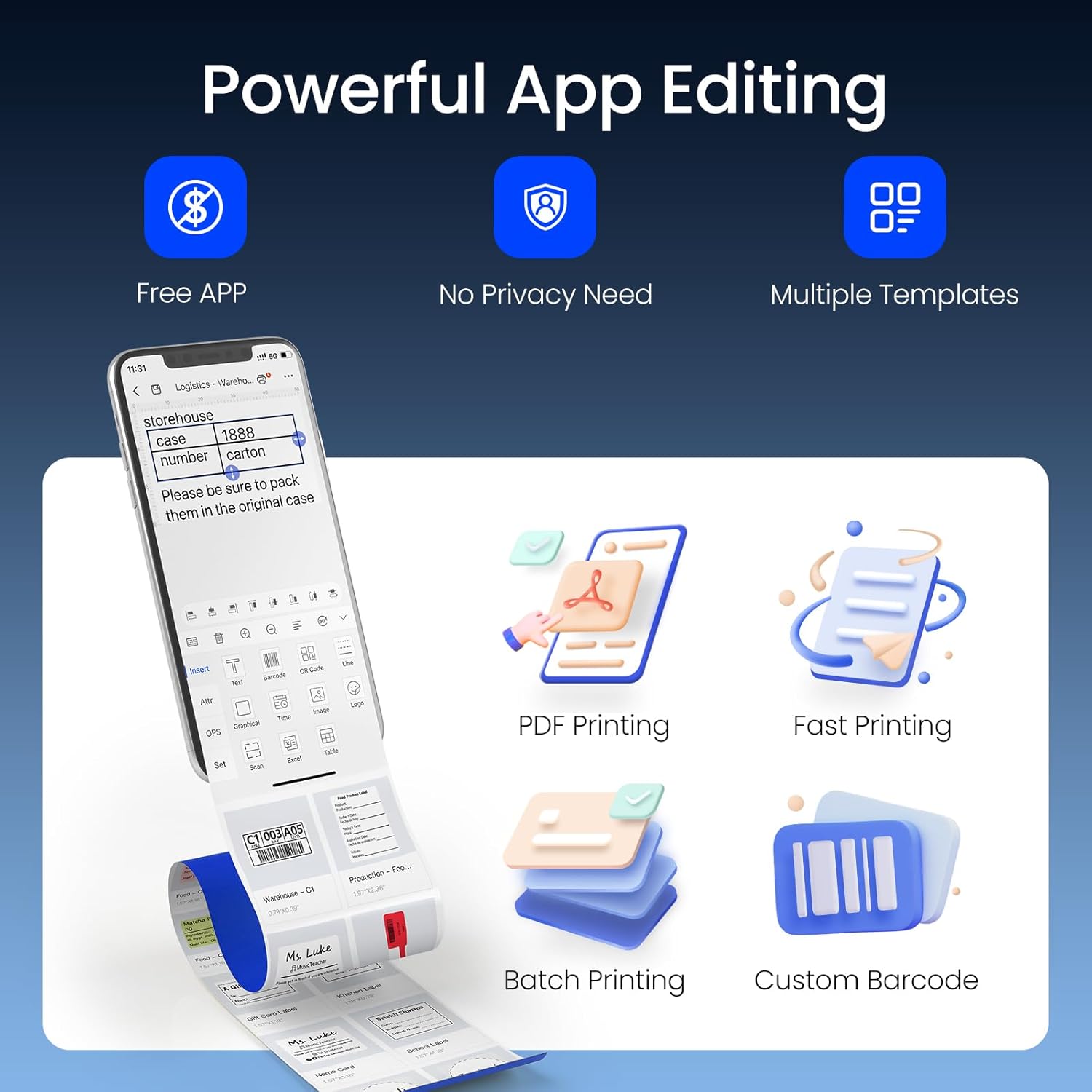
Image 6.2: A visual representation of the 'Clabel trade' app's capabilities, including PDF printing, fast printing, batch printing, and custom barcode generation. The app interface on a smartphone shows options for text, images, barcodes, and templates.
6.3 Label Compatibility
The CLABEL 221B supports thermal labels with a width of 0.78 inches (20mm) to 2 inches (50mm) and a maximum length of 3.93 inches (100mm). It is compatible with third-party thermal paper, offering flexibility and cost savings.

Image 6.3: The CLABEL 221B printer with its cover open, illustrating how different label roll sizes (25x78mm, 30x70mm, 40x30mm, 50x80mm) can be loaded, highlighting its support for 0.78"-2" width labels.
6.4 Applicazioni
The versatility of the CLABEL 221B allows for a wide range of applications:
- Piccole imprese: Labeling for clothing, crafts, retail, jewelry, etc.
- Etichettatura del prodotto: Address, barcode, QR code, price, date, ingredients.
- Organizzazione: File racks, seasoning jars, storage boxes.

Immagine 6.4: Es.amples of label applications: labels on jewelry, handmade dessert packaging, florist bouquets, envelopes, cheese products, and wine bottles, demonstrating the printer's versatility.

Immagine 6.5: Ulteriori spiegazioniamples of label applications: labels for baked goods, address labels on packages, labels for file rack organization, labels on seasoning jars, and classification labels for storage containers.
7. Manutenzione
Una manutenzione regolare garantisce prestazioni ottimali e prolunga la durata della stampante.
- Pulizia della testina di stampa: If print quality degrades, gently wipe the thermal print head with an alcohol swab. Ensure the printer is off and cooled down before cleaning.
- Pulizia dell'esterno: Utilizzare un panno morbido e asciutto per pulire l'esterno della stampante. Non utilizzare detergenti abrasivi o solventi.
- Magazzinaggio: Conservare la stampante in un luogo fresco e asciutto, lontano dalla luce solare diretta e da temperature estreme.
8. Risoluzione Dei Problemi
Se riscontri problemi con la stampante CLABEL 221B, fai riferimento ai seguenti problemi comuni e alle relative soluzioni:
| Problema | Possibile causa | Soluzione |
|---|---|---|
| La stampante non si accende | Batteria scarica; cavo di alimentazione non collegato | Charge the printer; Ensure power cable is securely connected. |
| Impossibile connettersi tramite Bluetooth | Bluetooth off on phone; Printer not discoverable; App issue | Ensure phone Bluetooth is on; Restart printer and app; Re-pair device in app settings. |
| Scarsa qualità di stampa (sbiadita/striata) | Print head dirty; Incorrect label type; Low battery | Clean the print head; Use high-quality thermal labels; Charge the printer. |
| Labels not feeding correctly/jamming | Labels incorrectly loaded; Label roll too wide/narrow | Re-load labels according to instructions (Image 5.1); Ensure label width is within 0.78"-2". |
| Stampante non riconosciuta dal PC | USB cable issue; Driver not installed; Printer off | Try a different USB port/cable; Install 'Clabel trade' software/drivers; Ensure printer is on. |
9. Specifiche
| Caratteristica | Dettaglio |
|---|---|
| Nome del modello | CT221B-Gray |
| Dimensioni del prodotto | 2.4"P x 3.4"L x 4.8"A |
| Peso dell'articolo | 8.4 once |
| Tecnologia di stampa | Termico |
| Tipo di inchiostro della stampante | Senza inchiostro |
| Tecnologia di connettività | Bluetooth, USB |
| Dispositivi compatibili | Android, iOS, Windows, MAC |
| Dimensione massima del supporto | 2" x 3.93" (50 mm x 100 mm) |
| Larghezza etichetta supportata | 0.78" - 2" (20 mm - 50 mm) |
| Risoluzione massima di stampa in bianco e nero | 203 DPI |
| Velocità di stampa massima in bianco e nero | 35 ppm |
| Metodo di controllo | Applicazione |
| Caratteristica speciale | Leggero, portatile |
10. Garanzia e supporto
The CLABEL 221B Inkless Label Printer comes with a Limited Warranty. For specific warranty terms and conditions, please refer to the documentation included with your purchase or visit the official CLABEL websito.
For technical support, troubleshooting assistance, or inquiries regarding your product, please contact CLABEL customer service through their official channels. Details can typically be found on the CLABEL websito o all'interno della confezione del prodotto.


