1. Introduzione
Thank you for choosing the Darmoshark N3PRO 8K Wireless Gaming Mouse. This manual provides detailed instructions for setting up, operating, and maintaining your new gaming mouse. Please read this manual thoroughly before use to ensure optimal performance and longevity of the product.
2. Contenuto della confezione
- Darmoshark N3PRO Wireless Gaming Mouse
- Cavo di ricarica da USB-C a USB-A
- Ricevitore USB 2.4G
- Manuale d'uso

Image: The Darmoshark N3PRO wireless gaming mouse shown with its accompanying 2.4G USB receiver.
3. Prodotto finitoview
The Darmoshark N3PRO features a lightweight, ergonomic design with multiple connectivity options and programmable buttons.
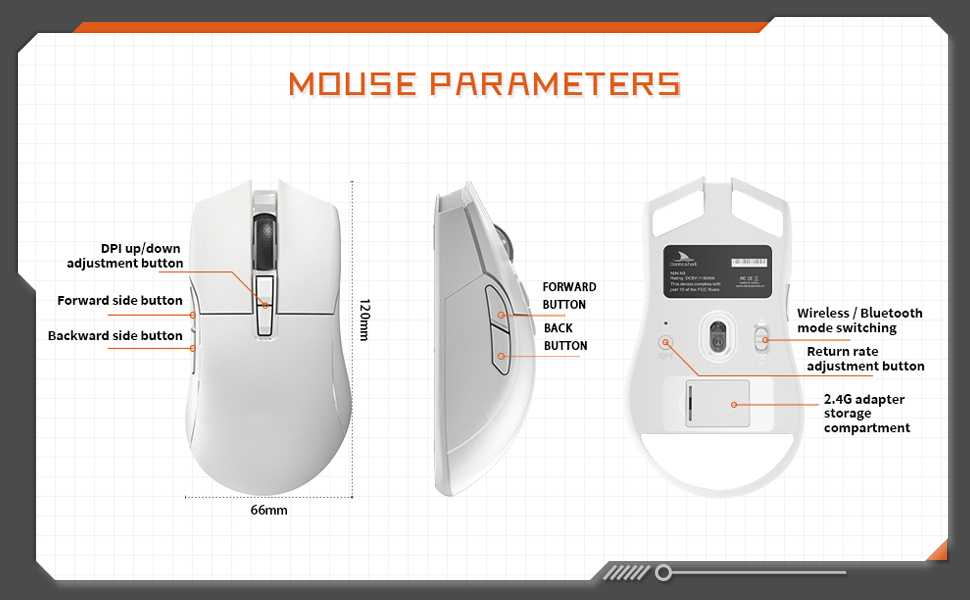
Image: A diagram illustrating the Darmoshark N3PRO mouse from top, side, and bottom views, with labels for buttons and dimensions. Key labels include DPI up/down adjustment button, forward side button, backward side button, forward button, back button, wireless/Bluetooth mode switching, return rate adjustment button, and 2.4G adapter storage compartment.
Funzioni dei pulsanti:
- Pulsante sinistro del mouse: Funzione standard del tasto sinistro del mouse.
- Pulsante destro del mouse: Funzione standard del tasto destro del mouse.
- Rotella di scorrimento: Scroll up/down, and middle click function.
- DPI Up/Down Adjustment Buttons: Adjust the mouse's sensitivity (DPI) levels.
- Forward Side Button: Default function is 'Forward' in web browser/applicazioni.
- Backward Side Button: Default function is 'Back' in web browser/applicazioni.
- Mode Switch (Bottom): Toggles between 2.4G wireless and Bluetooth modes.
- Return Rate Adjustment Button (Bottom): Adjusts the polling rate.
4. Impostazione
The Darmoshark N3PRO supports three connection modes: Wired (USB-C), 2.4G Wireless, and Bluetooth 5.0. You can connect up to 3 devices simultaneously.

Image: The Darmoshark N3PRO mouse connected to a laptop via a 2.4G receiver, to a device via USB-C cable, and wirelessly to a smartphone via Bluetooth 5.0, illustrating its tri-mode connectivity.
4.1 Connessione cablata
- Collegare l'estremità USB-C del cavo di ricarica al mouse.
- Collegare l'estremità USB-A del cavo di ricarica a una porta USB disponibile sul computer.
- Il mouse verrà rilevato automaticamente e sarà pronto all'uso. Questa modalità consente anche di ricaricare il mouse.
4.2 Connessione wireless 2.4G
- Individuare il ricevitore USB 2.4G, solitamente conservato in uno scomparto nella parte inferiore del mouse.
- Collegare il ricevitore USB 2.4G a una porta USB disponibile sul computer.
- Slide the mode switch on the bottom of the mouse to the 2.4G position.
- Il mouse si connetterà automaticamente.
4.3 Connessione Bluetooth
- Spostare l'interruttore della modalità nella parte inferiore del mouse sulla posizione Bluetooth.
- Sul tuo computer o dispositivo, apri le impostazioni Bluetooth.
- Cercare new devices and select "Darmoshark N3PRO" from the list.
- Seguire le istruzioni visualizzate sullo schermo per completare il processo di associazione.
5. Istruzioni per l'uso
5.1 Regolazione DPI
The mouse features a PAW3395 optical sensor with adjustable DPI settings up to 26000 DPI. Use the dedicated DPI adjustment buttons on the top of the mouse to cycle through preset DPI levels. The current DPI level may be indicated by an LED color change or through the software.
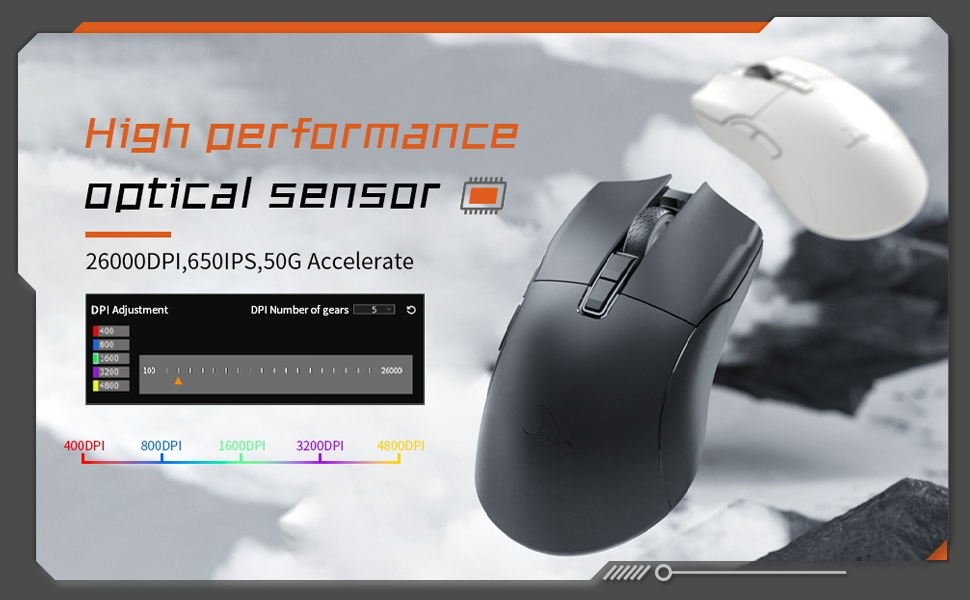
Image: The Darmoshark N3PRO mouse with a blue glowing light, highlighting its adjustable DPI (up to 26000) and IPS (650) settings for precision and speed.
5.2 Regolazione della frequenza di polling
The polling rate can be adjusted using the button on the underside of the mouse or through the customization software. The N3PRO supports polling rates up to 8000Hz for ultra-responsive tracking.
5.3 Programmable Buttons and Software Customization
The Darmoshark N3PRO features 7 programmable buttons. To customize button functions, DPI settings, macros, and other advanced features, download the official Darmoshark software from the manufacturer's website. The software allows for personalized configurations to suit your preferences.
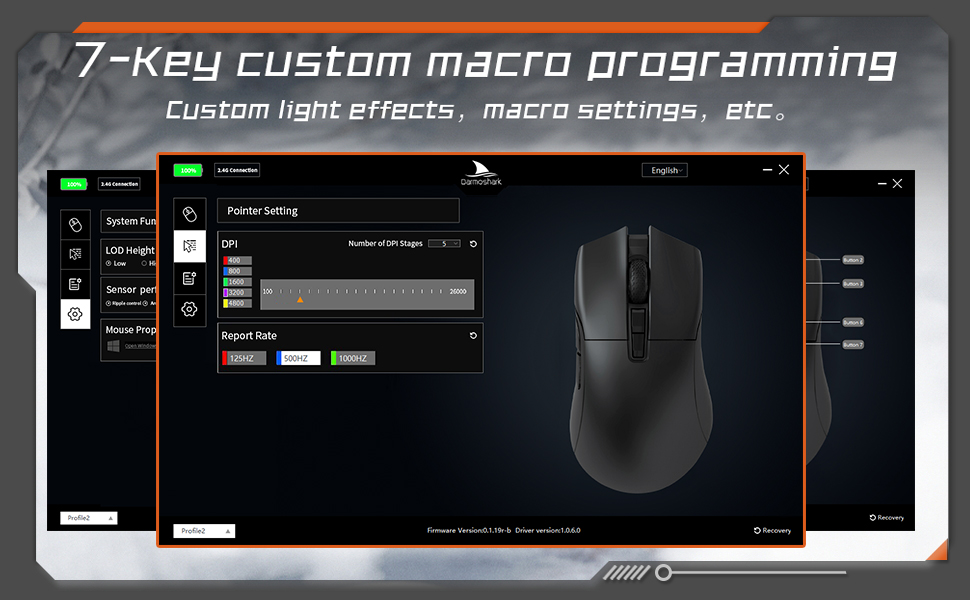
Image: A screenshot of the Darmoshark N3PRO customization software interface, showing options for DPI settings, polling rate, and button assignments, with a visual representation of the mouse.
5.4 Ricarica del mouse
Connect the mouse to your computer using the provided USB-C cable. The mouse will charge automatically. A full charge provides approximately 80 hours of battery life (depending on usage and polling rate). The mouse is equipped with a 300mAh Lithium Ion battery.

Image: A close-up of the Darmoshark N3PRO mouse, indicating its 300mAh battery capacity.
6. Manutenzione
- Pulizia: Utilizzare un panno morbido e asciutto per pulire il mouse. Per lo sporco ostinato, un panno leggermenteamp è possibile utilizzare un panno, assicurandosi che nessun liquido entri nel mouse.
- Sensore: Keep the optical sensor on the underside of the mouse clean and free from dust or debris for accurate tracking.
- Magazzinaggio: Se non lo si utilizza per lunghi periodi, conservare il mouse in un luogo fresco e asciutto.
- Cura della batteria: Avoid fully discharging the battery frequently. Charge the mouse when the battery indicator is low.
7. Risoluzione Dei Problemi
| Problema | Soluzione |
|---|---|
| Il mouse non risponde (cablato) |
|
| Il mouse non risponde (wireless 2.4G) |
|
| Il mouse non risponde (Bluetooth) |
|
| Inaccurate tracking or cursor lag |
|
| I pulsanti non funzionano come previsto |
|
8. Specifiche
- Modello: N3 PRO
- Connettività: Tri-Mode (2.4G Wireless, Bluetooth 5.0, USB-C Wired)
- Sensore: Sensore ottico PAW3395
- DPI: Fino a 26000 DPI
- Velocità di tracciamento: 650 IPS
- Accelerazione: 50G
- Tasso di sondaggio: Up to 8000Hz (wired/2.4G, depending on settings)
- Pulsanti: 7 pulsanti programmabili
- Peso: Circa 64 g
- Dimensioni: 120 mm x 66 mm x 40 mm (lunghezza x larghezza x altezza)
- Batteria: 300mAh agli ioni di litio (ricaricabile)
- Durata della pressione dei tasti: 60 million clicks (approx.)
- Compatibilità: PC, Laptop, Windows, Linux (Bluetooth for various devices)
9. Garanzia e supporto
Darmoshark products are designed for reliability and performance. For warranty information, technical support, or to download the latest software and drivers, please visit the official Darmoshark websito o contattare il servizio clienti. Conservare la prova d'acquisto per eventuali reclami in garanzia.
Nota: le specifiche e le caratteristiche del prodotto sono soggette a modifiche senza preavviso.


