1. Introduzione
Thank you for choosing the IOOIOO A80 Portable Printer. This compact, inkless thermal printer is designed for convenience and efficiency, allowing you to print documents, photos, and more from various devices, including smartphones, tablets, and computers. Its portable design makes it ideal for home, office, or travel use.


2. Cosa c'è nella scatola
Si prega di controllare il contenuto della confezione per assicurarsi che siano presenti tutti gli articoli:
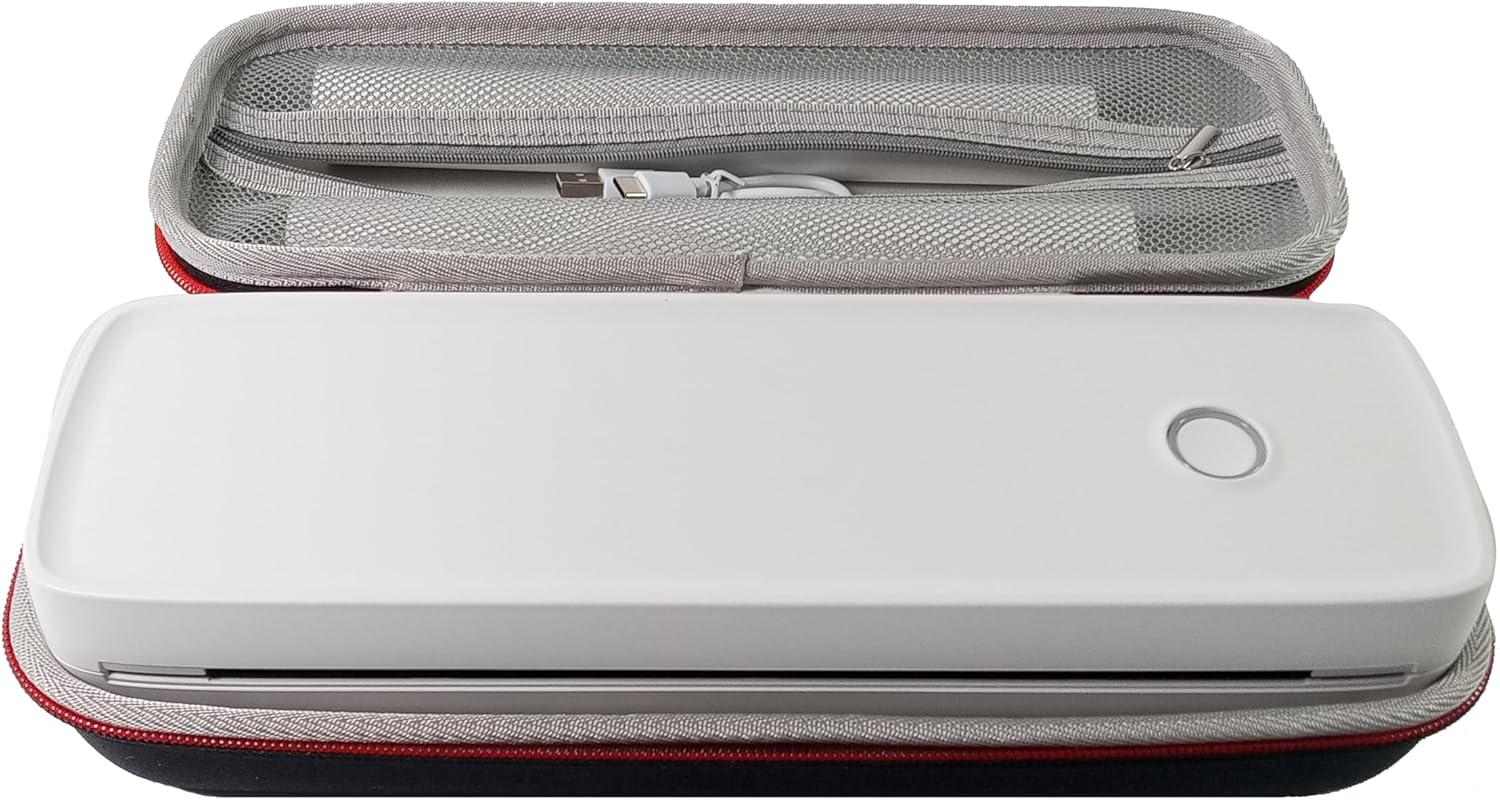
- Stampante portatile IOOIOO A80
- Custodia per il trasporto
- 3 Rolls of A4 or Letter Thermal Paper
- 3 Pages of Continuous Folded Thermal Paper
- Cavo USB
- QR Code for Manual Download (Digital Manual)

3. Impostazione
3.1 Carica iniziale
Before first use, fully charge the printer using the provided USB cable. The LED indicator will show charging status.
3.2 Software/Driver Installation
To use the printer with your devices, appropriate software or drivers are required:
- For Mobile Phones (iPhone/Android): Download the "SharpFox" application from your device's app store.
- For Desktop PCs (Windows/Mac/Linux/Raspberry Pi): Download the necessary drivers from the official IOOIOO website. A QR code is provided in the box for quick access to the manual and driver download links.
3.3 Caricamento della carta termica
The IOOIOO A80 uses inkless thermal paper. To load paper:
- Aprire il coperchio del vano carta.
- Inserire il rotolo di carta termica o la risma piegata, assicurandosi che il lato stampabile sia rivolto verso la testina di stampa.
- Chiudere bene il coperchio.

4. Istruzioni per l'uso
4.1 Accensione/Spegnimento
- Per accendere: Premere e tenere premuto il pulsante di accensione finché l'indicatore LED non si illumina.
- Per spegnere: Tieni premuto il pulsante di accensione finché l'indicatore LED non si spegne.
4.2 Connettività
The IOOIOO A80 offers both Bluetooth wireless and USB wired connectivity options.
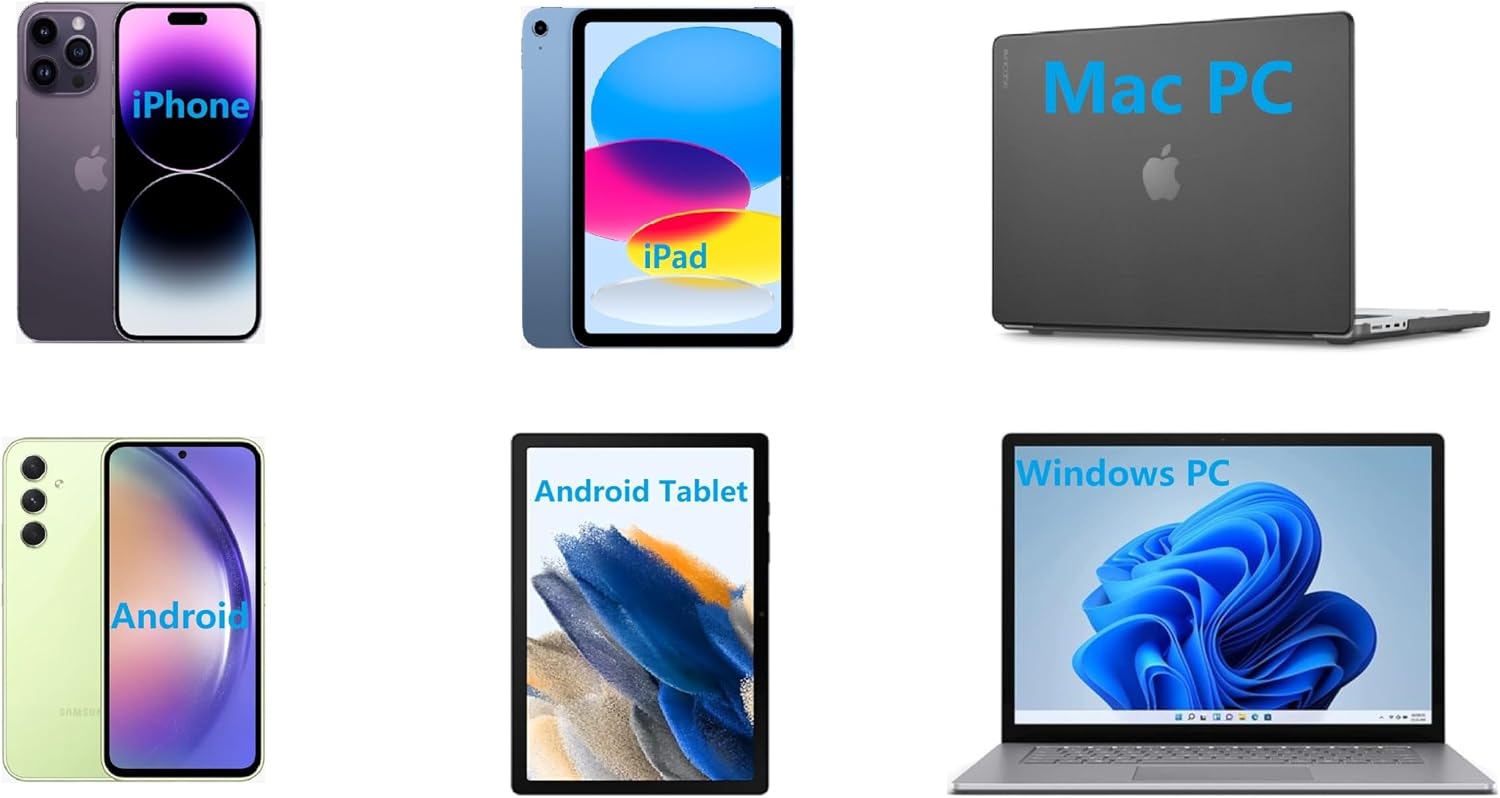
4.2.1 Bluetooth Connection (for Phones and Windows PC)
- Ensure the printer is powered on and the LED is green.
- On your phone, open the "SharpFox" app. On your Windows PC, ensure Bluetooth is enabled.
- Within the app or PC Bluetooth settings, search for and select the "IOOIOO A80" printer to pair.
- Seguire le istruzioni visualizzate sullo schermo per completare il processo di associazione.
4.2.2 USB Connection (for Windows PC, Mac PC, Linux, Raspberry Pi)
- Ensure the printer is powered on and the LED is green. If the LED is not green, the printer will not print via USB.
- Collega la stampante al computer utilizzando il cavo USB in dotazione.
- Install the appropriate drivers as described in Section 3.2.
- Once drivers are installed, the printer should be recognized by your computer.
4.3 Stampa
After connecting your printer, you can initiate printing from your chosen application (e.g., SharpFox app, word processor, PDF view(ehm).
- Seleziona l'opzione di stampa all'interno della tua applicazione.
- Choose "IOOIOO A80" from the list of available printers.
- Adjust print settings (e.g., paper size: US letter/legal/A4/A5, 2", 3", 4" sticky/non-sticky, flat folded/rolled thermal paper, tattoo stencil transfer paper) as needed.
- Click "Print" to begin printing.
Note on Tattoo Stencil Printing: This printer is suitable for normal tattoo lines only. It is not recommended for sharp lines, large blocks, gradients, or color patterns.
5. Manutenzione
Proper maintenance ensures the longevity and optimal performance of your IOOIOO A80 printer.
5.1 Pulizia della testina di stampa
Regularly clean the print head to maintain print quality.
- Spegnere la stampante e scollegarla dall'alimentazione.
- Aprire lo scomparto della carta.
- Pulire delicatamente la testina di stampa con un panno privo di lanugine leggermenteamparricchito con alcol isopropilico.
- Lasciare asciugare completamente la testina di stampa prima di chiudere il coperchio e accendere la stampante.
5.2 Conservazione della carta
Store thermal paper in a cool, dry place away from direct sunlight and heat to preserve its quality and ensure prints last for the expected duration (2 to 15 years depending on paper type).
6. Risoluzione Dei Problemi
If you encounter issues with your IOOIOO A80 printer, please refer to the official Troubleshooting Guide for detailed solutions.
Scarica la guida alla risoluzione dei problemi (PDF)
Common issues and quick checks:
- La stampante non si accende: Assicurarsi che la batteria sia carica.
- Nessuna stampa: Check paper loading, ensure the LED is green (for USB connection), and verify connectivity (Bluetooth/USB).
- Scarsa qualità di stampa: Clean the print head, ensure you are using compatible thermal paper.
- Problemi di connessione: Restart both the printer and the device you are trying to connect from. Re-pair Bluetooth or re-plug the USB cable.
7. Specifiche
| Caratteristica | Dettaglio |
|---|---|
| Marca | IOOIOO |
| Nome del modello | A80 |
| Dimensioni del prodotto | 3.6"P x 11.4"L x 2.4"A |
| Peso dell'articolo | 1.8 libbre |
| Tecnologia di stampa | Termico |
| Risoluzione massima di stampa in bianco e nero | 200 dpi |
| Velocità di stampa massima (monocromatica) | 4 ppm (approx. 10mm/s) |
| Dimensione massima del supporto | A4 (supports US Letter/Legal/A4/A5) |
| Tecnologia di connettività | Bluetooth for Phone, USB for PC |
| Colore dell'inchiostro | Black (Monochrome) |
| Vita della testina di stampa | Approx. 170,000 letter pages |
| Batteria | 1 batteria agli ioni di litio (inclusa) |
8. Garanzia e supporto
For any questions, technical assistance, or warranty inquiries, please contact IOOIOO customer service.
- Supporto telefonico degli Stati Uniti: Available for direct assistance.
- Supporto WhatsApp: Available for convenient messaging support.
Please refer to your product packaging or the official IOOIOO websito per le informazioni di contatto più aggiornate.


