1. Introduzione
This manual provides detailed instructions for the setup, operation, maintenance, and troubleshooting of your NIIMBOT B1 Portable Thermal Label Printer. Please read this manual thoroughly before using the device to ensure proper function and longevity.

Image 1.1: The NIIMBOT B1 Label Maker shown with examples of printed labels for various applications.
2. Prodotto finitoview
2.1 Contenuto della confezione
Verifica che tutti gli articoli siano presenti nel tuo pacco:
- NIIMBOT B1 Label Maker x1
- Cavo di tipo C x1
- Manuale utente x1
- Roll label tape (50x30mm) x1 (pre-installed in some models)

Image 2.1: The NIIMBOT B1 Label Maker and its included accessories.
2.2 Caratteristiche principali
- 2-Inch Label Printing: Supports label widths from 20mm to 50mm (1-2 inches).
- Stampa termica: No ink or toner required, reducing operational costs.
- Identificazione automatica delle etichette: For faster and easier printing.
- Connettività: Compatible with iOS & Android smartphones via Bluetooth, and PC via USB.
- NIIMBOT App: Offers 10+ fonts/languages, 100+ borders, 1500+ symbols, barcodes, QR codes, icons, time stamps, pictures, photos, and OCR print functions.
- Design portatile: Compatto e leggero, facile da trasportare e utilizzare.
- Spegnimento automatico: Customizable auto-off settings (15min, 30min, 60min, never) to conserve battery.
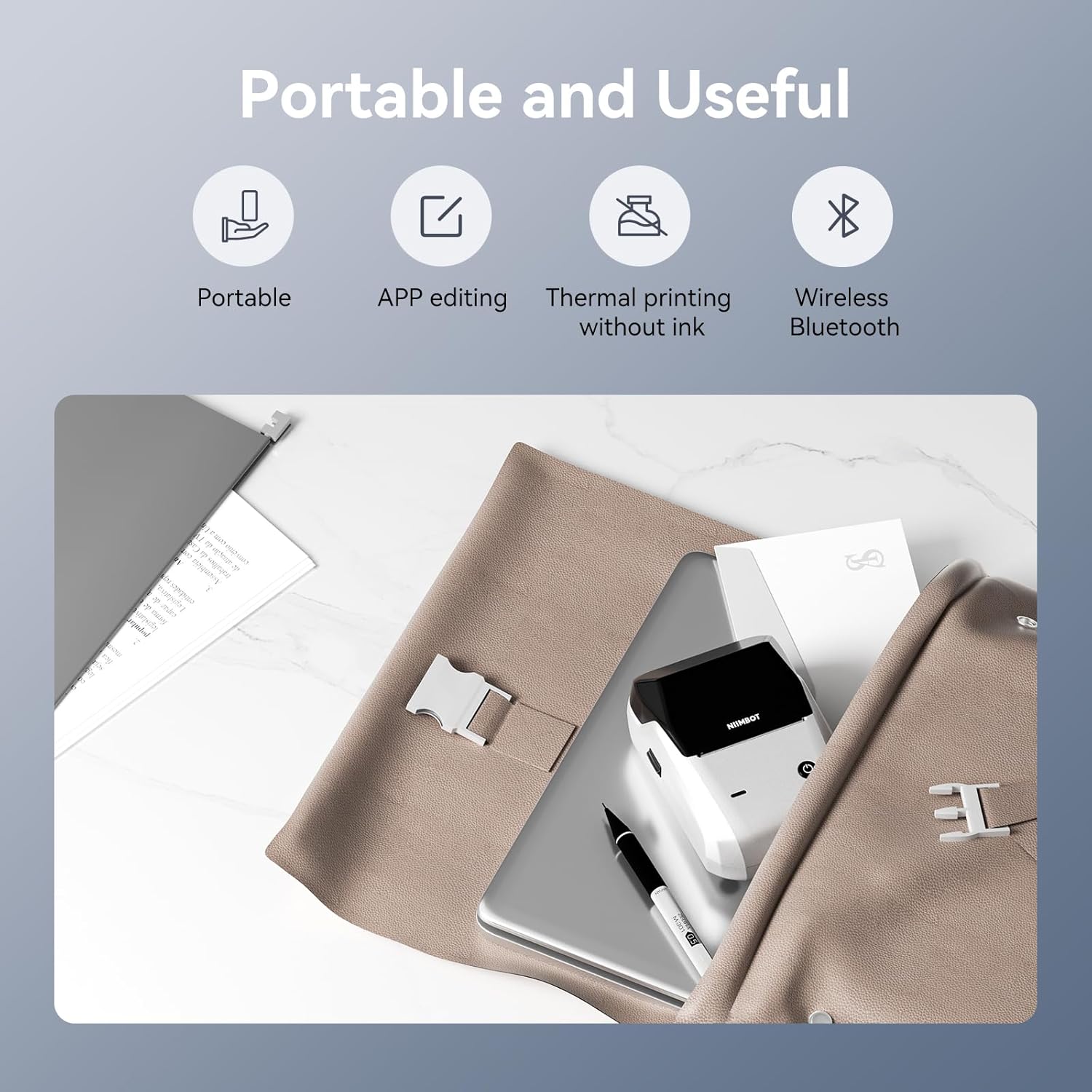
Immagine 2.2: Passoview of the NIIMBOT B1's portable and useful features.
3. Impostazione
3.1 Caricamento del nastro per etichette
- Rotate the side latch to open the tape slot.
- Load the label tape into the slot, ensuring the label side faces upwards.
- Adjust the guide plate to fit the label roll snugly.
- Close the tape slot, leaving a small portion of the label tape extending for smooth feeding.

Image 3.1: Proper installation of label tape in the NIIMBOT B1.
3.2 Installazione e connessione dell'app
The NIIMBOT B1 requires the NIIMBOT app for smartphone operation.
- Download the NIIMBOT app from the App Store (iOS) or Google Play Store (Android). Cercare "NIIMBOT".
- Assicurati che il Bluetooth del tuo telefono sia abilitato.
- Open the NIIMBOT app and click "Connect" to search for nearby devices.
- Select your B1 printer from the list (e.g., B1-XXXXXX) to pair. If prompted for a pairing code, enter 0000 or 1234.
- Once connected, the app will automatically identify the label tape in the printer.

Image 3.2: NIIMBOT App download and connection process.
3.3 Connessione PC (Windows)
For PC connectivity, you will need to download the driver from the official NIIMBOT websito.
- Visita il NIIMBOT ufficiale website and download the B1 printer driver for Windows 7/10.
- Install the driver on your PC.
- Connect the NIIMBOT B1 printer to your PC using the provided USB Type-C cable.
- Open the NIIMBOT desktop software to begin printing.

Image 3.3: Connecting the NIIMBOT B1 to a PC via USB.
3.4 Guida video di avvio rapido
Watch this video for a quick visual guide on setting up and using your B1 Label Maker.
Video 3.4: A quick start guide demonstrating the initial setup and basic operation of the NIIMBOT B1 Label Maker.
4. Istruzioni per l'uso
4.1 Creazione e modifica delle etichette
- In the NIIMBOT app, select a template or create a new label.
- Use the various editing tools to add text, images, icons, barcodes, QR codes, and other elements.
- Customize font styles, sizes, alignment, and other layout options.
- The app supports features like OCR (Optical Character Recognition) for converting images to text.

Image 4.1: The NIIMBOT App interface for creating and editing labels.
4.2 Stampa delle etichette
- After designing your label, click the "Print" button in the app.
- Adjust the number of copies and print density as needed.
- Confirm the print settings and initiate printing.
- The printer will automatically feed and print the labels. Gently tear off the printed labels.

Image 4.2: Smartphone printing process with the NIIMBOT B1.
4.3 Significati degli indicatori luminosi
Understand the status of your printer through its indicator light:
- Blu lampeggiante: Aggiornamento del firmware in corso.
- Blu fisso: Printer is in standby mode.
- Verde lampeggiante: Printer is actively printing.
- Verde fisso: Bluetooth is successfully connected.
- Rosso lampeggiante: Printer is charging.
- Rosso fisso: Cover is open, out of paper, or low battery.

Image 4.3: Guide to the NIIMBOT B1 indicator light statuses.
4.4 Utilizzo esamples
The NIIMBOT B1 is versatile for various labeling needs:
- Uso domestico: Kitchen labels, gift labels, kids' item labels, trip item labels.
- Uso aziendale: Beauty & personal care, DIY item labels, mail labels, perfume labels, bakery food labels.

Immagine 4.4: Es.amples of NIIMBOT B1 usage for home organization.

Immagine 4.5: Es.amples of NIIMBOT B1 usage for small businesses.

Immagine 4.6: Es.amples of labels for bakery and food products.
Video 4.7: Demonstration of the NIIMBOT B1 Label Maker's ease of use for various labeling tasks.
Video 4.8: Mostraasing the multipurpose capabilities of the NIIMBOT B1 Label Maker for different applications.
5. Manutenzione
5.1 Pulizia della testina di stampa
La pulizia regolare della testina di stampa garantisce una qualità di stampa ottimale.
- Spegnere la stampante e scollegare il cavo di alimentazione.
- Aprire lo scomparto delle etichette.
- Pulire delicatamente la testina di stampa con un batuffolo di cotone leggermenteamparricchito con alcol isopropilico.
- Allow the print head to dry completely before closing the compartment and turning on the printer.
5.2 Cura della batteria
- Caricare regolarmente la stampante, anche se non la si usa frequentemente, per preservare la salute della batteria.
- Evitare di esporre la stampante a temperature estreme.
- Per la ricarica utilizzare esclusivamente il cavo Type-C in dotazione.
6. Risoluzione Dei Problemi
6.1 Problemi comuni e soluzioni
| Problema | Possibile causa | Soluzione |
|---|---|---|
| La stampante non si accende | Batteria scarica; il pulsante di accensione non è stato premuto abbastanza a lungo | Caricare la stampante; tenere premuto il pulsante di accensione per 3 secondi. |
| Impossibile connettersi tramite Bluetooth | Bluetooth off on phone; Printer not in pairing mode; App permissions | Ensure Bluetooth is on; Restart printer; Check app permissions for nearby devices. |
| Qualità di stampa scadente | Dirty print head; Incorrect print density; Low battery | Clean the print head (see 5.1); Adjust print density in the app; Charge the printer. |
| Le etichette non vengono alimentate correttamente | Incorrect label installation; Guide plate not adjusted | Reinstall label tape correctly (see 3.1); Adjust the guide plate to fit the label roll. |
| Stampante non riconosciuta dal PC | Driver not installed; Faulty USB cable | Install the correct PC driver (see 3.3); Try a different USB cable. |
7. Specifiche
| Caratteristica | Dettaglio |
|---|---|
| Nome del modello | B1 |
| Tecnologia di stampa | Termico |
| Connettività | Bluetooth, USB |
| Risoluzione di stampa massima | 203 dpi |
| Velocità di stampa massima (monocromatica) | 15 millimetri/secondo |
| Dimensione massima del supporto | 2 pollici (50 mm) |
| Dispositivi compatibili | Smartphone (Android & iOS), PC (Windows 7/10) |
| Peso dell'articolo | 1.1 libbre (499 grammi) |
| Dimensioni del prodotto | 5.5"P x 3.5"L x 2.5"A |
| Batteria | 1 Batteria richiesta (inclusa) |
| Usi specifici | Labeling for Small Business Product Price/Address, School and Office Files Classification, Home Supplies Organization, Personal Item Identification, Name Tags and Warehouse |
8. Garanzia e supporto
8.1 Informazioni sulla garanzia
The NIIMBOT B1 Label Printer comes with a 1-year warranty coverage. Please retain your proof of purchase for warranty claims.
8.2 Assistenza clienti
For further assistance, technical support, or warranty inquiries, please contact NIIMBOT customer service through their official websito o le informazioni di contatto fornite sulla confezione del prodotto.


