1. Introduzione
This manual provides essential instructions for the installation, setup, and operation of your TONGOU Wi-Fi Smart Switch 1P+N DIN Rail DIY with Power Monitoring. This device allows you to transform traditional household appliances into smart, connected devices, offering remote control, voice control, and energy consumption monitoring through the Smart Life or Tuya application.

Image 1.1: TONGOU Wi-Fi Smart Switch integrated into a smart home system, showing app control and Wi-Fi connectivity.
2. Informazioni sulla sicurezza
WARNING: Electrical installation should only be performed by qualified personnel. Incorrect installation can lead to electric shock, fire, or property damage.
- Prima di procedere all'installazione o alla manutenzione, scollegare sempre l'alimentazione dall'interruttore principale.
- Assicurarsi che il dispositivo sia installato in un ambiente asciutto, lontano da umidità e temperature estreme.
- Verificare che il volumetagI valori nominali di corrente e di corrente dell'interruttore corrispondono ai requisiti del tuo impianto elettrico.
- Do not exceed the maximum current rating of 6A for this model.
- Assicurarsi che tutti i collegamenti elettrici siano sicuri e adeguatamente isolati.
3. Contenuto della confezione
Verificare che tutti gli articoli siano presenti nel pacco:
- 1 x TONGOU Wi-Fi Smart Switch (Model: With Power Monitoring 6A)
- 1 x Manuale utente
4. Specifiche
| Caratteristica | Specificazione |
|---|---|
| Marca | TONGOU |
| Numero di modello | With Power Monitoring 6A |
| Volume di eserciziotage | CA 90 - 240 V, 50/60 Hz |
| Tipo senza fili | Wi-Fi 2.4 GHz (5/4 GHz not supported) |
| Valutazione attuale | 6 A |
| Capacità massima di cablaggio | 10 mm² (Power side and Load side) |
| Tipo di montaggio | Montaggio su guida DIN |
| Dimensioni (L x P x A) | Dimensioni: 9 x 2 x 8 cm |
| Peso | 120 grammi |
| Materiale di contatto | Silver-plated relay contacts |
| Modalità operativa | Acceso/Spento |
| Certificazioni | CE |
| Temperatura di esercizio | Fino a 80 gradi Celsius |
5. Installazione
The TONGOU Wi-Fi Smart Switch is designed for DIN rail mounting. Follow these steps for proper installation:
- Disconnessione dell'alimentazione: Prima di iniziare qualsiasi lavoro elettrico, assicurarsi che l'alimentazione principale del circuito sia disattivata tramite l'interruttore automatico.
- Montaggio: Mount the smart switch onto a standard 35mm DIN rail. The device occupies one position (18mm width).
- Cablaggio: Connect the power input (N for Neutral, L for Live) to the top terminals labeled 'Power'. Connect the load output (N for Neutral, L for Live) to the bottom terminals labeled 'Load'. The maximum wiring capacity is 10 mm² for both power and load sides. Ensure correct polarity.
- Protezione circuiti: It is recommended to install an upstream residual current circuit breaker (RCBO/A type, 30mA/10kA) to protect the circuit.
- Connessioni sicure: Use a screwdriver to securely tighten all wire connections.

Image 5.1: Wiring diagram illustrating the connection of the TONGOU Wi-Fi Smart Switch to a circuit with an upstream circuit breaker and a light bulb as a load.
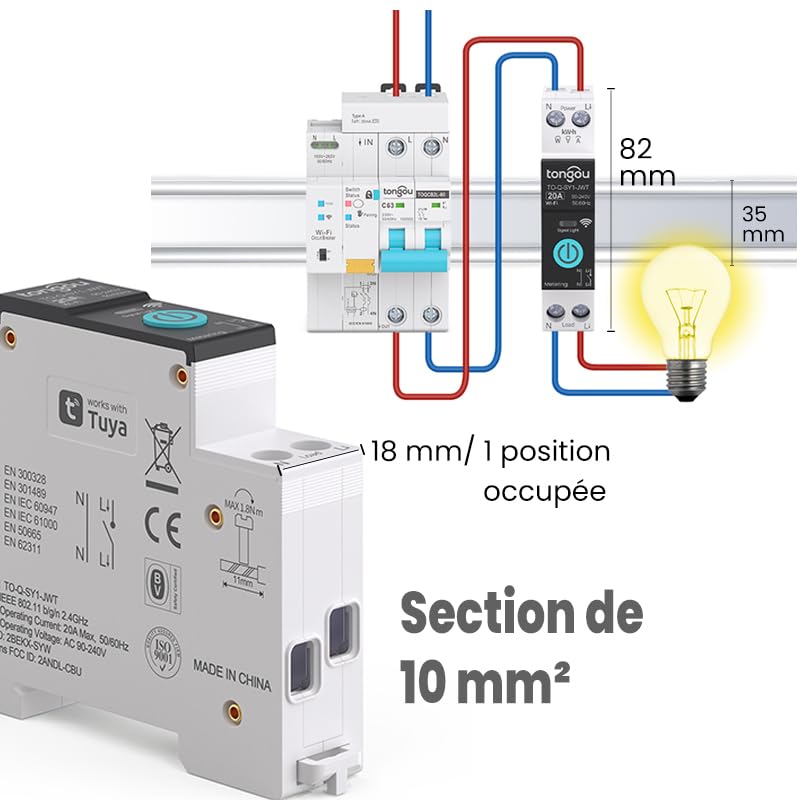
Image 5.2: Close-up of the smart switch showing its dimensions (82mm height, 35mm depth, 18mm width) and indicating a 10 mm² wiring section capacity.
6. Impostazione
To enable smart functionalities, connect your TONGOU Wi-Fi Smart Switch to the Smart Life or Tuya application.
- Scarica l'App: Download the "Smart Life" or "Tuya Smart" application from the App Store (iOS) or Google Play Store (Android).
- Registrati/Accedi: Apri l'app e registrati per un nuovo account oppure accedi con uno esistente.
- Entra in modalità di associazione: After restoring power to the switch, press and hold the main button on the device for 5 to 10 seconds until the signal light blinks rapidly in blue. This indicates the device is in pairing mode.
- Aggiungi dispositivo nell'app: In the Smart Life/Tuya app, tap the "+" icon (usually in the top right corner) to add a new device. The app should automatically discover the switch. If not, manually select "Electrical" > "Circuit Breaker (Wi-Fi)" or similar.
- Connettiti al Wi-Fi: Follow the in-app instructions to connect the device to your 2.4 GHz Wi-Fi network. Nota: The device only supports 2.4 GHz Wi-Fi; 5 GHz networks are not compatible.
- Rinomina dispositivo: Once connected, you can rename the device for easier identification (e.g., "Living Room Light").

Image 6.1: Visual guide showing how to press and hold the button for 5-10 seconds until the blue indicator light blinks rapidly, signifying pairing mode.

Image 6.2: Screenshot of the Smart Life/Tuya app showing the login/register screen, a Wi-Fi router, and the process of adding a discovered "WiFi Din Rail Switch" device.
7. Operativo
Once the smart switch is successfully paired, you can control it and monitor energy usage through the app or voice commands.
7.1. Controllo remoto tramite app
Open the Smart Life or Tuya app. Select your TONGOU Smart Switch from the device list. You can:
- Turn the connected appliance On or Off remotely from anywhere.
- Set up various timer modes:
- Modalità di cronometraggio: Schedule specific on/off times for daily or weekly routines.
- Modalità conto alla rovescia: Imposta un timer per il conto alla rovescia affinché il dispositivo si spenga dopo un periodo di tempo specificato.
- Cyclic Timing Mode: Configurare cicli di accensione/spegnimento ripetitivi.
- Astronomical Timing Mode: Automatizza in base agli orari di alba e tramonto.
7.2. Controllo vocale
The TONGOU Smart Switch is compatible with Amazon Alexa and Google Assistant. To enable voice control:
- Link your Smart Life/Tuya account to Amazon Alexa or Google Home app.
- Scopri nuovi dispositivi.
- Utilizzare comandi vocali come:
- "Alexa, accendi [Nome dispositivo]"
- "Ehi Google, disattiva [Nome dispositivo]"

Image 7.1: An Amazon Echo device displaying a voice waveform, indicating it is processing a command to turn off a lamp.
7.3. Monitoraggio dell'alimentazione
The smart switch provides real-time and historical energy consumption data:
- View corrente in tempo reale, voltage, and power consumption of the connected load.
- Access historical data (hourly, daily, monthly, yearly) to track energy usage patterns.
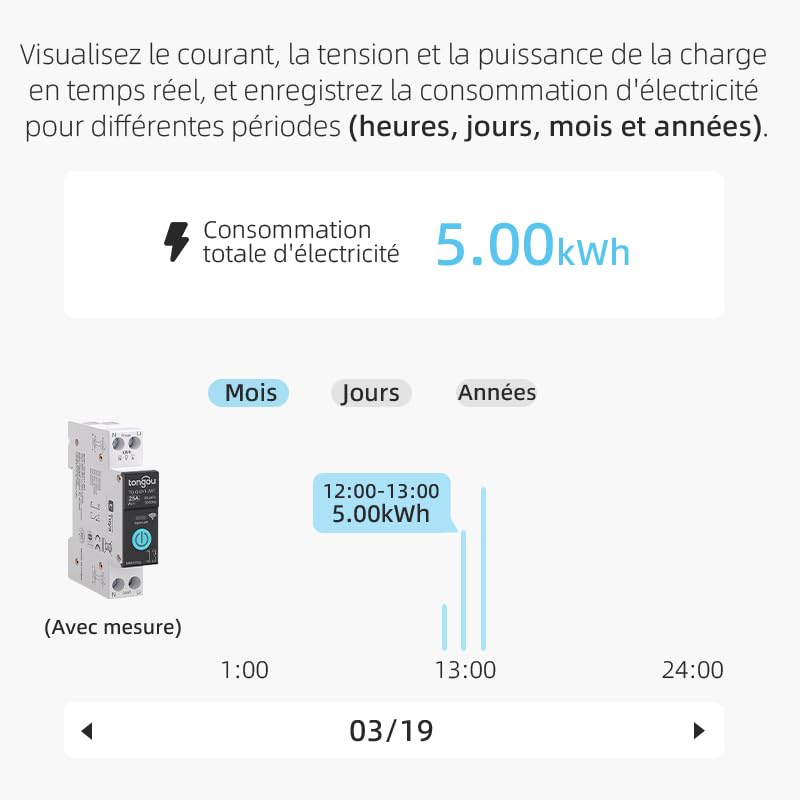
Image 7.2: A graphical representation within the app showing total electricity consumption (5.00 kWh) and a bar chart illustrating hourly consumption data for a specific date.
8. Manutenzione
To ensure optimal performance and longevity of your TONGOU Wi-Fi Smart Switch:
- Mantenere il dispositivo pulito e privo di polvere. Per la pulizia, utilizzare un panno asciutto e morbido.
- Non utilizzare detergenti liquidi o solventi.
- Assicurare un'adeguata ventilazione attorno al dispositivo per evitare il surriscaldamento.
- Controllare regolarmente che i collegamenti dei cavi siano ben saldi, soprattutto dopo l'installazione iniziale.
9. Risoluzione Dei Problemi
If you encounter issues with your TONGOU Wi-Fi Smart Switch, refer to the following common problems and solutions:
| Problema | Possibile causa | Soluzione |
|---|---|---|
| Dispositivo non connesso al Wi-Fi | Incorrect Wi-Fi band (5GHz), weak signal, incorrect password, device not in pairing mode. | Ensure your Wi-Fi is 2.4 GHz. Move the device closer to the router. Re-enter Wi-Fi password carefully. Put the device back into pairing mode (rapid blue blinking). |
| Dispositivo offline nell'app | Wi-Fi disconnesso, alimentazione spentatage, problemi con il router. | Check your Wi-Fi router and internet connection. Verify the device has power. Re-pair if necessary. |
| Il controllo vocale non funziona | Account not linked, device not discovered, incorrect commands. | Ensure Smart Life/Tuya account is linked to Alexa/Google Home. Discover devices in the voice assistant app. Use the exact device name. |
| Power monitoring data is inaccurate or missing | Incorrect wiring, device malfunction. | Double-check wiring according to the installation diagram. Contact support if the issue persists. |
| Device not responding to manual button press | Nessuna alimentazione, guasto interno. | Check power supply to the device. If power is present and the device is unresponsive, contact support. |
10. Garanzia e supporto
For warranty information and technical support, please refer to the documentation provided with your purchase or contact TONGOU customer service through their official channels. Keep your purchase receipt as proof of purchase.


