1. Introduzione
This manual provides detailed instructions for the operation and maintenance of your EazeID M950 Label Maker. Please read this manual thoroughly before using the device to ensure proper function and longevity.

Image 1.1: EazeID M950 Label Maker and accessories, including a label roll, USB-C cable, and printed labels.

Image 1.2: The EazeID M950 Label Maker being used to organize kitchen containers, demonstrating its practical application.
2. Contenuto della confezione
Verificare che tutti gli articoli siano presenti nel pacco:
- 1 etichettatrice EazeID M950
- 1 x Label Tape Cassette (12mm x 4M, Black on White)
- 1 cavo dati di tipo C
- 1 x Manuale utente

Image 2.1: Visual representation of the EazeID M950 Label Maker, tape cassette, Type-C cable, and user manual as included in the product package.
3. Prodotto finitoview
Familiarize yourself with the components and features of the EazeID M950 Label Maker.

Image 3.1: Key features of the EazeID M950, including the built-in 1200mAh Li-ion battery, safety label cutter, 203 DPI resolution, Bluetooth keyboard labeler functionality, and backlighting LCD screen.
Caratteristiche principali:
- Dual Printing Modes: Supports both QWERTY keyboard input and Bluetooth connectivity via the "Print Master" app.
- Batteria ricaricabile: Integrated 1200mAh lithium battery for portable use.
- Schermo LCD retroilluminato: Ensures visibility in various lighting conditions.
- Taglierina incorporata: For precise label cutting.
- Stampa termica: Non necessita di inchiostro o toner.
- Waterproof Labels: Produces durable, water-resistant labels.
4. Impostazione
4.1 Ricarica del dispositivo
The EazeID M950 Label Maker is equipped with a built-in 1200mAh rechargeable lithium-ion battery. Before first use, fully charge the device.
- Connect the provided Type-C USB cable to the charging port on the side of the label maker.
- Collegare l'altra estremità del cavo a un adattatore di alimentazione USB (non incluso) o a una porta USB del computer.
- La spia di carica si illuminerà. Una ricarica completa richiede in genere 1-2 ore.

Image 4.1: The EazeID M950 Label Maker being charged via its Type-C port, illustrating the fast charging capability.
4.2 Caricamento del nastro per etichette
Ensure the device is powered off before loading or replacing label tape.
- Open the tape compartment cover located on the top of the label maker.
- Insert the label tape cassette with the tape end facing the printing slot. Ensure it clicks into place.
- Chiudere bene il coperchio del vano nastro.

Image 4.2: A visual comparison showing the integrated design of the EazeID M950's tape compartment with its rechargeable battery, contrasting with other models that use AAA batteries and separate covers.
4.3 Accensione/Spegnimento
Press and hold the power button (usually located on the top right of the keyboard) for a few seconds to turn the device on or off. The backlit LCD screen will illuminate upon power-on.
5. Istruzioni per l'uso
The EazeID M950 offers two primary printing methods: direct input via the QWERTY keyboard or connection via Bluetooth to the "Print Master" app.

Image 5.1: The EazeID M950 supports two printing modes: connecting via Bluetooth to a smartphone app or direct input using the integrated QWERTY keyboard.
5.1 QWERTY Keyboard Mode
This mode allows for direct text input and printing without needing a smartphone.
- Accensione: Accendere l'etichettatrice.
- L'immissione di testo: Utilizzare la tastiera QWERTY per digitare il testo desiderato sull'etichetta. Il testo apparirà sullo schermo LCD retroilluminato.
- Formattazione: Use the function keys (e.g., 'Fn' key combined with other keys) to access formatting options such as font size, bold, italic, and symbols. Refer to the on-screen indicators for available options.
- Stampa: Premere il pulsante "Stampa" per generare l'etichetta.
- Taglio: After printing, press the built-in cutter lever (located on the left side) to cut the label.

Image 5.2: Instructions for QWERTY keyboard use: 1. Power On, 2. Keyboard input, 3. Print, 4. Built-in cutter.

Image 5.3: The EazeID M950 keyboard layout, highlighting access to over 100 frames, 23 languages, 3 sizes, 1000+ symbols, and accented characters.
5.2 Bluetooth App Mode (Print Master)
For advanced customization and template use, connect your label maker to the "Print Master" app.
- Scarica l'app: Download the "Print Master" app from your smartphone's app store (available on App Store and Google Play).
- Accensione: Accendere l'etichettatrice.
- Abilita Bluetooth: Assicurati che il Bluetooth sia abilitato sul tuo smartphone.
- Collegare: Open the "Print Master" app and follow the on-screen instructions to connect to your EazeID M950 device.
- Etichetta di progettazione: Use the app's interface to create your label. The app offers a library of customizable templates, fonts, icons, barcodes, and QR codes.
- Stampa: Send the label design from the app to the label maker for printing.
- Taglio: After printing, press the built-in cutter lever to cut the label.

Image 5.4: Instructions for Bluetooth app connection: 1. Power On, 2. Turn on Bluetooth, 3. Connect to "Print Master" app, 4. Printing.
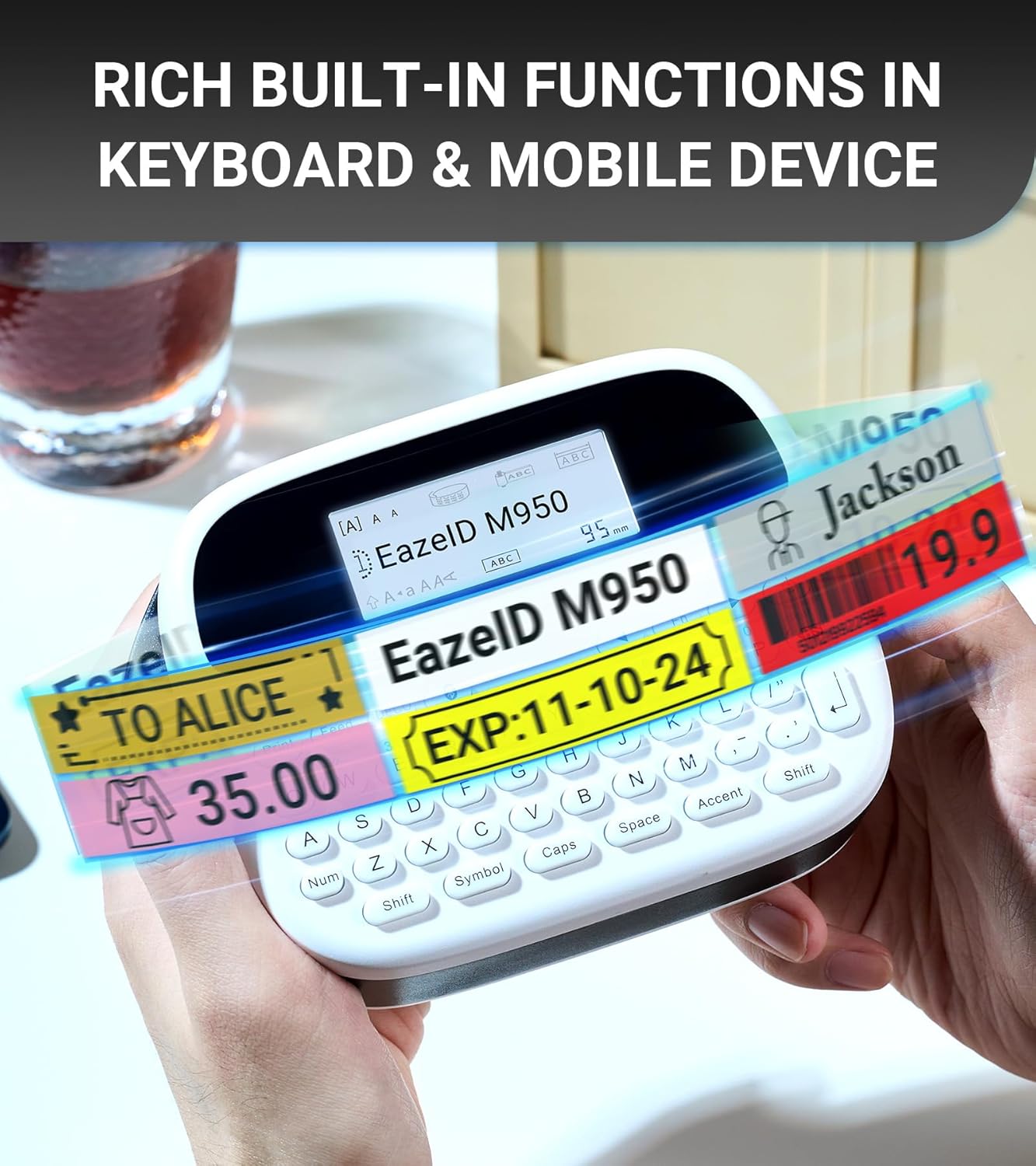
Immagine 5.5: Es.amples of labels showcasing the rich built-in functions available through the keyboard and mobile app, including text, symbols, and barcodes.
6. Manutenzione
6.1 Pulizia della testina di stampa
La pulizia regolare della testina di stampa garantisce una qualità di stampa ottimale.
- Spegnere il dispositivo.
- Aprire il vano del nastro.
- Gently wipe the print head with a soft, lint-free cloth moistened with isopropyl alcohol.
- Lasciare asciugare completamente la testina di stampa prima di chiudere il vano e accendere il dispositivo.
6.2 Cura della batteria
- Per prolungare la durata della batteria, evitare di scaricarla completamente frequentemente.
- Se si conserva il dispositivo per un periodo prolungato, caricarlo a circa il 50% e conservarlo in un luogo fresco e asciutto.
- Recharge the device every 3-6 months during storage.
6.3 Label Durability
EazeID M950 labels are designed for durability in various environments.

Image 6.1: The labels produced by the EazeID M950 are designed to withstand high temperatures, low temperatures, water exposure, and resist fading over time.
7. Risoluzione Dei Problemi
| Problema | Possibile causa | Soluzione |
|---|---|---|
| Il dispositivo non si accende | Batteria scarica; malfunzionamento del dispositivo | Charge the device; Contact customer support if issue persists. |
| Qualità di stampa scadente | Dirty print head; Incorrect tape loading; Low battery | Clean the print head (Section 6.1); Re-load tape correctly; Charge the device. |
| Impossibile connettersi tramite Bluetooth | Bluetooth off; App not installed; Device not discoverable | Ensure Bluetooth is on; Install "Print Master" app; Restart device and app. |
| Label tape jams | Improper tape loading; Foreign object in compartment | Open compartment, remove tape, clear any obstructions, re-load tape. |
8. Specifiche
| Caratteristica | Specificazione |
|---|---|
| Nome del modello | Etichettatrice EazeID M950 |
| Dimensioni del prodotto | 1"D x 1"W x 1"H (approx. 159mm x 112mm) |
| Peso dell'articolo | 1.08 libbre (circa 489 grammi) |
| Tecnologia di stampa | Termico |
| Risoluzione di stampa | 203 dpi (bianco e nero) |
| Dimensione massima del supporto | 12 mm (0.47 pollici) |
| Connettività | Bluetooth, USB tipo C |
| Batteria | 1200mAh agli ioni di litio (inclusi) |
| Metodo di controllo | App, Push Button (QWERTY Keyboard) |
| Caratteristiche speciali | Backlit LCD Screen, Waterproof Labels, Portable, Built-in Cutter |

Image 8.1: Dimensions of the EazeID M950 Label Maker (159mm x 112mm) and its weight (489g), illustrating its compact and portable design.
9. Garanzia e supporto
9.1 Informazioni sulla garanzia
The EazeID M950 Label Maker comes with a Limited Warranty. Please refer to the warranty card included in your package for specific terms and conditions. This warranty typically covers manufacturing defects under normal use.
9.2 Assistenza clienti
For technical assistance, troubleshooting not covered in this manual, or warranty claims, please contact EazeID customer support through the retailer where the product was purchased or visit the official EazeID websito per le informazioni di contatto.


