1. Prodotto finitoview
The Darmoshark M5PRO is a lightweight, tri-mode wireless gaming mouse designed for precision and versatility. It features a PAW3950 optical sensor, up to 30000 DPI, and 5 programmable buttons. The mouse supports 8K wireless, Bluetooth, and wired connections.

Image 1.1: The Darmoshark M5PRO mouse (red) and its 8K wireless receiver.

Image 1.2: Key features of the M5PRO mouse, including its sensor, polling rate, and microcontroller.
Video 1.1: Un overview of the Darmoshark M5PRO Wireless Gaming Mouse, showcasing its design and various color options.
2. Istruzioni per l'installazione
2.1 Ricarica del mouse
Before initial use, ensure the mouse is fully charged. Connect the provided USB-C cable to the mouse and a power source (e.g., computer USB port, USB wall adapter). The LED indicator will show charging status.

Image 2.1: The M5PRO mouse is equipped with a 300mAh lithium battery for extended use.
2.2 Modalità di connessione
The M5PRO mouse supports three connection modes: 8K wireless, Bluetooth, and wired USB-C.
2.2.1 8K Wireless Connection
- Connect the 8K wireless receiver to an available USB port on your computer.
- Turn on the mouse and select the 8K wireless mode using the switch on the bottom of the mouse.
- Il mouse dovrebbe connettersi automaticamente al ricevitore.

Image 2.2: The 8K wireless receiver provides a high-speed connection for the M5PRO mouse.
2.2.2 Connessione Bluetooth
- Turn on the mouse and select the Bluetooth mode using the switch on the bottom of the mouse.
- Sul tuo computer o dispositivo, vai alle impostazioni Bluetooth e cerca nuovi dispositivi.
- Select "Darmoshark M5PRO" from the list of available devices to pair.
2.2.3 Connessione cablata
- Collega il cavo USB-C al mouse e l'altra estremità a una porta USB del computer.
- Il mouse passerà automaticamente alla modalità cablata e inizierà a caricarsi.
3. Istruzioni per l'uso
3.1 Funzioni dei pulsanti
The M5PRO mouse features 5 programmable buttons:
- Pulsante clic sinistro
- Pulsante clic destro
- Rotellina di scorrimento (cliccabile)
- Pulsante Avanti (laterale)
- Pulsante Indietro (laterale)
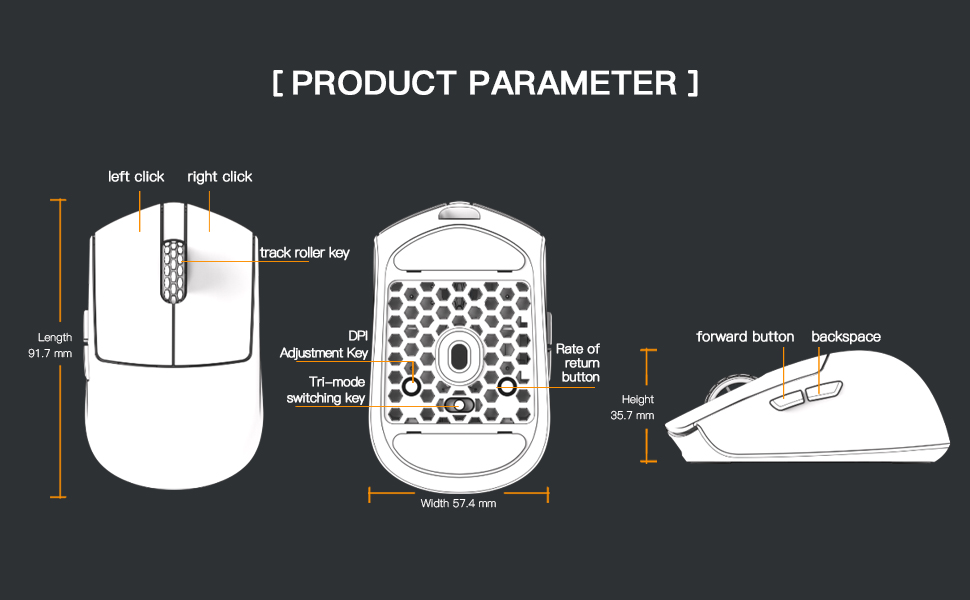
Image 3.1: Diagram illustrating the button layout and dimensions of the M5PRO mouse.
3.2 Regolazione DPI
The DPI (Dots Per Inch) sensitivity can be adjusted using the dedicated DPI adjustment key located on the bottom of the mouse. Press the button to cycle through preset DPI levels. The current DPI level may be indicated by an LED color change (refer to software for specific mappings).
3.3 Cambio di modalità
Use the switch on the bottom of the mouse to select between 8K wireless, Bluetooth, and wired modes.
3.4 Personalizzazione del software
For advanced customization, including button remapping, macro creation, and DPI fine-tuning, download the proprietary drivers from the official Darmoshark website. The software allows for personalized settings to optimize your experience.
Image 3.2: The proprietary driver software allows for extensive customization of mouse settings.
4. Manutenzione
4.1 Pulizia
Per pulire il mouse, utilizzare un panno morbido e asciutto. Per lo sporco ostinato, un panno leggermenteamp È possibile utilizzare un panno, ma assicurarsi che non penetri umidità nel mouse. Evitare l'uso di prodotti chimici aggressivi o materiali abrasivi.
4.2 Conservazione
Quando non lo si utilizza per lunghi periodi, conservare il mouse in un luogo fresco e asciutto, lontano dalla luce solare diretta e da temperature estreme. Assicurarsi che il mouse sia spento per preservare la durata della batteria.

Immagine 4.1: Esploso view of the M5PRO mouse, highlighting its internal structure and lightweight components.
5. Risoluzione Dei Problemi
5.1 Il mouse non risponde
- Controllare la batteria: Assicurati che il mouse sia carico. Collegalo tramite cavo USB-C per caricarlo.
- Verifica connessione: Verify the correct mode (8K wireless, Bluetooth, or wired) is selected on the mouse.
- Receiver/Cable: For 8K wireless, ensure the receiver is securely plugged into a working USB port. For wired, ensure the cable is properly connected.
- Riassocia Bluetooth: If using Bluetooth, try removing the device from your computer's Bluetooth settings and re-pairing it.
5.2 Problemi di movimento del cursore
- Sensore pulito: Assicurarsi che il sensore ottico nella parte inferiore del mouse sia pulito e privo di detriti.
- Superficie: Use the mouse on a suitable surface, preferably a mouse pad, for optimal tracking.
- Impostazione DPI: Adjust the DPI sensitivity to a comfortable level.
5.3 Il software non rileva il mouse
- Connessione cablata: Connect the mouse via USB-C cable to ensure the software can detect it.
- Reinstallare il software: Try uninstalling and reinstalling the proprietary drivers.
- Aggiornamento del firmware: Check the Darmoshark website for any available firmware updates for the mouse.
6. Specifiche
| Caratteristica | Specificazione |
|---|---|
| Marca | Darmosqualo |
| Modello | M5PRO |
| Tecnologia di connettività | 8K Wireless, Bluetooth, Wired (USB-C) |
| Tecnologia di rilevamento del movimento | Sensore ottico PAW3950 |
| DPI massimo | 30000 DPI |
| Tasso di sondaggio | Up to 8KHz (8K wireless mode) |
| Numero di pulsanti | 5 (Programmabile) |
| Peso | Circa 38 grammi |
| Batteria | 1 batteria agli ioni di litio (inclusa) |
| Compatibilità | Windows, Apple Mac |
Image 6.1: The PAW3950 optical sensor is a core component for precise tracking.
7. Garanzia e supporto
For warranty information and technical support, please refer to the official Darmoshark websito o contattare il servizio clienti. Conservare la prova d'acquisto per eventuali reclami in garanzia.
Official Darmoshark Websito: Darmoshark Store


