1. Introduzione
This manual provides detailed instructions for the installation, operation, maintenance, and troubleshooting of your Inefala Android 15 Car Radio. Please read this manual thoroughly before using the product to ensure proper function and safety. Keep this manual for future reference.
Informazioni sulla sicurezza
- Utilizzare sempre il dispositivo in modo sicuro e nel rispetto delle norme locali sul traffico.
- Do not attempt to install or repair the device yourself if you are not qualified. Seek professional assistance.
- Avoid distractions while driving. Use features like hands-free calling and voice commands responsibly.
- Assicurarsi che tutti i collegamenti siano ben saldi per evitare cortocircuiti o danni.
2. Cosa c'è nella scatola
Verifica che tutti gli articoli elencati di seguito siano inclusi nel tuo pacchetto:
- 1 x autoradio Android
- 1 x cavo di alimentazione
- 1 antenna GPS
- 1 x cavo di ingresso per telecamera di retromarcia
- 1 x Cavo RCA
- 2 cavo USB
- Staffa di montaggio 2 x
- 2 x Parts (likely additional mounting hardware)
- 1 x Strumento di installazione
- 1 x Manuale di istruzioni (questo documento)
- 1 x microfono esterno
- 1 telecamera di retromarcia

Image: Inefala Android Car Radio Unit (9-inch display with dimensions).

Image: Various accessories including RCA cable, AHD rear camera, microphone, power cable, reverse line, GPS antenna, mounting brackets, USB cables, and installation tool.
3. Prodotto finitoview
The Inefala Android 15 Car Radio is designed for Hyundai Santa Fe models from 2013 to 2017, offering a modern and integrated driving experience. It features a 9-inch HD capacitive touchscreen and runs on Android 15 OS with 2GB RAM and 64GB ROM, powered by an Octa 4-core CPU.
Caratteristiche principali:
- CarPlay e Android Auto wireless/cablati: Integrazione perfetta con il tuo smartphone per navigazione, chiamate e musica.
- Collegamento specchio: Visualizza lo schermo del tuo telefono direttamente sull'autoradio.
- Navigazione GPS: Built-in offline maps and support for online mapping applications via Wi-Fi.
- Connettività Wi-Fi: Connect to mobile hotspots for internet access.
- Bluetooth: Chiamate in vivavoce, download della rubrica e streaming musicale.
- Radio FM/RDS: Enjoy a wide range of radio stations with RDS information.
- Controllo del volante (SWC): Controlla le funzioni essenziali direttamente dal volante.
- Supporto per telecamera di retromarcia: Include una telecamera di retromarcia per una maggiore sicurezza durante la retromarcia.
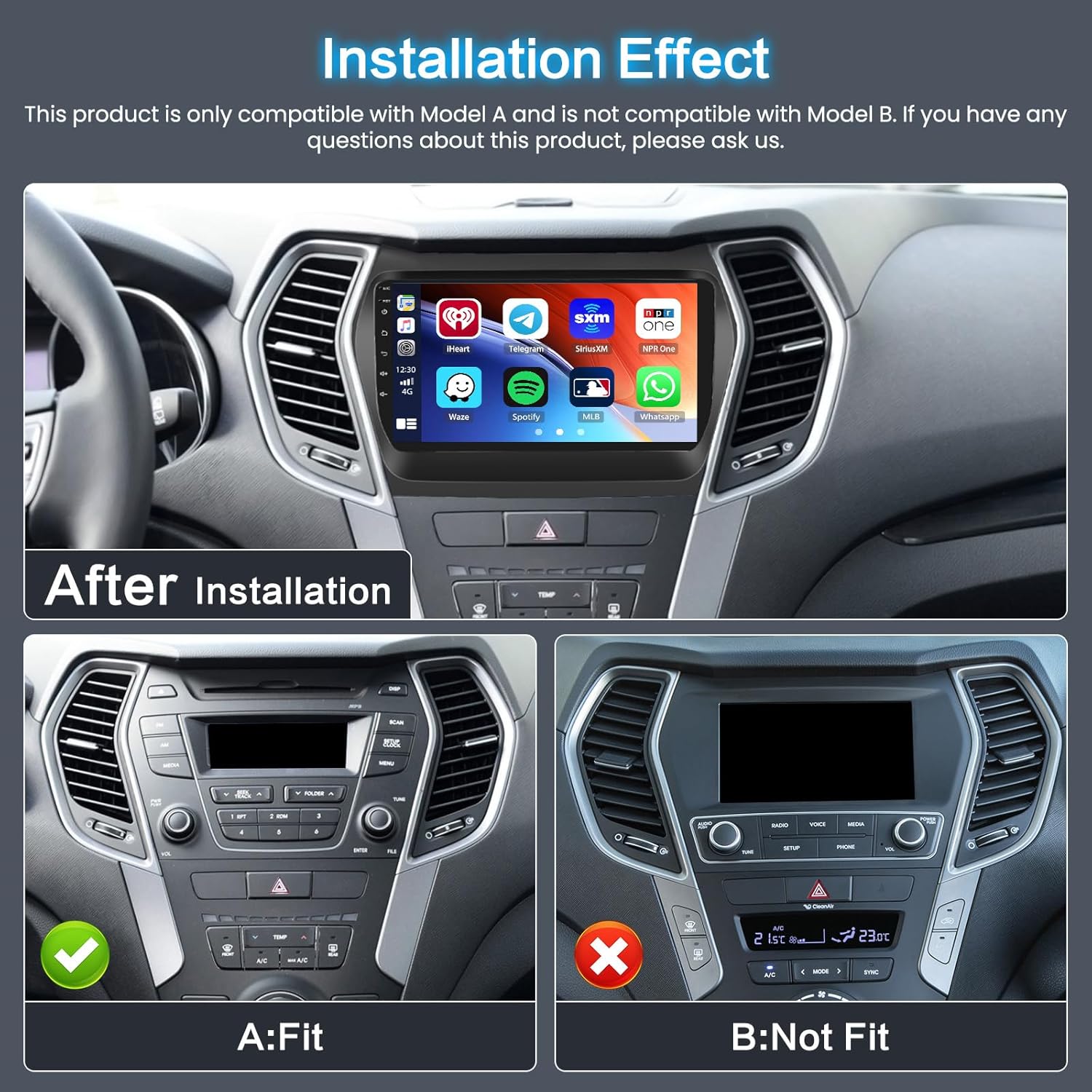
Image: The Inefala Android Car Radio seamlessly integrated into a Hyundai Santa Fe dashboard, displaying various app icons.

Image: Visual representation of the car radio's internal components, emphasizing 2GB RAM, 64GB ROM, and a quad-core processor for improved responsiveness.
4. Installazione
This product is specifically designed for Hyundai Santa Fe models from 2013 to 2017. Please ensure your vehicle's dashboard matches the 'A:Fit' configuration shown in the image below. If your dashboard matches 'B:Not Fit', this product is not compatible.

Image: Comparison of two Hyundai Santa Fe dashboards, one labeled 'A:Fit' with the car radio installed, and another labeled 'B:Not Fit' showing an incompatible dashboard.

Immagine: Un dettaglio view of the car radio installed in a compatible Hyundai Santa Fe dashboard, with a warning about model compatibility.
4.1. Collegamenti elettrici
Refer to the following video for a detailed demonstration of the central control wiring. Ensure all cables are connected correctly before powering on the unit.
Video: Central Control Wiring Demonstration for Inefala Car Radio. This video shows the process of connecting the main power and signal cables to the car's central control unit.
4.2. Installazione della telecamera di backup
The included backup camera enhances safety. Follow these steps for proper installation:
- Connect the red wire of the camera power cord to the positive pole of the car's reversing light.
- Connect the black wire of the camera power cord to the negative pole of the car's reversing light.
- The reversing trigger is controlled by the stereo. The white plug must be connected to the main device; otherwise, you may not receive Bluetooth and Wi-Fi signals.

Image: Illustration of the HD Night Vision Backup Camera, highlighting its features like high definition, waterproof design, night vision, and 170-degree viewing angle, with a visual of a car reversing.

Image: A diagram illustrating the connections for the reversing camera, showing how to connect to the car's reversing lights and the main unit.
For a visual guide on connecting the backup camera, please watch the following video:
Video: How to connect the included backup camera. This video demonstrates the step-by-step process of installing and connecting the rear view telecamera.
5. Configurazione iniziale
5.1. Connessione Bluetooth
To enable hands-free calling and music streaming, connect your smartphone via Bluetooth:
- Sull'autoradio, vai alle impostazioni Bluetooth.
- Abilita il Bluetooth sul tuo smartphone e cerca i dispositivi disponibili.
- Seleziona "CarBT" (o un nome di dispositivo simile) dall'elenco sul tuo telefono.
- Enter the PIN '0000' (default) if prompted.
- Allow all necessary permissions for contacts and media access.
- Once connected, 'phone audio' and 'media audio' should be displayed. If not, restart the Bluetooth on both devices.
Video: Bluetooth Connection and Hands-Free Calling Demonstration. This video illustrates how to pair a smartphone via Bluetooth and make hands-free calls.
5.2. Connessione wifi
Connect your car stereo to a Wi-Fi network for online features and app downloads:
- Sull'autoradio, vai su Impostazioni > Rete e Internet > Wi-Fi.
- Attiva il Wi-Fi e seleziona la rete desiderata.
- Immettere la password se richiesta.
- Alternatively, you can connect to your phone's mobile hotspot.

Image: The car stereo's Wi-Fi connection screen, showing available networks and connection status.
5.3. Configurazione del controllo del volante (SWC)
To use your vehicle's steering wheel controls with the car radio, proper configuration is required:
- Upon connecting the Canbus, configure the Canbus settings correctly.
- Go to Settings > Factory Setup and enter the password '1234'.
- Select Hiworld + your car's year and model.
- Proceed to 'Steering Learning' under Factory Setting to finalize the steering wheel button learning process.
Image: The car radio's interface for configuring steering wheel controls, showing options to assign functions to buttons.
6. Istruzioni per l'uso
6.1. CarPlay wireless e Android Auto
Collega il tuo smartphone in modalità wireless per un'esperienza integrata:
- Assicurati che il Bluetooth e il Wi-Fi siano abilitati sia sul telefono che sull'autoradio.
- Aprire l'applicazione 'ZLINK' sull'autoradio.
- Follow the on-screen prompts to connect your iPhone for CarPlay or Android phone for Android Auto.
- The second connection only needs to connect to Bluetooth to automatically connect successfully.

Image: The car radio display showing the Wireless CarPlay and Android Auto interface, with voice assistant and phone integration.
Video: Carplay/Android Auto/Mirror Link Connection. This video demonstrates how to connect your smartphone to the car stereo using CarPlay, Android Auto, and Mirror Link functionalities.
6.2. Collegamento specchio
Mirror Link allows you to display your smartphone's screen on the car stereo, providing access to maps, videos, and other applications.

Image: The Mirror Link feature in action, showing a smartphone screen mirrored onto the car radio display.
6.3. Navigazione GPS
The car stereo comes with built-in offline maps and supports various online navigation apps like Google Maps and Waze when connected to Wi-Fi.
Image: The GPS navigation interface displayed on the car radio, showing a map with route information.
6.4. Radio FM/RDS
Access your favorite radio stations with clear reception and RDS information.

Image: The FM/RDS radio interface on the car stereo, showing station frequencies and preset options.
6.5. Visualizzazione a schermo diviso
The split-screen function allows you to run two applications simultaneously, such as navigation and music, or a phone call and another app.

Image: The car radio displaying two applications side-by-side in split-screen mode, for example, navigazione e riproduzione musicale.
6.6. Audio Settings (Equalizer)
Customize your audio experience using the built-in equalizer (EQ) to adjust sound frequencies and balance.
Video: Audio Equalizer (EQ) and Balance Settings. This video demonstrates how to adjust the equalizer and sound balance for optimal audio output.
7. Media Connections
7.1. Connettività USB
The unit supports USB 2.0 for media playback and charging. Connect USB drives to access music, videos, or other files.
7.2. RCA Output for External Displays
Use the RCA cable to connect external displays, such as headrest monitors, allowing passengers to watch videos.
8. Specifiche
| Caratteristica | Dettaglio |
|---|---|
| Dimensioni del prodotto | 7.09 x 10.24 x 2.36 pollici |
| Peso dell'articolo | 3.06 libbre |
| ASIN | B0DL8RY5QH |
| Numero modello articolo | 0abb8da8-d614-43ac-b212-3f63fa3bb0aa |
| Produttore | Inefala |
| Marca | Inefala |
| Tecnologia di connettività | Bluetooth, USB, Wi-Fi |
| Tipo di controllore | Androide, iOS |
| Caratteristiche speciali | Bluetooth, FM/RDS Radio, Built-In Wi-Fi, GPS Navigation, SWC & Backup Camera, Touchscreen, Wireless/Wired CarPlay Android Auto & Mirror Link |
| Dispositivi compatibili | Smartphone/for Hyundai Santa Fe 2013-2017 |
| Tipo di connettore | USB 2.0 |
| Modalità di uscita audio | Stereo |
| Configurazione del canale audio surround | 4.0 |
| Codifica video | MKV/RMVB/AVI/MP4/MDV ecc |
| Colore | Nero |
9. Manutenzione
9.1. Pulizia
- Utilizzare un panno morbido e asciutto per pulire lo schermo e la parte esterna dell'unità.
- Evitare l'uso di detergenti o solventi abrasivi poiché potrebbero danneggiare la superficie.
9.2. Aggiornamenti software
- Controlla periodicamente la disponibilità di aggiornamenti software per garantire prestazioni ottimali e l'accesso a nuove funzionalità.
- Updates can typically be found in the system settings under 'About Device' or 'System Update'.
10. Risoluzione Dei Problemi
In caso di problemi, fare riferimento ai seguenti problemi comuni e alle relative soluzioni:
- Nessun potere: Controllare tutti i collegamenti elettrici. Assicurarsi che il quadro dell'auto sia acceso. Verificare i fusibili.
- Nessun suono: Check speaker connections. Adjust volume levels. Verify audio settings (EQ, balance).
- Problemi di connessione Bluetooth: Ensure Bluetooth is enabled on both devices. Forget and re-pair the device. Restart both devices.
- Problemi di connessione Wi-Fi: Check Wi-Fi signal strength. Verify Wi-Fi password. Restart the car stereo and your mobile hotspot.
- CarPlay/Android Auto non si connette: Ensure the ZLINK app is open. Check USB cable connection for wired connections. Verify all permissions are granted on your phone.
- La telecamera di backup non viene visualizzata: Check the camera input cable connection. Ensure the reverse gear is engaged. Verify camera power supply.
- Comandi al volante non funzionanti: Reconfigure SWC settings as described in Section 5.3. Ensure Canbus is correctly installed and configured.
Se il problema persiste, contattare l'assistenza clienti.
11. Garanzia e supporto
11.1. Garanzia del prodotto
Your Inefala Android Car Radio comes with a 24-month quality assurance from the date of purchase. Additionally, a 30-day free return policy is available.
11.2. Politica di reso
Questo prodotto è idoneo per una politica di rimborso/sostituzione di 30 giorni.
11.3. Assistenza clienti
For any questions, technical assistance, or warranty claims, please contact Inefala-US directly. We are committed to resolving any quality issues within 24 months from the date of purchase.
E-mail: inefalatech@163.com

Image: Information on how to contact technical support, including steps to find seller information and email for assistance.


