Introduzione
This manual provides comprehensive instructions for the setup, operation, and maintenance of your Dragon Touch 10.1 inch Digital Calendar Chore Chart. This interactive touchscreen device is designed to streamline family scheduling, manage chores, and serve as a smart family planner and digital display.

Figure 1: Dragon Touch Digital Calendar and companion mobile application.
Impostare
- Disimballaggio e collegamento elettrico: Carefully remove the device from its packaging. Connect the provided power adapter to the device and plug it into a standard electrical outlet.
- Avvio iniziale: The device will automatically power on. Follow the on-screen prompts to select your preferred language and region.
- Connessione Wi-Fi: Select your Wi-Fi network from the list and enter the password. A stable internet connection is required for full functionality and calendar synchronization.
- Installazione dell'app mobile: Download the "eCalendar App" from your device's app store (available for iOS and Android).
- Calendar Linking: Open the eCalendar App and follow the instructions to link your personal calendars (e.g., iOS, Google Calendar, Outlook). The device will seamlessly integrate these calendars into a unified interface.
- Authorize Additional Devices: If desired, authorize other family members' devices to access and manage the calendar through the app.

Figure 2: The digital calendar supports synchronization with various popular calendar services.
Istruzioni per l'uso
Gestione del calendario
- Viewing Schedules: Navigate through daily, weekly, and monthly viewutilizzando l'interfaccia touchscreen.
- Aggiunta di eventi: Tap the '+' icon to add new events. Assign different colors to events for each family member for easy identification.
- Dettagli dell'evento: Tocca un evento per view or edit its details, including time, location, and participants.

Figure 3: Seamless event synchronization between the digital calendar and your mobile device.
Tabella interattiva delle faccende domestiche
- Creating Chores: Access the "Chores" section to create and assign tasks to family members.
- Monitoraggio dei progressi: I membri della famiglia possono contrassegnare le faccende domestiche come completate direttamente sul touchscreen.

Figura 4: La tabella interattiva delle faccende domestiche aiuta a organizzare i compiti domestici.
Dinner Planner & Grocery List
- Pianificazione dei pasti: Utilize the dinner planner feature to display upcoming meal plans for the family.
- Grocery List: Create and manage grocery lists directly on the device or through the app.

Figure 5: Easily plan your family's dinners using the dedicated feature.

Figure 6: Manage your grocery list efficiently through the device or app.
Digital Picture Frame Function
- Esposizione di foto: When not actively used as a calendar, the device can function as a digital picture frame, displaying cherished family photos.
- Caricamento di foto: Upload photos to the device via the eCalendar App.

Figure 7: The device transforms into an elegant digital picture frame.
App Cloud Access
- Gestione remota: Manage your calendar, chores, and lists from anywhere using the eCalendar App on your smartphone.
- Aggiornamenti software: The device receives regular software updates through the app to ensure optimal performance and new features.
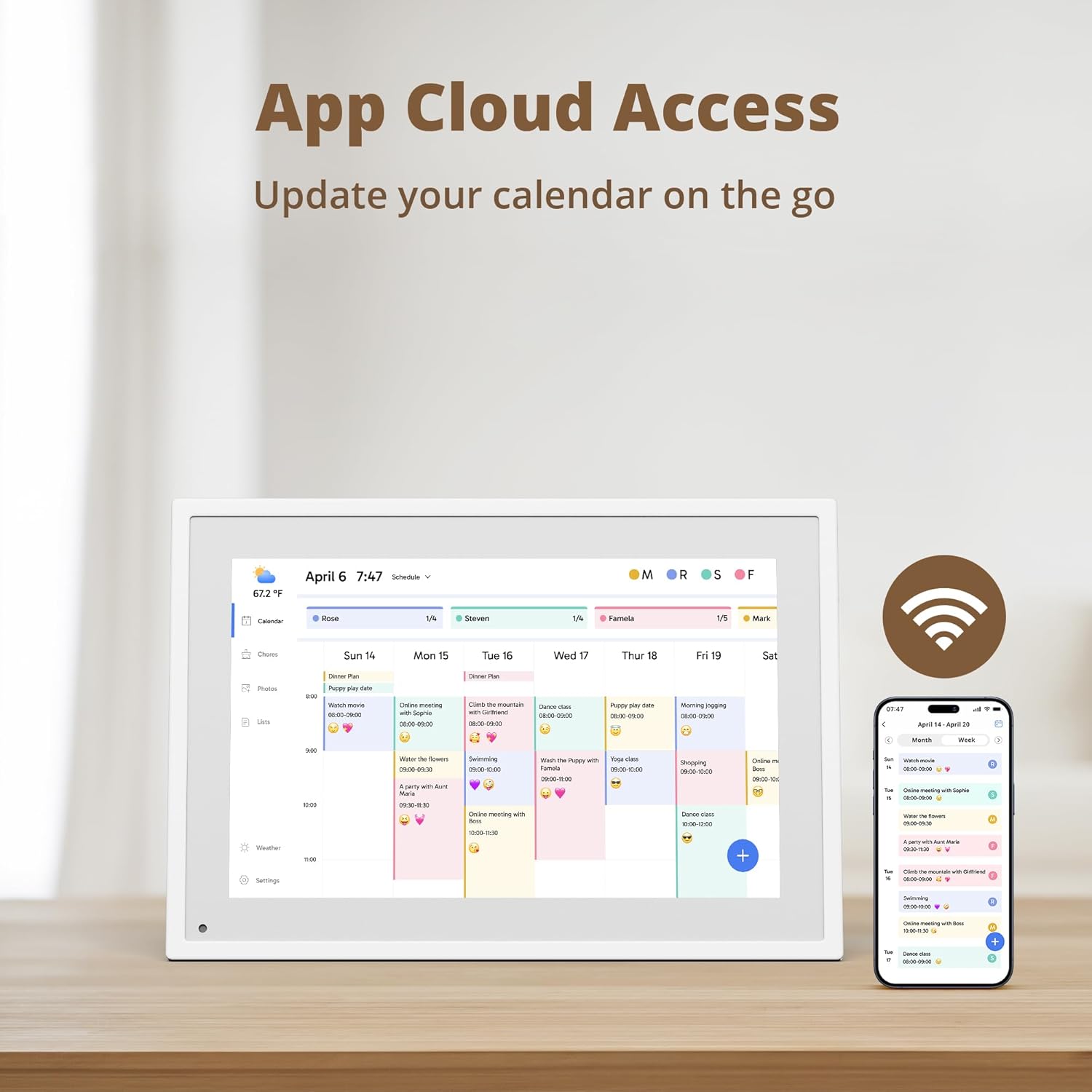
Figure 8: Access and update your calendar on the go via the cloud app.
Manutenzione
- Pulizia: Use a soft, dry, lint-free cloth to clean the screen and exterior. Avoid abrasive cleaners or sprays directly on the screen.
- Aggiornamenti software: Ensure the device is connected to Wi-Fi to receive automatic software updates. Regularly check the settings menu for available updates.
- Posizionamento: Posizionare il dispositivo su una superficie stabile e piana, lontano dalla luce solare diretta, da calore eccessivo o dall'umidità.
Risoluzione dei problemi
| Problema | Possibile causa | Soluzione |
|---|---|---|
| Il dispositivo non si accende. | Adattatore di alimentazione non collegato o presa difettosa. | Ensure the power adapter is securely connected to the device and a working electrical outlet. Try a different outlet. |
| Impossibile connettersi al Wi-Fi. | Password errata, segnale debole o problema con il router. | Verify the Wi-Fi password. Move the device closer to the router. Restart your router. |
| Calendar events not syncing. | No internet connection, app not linked, or calendar permissions. | Check Wi-Fi connection. Ensure your external calendars are correctly linked in the eCalendar App and that necessary permissions are granted. |
| Keyboard not appearing (as reported by some users). | Software glitch or specific app interaction issue. | Restart the device. Check for available software updates in the settings menu. If the issue persists, contact customer support. |
| Color coding from external calendars not displayed. | Feature limitation or specific integration behavior. | The device may not fully support color coding from all external calendar services. You can manually assign colors to events within the device's interface if needed. |
Specifiche
- Modello: TM10
- Display: Touchscreen da 10.1 pollici
- Colore: Bianco
- Materiale: Plastica
- Peso dell'articolo: 2.57 libbre
- Dimensioni del prodotto: 10.53 x 7.33 x 0.99 pollici
- Connettività: Wifi
- Supported Calendars: iOS, Google, Outlook, Yahoo, Cozi (via eCalendar App)
- Caratteristiche: Digital Calendar, Chore Chart, Dinner List, Grocery List, Digital Picture Frame, Weather Forecast, Auto-Brightness Sensor, Sleep Mode, Auto-Rotate.
Garanzia e supporto
Per informazioni sulla garanzia e supporto tecnico, fare riferimento al sito ufficiale Dragon Touch websito o contattare direttamente il servizio clienti. Conservare la ricevuta d'acquisto per eventuali reclami in garanzia.
Supporto online: Visitare il Negozio Dragon Touch su Amazon per informazioni sui prodotti e risorse di supporto.