1. Introduzione
This manual provides comprehensive instructions for the installation, operation, and maintenance of your Havion K1-D1 Wireless Video Doorbell and Smart Lock Set. Please read this guide thoroughly before using the product to ensure optimal performance and security.
2. Prodotto finitoview
The Havion K1-D1 set combines a wireless video doorbell with a smart lock, offering enhanced home security and convenience. Key components include the video doorbell, smart lock, and an indoor chime.
2.1. Video Doorbell Features
- Doppia fotocamera: Features a 5MP (3K QHD) main camera with a 160° ultra-wide viewing angle and a 2MP sub-camera for head-to-toe view della tua porta di casa.
- Visualizzazione interattiva: Built-in 2'' OLED screen for instant feedback and interaction.
- Rilevamento intelligente: Advanced AI technology recognizes people, packages, vehicles, and pets. An additional radar sensor combined with PIR dual motion sensors reduces false alarms by 95%.
- Audio bidirezionale: Communicate with visitors in real-time via the Havion app.
- Archiviazione locale: Built-in 32GB eMMC local storage eliminates the need for subscription fees.
- Ricarica rapida: 3.0 USB fast charging reduces charging time by 40% for the 5200mAh battery.
- Visione notturna: Dual-light infrared and white-light cameras provide unmatched night vision for 24/7 monitoring.
- Resistenza alle intemperie: Il grado di impermeabilità IP66 garantisce la resistenza in diverse condizioni atmosferiche.
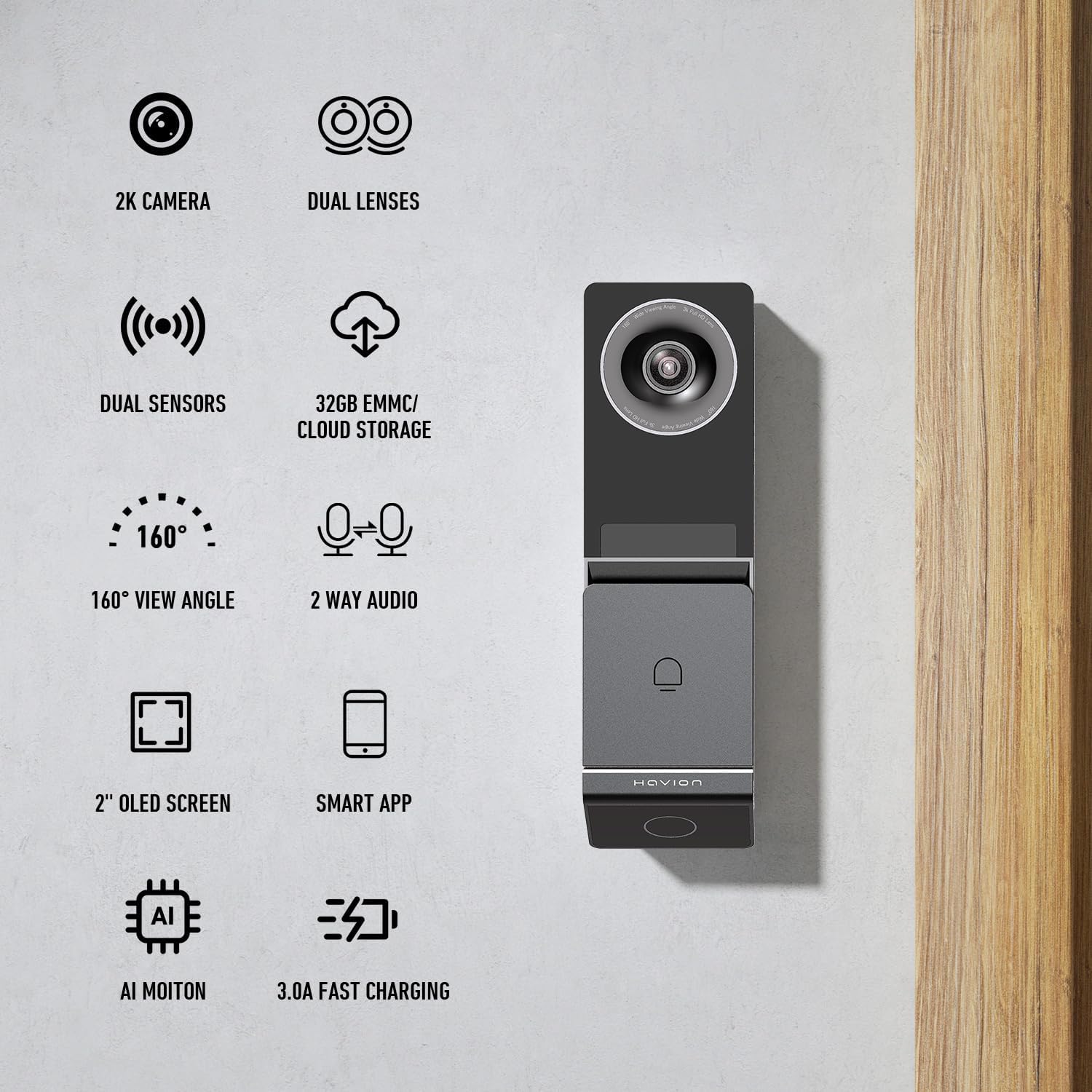
Image: Havion K1-D1 Video Doorbell showcasing its dual cameras and 2-inch OLED screen.

Immagine: Una divisione view from the Havion K1-D1 doorbell, demonstrating the wide-angle main camera and the lower sub-camera for a full head-to-toe view of a person at the door.
2.2. Smart Lock Features
- Integrazione: Seamlessly integrates with the Havion doorbell for enhanced security and remote access management.
- Metodi di sblocco multipli: Unlock via the Smart APP, a customizable password on the digital keypad, or a traditional physical key.
- Gestione password: Store up to 50 sets of passwords, including one-time or timed passwords for visitors. Features extra digits to prevent guessing.
- Chiusura automatica: Adjustable auto-lock duration (10s-40s) for added security.
- Resistenza alle intemperie: IP54 waterproof rating, suitable for temperatures from -31°F to 158°F.
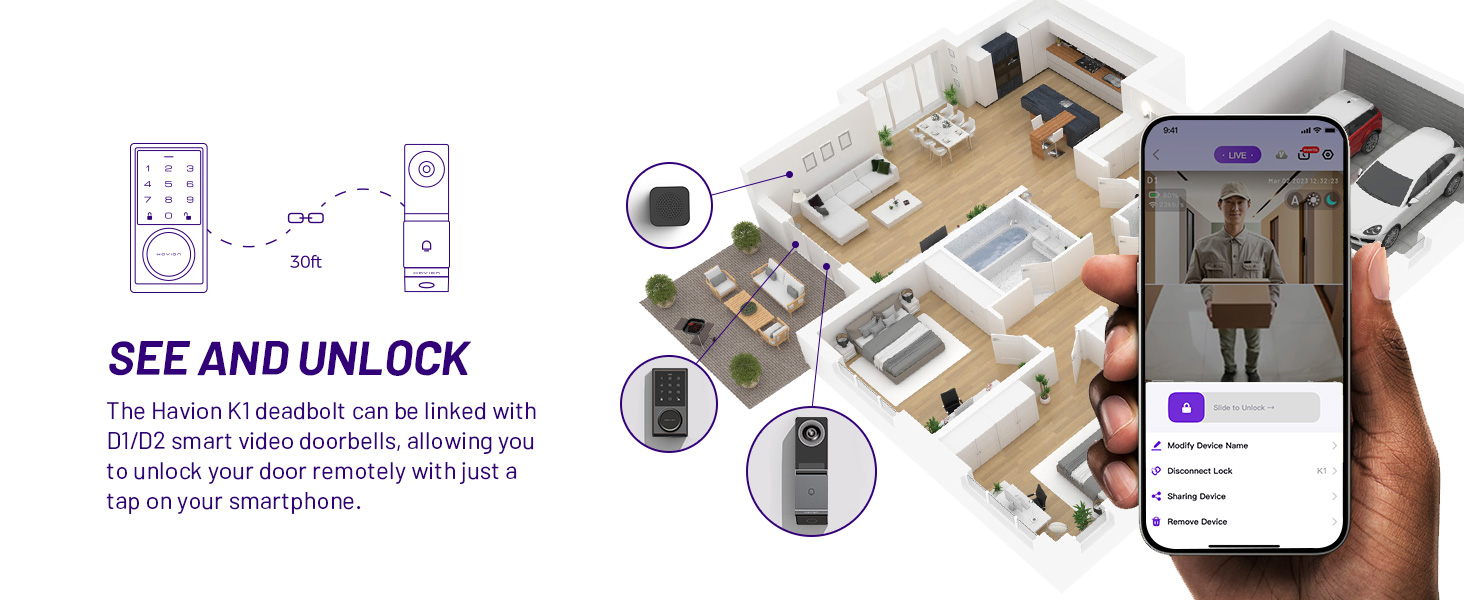
Image: The Havion K1 Smart Lock displaying its digital keypad and the three primary unlock methods: Smart App, Password, and Physical Key.
3. Impostazione
3.1. Smart Lock Installation
The K1 Smart Lock is designed for easy installation on standard doors, fitting both left and right door directions. It requires 4 AA batteries (not included) for operation.
- Ensure the deadbolt backset is 60mm or 70mm.
- Insert the deadbolt into the door edge, ensuring the "Top" marking faces upwards. Secure with screws.
- Rotate the tail of the lock cylinder to the horizontal position before inserting the exterior assembly.
- Pass the connection wire through the bottom-left hole of the mounting plate.
- Align the protruding position of the latch with the concave position of the lock body and insert.
- Secure the exterior assembly to the door using the provided screws.
- Connect the RF antenna and power cord to the interior assembly.
- Adjust the knob on the interior assembly to the vertical position.
- Hide excess wires inside the door.
- Secure the interior assembly with screws.
- Install 4 AA batteries into the battery pack.
- Riposizionare il coperchio della batteria.
Video: Installation Guide for the Havion K1 Smart Lock. This video demonstrates the step-by-step process of installing the smart lock onto a door, including preparing the deadbolt, connecting wiring, and securing the internal and external components.
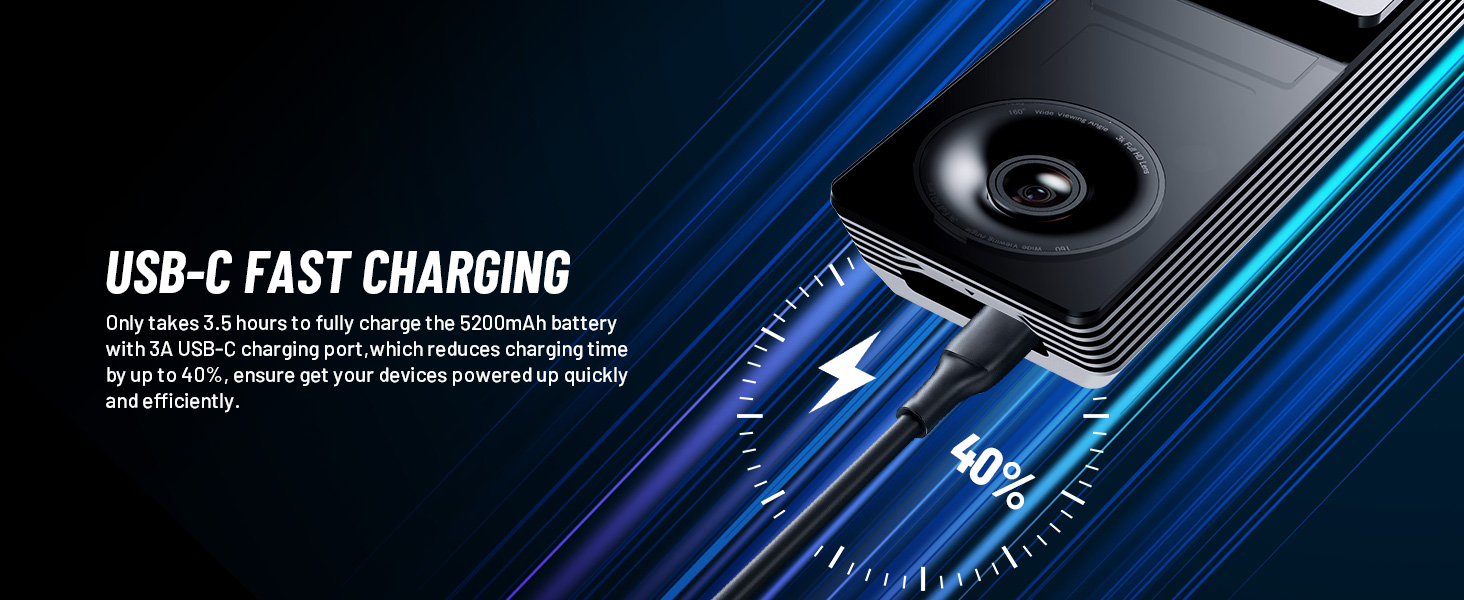
Image: A person installing the Havion K1 Smart Lock, showing the internal components and battery compartment.
3.2. Video Doorbell Installation
The Havion K1-D1 Video Doorbell can be installed using the provided mounting bracket. It supports both wired and wireless battery-operated models.
- Choose a suitable mounting location on your door frame.
- Utilizzare la staffa di montaggio come modello per contrassegnare i fori da praticare.
- Secure the mounting bracket to the door frame using screws. The bracket allows for a flat mount or a 15-degree angle adjustment.
- If using the wired option, connect the doorbell wires to your existing doorbell wiring.
- Fissare l'unità del campanello alla staffa di montaggio.
- Ensure the doorbell is securely fastened.

Image: The Havion K1-D1 Video Doorbell being mounted onto a door frame, showing the secure attachment to the bracket.
3.3. Connessione all'app
Connect your Havion devices to the Havion app for full functionality and remote control. The app uses Bluetooth for faster and simpler setup than traditional QR code methods.
- Download the Havion app from your device's app store.
- Crea un account o accedi.
- Select "Add Device" and choose the K1-D1 Wireless Doorbell + Smart Lock Set.
- Follow the on-screen instructions to pair the devices via Bluetooth. Ensure your device is within 30 feet of the router for good signal strength.
- Configure Wi-Fi settings (supports 2.4GHz Wi-Fi).
- Once connected, you can name your device and begin using its smart features.
Video: Guide to Connecting Havion K1-D1 and K2-D2 Devices to Wi-Fi. This video illustrates the process of pairing the smart lock and doorbell with the Havion app and connecting them to your home Wi-Fi network.
4. Istruzioni per l'uso
4.1. Funzioni dell'app
- Sblocco remoto: Unlock your door with one click on your phone from anywhere.
- Gestione password: Add, modify, or delete administrator, user, and guest passwords. Generate offline passwords for temporary access.
- Impostazioni di blocco automatico: Adjust the auto-lock duration (10s-40s) to automatically lock the door after a set period.
- Lock Volume: Adjust the lock's sound volume (Mute, Low, Middle, High).
- Doorlock Records: View unlock records and status alerts anytime, anywhere. Receive low battery alerts.
- Centro messaggi: Access alarm messages and system messages.
Video: Common Functions of the Havion App for K1-D1 and K2-D2. This video demonstrates various app features, including adding administrator/user/guest passwords, generating offline passwords, remote unlocking, and adjusting auto-lock and volume settings.

Image: The Havion K1 Smart Lock showing its app-connected features, including one-click unlock, auto-lock duration settings, and access to unlock records and status alerts.
4.2. Metodi di sblocco
- Tastiera digitale: Enter your programmed password on the illuminated keypad.
- Chiave fisica: Use the provided traditional key for manual unlocking, especially useful if batteries are depleted or in case of network issues.
- Applicazione intelligente: Utilize the Havion app for remote unlocking.

Image: A hand using a traditional key to unlock the Havion K1 Smart Lock, demonstrating the physical key override option.
5. Manutenzione
- Doorbell Battery: The 5200mAh battery can be charged via USB-C. The doorbell unit can be easily removed for indoor charging.
- Smart Lock Batteries: The smart lock operates on 4 AA batteries. Replace them when the app indicates a low battery alert.
- Pulizia: Use a soft, dry cloth to clean the exterior surfaces of both devices. Avoid abrasive cleaners or solvents.
6. Risoluzione Dei Problemi
- Problemi di connettività: Ensure devices are within 30 feet of your Wi-Fi router. Re-pair devices via the Havion app if connection is lost.
- Falsi allarmi: The dual motion sensors (AI and radar) are designed to minimize false alarms. If persistent, check sensor sensitivity settings in the app.
- Unlocking Failure: If the digital keypad fails, try using the offline password or the physical key. Check battery levels for the smart lock.
- Il campanello non suona: Ensure the indoor chime is plugged in and connected. Check app notification settings.
7. Specifiche
| Caratteristica | Dettaglio |
|---|---|
| Marca | Havion |
| Nome del modello | K1-D1 |
| Uso interno/esterno | Interno, Esterno |
| Dispositivi compatibili | Smartphone, Tablet |
| Fonte di alimentazione | Alimentato a batteria |
| Protocollo di connettività | Wifi bluetooth |
| Risoluzione di acquisizione video | 1920p (5MP 3K QHD) |
| Dimensioni della memoria flash installata | 32 GB |
| Livello di resistenza all'acqua | Waterproof (IP66 for doorbell, IP54 for lock) |
| Caratteristiche speciali | 2-Way Audio, Built-In Light, HD Resolution, Local Recording, Night Vision, Dual Cameras, 2'' OLED Screen, AI Motion Detection, Radar Sensor, Fast Charging |
| Peso dell'articolo | 3.45 libbre (1.57 chilogrammi) |
| Dimensioni del prodotto | 5 x 2 x 1 pollici |
8. Garanzia e supporto
The Havion K1-D1 Wireless Video Doorbell and Smart Lock Set comes with a Garanzia di 2 anno. Havion offers reliable after-sales support with a "replace only" policy in exchange for repairs. For detailed warranty information or further assistance, please refer to the product page or contact Havion customer service.


