1. Introduzione
The Trust Vaiya Wireless Multi-Device Keyboard is designed for versatile use across various operating systems and devices. It offers both 2.4 GHz wireless and Bluetooth connectivity, allowing you to connect up to four devices simultaneously. This manual provides instructions for setup, operation, maintenance, and troubleshooting to ensure optimal performance of your keyboard.
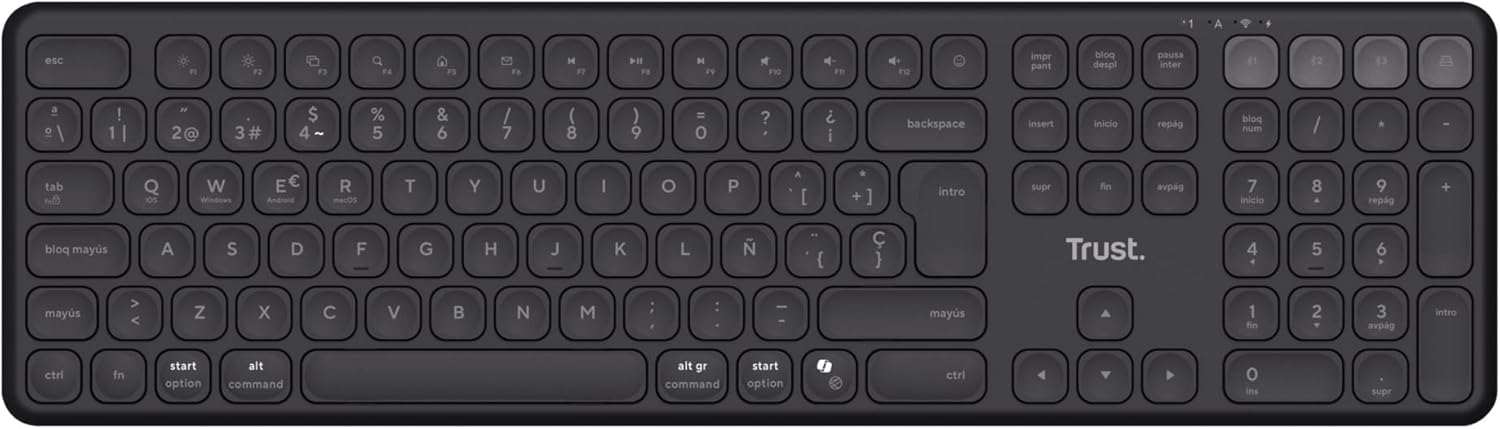
Immagine 1.1: Dall'alto verso il basso view of the Trust Vaiya Wireless Multi-Device Keyboard.
2. Cosa c'è nella scatola
Please check the contents of your package. It should include the following items:
- Trust Vaiya Wireless Multi-Device Keyboard
- USB Micro-Receiver (for 2.4 GHz connection)
- Cavo di ricarica USB
- Manuale dell'utente (questo documento)

Image 2.1: Packaging of the Trust Vaiya Wireless Multi-Device Keyboard, showing the keyboard and included accessories.
3. Impostazione
3.1. Connecting via 2.4 GHz USB Receiver
- Locate the USB micro-receiver. It may be stored in a compartment on the keyboard.
- Plug the USB micro-receiver into an available USB port on your computer or device.
- Accendere la tastiera tramite l'interruttore di alimentazione, solitamente situato sul lato o sul retro.
- The keyboard should automatically connect to your device via the 2.4 GHz connection. The indicator light for the 2.4 GHz channel (often labeled '1' or with a USB icon) will illuminate.
3.2. Connessione tramite Bluetooth
The keyboard supports up to three Bluetooth connections (channels 2, 3, and 4).
- Accendi la tastiera.
- Premere e tenere premuto il tasto Bluetooth channel key (e.g., F2, F3, or F4, often marked with a Bluetooth icon or numbers 2, 3, 4) for approximately 3-5 seconds until the corresponding indicator light starts blinking rapidly. This indicates the keyboard is in pairing mode.
- On your device (PC, laptop, tablet, smartphone), go to the Bluetooth settings.
- Cercare new devices. The keyboard should appear as "Trust Vaiya" or a similar name.
- Seleziona la tastiera da associare. Se richiesto, inserisci il codice di associazione visualizzato sullo schermo.
- Once paired, the indicator light will stop blinking and remain solid for a few seconds, then turn off to save power. The keyboard is now connected.
- Repeat these steps for additional Bluetooth devices using different Bluetooth channel keys.
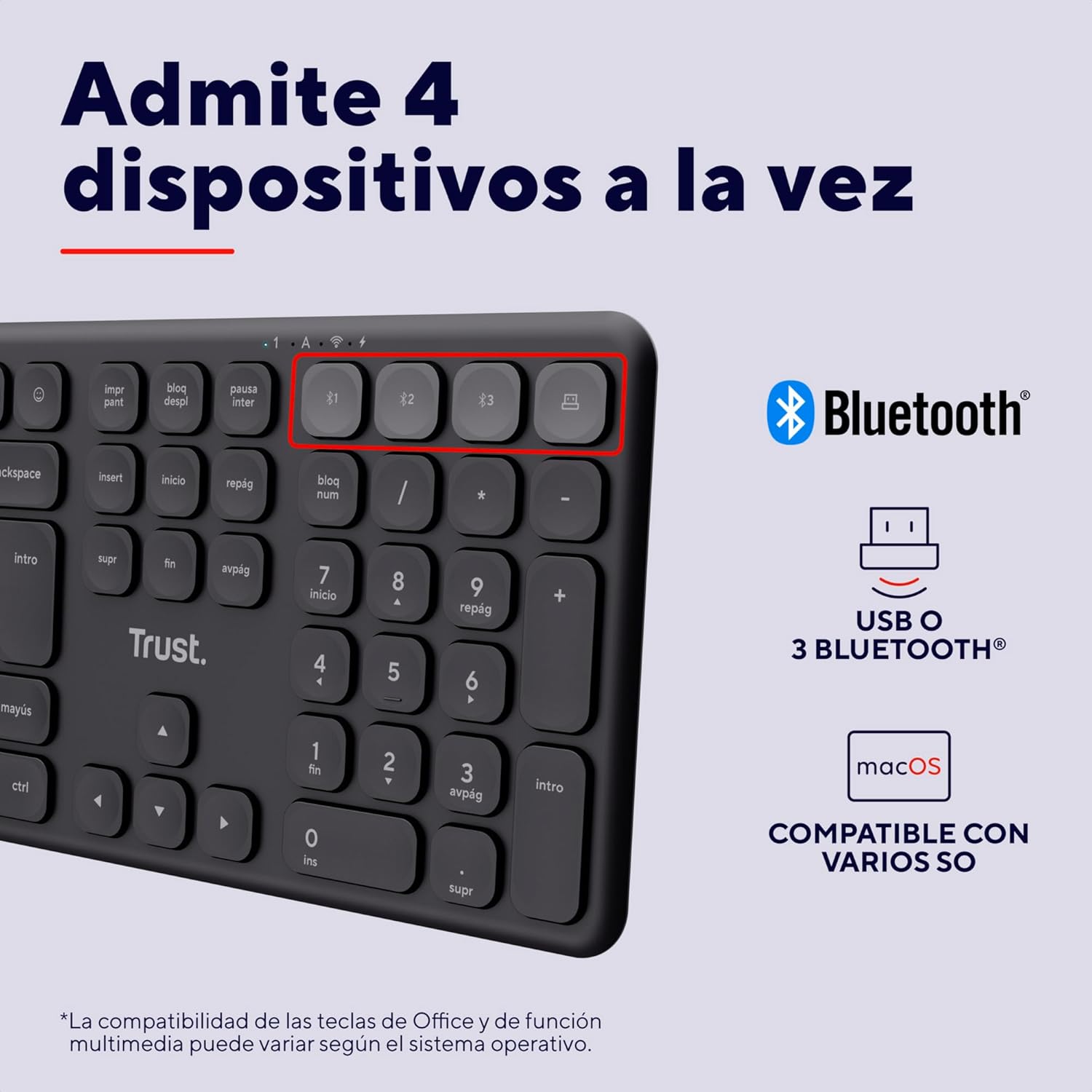
Image 3.1: Close-up of the device switching keys on the Trust Vaiya keyboard.
4. Istruzioni per l'uso
4.1. Passaggio da un dispositivo all'altro
To switch between connected devices, simply press the corresponding channel key (F1 for 2.4 GHz, F2, F3, or F4 for Bluetooth). The keyboard will connect to the selected device within a few seconds.
4.2. Tasti multimediali
The keyboard features 12 multimedia keys (F1-F12) that provide quick access to functions such as volume control, media playback, and more. These functions are typically accessed by pressing the Tasto Fn simultaneously with the desired multimedia key. The specific functionality may vary depending on your operating system.
4.3. Batteria e ricarica
The Trust Vaiya keyboard is equipped with a rechargeable battery. When the battery is low, an indicator light on the keyboard will signal the need for charging.
- Connect the provided USB charging cable to the charging port on the keyboard and to a USB power source (e.g., computer USB port, USB wall adapter).
- La spia di carica si accenderà durante la ricarica e si spegnerà quando la carica sarà completamente completata.
- The keyboard can be used while it is charging.
- A full charge provides up to 6 months of battery life, depending on usage.

Image 4.1: Charging the Trust Vaiya Wireless Keyboard.
4.4. Compatibilità del sistema operativo
The Trust Vaiya keyboard is compatible with a wide range of operating systems, including:
- Finestre
- iOS
- iPadOS
- sistema operativo macOS
- Android
- Sistema operativo Chrome
Some key functions, particularly multimedia keys, may behave differently across various operating systems. Refer to your device's operating system documentation for specific key mapping details.

Image 4.2: The keyboard is compatible with multiple operating systems.
5. Manutenzione
- Pulizia: Utilizzare un panno morbido e asciutto per pulire la tastiera. Per lo sporco ostinato, leggermente dampPulire il panno con acqua o una soluzione detergente delicata. Evitare prodotti chimici aggressivi o materiali abrasivi.
- Magazzinaggio: Conservare la tastiera in un luogo fresco e asciutto, lontano dalla luce solare diretta e da temperature estreme.
- Cura della batteria: Per prolungare la durata della batteria, evitare di scaricare completamente la tastiera frequentemente. Caricarla regolarmente, anche se non la si utilizza costantemente.
6. Risoluzione Dei Problemi
| Problema | Soluzione |
|---|---|
| Keyboard not connecting via 2.4 GHz |
|
| La tastiera non si connette tramite Bluetooth |
|
| Keys are not responding or typing incorrectly |
|
| Durata breve della batteria |
|
7. Specifiche
| Caratteristica | Dettaglio |
|---|---|
| Numero di modello | 25635 |
| Tecnologia di connettività | Bluetooth, 2.4 GHz RF |
| Numero di dispositivi supportati | Up to 4 (1x 2.4 GHz, 3x Bluetooth) |
| Disposizione della tastiera | Full-size QWERTY Spanish with Numpad |
| Tipo di chiave | a basso profilofile Scissor-type keys |
| Tasti multimediali | 12 (Fn-enabled) |
| Tipo di batteria | Rechargeable Lithium-ion (500 mAh) |
| Durata della batteria | Fino a 6 mesi (utilizzo tipico) |
| Porta di ricarica | USB-C (cavo incluso) |
| Sistemi operativi compatibili | Windows, iOS, iPadOS, macOS, Android, Chrome OS |
| Dimensioni (L x P x A) | Dimensioni: 44.4 x 12.9 x 1.8 cm |
| Peso | 560 grammi |
| Materiale | Plastica riciclata al 55% |
| Colore | Nero |
8. Prodotto finitoview Video
Video 8.1: Un video ufficiale del prodotto mostraasing the features and multi-device capabilities of the Trust Vaiya Wireless Keyboard. The video demonstrates switching between devices, typing experience, and the keyboard's design.
9. Garanzia e supporto
Trust products come with a manufacturer's warranty. For detailed warranty information, please refer to the warranty card included with your product or visit the official Trust website. For technical support, troubleshooting assistance, or to inquire about replacement parts, please contact Trust customer service through their official channels.
Supporto online: Visit the Trust support page for FAQs and further assistance.
Informazioni sui contatti: Refer to the product packaging or the Trust websito per i dettagli di contatto più aggiornati.


